Full Scan
- It is essential to regularly run a full scan of your computer to detect the latest malware or viruses.
- A full scan covers all areas of your computer, including all hard drive partitions, the registry and system memory.
- Before the scan begins, the application will restart your system in order to identify any hidden services or drivers. Save all your work before starting a full scan.
When the scan is complete, you can:
- Clean detected threats, or move them to quarantine.
- Create exclusions for items detected as a threat, but you consider to be safe.
- Report potential false positives to Comodo
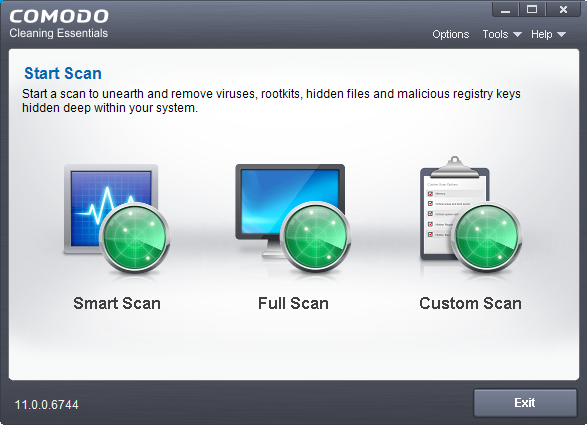
Start a Full scan
- Open Comodo Cleaning Essentials
- Click the 'Full Scan' icon in the middle of the interface.
The application will ask your permission to restart the computer to perform rootkit scanning.
- A rootkit is a type of malware that is designed to avoid traditional antivirus scanners.
- Once installed, they camouflage themselves as (for example) standard operating system files, security tools and APIs.
- Rootkits are usually not detectable by normal virus scanners because of this camouflage. However, CCE features a dedicated scanner that is capable of identifying rootkits, hidden files and malicious registry keys.
-
Click 'Restart' to restart the system to perform the rootkit scanning
-
If you click 'Exit', the full scan function will not be performed
|
Note: The full scan will be performed only if you select 'Yes' to restart the system to perform rootkit scanning. |
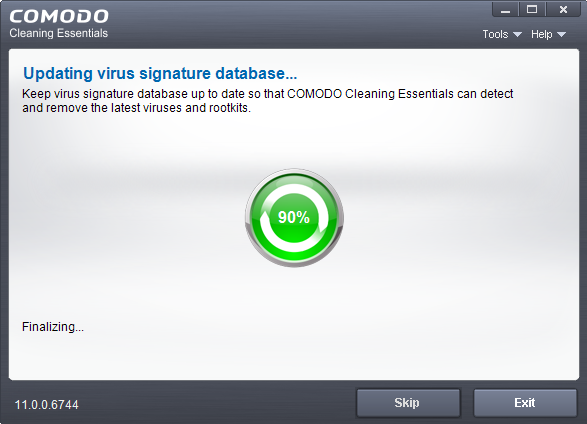
After the system restart, the application will check for updates before starting the scan:
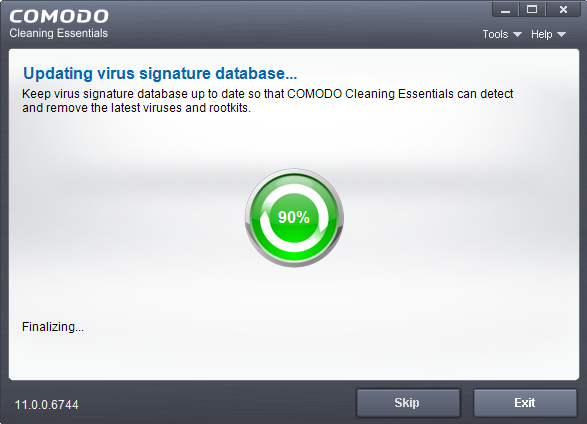
We advise you always let the application update itself so you are protected against the very latest threats. Click 'Skip' if you don't want to download the update at this time.
The scan will start. Scan progress and results are shown in real-time:
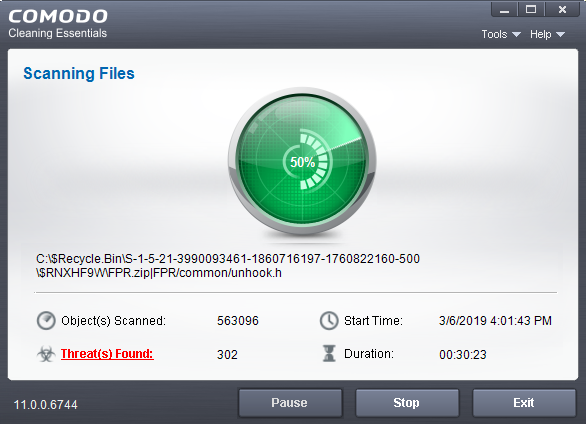
Click the 'Threat(s) Found' link at any time to view more details about the malware discovered on your system.
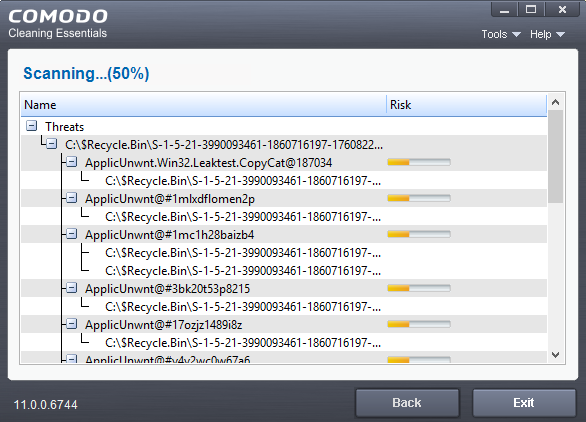
Results
Full
results are shown at the end of the scan.
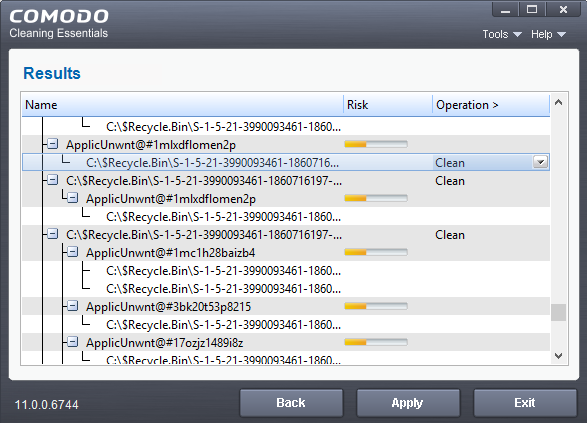
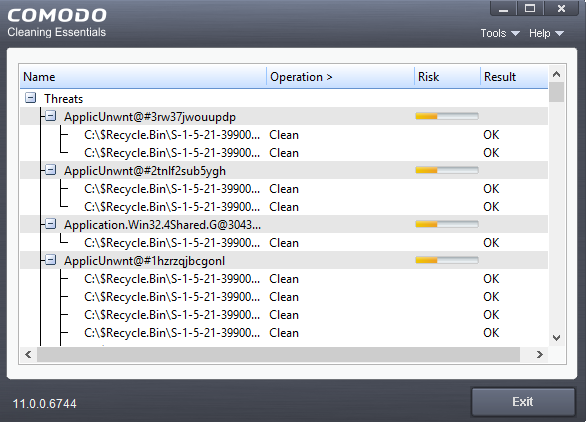
- The results show the names and location of all malware found
- Click
the text in the 'Operation >'
column to take actions on the reported malware:
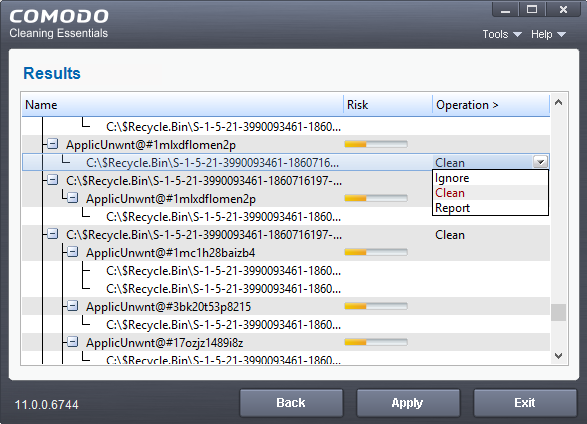
The following actions are available:
- Clean - The file will be deleted or moved to quarantine. You can later delete the file from quarantine if required. See Manage Quarantined Items for more details.
- Ignore - CCE will take no action on the file. Note - the file will be caught by the next scan you run.
- Report - Submit the file as a false-positive to Comodo. Do this if you think the file is safe, and CCE was incorrect to flag it as malicious. The file will be analyzed by Comodo technicians.
Click on the 'Operations >' column header to apply one action to all files in the list.
- Click 'Apply' to implement your actions.
- You now need to restart your computer. This is so CCE can check whether the threats have been completely removed, and to scan for hidden services and drivers:
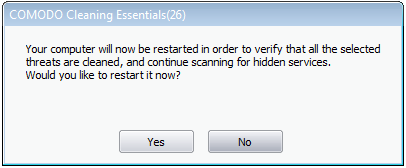
- Save all your work first, then click 'Yes' to restart your computer. If you plan to apply the operations at a later time, click 'No'. The clean operations will be implemented the next time you restart your computer.
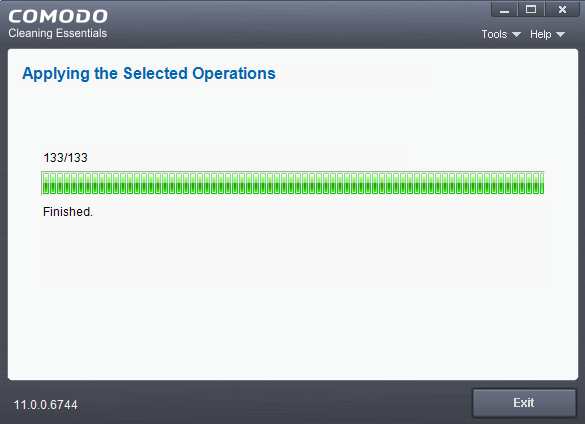
After the
restart, CCE will scan for and clean any hidden processes. Results
are shown as follows: