Custom Scan
The custom scan feature allows you to check for viruses in any particular file/folder or drive. You may have just downloaded some files from Internet and not sure whether it is free from malware or not. The custom scan feature in CCE allows you to select a file or folder to check for malware or viruses. The custom scan feature is a useful and flexible complement to periodically running a 'regular' full scan of your system.
Custom Scan is relatively agile scan method. You can choose what would you want to scan, and where would you want to scan.
The system will require a restart to scan for hidden services and drivers only if you choose to scan memory, critical areas, scan for hidden registry objects and services and hidden files and folders. Else no restart is required.
On completion of scanning, you can:
-
Clean the detected threats or move them to Quarantine and later remove them;
-
Exclude an application you consider as safe from the threat list;
-
Report the threat as a False Positive to Comodo.
Comodo Cleaning Essentials allows you to:
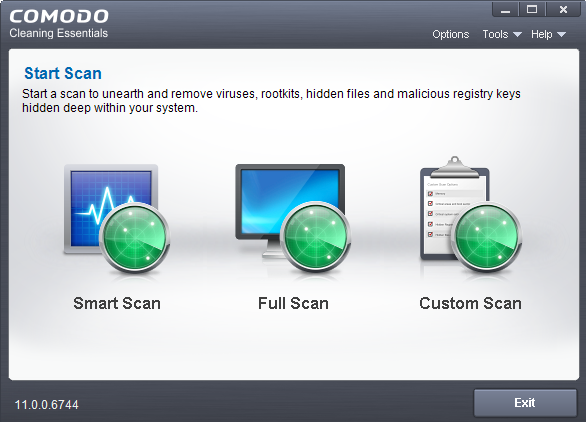
- Click the 'Custom Scan' from the CCE main interface.

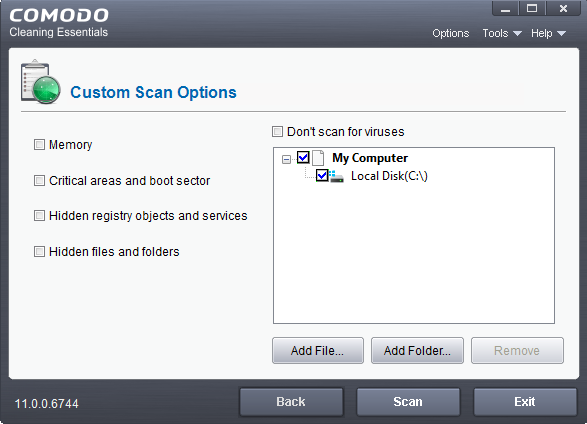
The Custom Scan Setting dialog window will be displayed.

You can select which options you prefer for the custom scan and also choose which specific files, folders or drives are to be included in the scan in the Scan Target area.
-
Choose the Scan Options
-
Memory - When selected, CCE scans the system memory during the start of any custom scan.
-
Critical areas and Boot Sector - When selected, CCE scans the Program Files folder and WINDOWS folder of the Operating System of your computer and the Boot Sector of your hard disk drive during the start of any custom scan.
-
Hidden registry objects and Services - When selected, all the hidden registry objects will be scanned by CCE during the start of any custom scan.
-
Hidden files and folders - When selected, CCE scans hidden files and folders in the drives that are selected in the Scan Target area.
-
Don't scan for viruses - When selected, CCE will not check for viruses in the target areas as specified by the above options. This option is only for scanning the above said areas and not on any target areas in your hard disk drive. Hence, the target selection area will become inactive and grayed out.
|
Note: If this option is selected:
|
-
Choose the scan target area(s). By default, all the drives in your system will be selected for custom scan.

To add file(s)
-
Click the ' Add Files'.
-
Browse to the required file and click 'Open'

The selected file will be added to the custom Scan Target area.

-
You can add more files and folders for a simultaneous custom scan. Repeat the process to add more files.
To add Folder(s):
-
Click the ' Add Folders'.
-
Browse to the required folder and click 'OK'.

The selected folder will be added to the custom Scan Target area.

-
You can add more files and folders for a simultaneous custom scan. Repeat the process to add more files.
-
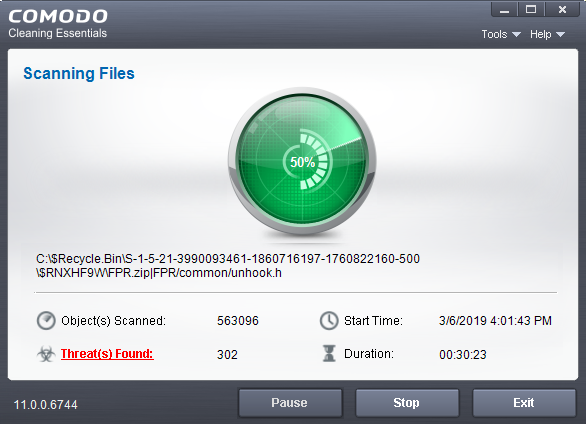
Click 'Scan' to run the custom scan. The selected file(s)/Folder(s) will be scanned with the scan options and the progress will be displayed.

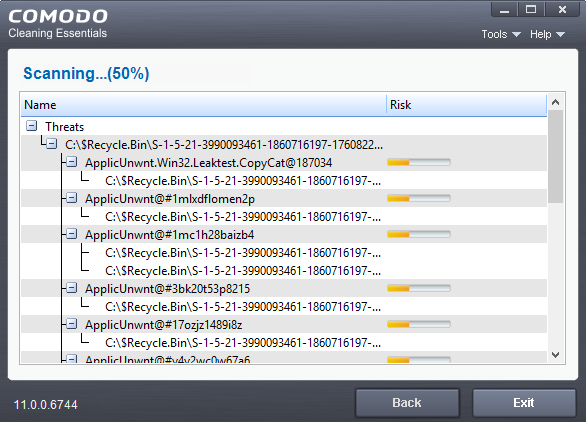
During the course of scanning, if you want to see details on the threats detected so far, click 'Threat(s) Found' link. A results window with the threats identified thus far will be displayed.

On completion of scanning, the 'Scan Finished' dialog will be displayed.

-
Click 'Next' to view the results.

-
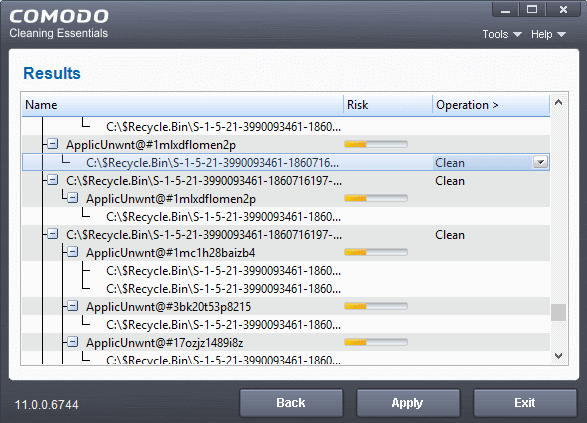
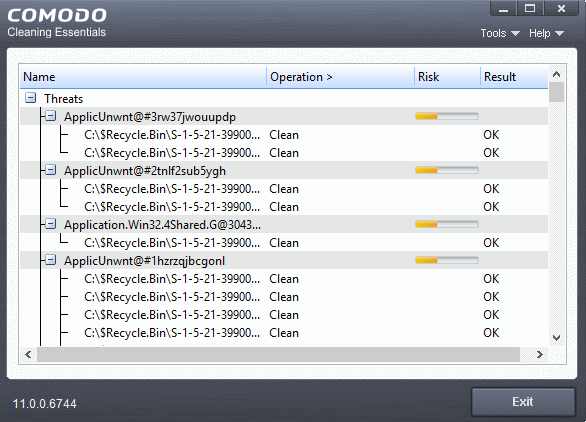
If malicious executables are discovered on the scanned areas, the 'Results' window displays the list of those items (Viruses, Malware and so on).
|
Tip: You can sort the scan results by alphabetical order by clicking the 'Threat Name' column header. Similarly you can sort the scan results based on the risk level by clicking the 'Risk' column header. |
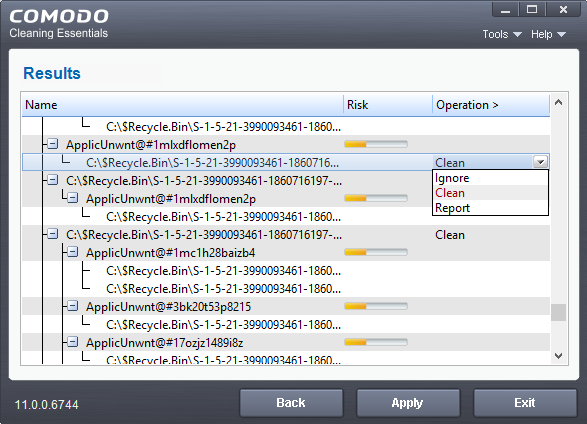
The 'Results' window allows you to quarantine and later remove, ignore the threat if it is a safe file or to submit it as a false positive to Comodo if you are sure about the authenticity of the file. The default operation is 'Clean', that means CCE will clean the threat if a disinfection routine is available for it, else, will move it to quarantine.

-
To clean a threat, click on the entry under the Operations column and select 'Clean'. The file will be disinfected or moved to quarantine upon applying the operation. You can later remove the file from your system from the 'Quarantined Items' interface. Refer to Managing Quarantined Items for more details.
-
To ignore a threat if you consider the file is safe, click on the entry under the Operations column and select 'Ignore'.
-
To report threat as a false-positive result, click on the entry under the Operations column and select 'Report'. The file will be sent to Comodo. Experts in Comodo will analyze the file and add it to whitelist, if found safe.
-
To apply a common operation to all the entries in the list, click on the Operations column header and select the required action.
-
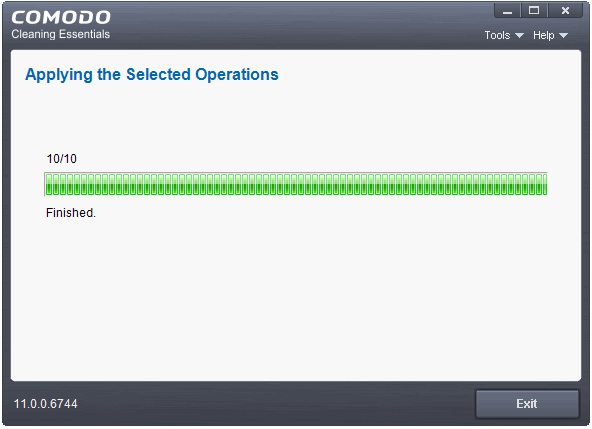
Click 'Apply' to apply the selected operations to the threats. The selected operations will be applied.

If you have chosen at least anyone of the scan options from:
-
Memory;
-
Critical areas and Boot Sector;
-
Hidden registry objects and Services;
-
Hidden files and folders.
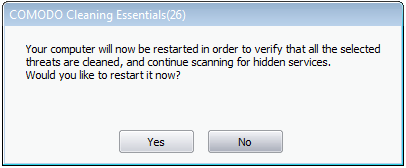
Your system will restart to check whether the operations are applied correctly and start scanning your system for hidden services and drivers.

The restart dialog window will start a count down from 30 and if you do not choose either 'Yes' or 'No' option, the system will automatically restart when the count down reaches 0.
-
Click 'Yes' to restart your computer.
-
If you plan to apply the operations at a later time, click No. The clean operations will be checked and scan for hidden services will be resumed on the next restart of the computer.
The results will be displayed.

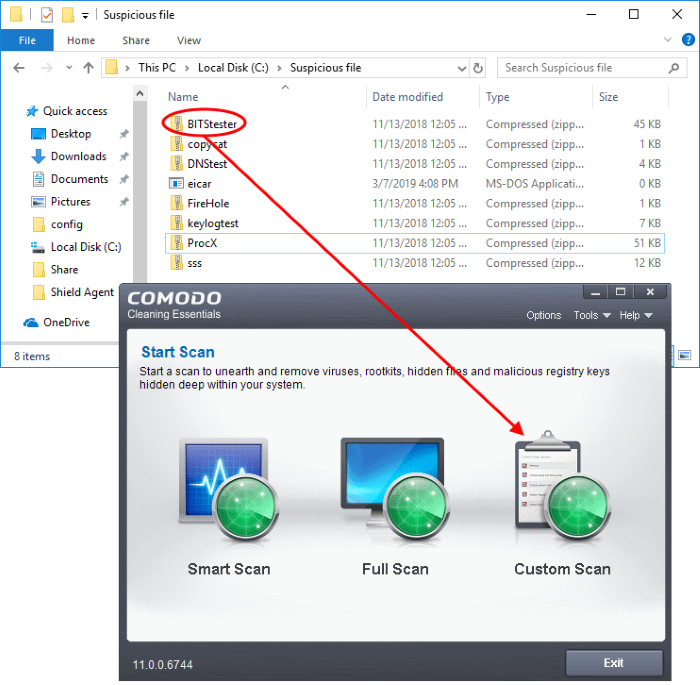
You can scan a folder or file you just downloaded from Internet / copied in to your system of items in a removable storage device like a pen drive by dragging and dropping it on to the CCE interface.
To instantly scan an item
- Drag the item from its parent folder and drop it on to the CCE Interface

The folder/file will be scanned immediately.
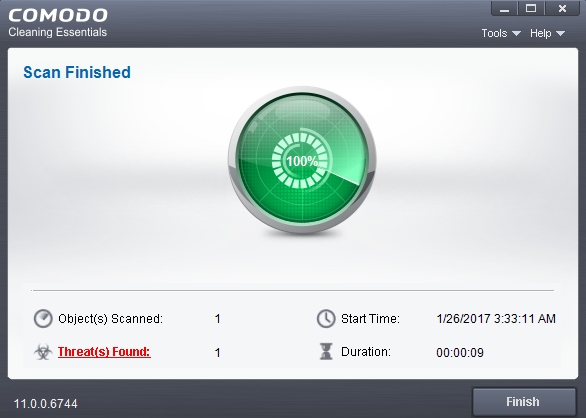
If any threats are found, the results will be displayed. Refer to The Results section for more details.