


KillSwitch Tools
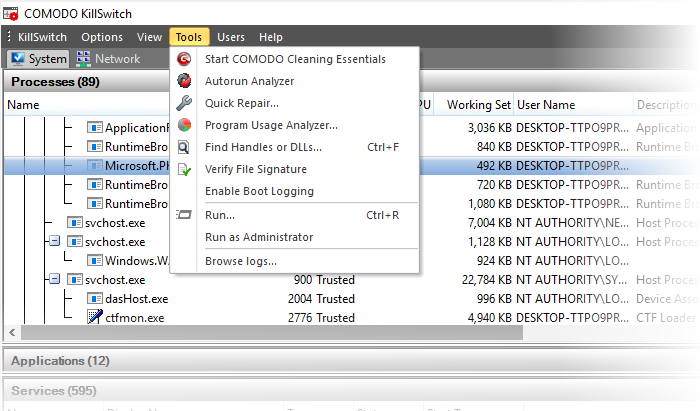
- Click 'Tools' in the menu-bar OR click a specific utility in the shortcut-bar under the main display.
KillSwitch utilities let you manage processes, troubleshoot issues, repair settings, and more:
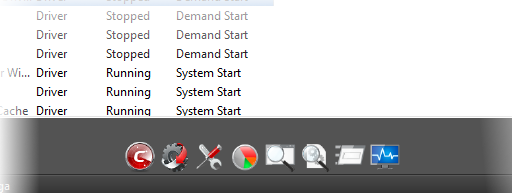
- Click respective icon in the tool bar, to access utilities from tool bar
|
Icon |
Description |
|---|---|
|
|
Scan menu - Run full, custom or smart malware scans on your system. See Scan Your System for more details. |
|
|
Autorun Analyzer - View and handle services that were loaded when your system boots-up. |
|
|
Quick Repair - Troubleshoot and fix important windows settings and features. See Repair Windows Settings and Features for more details. |
|
|
Program Usage Analyzer - Shows a history of all programs used on your computer by all users. See Analyze Program Usage for more details. |
|
|
Find Window utility - Find processes related to the active application. See Find Process of the Active Window for more details. |
|
|
Search for handles and DLL's - Enter the name of the object. See Search for Handles or DLLs for more details. |
|
|
Windows 'Run' dialog - Open programs from the command line interface. See Run Programs from Command Line Interface for more details. |
|
|
Windows system information - Shows charts and stats about the usage/history of your system resources. See 'View System Information' for more details. |


Click the links below for detailed explanations on KillSwitch Utilities: