Comodo Help
Find the desired product help
Comodo Cleaning Essentials

Comodo Cleaning Essentials

Version 2.5

English

Print Help Download Help
Introduction To KillSwitch > KillSwitch Tools > Boot Logging And Handling Loaded Modules
  • Introduction To Comodo Cleaning Essentials
    • System Requirements
    • Downloading Comodo Cleaning Essentials
    • Starting Comodo Cleaning Essentials
    • The Main Interface
  • Scanning Your System
    • Smart Scan
    • Full Scan
    • Custom Scan
    • Comparison Of Scan Types
  • Configuring Comodo Cleaning Essentials
  • The Tools Menu
    • Managing Quarantined Items
    • Managing Trusted Vendors
    • Importing Antivirus Database
    • Checking For Software Updates
  • Introduction To KillSwitch
    • Starting KillSwitch
      • From The Comodo Cleaning Essentials Interface
      • From The Folder Containing Comodo Cleaning Essentials Files
      • Replacing Windows Task Manager With KillSwitch
    • The Main Interface
      • The System Tray Icon
    • Viewing And Handling Processes, Applications And Services
      • Processes
        • Stopping, Starting And Handling The Processes
        • Viewing Properties Of A Process
      • Applications
        • Handling The Applications
      • Services
        • Stopping, Starting And Deleting The Services
        • Viewing The Properties Of A Service
    • Viewing And Handling Network Connections And Usage
      • Network Connections
        • Inspecting And Closing Network Connections
      • Network Utilization
    • Configuring KillSwitch
    • KillSwitch Tools
      • Viewing System Information
      • Repairing Windows Settings And Features
      • Analyzing Program Usage
      • Searching For Handles Or DLLs
      • Verifying Authenticity Of Applications
      • Boot Logging And Handling Loaded Modules
      • Running Programs From Command Line Interface
      • Viewing KillSwitch Logs
      • Finding Process Of The Active Window
    • Managing Currently Logged-in Users
    • Help And About Details
  • Introduction To Autorun Analyzer
    • Starting Autorun Analyzer
      • From The Comodo Cleaning Essentials Interface
      • From The KillSwitch Interface
      • From The Folder Containing Comodo Cleaning Essentials Files
    • The Main Interface
    • Viewing And Handling Autorun Items
      • Handling Autorun Items
      • Filtering Entries Based On Categories
      • Viewing Autorun Items For Other User Accounts
    • Help And About Details
  • Help And About Details
    • Help
    • About
  • Using The Command Line Interface
    • Running A Smart Scan From The Command Line Interface
    • Running A Custom Scan From The Command Line Interface
    • Running A Virus Database Update Task From The Command Line Interface
    • Viewing Help
  • About Comodo

Boot Logging and Handling Loaded Modules


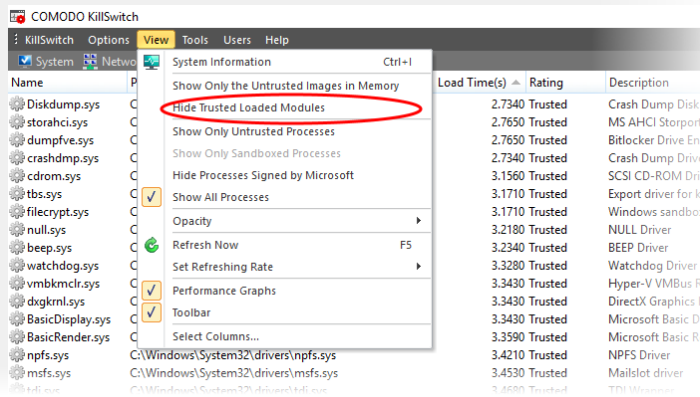
The Boot logger feature records all the modules loaded when your system boots. These include items like drivers, system files, DLLs, executables and so on. Killswitch displays these modules along with their attributes and a trust rating under a new 'Loaded Modules' tab after your system has rebooted. This functionality allows you to check whether unsafe (or even just unwanted) modules are being loaded. In extreme cases, it will allow you to detect and delete malicious boot items installed by spyware, key loggers, rootkits or other malware.


To configure for Boot Logging:

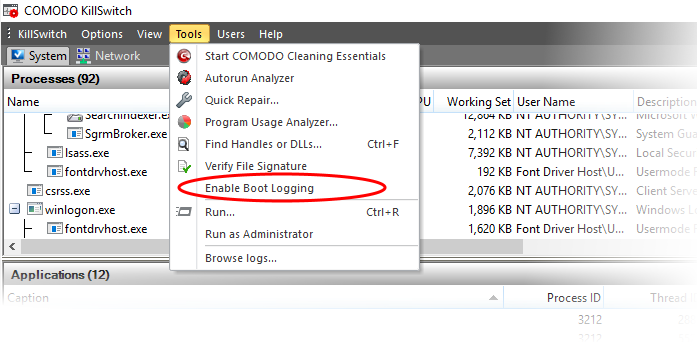
  1. From the 'Tools' menu, click 'Enable Boot Logging'.


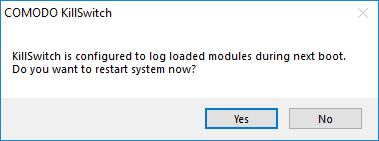
KillSwitch will request a restart of your computer to log all the modules that are loaded during the next re-boot.


  1. Save all your work and click 'Yes'. Your system will re-start. Upon restart, KillSwitch will be started automatically and show all the loaded modules loaded to your system.
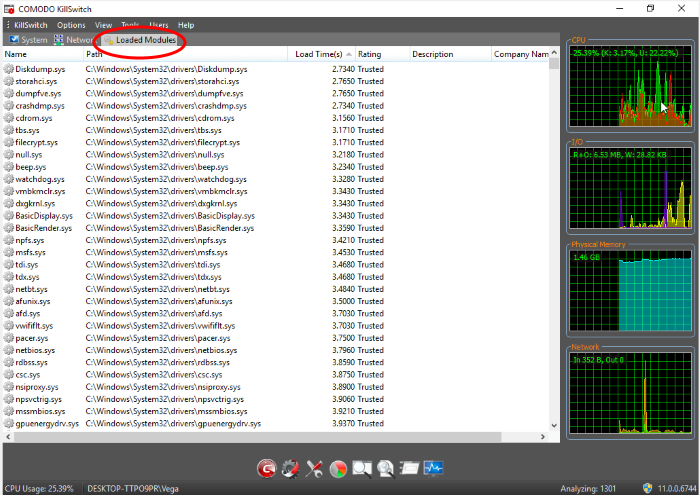


Loaded Modules window - Descriptions of Columns


Column


Description


Name


Shows the name of the module. Clicking the column header sorts the entries in alphabetical order of the module names.


Path


Shows the storage path of the module.


Load Time (in seconds)


Shows time taken for loading the module.


Rating


Shows the result of scanning performed by KillSwitch on the module. Modules that are rated as unsafe or unknown will be highlighted for easy identification.


Description


Shows a brief description of the module.


Company Name


Shows the vendor of the module.


Tip: Clicking any of the column header sorts the list in alphabetical/numerical order of the entries in it.


Filtering the Loaded Modules List


You can filter the list to hide the modules identified as 'Safe' and show only the modules identified as 'unsafe' or 'unknown'  by clicking View > Hide Safe Loaded Modules.

Handling Loaded Modules


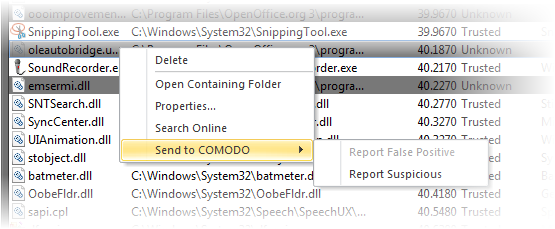
You can viewing properties of or remove loaded module by right clicking on it and selecting the required option from the context sensitive menu.
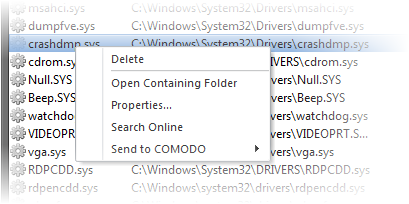
 

  • Delete - Removes the Module from your system. This ensures that the module is not loaded to your system from the next boot onwards.

  • Open Containing Folder - Opens the folder containing the module in Windows Explorer.

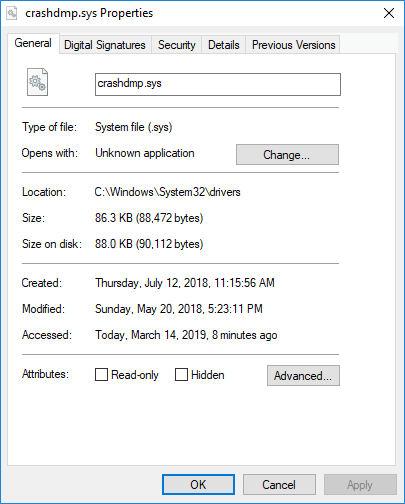
  • Properties... - Opens the properties dialog of the selected Module.

  • Search Online - Opens the default web browser of your system with the search engine specified and searches for information on the module on the web.

  • Send to COMODO - Submits the module for analysis to Comodo, as False Positive (if identified as suspicious by KillSwitch) or as Suspicious file as selected from the sub-menu. You can submit the files which you suspect to be a malware. The files will be analyzed by experts and added to global white list or black list accordingly in order to benefit all the users of Comodo security products world wide.

Terms and Conditions Privacy Policy

© Comodo Group, Inc. 2013. All rights reserved.