


View and Handle Autorun Items
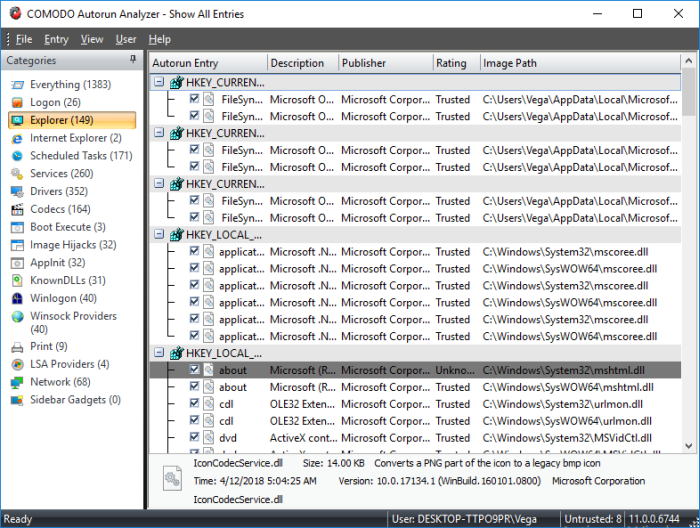
- All autorun entries are shown in a tree structure with their description, location, publisher and threat rating.
- Untrusted autorun entries are highlighted for easy identification.
- You can filter entries by category (left-hand pane), and by the user that started them.
- Right-click on an item to perform additional actions. Or select an item and click 'Entry'.
- Enable or disable an item using the check-boxes next to the entry:
|
Autorun Analyzer - Descriptions of Columns |
|
|---|---|
|
Column |
Description |
|
Autorun Entry |
The name of the startup item. |
|
Description |
A brief explanation of the entry. |
|
Publisher |
The software vendor that released the parent application. |
|
Rating |
The result of the scan performed on the item by Autorun Analyzer. Items identified as untrusted are highlighted for easy identification. |
|
Image Path |
The installation path of the patent application or the loaded module. |
From this interface, you can: