Comodo Help
Find the desired product help
Comodo Cleaning Essentials

Comodo Cleaning Essentials

Version 2.5

English

Print Help Download Help
Introduction To Autorun Analyzer > Viewing And Handling Autorun Items > Filtering Entries Based On Categories
  • Introduction To Comodo Cleaning Essentials
    • System Requirements
    • Downloading Comodo Cleaning Essentials
    • Starting Comodo Cleaning Essentials
    • The Main Interface
  • Scanning Your System
    • Smart Scan
    • Full Scan
    • Custom Scan
    • Comparison Of Scan Types
  • Configuring Comodo Cleaning Essentials
  • The Tools Menu
    • Managing Quarantined Items
    • Managing Trusted Vendors
    • Importing Antivirus Database
    • Checking For Software Updates
  • Introduction To KillSwitch
    • Starting KillSwitch
      • From The Comodo Cleaning Essentials Interface
      • From The Folder Containing Comodo Cleaning Essentials Files
      • Replacing Windows Task Manager With KillSwitch
    • The Main Interface
      • The System Tray Icon
    • Viewing And Handling Processes, Applications And Services
      • Processes
        • Stopping, Starting And Handling The Processes
        • Viewing Properties Of A Process
      • Applications
        • Handling The Applications
      • Services
        • Stopping, Starting And Deleting The Services
        • Viewing The Properties Of A Service
    • Viewing And Handling Network Connections And Usage
      • Network Connections
        • Inspecting And Closing Network Connections
      • Network Utilization
    • Configuring KillSwitch
    • KillSwitch Tools
      • Viewing System Information
      • Repairing Windows Settings And Features
      • Analyzing Program Usage
      • Searching For Handles Or DLLs
      • Verifying Authenticity Of Applications
      • Boot Logging And Handling Loaded Modules
      • Running Programs From Command Line Interface
      • Viewing KillSwitch Logs
      • Finding Process Of The Active Window
    • Managing Currently Logged-in Users
    • Help And About Details
  • Introduction To Autorun Analyzer
    • Starting Autorun Analyzer
      • From The Comodo Cleaning Essentials Interface
      • From The KillSwitch Interface
      • From The Folder Containing Comodo Cleaning Essentials Files
    • The Main Interface
    • Viewing And Handling Autorun Items
      • Handling Autorun Items
      • Filtering Entries Based On Categories
      • Viewing Autorun Items For Other User Accounts
    • Help And About Details
  • Help And About Details
    • Help
    • About
  • Using The Command Line Interface
    • Running A Smart Scan From The Command Line Interface
    • Running A Custom Scan From The Command Line Interface
    • Running A Virus Database Update Task From The Command Line Interface
    • Viewing Help
  • About Comodo

Filtering Entries based on Categories


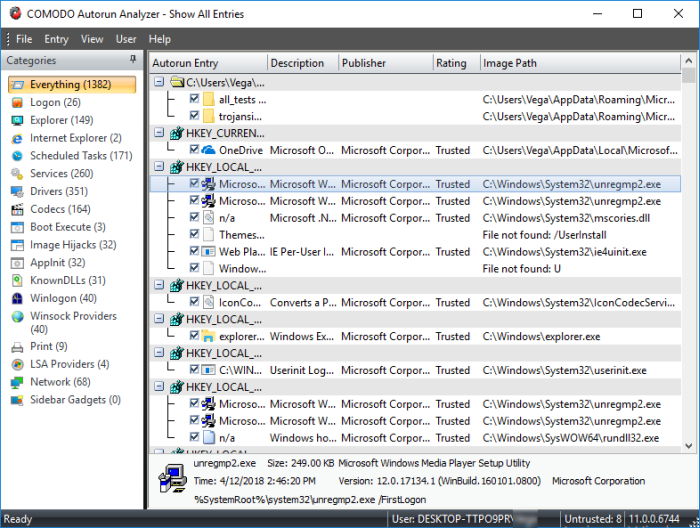
The left hand side pane of the Autorun Analyzer interface displays a list of various types of the autorun items and the program groups. The number of items loaded in the respective category is displayed within parentheses beside each category name.


By default, all the autorun items loaded, are displayed in the main display pane. If you want to analyze the autorun items based on their categories or to analyze the items loaded by various program groups, you can filter the items, by selecting the respective category from the list.


Descriptions of Categories


Category


Description


Everything


Displays all the autorun items in the main display pane.


Logon


Displays only the autorun items identified from standard autostart locations such as the Startup folder for all users, the Registry Run keys, and standard application launch locations.


Explorer


Displays only the Explorer shell extensions from various installed applications, browser helper objects (BHO), explorer toolbars, active setup executions and shell execute hooks.


Internet Explorer


Displays only the BHOs, Internet Explorer toolbars and extensions.


Scheduled Tasks


Displays the modules loaded by tasks and applications scheduled from Windows Task Scheduler.


Services


Displays the modules loaded as Windows Services.


Drivers


Displays only the kernel-mode drivers that are in currently enabled on the system.


Codecs


Displays the autorun items loaded by various coders-decoders used for handling media files like audio and video files.


Boot Execute


Displays the autorun items loaded by applications, services and commands executed during the time period between the system boot-up and the user log-on.


Image Hijacks


Displays the modules loaded by image file execution options of various applications installed in your system. Most of the malware modify the image file execution options of a legitimate application and make themselves to run when the real application is started. Autorun Analyzer enables you to identify such illegitimate autorun items loaded by malware that affect the image file execution options of legitimate applications and to disable / remove them.


AppInit


Displays the application initialization Dynamic Link Library (DLL) modules loaded as autorun items.


KnownDLLS


Displays the DLL modules loaded by Windows for the start-up applications that reference those DLLs.


Winlogon


Displays the DLL modules registered for Winlogon notification of logon events.


Winsock Providers


Displays the DLL modules registered for Winsock protocols, including Winsock service providers.

An anti-malware software do not scan Winsock Service Providers as it is treated as a safe zone. Taking advantage of this, some malware enter into your system as a Winsock Service Provider. But Autorun Analyzer can identify the DLL modules loaded by Winsock Service Providers and notify you if they are untrusted. It also enables you to remove those untrusted modules from your system.


Print


Displays the DLLs load into the print spoolers configured as services to start with Windows. Some malware find their entry through Print spooling service to start themselves automatically during system start-up.


LSA Providers


Displays the DLL modules registered by Local Security Authority (LSA) authentication, notification and security packages.


Network


Displays the DLL modules loaded by network connection services.

Terms and Conditions Privacy Policy

© Comodo Group, Inc. 2013. All rights reserved.