Uninstall Comodo Dragon Web Browser
- Click 'Start' > 'Settings' > 'Control Panel'
- In the 'Control Panel', select 'Programs and Features', double-click 'Uninstall/Change'
- In the list of currently installed programs, click 'Comodo Dragon'
- Click the ''Uninstall/Change' button
OR
- Click Start > All Programs > COMODO > Comodo Dragon > right-click to select 'Uninstall'.
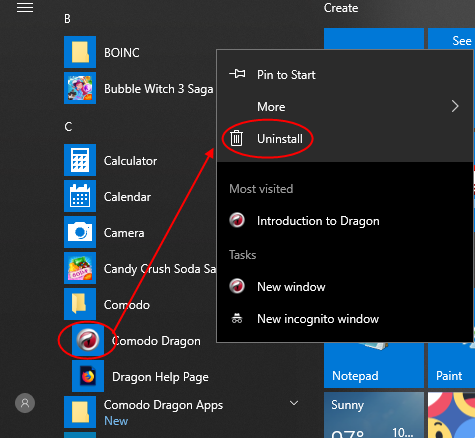
- In the 'Programs and Features', select the app then click 'Uninstall/Change'
The Dragon 'Uninstall Feedback' dialog will open:
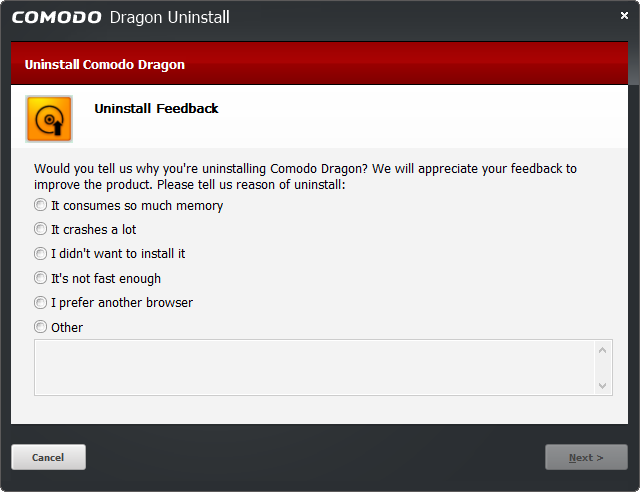
- Your feedback information is highly appreciated! Select the reason for uninstalling from the options. If the reason is not available in the options, select 'Other' and enter the reason in the text-box.
- Click
'Next'.
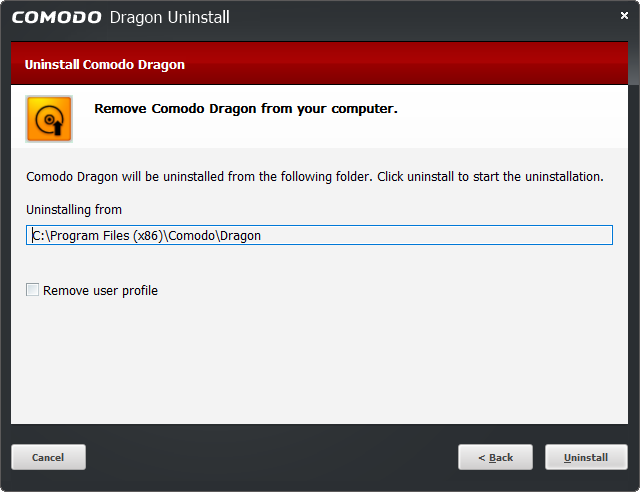
The screen displays the selection of the folder in your hard drive for installing Comodo Dragon. The default installation location is 'C:/Program Files/Comodo/Dragon/'. Click the 'Uninstall' button.
-
Remove user profile - By default, you will be provided a choice to save your Dragon profile data in your computer.
- If you plan to install Dragon again at a later time, the new browser will use this profile data such as bookmarks, history etc., and your settings to configure the browser.
- If not, select the checkbox 'Remove User Profile'.
If you have chosen to install System-Wide Comodo SecureDNS by selecting the option 'I would like to use Comodo SecureDNS Servers (with all applications)' in step 4 during installation, the modified DNS settings in your computer will not be reverted on selecting this option, enabling you to continue using Comodo SecureDNS services.
If you want to revert the DNS server IP address to your previous settings you need to manually change it in the 'Internet Protocol (TCP/IP) Properties' dialog accessible by clicking Start > Settings > Network & Internet> Ethernet > Change adapter options link > Ethernet > Properties > Internet Protocol (TCP/IP) > Properties > Obtain DNS server address automatically
- Delete your browser cache, and reboot your computer to commence the uninstallation.
The uninstallation progress will show:
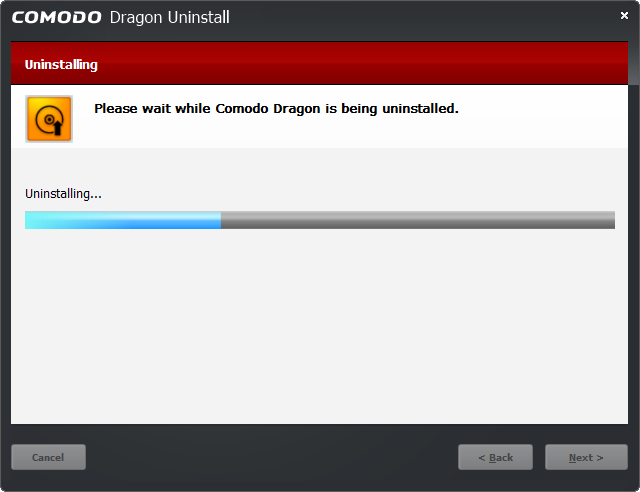
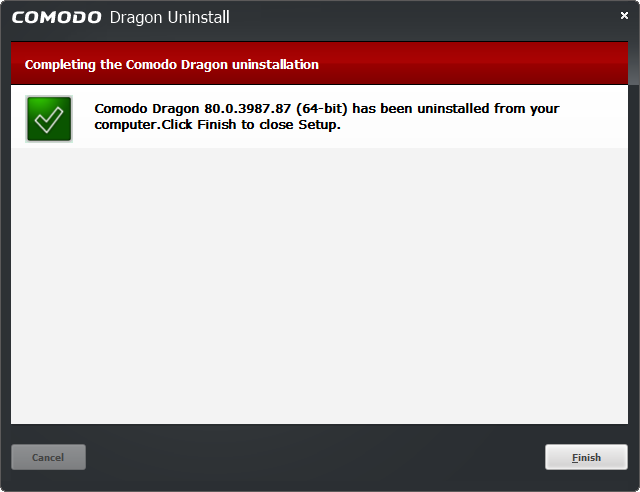
- Click 'Finish' to complete the uninstallation process.