


Manage Bookmarks
- The 'Bookmark manager' lets you view, edit, and add/remove bookmarks. You can also organize bookmarks into folders.
Open a bookmark manager
-
Click the menu
 at the top-right
-
Select 'Bookmarks' > 'Bookmark manager'
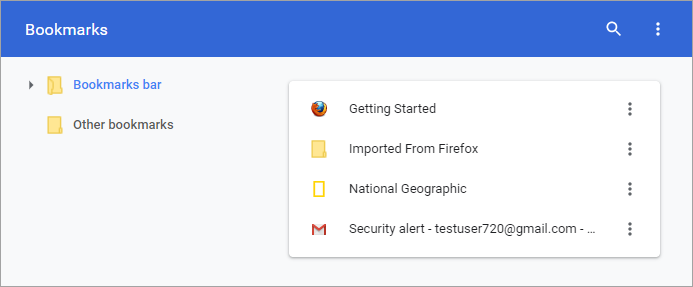
- Click the ellipsis next to the bookmark you want to manage. Here you can:
- Edit
- Delete
- Copy URL
Cut
Copy
- Open in the new tab
- Open in the new window
- Open in incognito window
Add a new bookmark folder
- Open bookmark manager as described above
- Click the organize button at the top-right and select 'Add new folder'
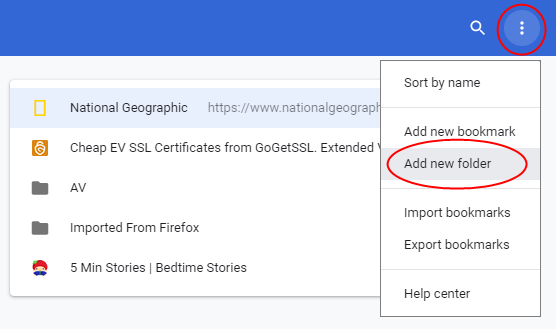
- Give the folder a name in the 'Add folder' dialog. For example, 'Cars', 'News', 'Barcelona FC' etc.
- Click 'Save'. You can now save new bookmarks in this folder.
Move bookmarks
-
Just click and drag a bookmark or folder to another destination to the folder list in the left side
Rename a folder, bookmark or edit a web address
- Select the bookmark you want to edit
- Click the three-dots beside the bookmark and select 'Edit'
- Change the name or web address
- Click 'Save'
- Select the folder you want to rename
- Right-click on it and select 'Rename'
You can also right-click a bookmark or folder and edit or rename in the interface or in the bookmark bar.
Search bookmarks
-
Enter the bookmark name in the search box in the bookmark manager to search the item.

Delete a bookmark or a folder
- Select the bookmark or folder you want to delete
- Click the three-dots and select 'Delete'
OR
- Right-click on the item > click the “Delete” from the menu.