


View Download History
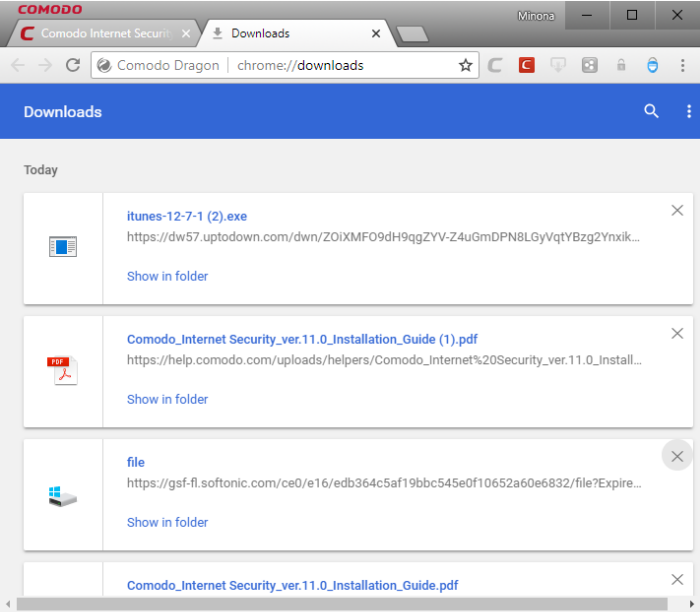
You can view and manage the list of downloaded files as follows:
-
Click the menu
 button at the top-right
-
Select 'Downloads'
-
Click on the file name to open it.
-
Click 'Show in folder' to see the location of the file in your computer. Please note that this will not work if the file has been moved.
-
Click 'Remove from list' to remove a specific download.
-
Click the ellipsis > 'Clear all' at the top-right to remove all the downloads.
-
Click 'Open downloads folder' to open and view the downloads in the folder.
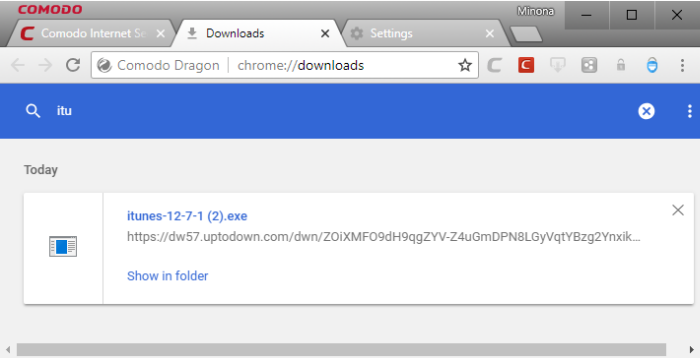
- Type the name of a downloaded file in the search box to filter the list.
-
Click the down arrow button besides the search box to show the full list of downloads.
- Use the shortcut keys 'CTRL+J' to open the downloads page.
Further reading related to the topic of this page: