


Protect your Synced Passwords
Dragon encrypts any passwords you sync with your account.
Choose an encryption method
- Click the menu button
 at top-right
- Click 'Settings' > Go to the 'People' section
- Select 'Sync and Google services' > 'Sync'
- Note: You should already have enabled sync
- ‘Encrypt synced passwords with your own sync passphrase.' - Choose this if you do not want to use your Google account password as the encryption password.
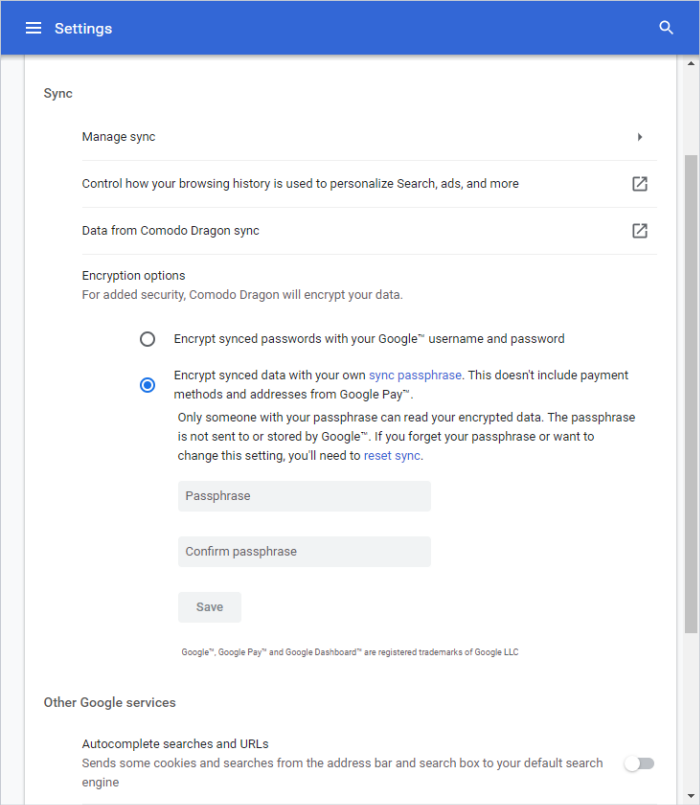
- Type and confirm the passphrase and click 'Save' to store it in your computer.
Please note that if you choose to have your own passphrase, this has to provided every time you choose to sync passwords on a new system. Also, any change in the encryption options has to carried out in all computers to continue syncing.
Personalize Google services
- Click
'Control how your browsing history is used to personalize search,
ads, and more'
The activity controls lets you define which types of data are saved to your account. Note: You need first to sign in to your Google account. The following activities can be saved:
- Web & App Activity
- Location History
- Device Information
- Voice & Audio Activity
- YouTube search history
- YouTube
watch history
Forgot Sync Passphrase
In case you forgot your synced passphrase, you'll have to reset sync via your Google account. An entry will be created in your Google account called 'Data from Chrome sync' when you enable the sync feature. You've to enable sync again and choose a new sync passphrase.
- Click the 'Encryption options' > 'reset sync' link
- Sign up to Dragon browser to sync again.
All your sync data will be deleted from Google's servers. However, the data on your computer such as bookmarks, passwords and current preferences will not be deleted.
Click the following link find out more: