


Display/ Hide Application Buttons on the Toolbar
- You can manage settings of an extension by right-clicking on the extension's button on the toolbar.
- By default, Dragon automatically adds extension buttons to the toolbar
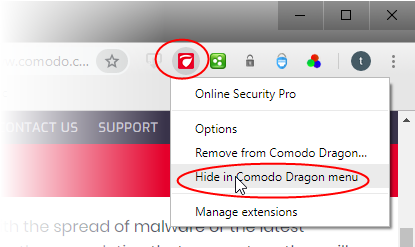
- Hide App - Right-click on an extension icon and select 'Hide in Comodo Dragon menu'
- Disable App - Right-click on the icon and select 'Remove from Comodo Dragon'.
Reinstate the button to the toolbar
- Click
the menu
 button at the top-right corner
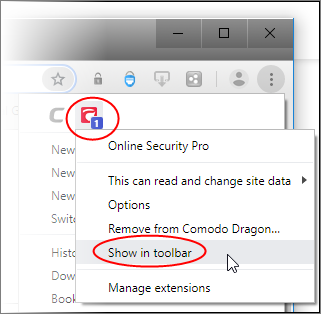
- Right-click the extension you want and select 'Show in toolbar'
Manage an extension
- Right-click on an extension
- Select 'Manage extensions'
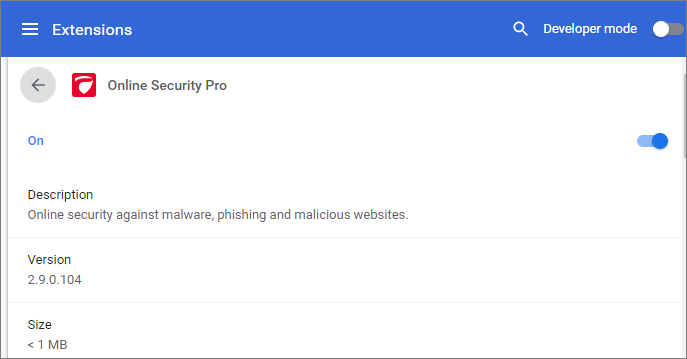
OR
- Click the 'Details' button
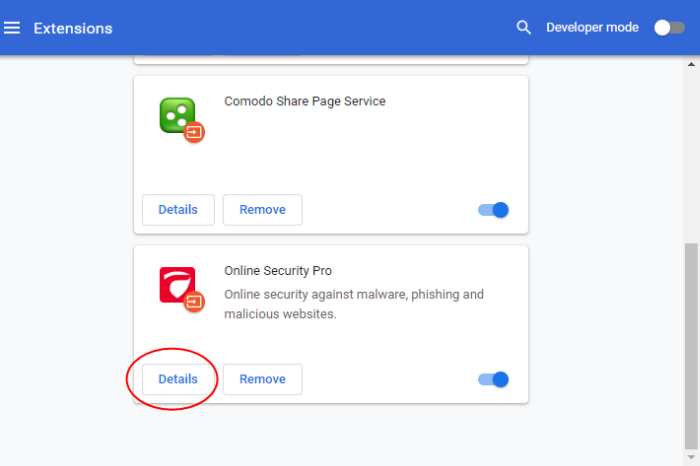
This lets you manage extension specific settings such as 'Allow in incognito mode' and other options.