


Manage Website Passwords
- Comodo Dragon can remember the login credentials for your favorite sites. This saves you the hassle of having to manually enter your username/password.
- All saved passwords are securely stored in your Dragon user profile. You can also sync your passwords with your account so you can access you saved passwords on other devices you use.
- You need to sign in to Comodo Dragon to sync passwords.
- You should turn off this feature if you share the browser with another user.
- Click the menu
 at top-right
- Click 'Autofill' > 'Passwords'
OR
- Click the hamburger icon at top-left > 'Passwords' section:
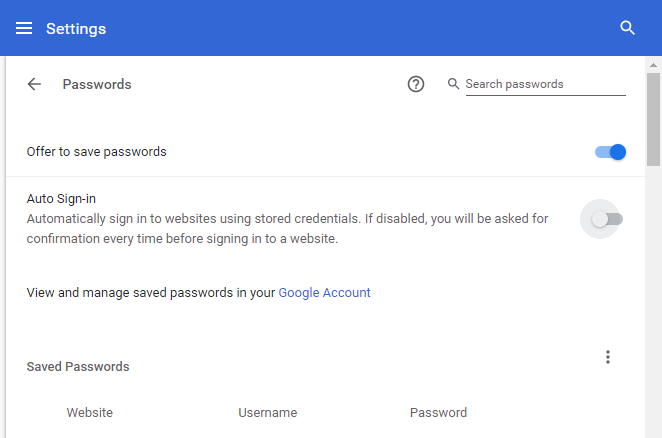
- By default, Comodo Dragon offers to save your web passwords.
- If enabled, Dragon will ask you if you wish to save your password every time you sign in to a new website. You will be offered the following options:
- 'Save' - Auto-complete your password on subsequent visits to the login page.
- 'Never' - Your password is not saved and the site is added to a list of passwords that are never saved.
- Auto-Sign-in - Automatically sign you in to Dragon when you signed into a Google sites.
- Click 'View and manage save password in Google Account' to open a Google passwod manager.
- Click 'Export Password' beside the 'Saved Password' to export passwords in a CSV format.
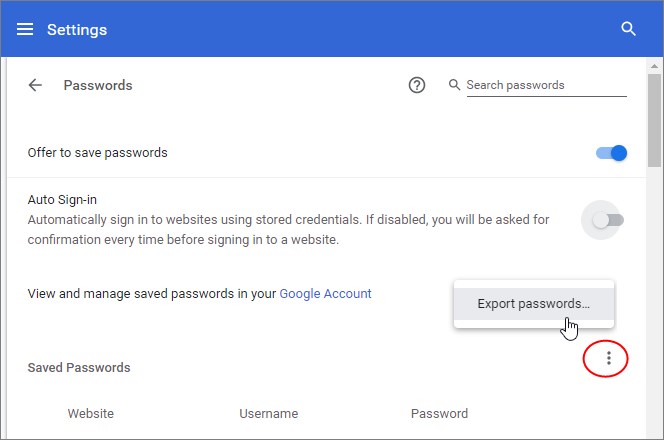
- Click 'Export passwords'
- Enter the password you use to log in to your computer in the 'Windows Security Comodo Dragon' master passwords
- Change the 'Chrome Password' default name if you want
- Click 'OK' and save your .csv file.
- Dragon imports only logins and passwords. Credit cards, addresses, and other items will not be imported.
- Go to the 'Never saved'.
- Click the 'X' that appears at the end of the row to remove a site from this list.
Revisit the website and you see the prompt to save your password information again, if you have allowed Google Chrome to show the prompt.
- Click 'More actions' next to the site whose password you would like to manage
- Click 'Details'
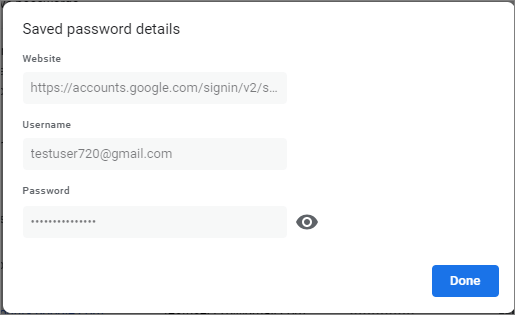
- Enter your master password if asked > 'OK'.
- Click 'Done' to close.
- Click 'Remove' to delete the item.
- Click the 'eye' next to the site whose password you want to see.
- Log in to your Dragon account.
Comodo Dragon lets you select the password to use for the particular while you are sign in the page.
- Click 'key' icon on address bar
- You will see the 'Update Password' dialog
- Click the arrow next to username/ password to select the username / password from the drop-down arrow