


Work with Endpoint Compliance Lists
- Click 'Endpoint Compliance' > any page to open a list that uses these controls.
Nearly every page in the 'Endpoint Compliance' section presents its data in the same kind of list. The list sits inside a card whose heading gives the list name and, in a coloured chip beside it, the number of records in the list. The controls described here behave the same way on every one of those lists, so they are documented once.
You can search, filter, sort, choose and reorder columns, change the text size, set an automatic refresh interval, export to CSV and save your settings from this toolbar.
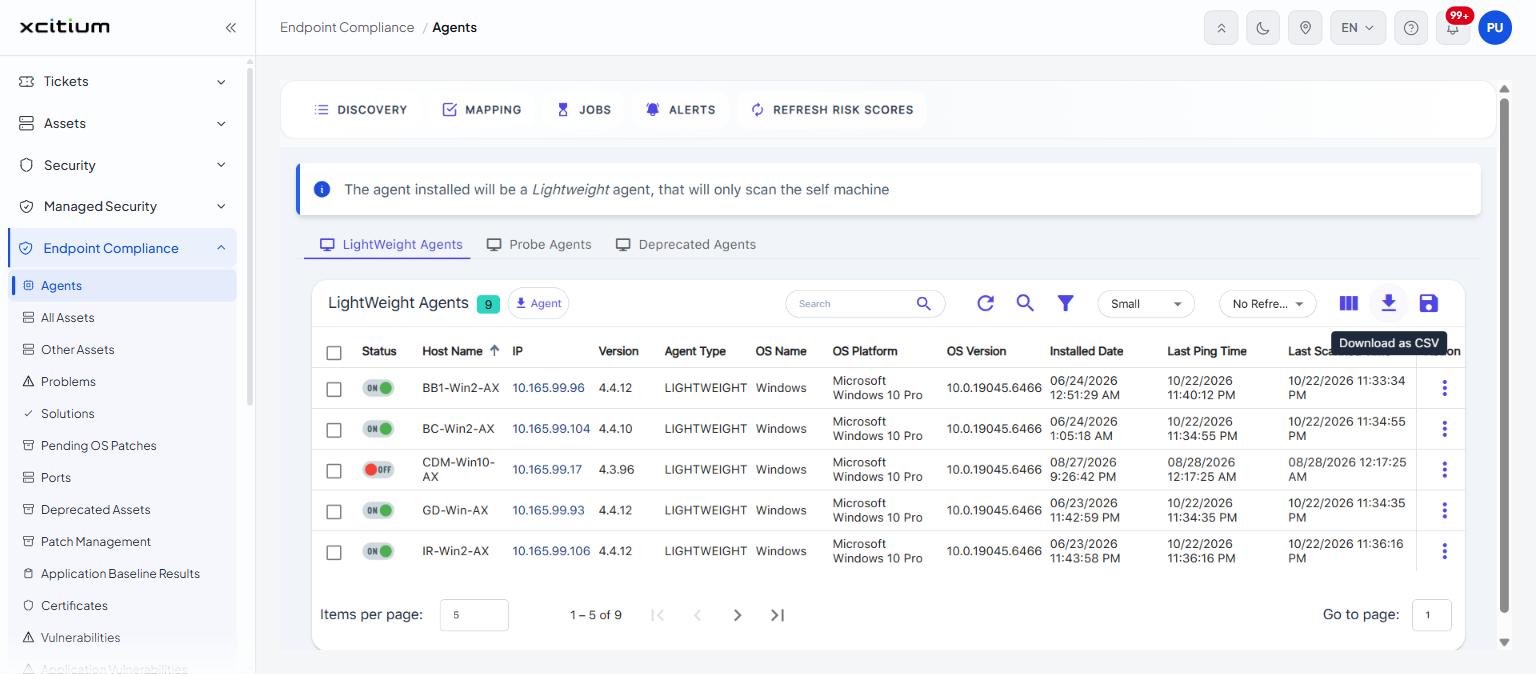
Toolbar controls
| Control | Description |
| Search | A text box with a magnifier button. Type a term and the list is reduced to matching rows. |
| Reload Table Data | Fetches the list again from the service. |
| Global Search | A toggle. When it is switched on the button is highlighted and the 'Search' box searches beyond the rows currently loaded. |
| Filter Table Data | Opens the filter builder described below. |
| Change Font Size | A drop-down that sets the text size of the list. The options are 'Small', 'Medium' and 'Large'. The default is 'Small'. |
| Refresh Interval | A drop-down that sets how often the list reloads by itself. The options are 'No Refresh', '1 Min', '5 Min' and '30 Min'. The default is 'No Refresh'. |
| View Column, Reorder Columns | Opens the column chooser described below. |
| Download as CSV | Exports the list to a CSV file. The download starts as soon as you click the button. |
| Save Settings | Stores your current choice of columns, column order, filter and display settings for this list. |
Choose and reorder columns
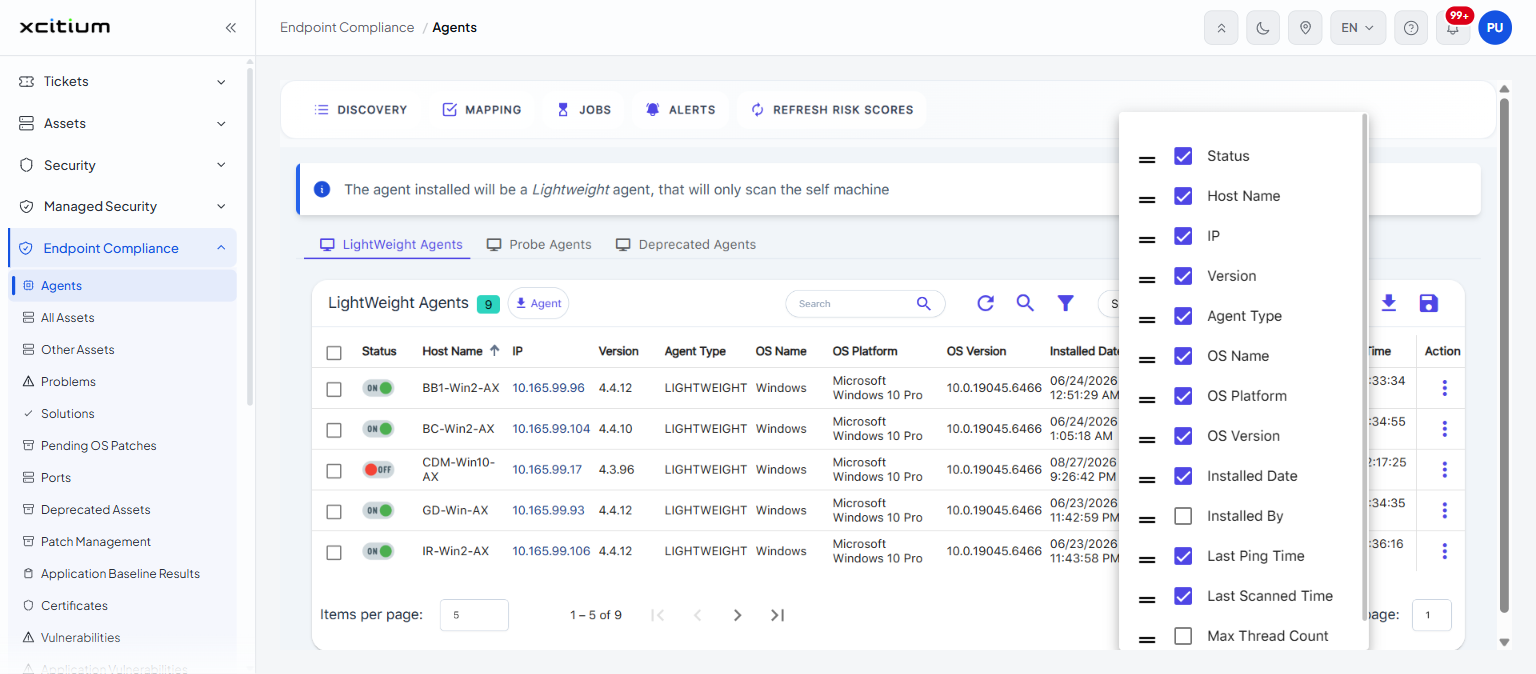
Click the 'View Column, Reorder Columns' button to open the column chooser. It lists every column the list can show, each with a check box and a drag handle.
- Clear a check box to hide that column, or tick it to show the column.
- Drag a row by its handle to move that column left or right in the list.
- Click outside the panel to close it.
Note: columns that are hidden by default still appear in this panel. Tick them to add them to the list.
Filter a list
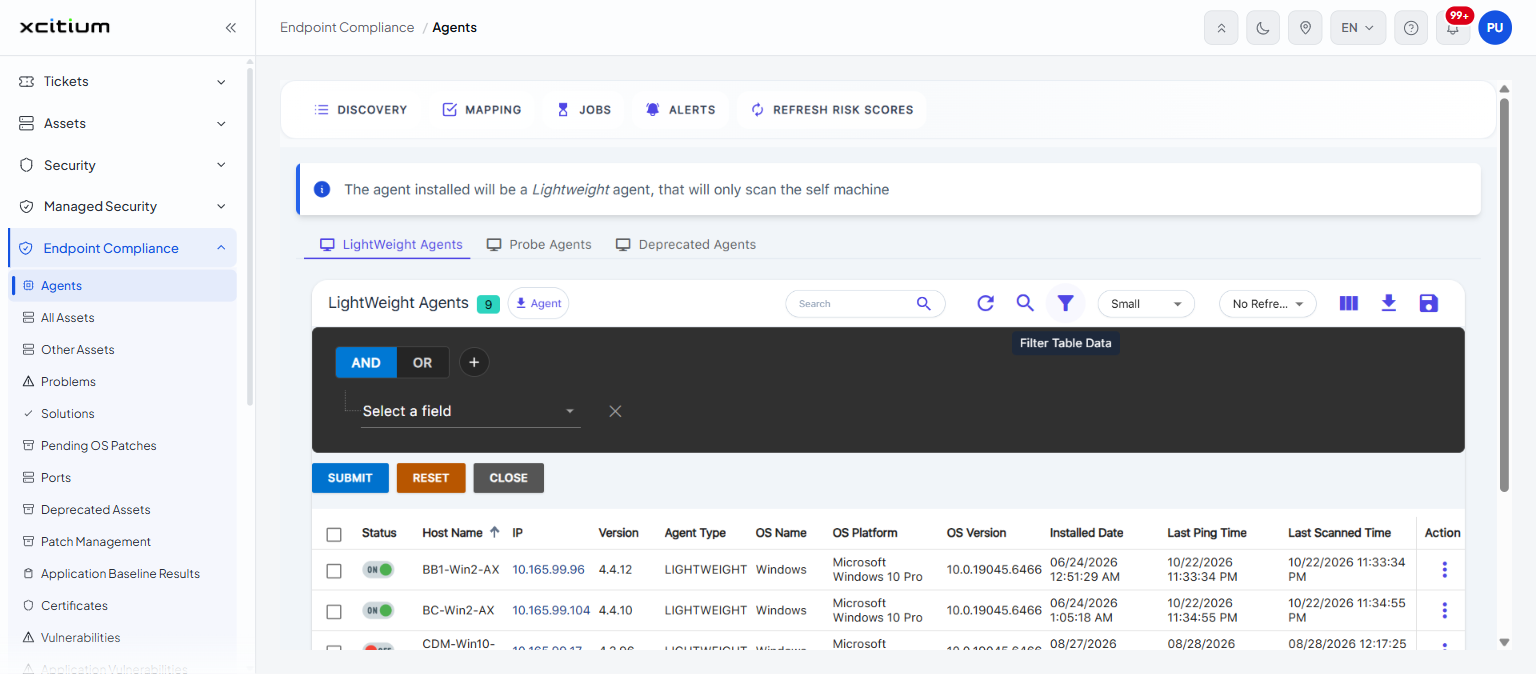
Click the 'Filter Table Data' button to open the filter builder above the list. It builds one or more conditions and applies them together.
| Control | Description |
| AND / OR | Two buttons that set how multiple conditions are combined. 'AND' is selected by default. |
| + | Adds another condition row. |
| Select a field | A drop-down listing the fields you can filter on. The fields offered depend on the list. |
| Operator | A drop-down that appears once a field is chosen. For a text field the options are 'Contains', 'Does Not Contain', 'Equal', 'Not Equal', 'Starts With', 'Ends With', 'Is Null' and 'Is Not Null'. 'Contains' is the default. |
| Value | Where you type what to match. For a text field this is a box with the placeholder 'Enter Value'. For a field with a fixed set of values it is a drop-down whose first entry is 'Select Value'. |
| X | Removes that condition row. |
| SUBMIT | Applies the filter to the list. |
| RESET | Clears the conditions. |
| CLOSE | Closes the filter builder. |
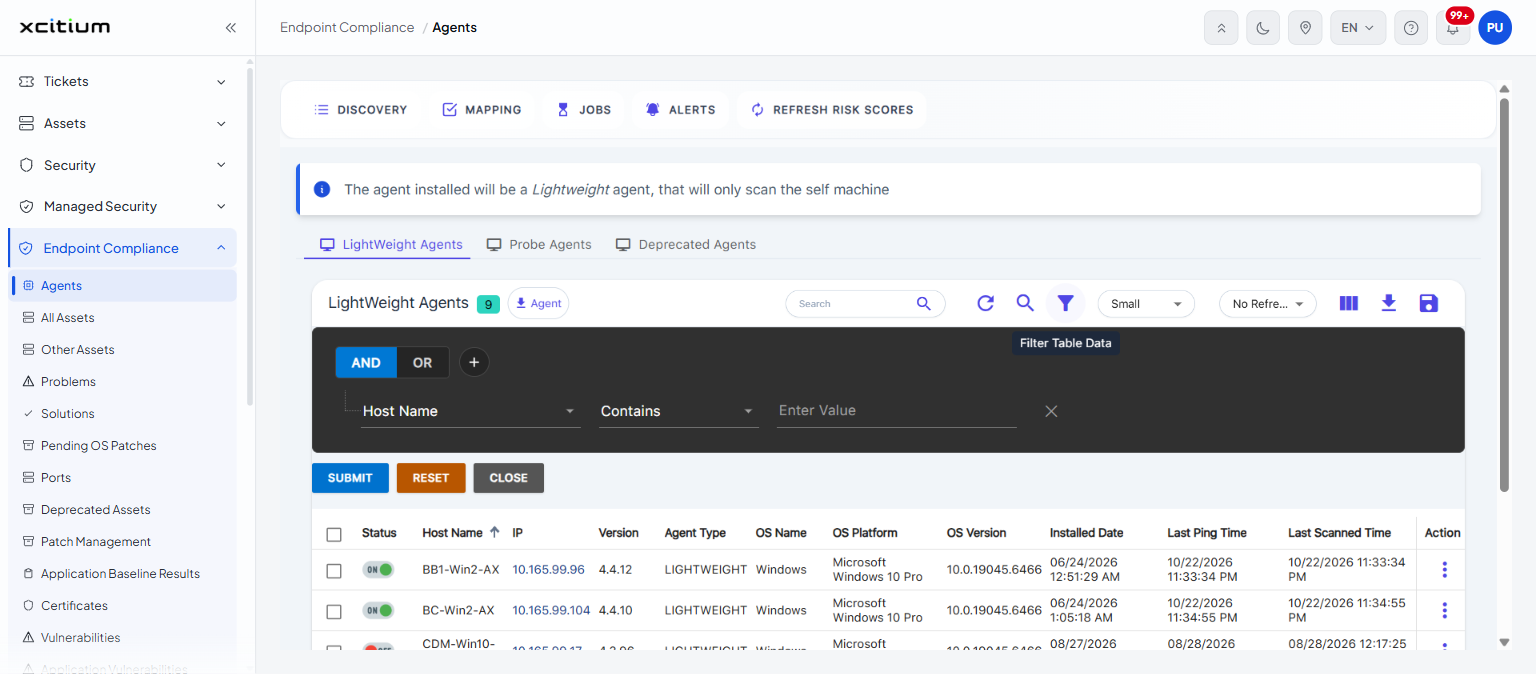
To filter a list:
- Click the 'Filter Table Data' button.
- Choose a field from the 'Select a field' drop-down.
- Choose an operator.
- Type or choose the value to match.
- Click '+' and repeat if you want more than one condition, then choose 'AND' or 'OR'.
- Click 'SUBMIT'.
Note: the operators and the value control change with the field you pick. A status field, for example, offers only 'Equal' and 'Not Equal', and its value is chosen from a list rather than typed.
Page through a list
The controls below the list set how much of it you see at once:
| Control | Description |
| Items per page: | A number box that sets how many rows are shown on a page. The default is 5; the lowest value accepted is 1 and the highest is 100. |
| Range | Text showing which rows you are looking at and how many there are in total, for example '1 - 5 of 9'. |
| First page / Previous page / Next page / Last page | Four buttons that move between pages. They are greyed out when there is nowhere to move. |
| Go to page: | A number box. Type a page number to jump straight to it. |
Sort a list
Click a column heading to sort the list by that column. An arrow appears in the heading to show the direction. Click the heading again to reverse it.
Select rows
Most lists have a check box in the leftmost column of each row, and a check box in the column heading that selects every row on the page.