


Policy Configuration
- Click 'Policies' > 'Policy Configuration' to open this interface.
'Policy Configuration' lists every policy on the account. Three summary tiles sit above the list, a row of drop-down filters sits below them, and the list itself sits in a card headed 'All Policies'.
You can create a policy, import one, delete several at once, export the list, filter and sort the list, and open, export, clone or delete a single policy from its row.
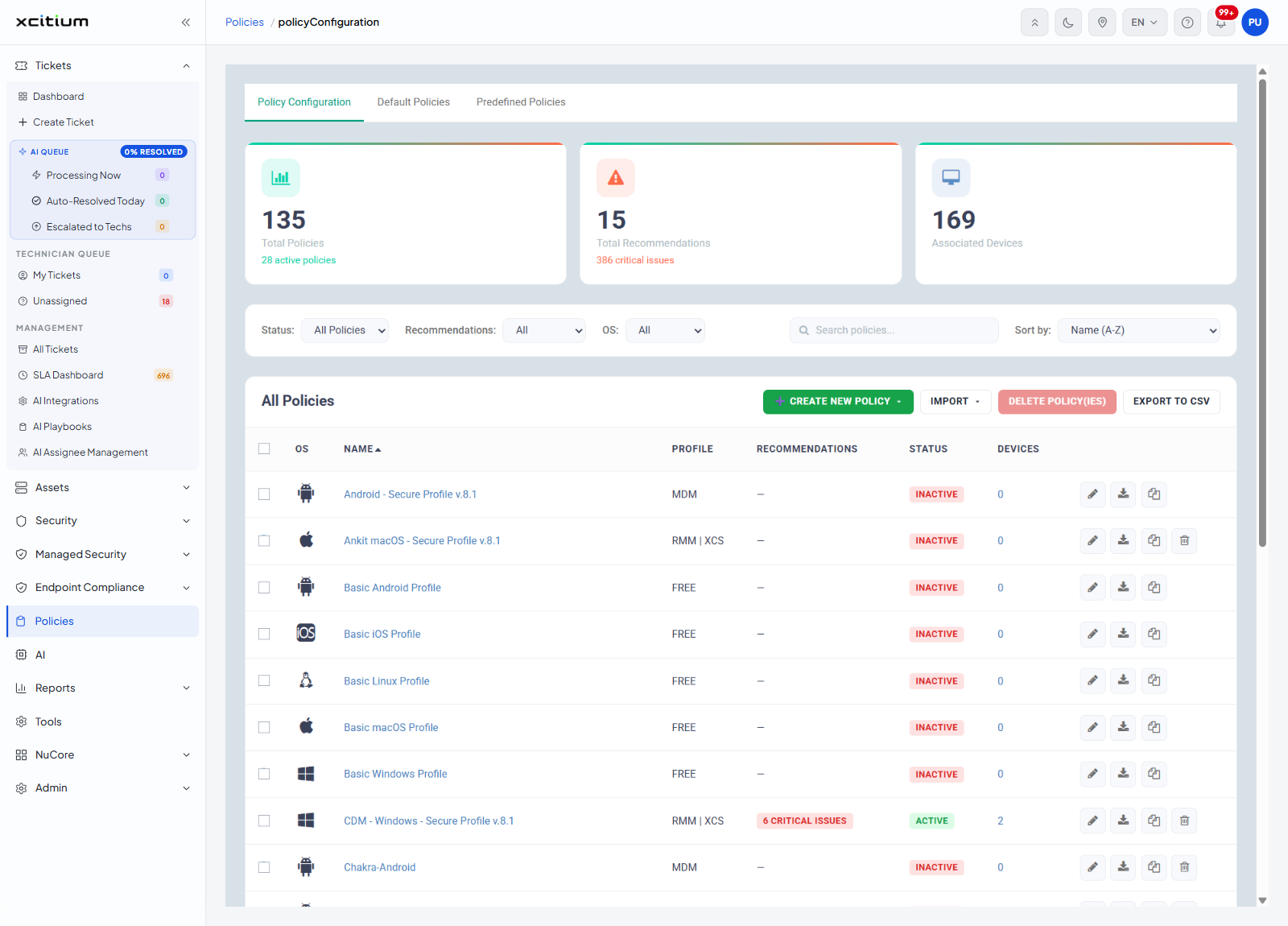
Summary tiles
| Tile | Description |
| Total Policies | How many policies exist on the account. A second line underneath counts the active ones, for example '28 active policies'. |
| Total Recommendations | How many policies have recommendations raised against them. A second line counts the critical issues behind them, for example '386 critical issues'. |
| Associated Devices | How many devices have a policy attached. |
Filters
| Control | Options | Default |
| Status | 'All Policies', 'Active', 'Default', 'Inactive' | All Policies |
| Recommendations | 'All', 'No Issues', 'Critical' | All |
| OS | 'All', 'Android', 'iOS', 'macOS', 'Windows', 'Linux' | All |
| Search box | Free text, placeholder 'Search policies...' | Empty |
| Sort by | 'Name (A-Z)', 'Name (Z-A)', 'OS (A-Z)', 'OS (Z-A)', 'Devices (A-Z)', 'Devices (Z-A)', 'Critical issues (low to high)', 'Critical issues (high to low)' | Name (A-Z) |
Buttons on the 'All Policies' card
| Button | Description |
| CREATE NEW POLICY | Opens a menu of six policy types. See Create a Policy. |
| IMPORT | Opens a menu with two import routes. See Import a Policy. |
| DELETE POLICY(IES) | Deletes every ticked policy. Greyed out while nothing is ticked. |
| EXPORT TO CSV | Produces a comma-separated file of the list. |
Columns
| Column | Description |
| Check box (first column) | Ticks the row for 'DELETE POLICY(IES)'. The header check box ticks every row on the page. |
| OS | An icon for the operating system the policy is written for. |
| NAME | The name of the policy, as a link. Click it to open the policy editor. The list arrives sorted on this column, A to Z. |
| PROFILE | The licence components the policy covers: 'FREE', 'RMM', 'MDM', 'XCS', or a combination such as 'RMM | XCS'. |
| RECOMMENDATIONS | An em dash when there is nothing to report, or a badge counting the critical issues found, for example '6 CRITICAL ISSUES'. |
| STATUS | A badge reading 'ACTIVE', 'INACTIVE' or 'DEFAULT'. |
| DEVICES | How many devices the policy is attached to, as a link. Click the number to open the policy's 'Associated Devices' pane. |
| (last column, no heading) | The row action buttons. See below. |
Row actions
| Button | Description |
| Edit (pencil) | Opens the policy in the policy editor. See The Policy Editor. |
| Export (downward arrow) | Downloads the policy as a file. |
| Clone (two sheets) | Makes a copy of the policy. |
| Delete (bin) | Removes the policy. This button is only on some rows; policies that ship with the product do not have it. |
Find a policy
- Click 'Policies' > 'Policy Configuration'.
- Type part of the name in the 'Search policies...' box, or narrow the list with the 'Status', 'Recommendations' and 'OS' drop-downs.
- Change the order with the 'Sort by' drop-down.
- Click the policy name to open it.
Note: 'EXPORT TO CSV', 'DELETE POLICY(IES)' and the per-row 'Export', 'Clone' and 'Delete' buttons act as soon as you click them.