


Device List
- Click 'Assets' > 'All Devices' > 'Device List' to open this interface.
The Device List is the inventory of every device enrolled in your account. It shows what each device is running, which policies apply to it, which security components are active, and how far behind it is on patches.
You can browse and search the inventory, narrow it by customer, group or any device attribute, select one or more devices, and run any of the device actions on the toolbar.
The tabs
The screen has two tabs:
- Device Management — the device table. This is the default.
- Group Management — the list of device groups.
A chevron to the left of the tabs collapses and restores the group tree.
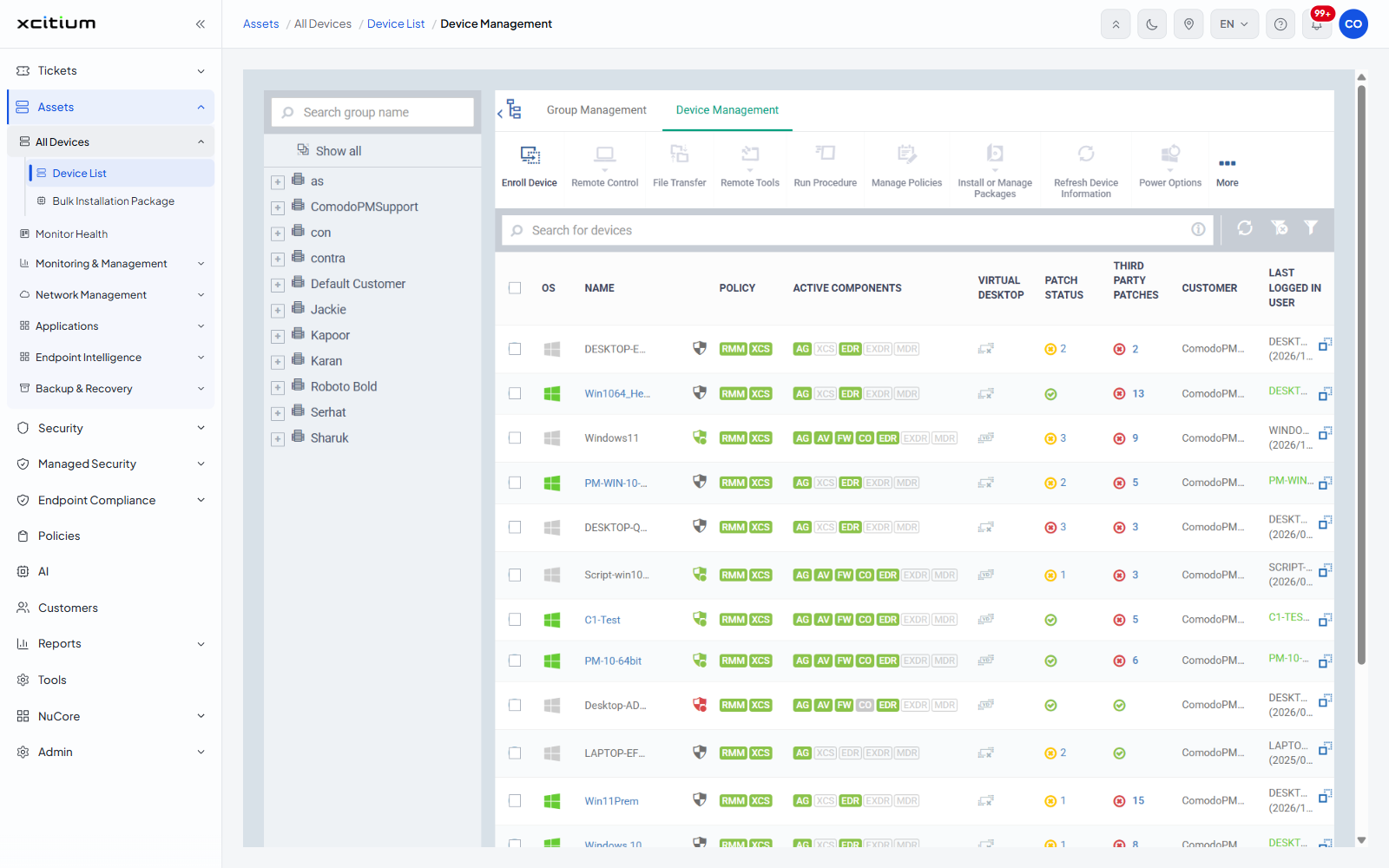
The customer and group tree
A pane down the left of the screen narrows the table to one customer or one group.
| Control | Description |
| Search group name | A text box with a magnifier button that filters the tree as you type. |
| Show all | Clears the selection and lists every device in the account. |
| Customer node | One row per customer, each with a '+' expander that reveals that customer's device groups. Hovering a node reveals its actions. |
The toolbar
Every button except 'Enroll Device' and 'Export' is greyed until at least one device row is ticked.
| Button | Description |
| Enroll Device | Opens the enrollment wizard. |
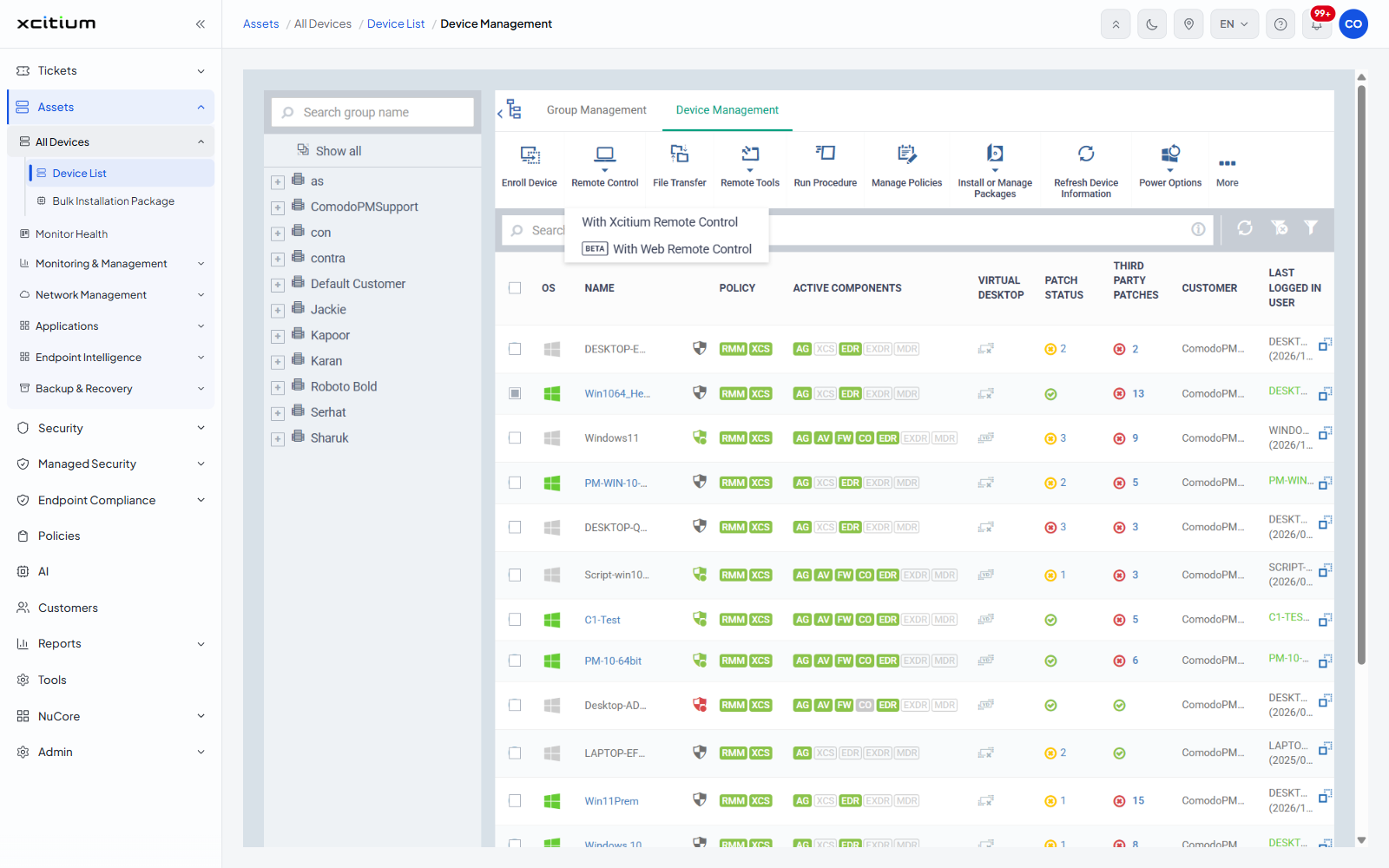
| Remote Control | Opens a remote session on the selected device. Offers 'With Xcitium Remote Control' and 'With Web Remote Control', which carries a BETA badge. |
| File Transfer | Opens a file-transfer session with the selected device. |
| Remote Tools | Opens the 'Commands Interface' on the selected device. |
| Run Procedure | Runs a procedure on the selected devices. |
| Manage Policies | Adds or removes the policies applied to the selection. |
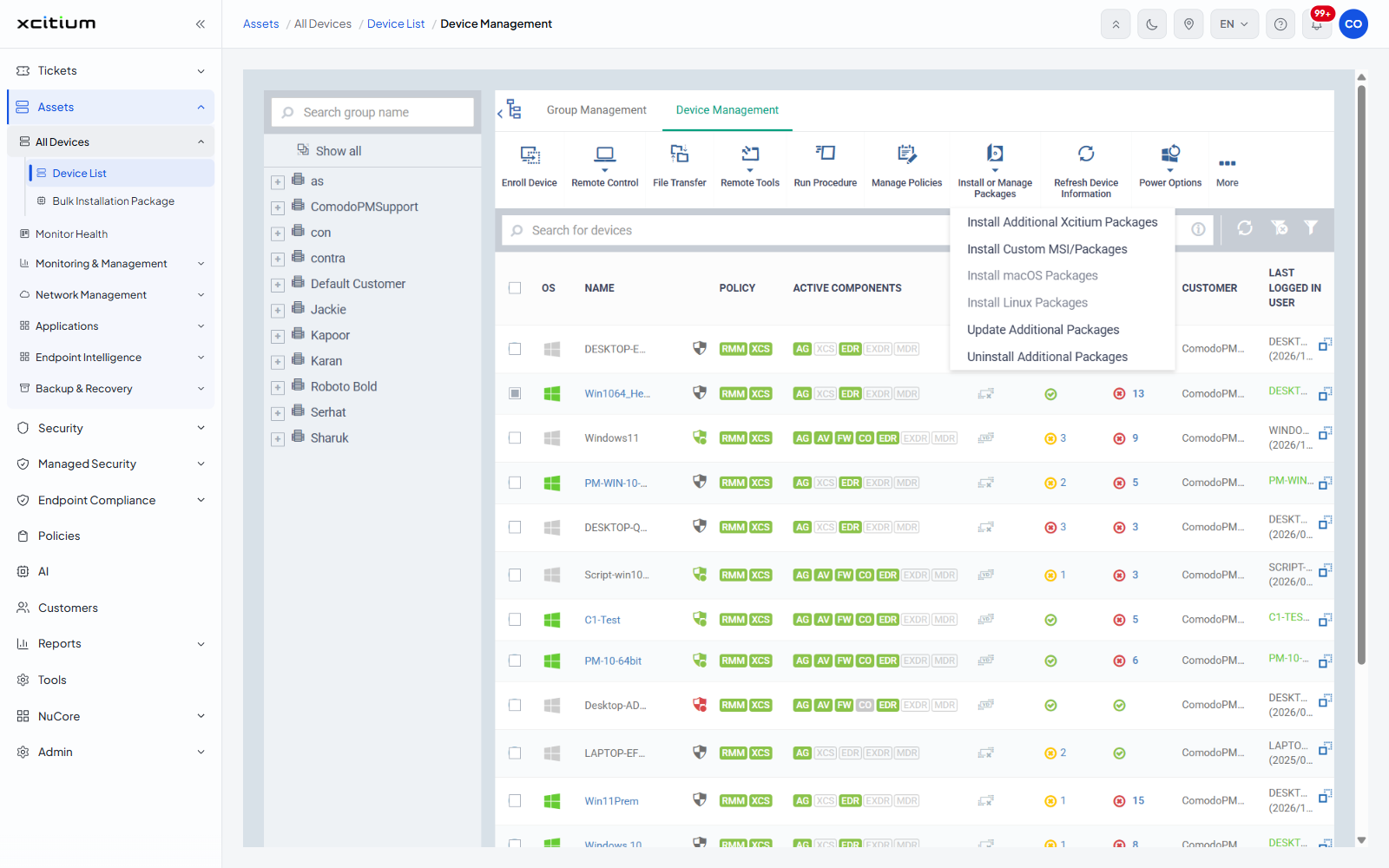
| Install or Manage Packages | Installs, updates or removes software. Offers 'Install Additional Xcitium Packages', 'Install Custom MSI/Packages', 'Install macOS Packages', 'Install Linux Packages', 'Update Additional Packages' and 'Uninstall Additional Packages'. The macOS and Linux entries are greyed when a Windows device is selected. |
| Refresh Device Information | Asks the selected devices to send fresh inventory data. |
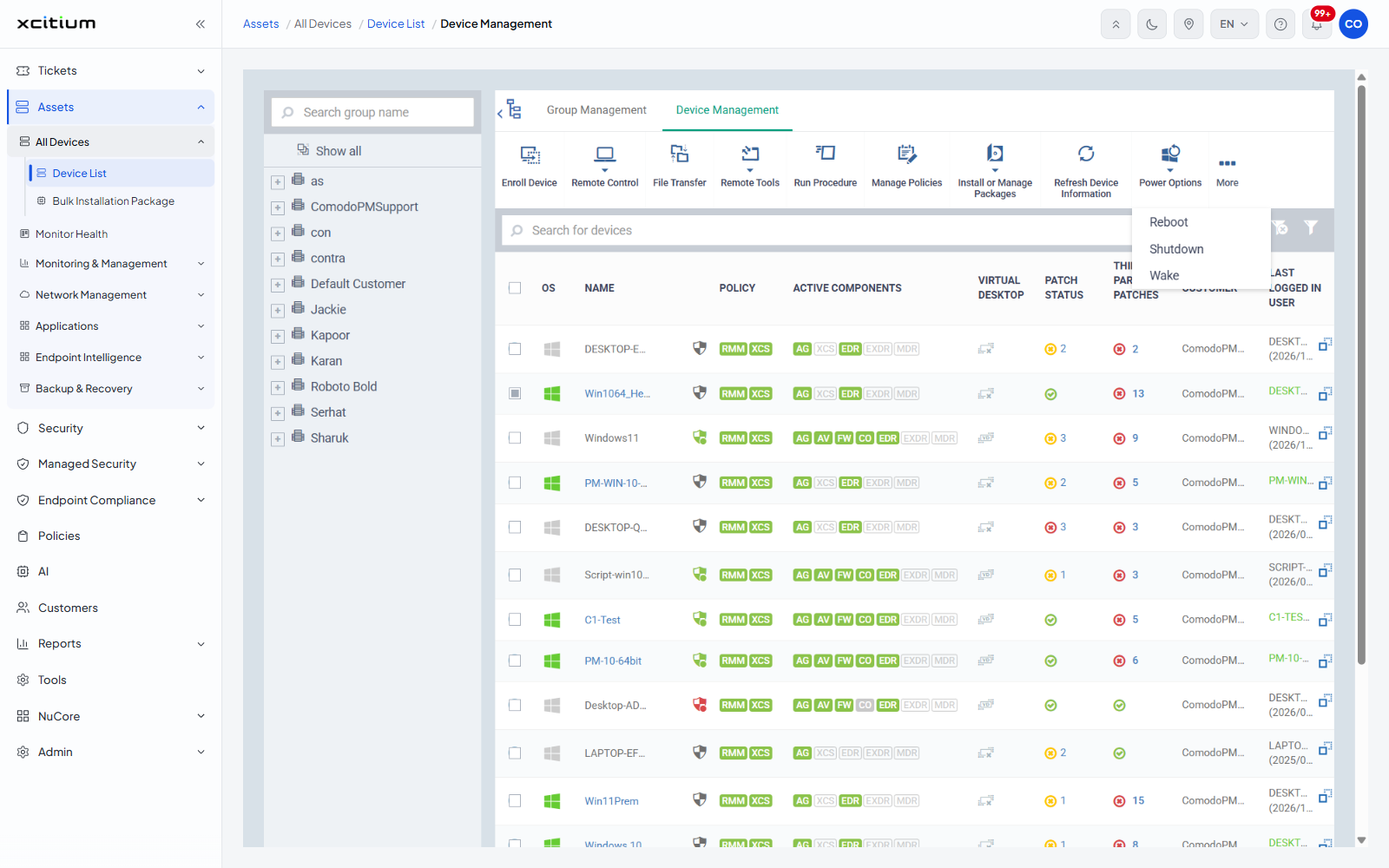
| Power Options | Offers 'Reboot', 'Shutdown' and 'Wake'. |
| More | A menu of the remaining actions. See the table below. |
The More menu
| Item | Description |
| Owner | Offers 'Change Owner' and 'Change Ownership Type'. |
| Send Message | Sends a message to the device owner. |
| Passcode | Offers 'Reset Screen Passcode'. |
| Lock | Locks the selected device. |
| Siren | Offers 'Siren On' and 'Siren Off'. |
| Wipe / Corporate | Wipes the selected device, or just its corporate data. |
| Add Tags | Applies tags to the selection. |
| Delete Device | Removes the device from management. |
| Export | Offers 'Export to CSV'. |
| Open Chat | Opens a chat session with the device user. |
| Security Options | Offers 'Isolate' and 'Release from Isolation', which cut the device off from the network and restore it. |
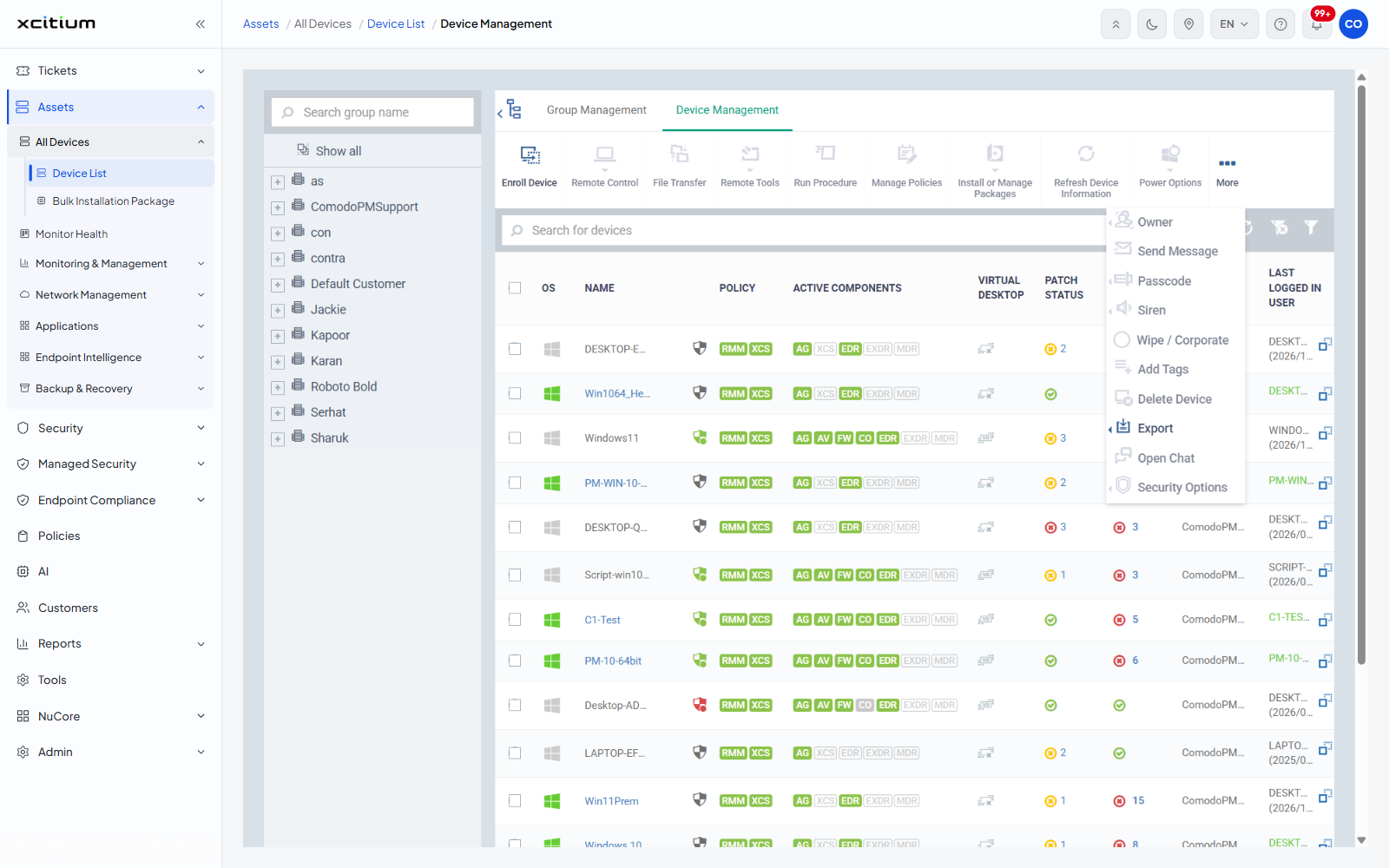
Search and table controls
| Control | Description |
| Search for devices | A search box with a magnifier and a clear button that filters the table as you type. |
| Table refresh | Reloads the table. |
| Table Filter Clear | Clears everything set in the filter panel. |
| Table filter | Opens the filter panel. |
The device table
| Column | Description |
| (checkbox) | Selects the row. The header checkbox selects every row on the page. |
| OS | An icon for the device's operating system. Sortable. |
| NAME | The device name. Click it to open the device. Sortable. |
| POLICY | The policy kinds applied to the device, shown as 'RMM' and 'XCS' badges, with a shield icon whose colour reflects the policy state. |
| ACTIVE COMPONENTS | A row of badges, lit when the component is running and grey when it is not. 'AG' is the agent, 'XCS' the security client, 'AV' antivirus, 'FW' firewall, 'CO' containment, 'EDR' endpoint detection and response, 'EXDR' extended detection and response, 'MDR' managed detection and response. |
| VIRTUAL DESKTOP | Whether the virtual desktop is running on the device. |
| PATCH STATUS | The number of operating-system patches waiting for the device. Sortable. |
| THIRD PARTY PATCHES | The number of third-party updates available. The count links straight to that device's Patch Management tab, filtered to available third-party patches. Sortable. |
| CUSTOMER | The customer the device belongs to. Sortable. |
| LAST LOGGED IN USER | The last account seen signed in, with the time in brackets where known. Sortable. |
| LAST ACTIVITY | When the device last contacted the server. Sortable. |
Open a device
- Click 'Assets' > 'All Devices' > 'Device List'.
- Narrow the list with the group tree, the search box or the filter panel.
- Click the device name in the 'NAME' column.
- The device opens on its Summary tab.
Page through the list
| Control | Description |
| Results per page | A dropdown offering '20', '50', '100' and '200'. '20' is the default. |
| Displaying n-n of n results | The range shown and the total matching the current filters. |
Note: every action on this toolbar runs against the devices you have ticked. Check the selection before using one.