


Remote Control
- Open a Windows profile, then click the 'Remote Control' tab.
'Remote Control' decides what a technician may do when they take over a device, what the device user is told, and how the session connects. The section has three sub-tabs: 'Device Takeover', 'File Transfer' and 'Screen Recording'.
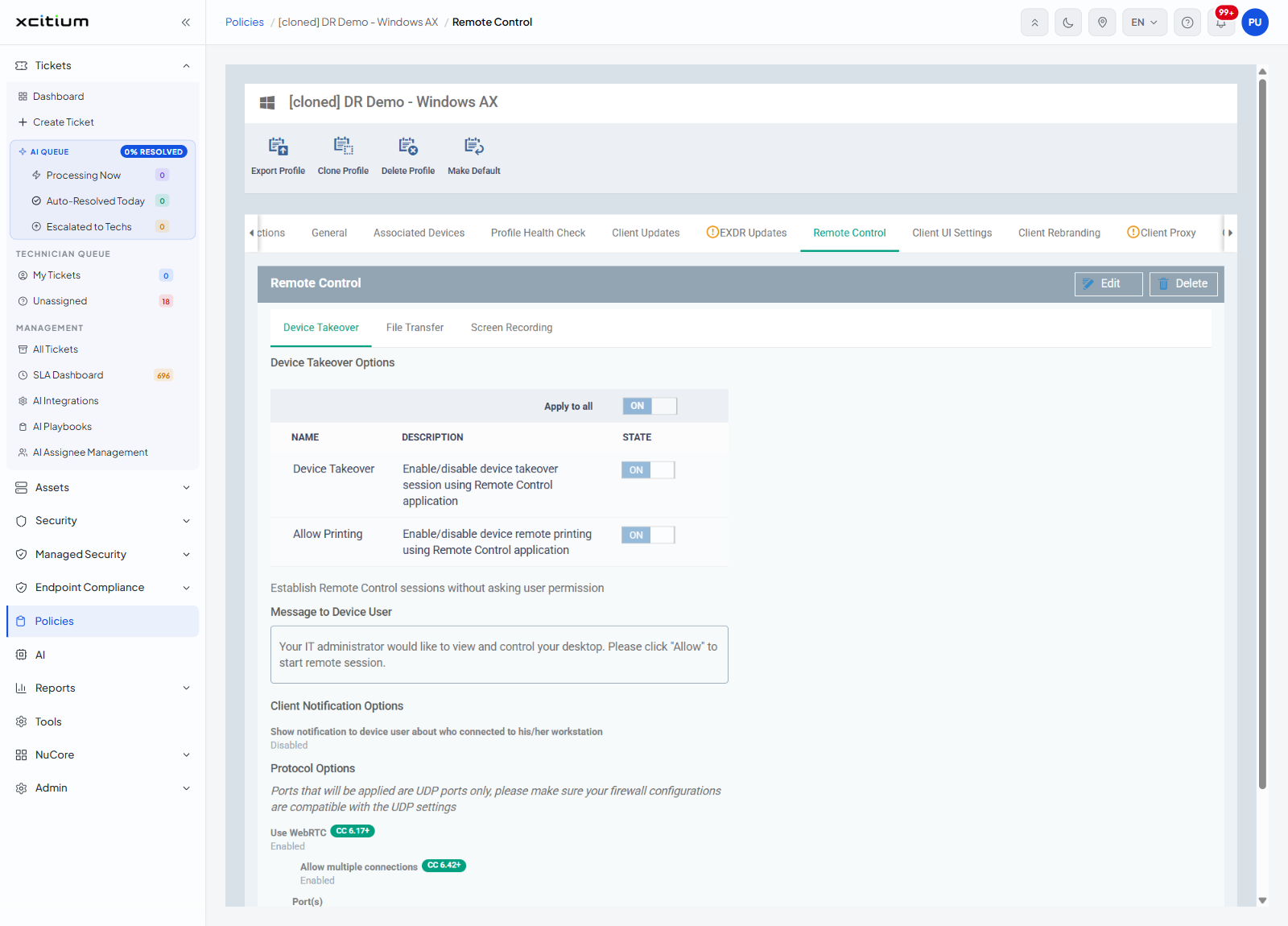
Device Takeover
The group is headed 'Device Takeover Options' and begins with an 'Apply to all' ON/OFF toggle that sets every row underneath at once. The rows are shown in a table:
| NAME | DESCRIPTION | STATE |
| Device Takeover | Enable/disable device takeover session using Remote Control application | ON / OFF |
| Allow Printing | Enable/disable device remote printing using Remote Control application | ON / OFF |
Below the table:
| Setting | Description |
| Establish Remote Control sessions without asking user permission | Starts the session without prompting the person at the device. |
| Message to Device User | A text box holding the prompt the device user sees. Its text read 'Your IT administrator would like to view and control your desktop. Please click "Allow" to start remote session.' |
| Show notification to device user about who connected to his/her workstation | Under the heading 'Client Notification Options'. |
A group headed 'Protocol Options' follows, with the note 'Ports that will be applied are UDP ports only, please make sure your firewall configurations are compatible with the UDP settings'.
| Setting | Badge | Value seen |
| Use WebRTC | CC 6.17+ | Enabled |
| Allow multiple connections | CC 6.42+ | Enabled |
| Port(s) | — | Default |
| Use Chromoting | CC 6.17+ | Enabled |
| Ports | — | Default |
File Transfer
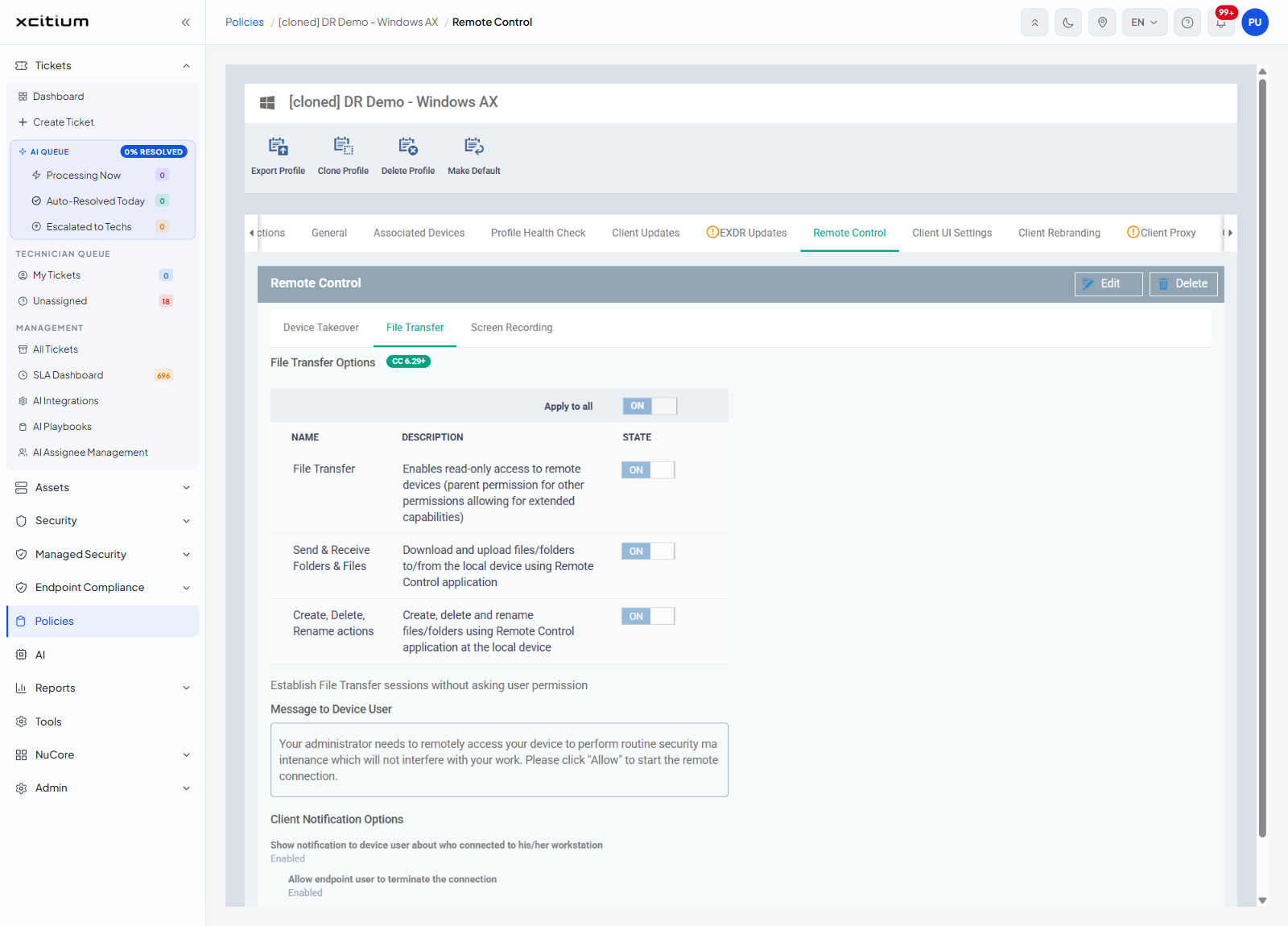
The group is headed 'File Transfer Options' and carries the badge 'CC 6.29+'. It too begins with an 'Apply to all' toggle.
| NAME | DESCRIPTION | STATE |
| File Transfer | Enables read-only access to remote devices (parent permission for other permissions allowing for extended capabilities) | ON / OFF |
| Send & Receive Folders & Files | Download and upload files/folders to/from the local device using Remote Control application | ON / OFF |
| Create, Delete, Rename actions | Create, delete and rename files/folders using Remote Control application at the local device | ON / OFF |
| Setting | Description |
| Establish File Transfer sessions without asking user permission | Starts the transfer session without prompting the person at the device. |
| Message to Device User | The prompt the device user sees. Its text read 'Your administrator needs to remotely access your device to perform routine security maintenance which will not interfere with your work. Please click "Allow" to start the remote connection.' |
| Show notification to device user about who connected to his/her workstation | Under the heading 'Client Notification Options'. |
| Allow endpoint user to terminate the connection | Lets the person at the device end the session. |
| Keep notification windows open upon remote session termination | Leaves the notice on screen after the session ends. |
Screen Recording
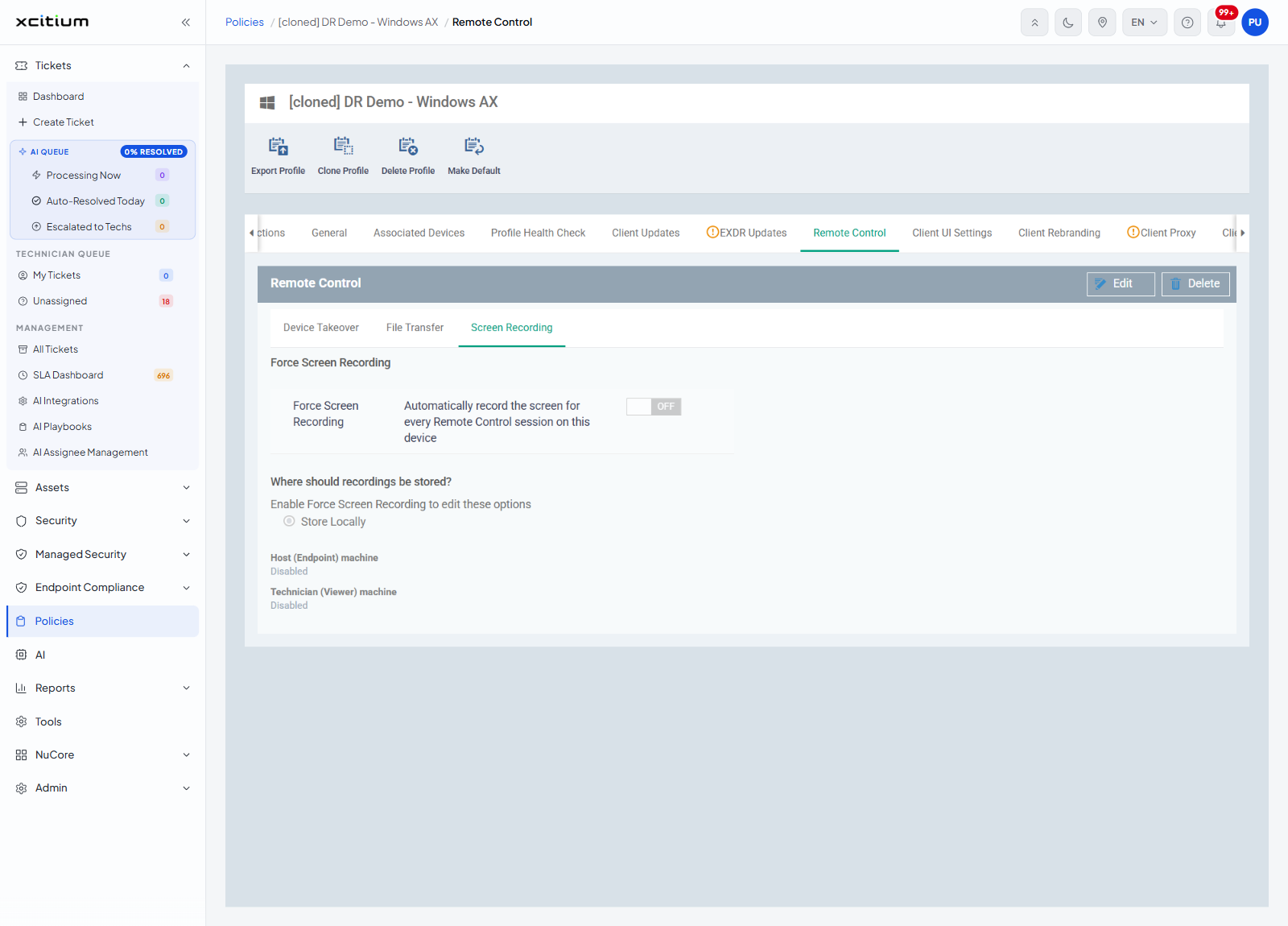
| Setting | Description |
| Force Screen Recording | An ON/OFF toggle described as 'Automatically record the screen for every Remote Control session on this device'. |
| Where should recordings be stored? | A group of options. While recording is off, the line 'Enable Force Screen Recording to edit these options' is shown and the options cannot be changed. |
| Store Locally — Host (Endpoint) machine | Keeps the recording on the device being controlled. |
| Store Locally — Technician (Viewer) machine | Keeps the recording on the technician's machine. |
Set what a technician may do
- Click 'Policies' in the left navigation bar and open the profile.
- Click the 'Remote Control' tab, then 'Edit'.
- On 'Device Takeover', switch the rows on or off and set the message the device user sees.
- On 'File Transfer', decide whether files may be read, moved, created, deleted or renamed.
- On 'Screen Recording', decide whether sessions are recorded and where the recording is kept.
- Click 'Save'.
Note: 'Remote Tools' is a separate section covering what a technician may do through the browser rather than through the Remote Control application. See Remote Tools.