


EDR
- Open a Windows profile, then click the 'EDR' tab.
'EDR' watches what programs do to the operating system and steps in when the behaviour looks like malware. The panel carries 'Save' and 'Delete' buttons and has four sub-tabs.
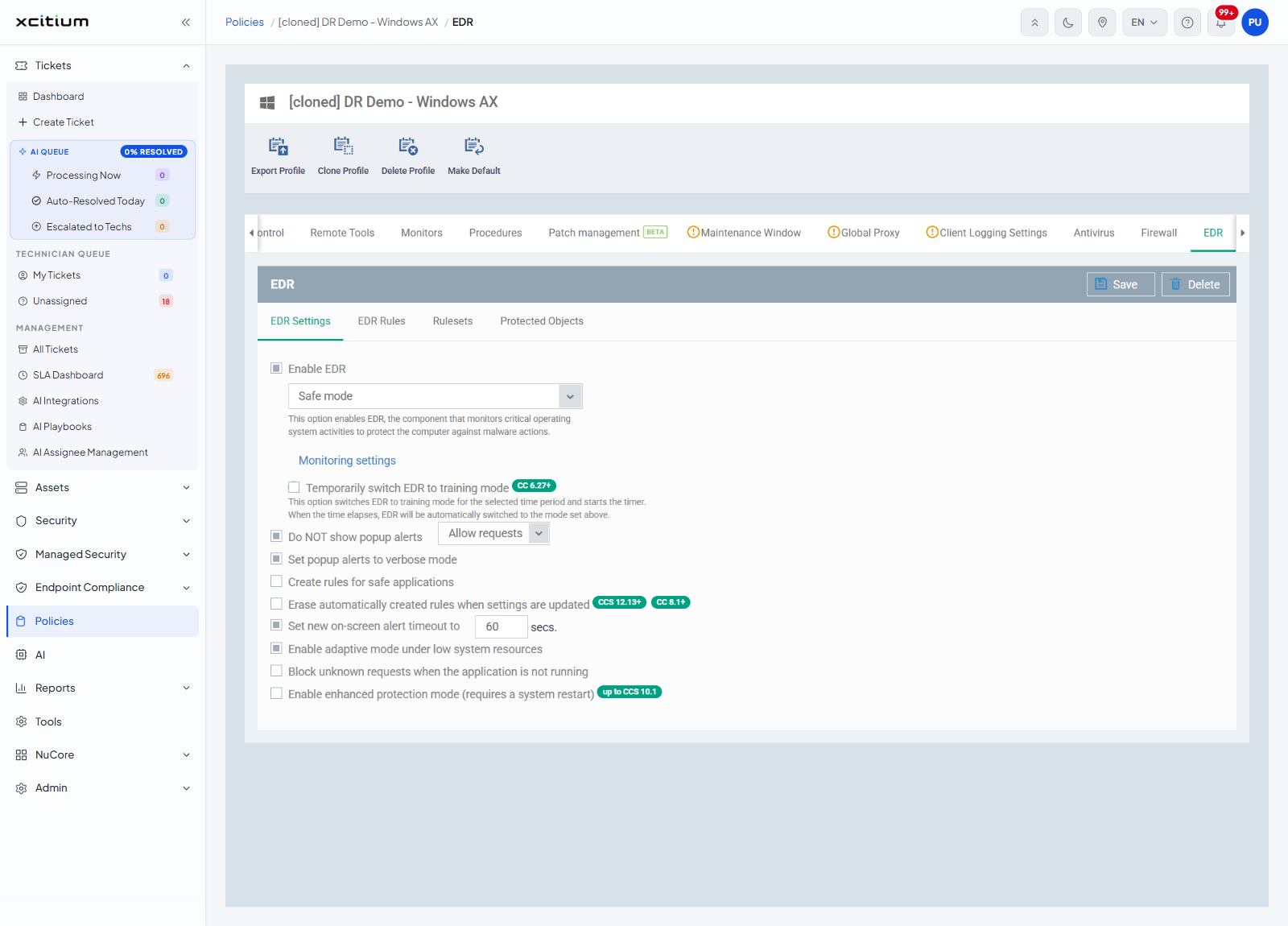
EDR Settings
| Setting | Badge | Description / options |
| Enable EDR | — | 'This option enables EDR, the component that monitors critical operating system activities to protect the computer against malware actions.' A drop-down offers 'Paranoid mode', 'Safe mode' (the default) and 'Training mode'. |
| Monitoring settings | — | Opens the list of activities EDR watches. |
| Temporarily switch EDR to training mode | CC 6.27+ | 'This option switches EDR to training mode for the selected time period and starts the timer. When the time elapses, EDR will be automatically switched to the mode set above.' |
| Do NOT show popup alerts | — | A drop-down underneath offers 'Allow requests' (the default) or 'Block requests', which is what happens instead of asking. |
| Set popup alerts to verbose mode | — | Gives the device user more detail in the alert. |
| Create rules for safe applications | — | Writes rules automatically for applications known to be safe. |
| Erase automatically created rules when settings are updated | CCS 12.13+, CC 8.1+ | Clears those automatic rules whenever the profile changes. |
| Set new on-screen alert timeout to ... secs. | — | A number box. |
| Enable adaptive mode under low system resources | — | Eases off when the device is short of memory or processor. |
| Block unknown requests when the application is not running | — | — |
| Enable enhanced protection mode (requires a system restart) | up to CCS 10.1 | — |
EDR Rules
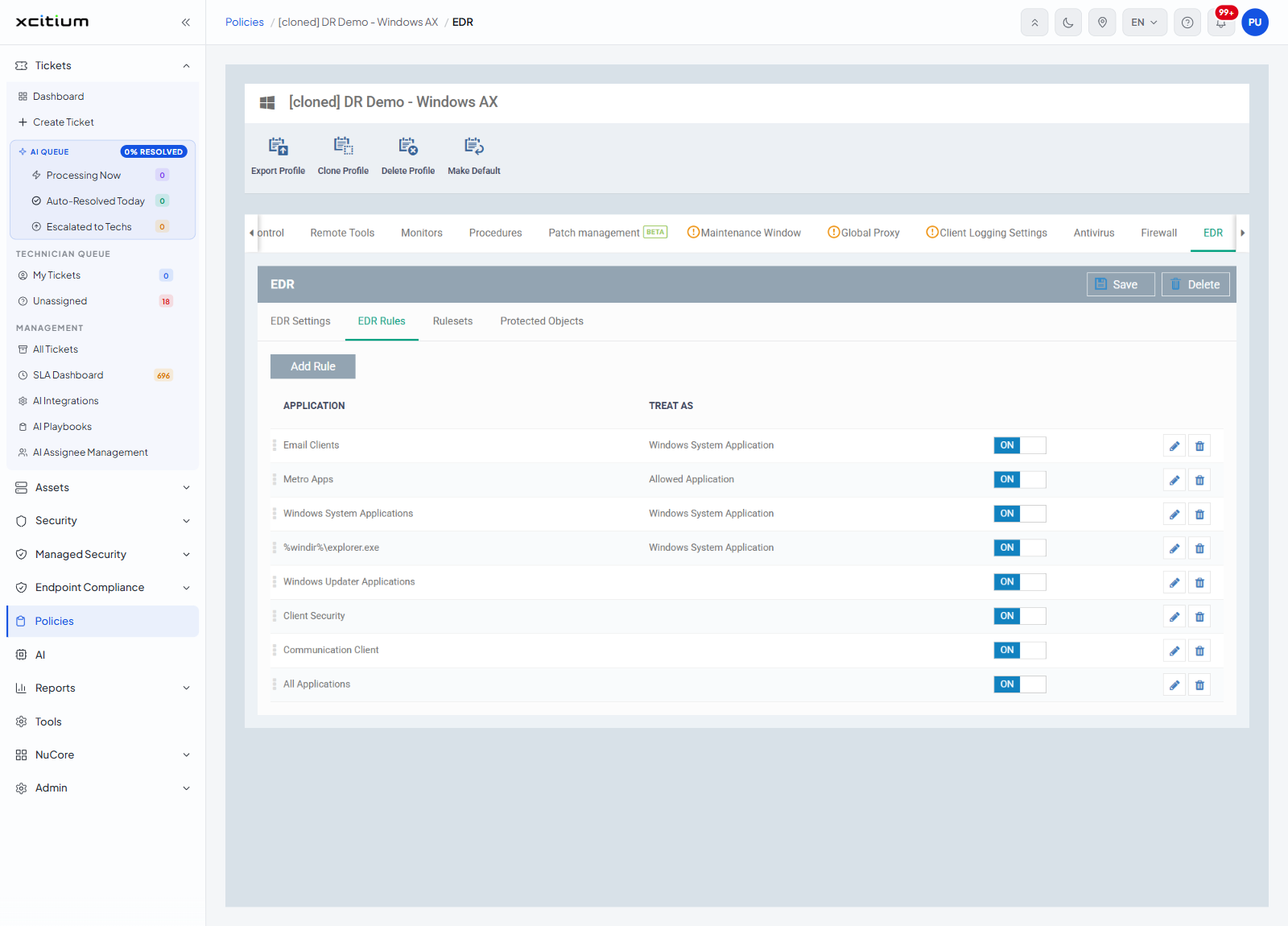
One rule per application, with an 'Add Rule' button above the list.
| Column | Description |
| APPLICATION | The application or application group the rule covers, for example 'Email Clients', 'Metro Apps', 'Windows System Applications', 'Client Security', 'Communication Client' or 'All Applications'. |
| TREAT AS | The ruleset applied to it, for example 'Windows System Application' or 'Allowed Application'. It is blank on rules that carry their own conditions. |
| (last column) | An ON/OFF toggle that turns the rule on or off. |
Add an EDR rule
'Add Rule' opens the 'EDR Rule' dialog. A rule names the application, then either points at a saved ruleset or carries its own access rights and protection settings.
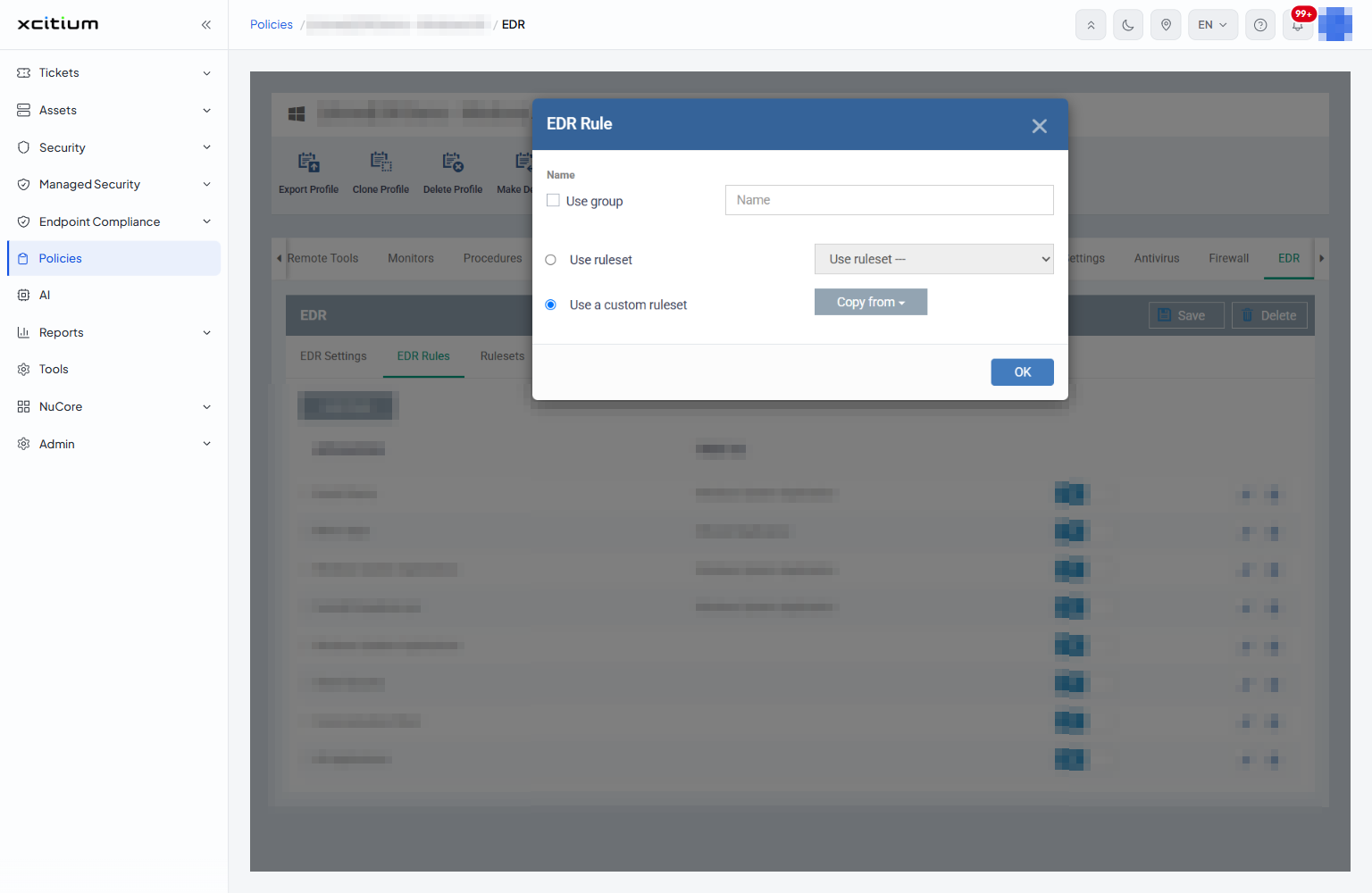
| Field | Description |
| Name | The application the rule covers. |
| Use group | Applies the rule to a file group instead of a single application. Ticking it reveals a drop-down of the file groups available to you. |
| Use ruleset | Applies one of the saved rulesets. The drop-down beside it offers 'Allowed Application', 'Windows System Application', 'Isolated Application' and 'Limited Application'. |
| Use a custom ruleset | Gives this rule its own 'Access Rights' and 'Protection Settings'. This is the option selected when the dialog opens. |
| Copy from | Fills the custom ruleset from a saved one: 'Rulesets', 'Allowed Application', 'Windows System Application', 'Isolated Application' or 'Limited Application'. |
| Access Rights | A tab listing each thing the application may do, with an 'Action' for each and an 'Exclusions' link. |
| Protection Settings | A tab listing what the application itself is protected from, with a 'State' for each and an 'Exclusions' link. |
- Click 'Policies' in the left navigation bar and open the profile.
- Click the 'EDR' tab, then click 'EDR Rules'.
- Click 'Add Rule'.
- Give the rule a name, or tick 'Use group' and choose a file group.
- Choose 'Use ruleset' and pick a ruleset, or leave 'Use a custom ruleset' selected and set the 'Access Rights' and 'Protection Settings' yourself.
- Click 'OK', then click 'Save'.
Rulesets
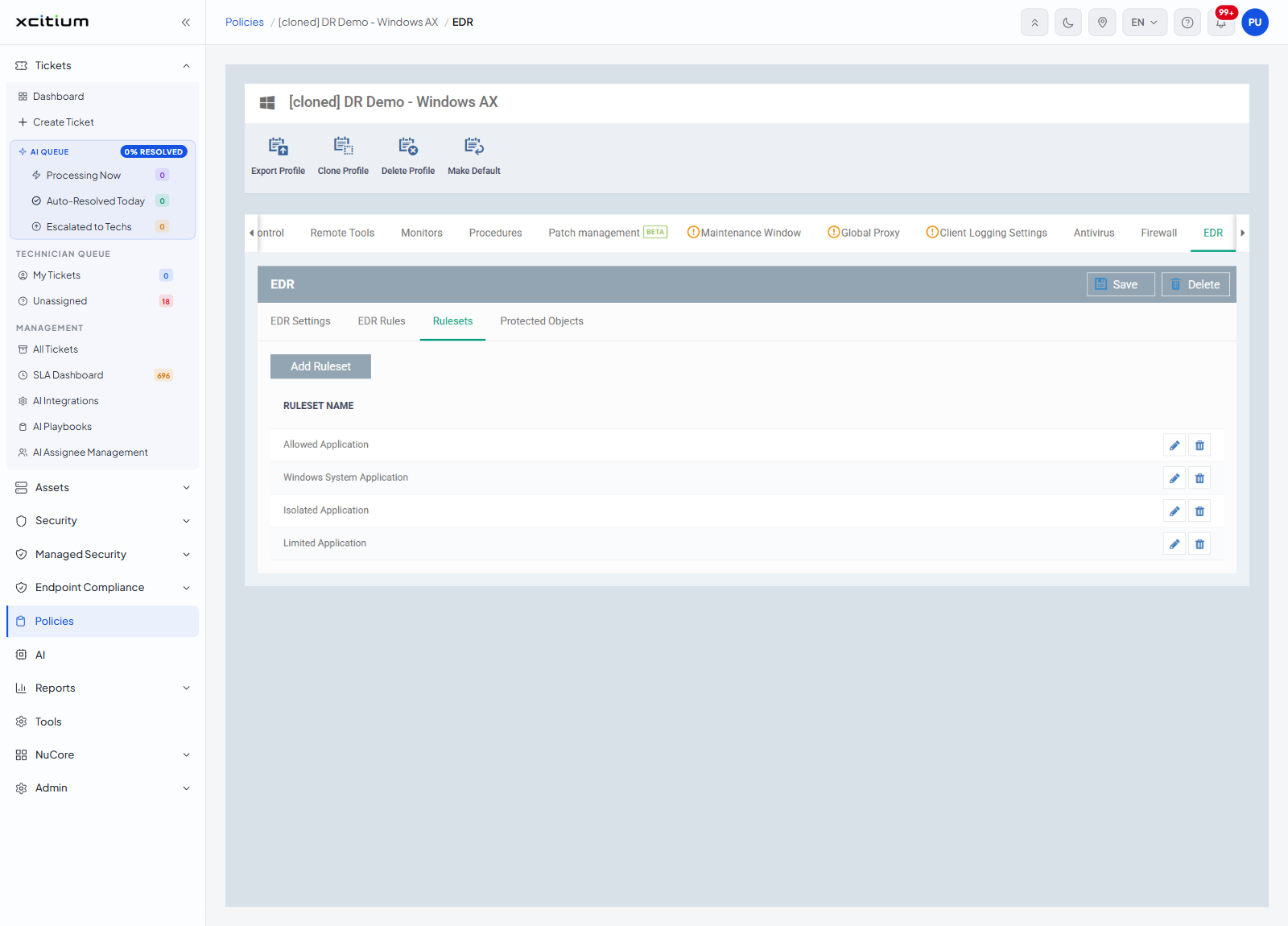
Named sets of rules you can attach to an application. The button above the list reads 'Add Ruleset' and the list has one column, 'RULESET NAME'. The list includes rulesets such as 'Allowed Application', 'Windows System Application', 'Isolated Application' and 'Limited Application'.
Add a ruleset
'Add Ruleset' opens the 'EDR Ruleset' dialog.
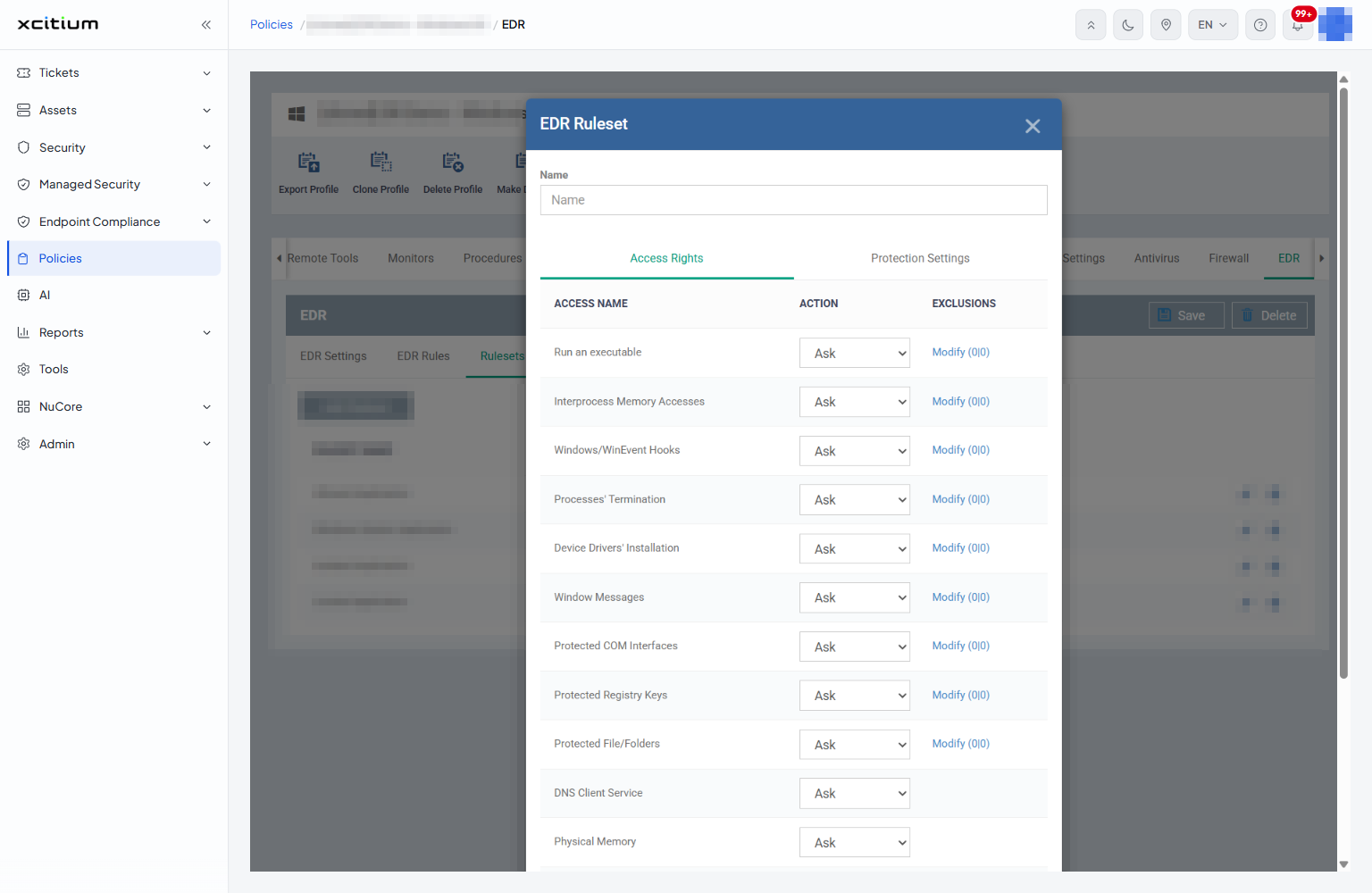
| Field | Description |
| Name | The name of the ruleset. It appears in the 'RULESET NAME' list and in the 'Use ruleset' drop-down on an EDR rule. |
| Access Rights | A table of 'ACCESS NAME', 'ACTION' and 'EXCLUSIONS'. Each row sets what an application using this ruleset may do. |
| Protection Settings | A table of 'Protection', 'State' and 'Exclusions'. Each row sets what the application is protected from. |
The 'Access Rights' rows, in order, are 'Run an executable', 'Interprocess Memory Accesses', 'Windows/WinEvent Hooks', "Processes' Termination", "Device Drivers' Installation", 'Window Messages', 'Protected COM Interfaces', 'Protected Registry Keys', 'Protected File/Folders', 'DNS Client Service', 'Physical Memory', 'Computer Monitor', 'Disk' and 'Keyboard'. 'Run an executable' offers 'Ask' or 'Block'; every other row offers 'Ask', 'Allow' or 'Block'. Each row carries a 'Modify' link that sets the exclusions for that right.
The 'Protection Settings' rows are 'Interprocess Memory Accesses', 'Windows/WinEvent Hooks', "Processes' Termination" and 'Window Messages'. Each has a 'State' of 'Active' or 'Inactive' and its own 'Modify' link.
- Click 'Policies' in the left navigation bar and open the profile.
- Click the 'EDR' tab, then click 'Rulesets'.
- Click 'Add Ruleset' and give the set a name.
- On 'Access Rights', set an action for each row, and use 'Modify' where a right needs exclusions.
- Click 'Protection Settings' and set each row to 'Active' or 'Inactive'.
- Click 'OK', then click 'Save'.
Protected Objects
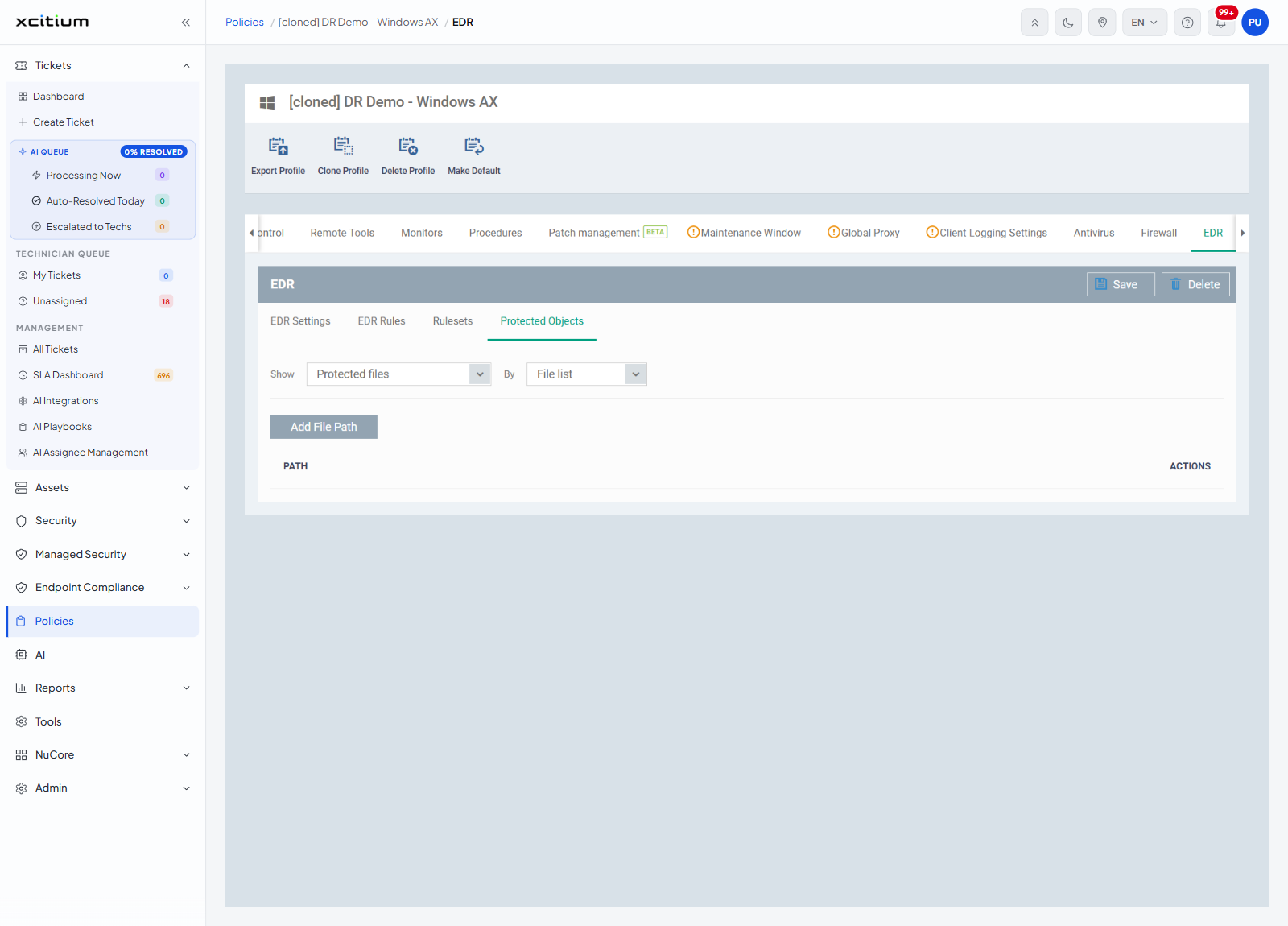
The things on the device EDR guards. Two drop-downs at the top choose what the list shows.
| Control | Options | Default |
| Show | 'Protected files', 'Registry keys', 'COM interfaces' | Protected files |
| By | 'File list', 'Group list' | File list |
An 'Add File Path' button sits above a list with two columns, 'PATH' and 'ACTIONS'. If no paths are defined, the list is empty.
Add a protected file path
With 'Show' set to 'Protected files' and 'By' set to 'File list', 'Add File Path' opens the 'Add Protected File Path' dialog.
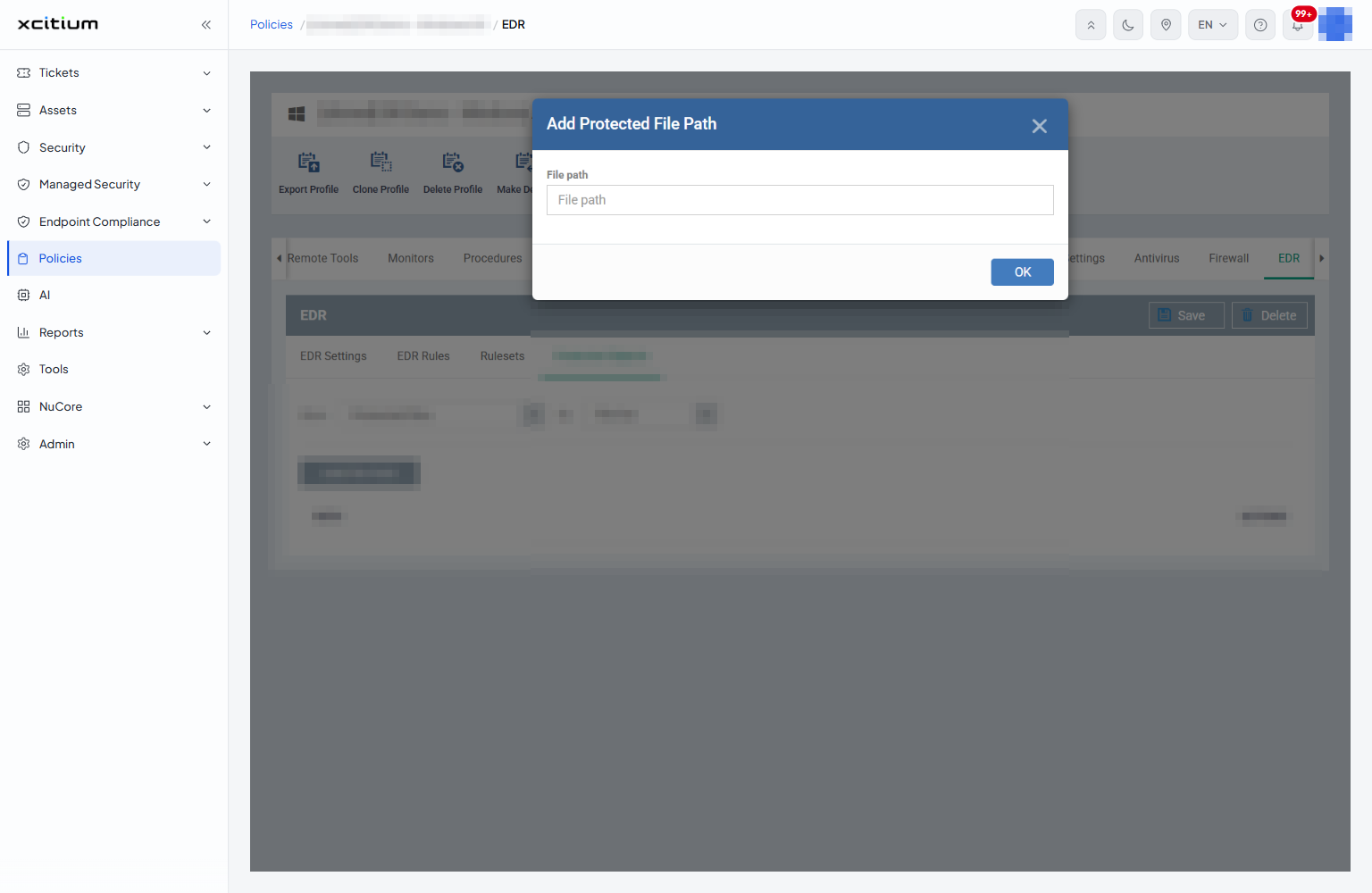
| Field | Description |
| File path | The file or folder EDR should guard. |
- Click 'Policies' in the left navigation bar and open the profile.
- Click the 'EDR' tab, then click 'Protected Objects'.
- Set 'Show' and 'By' to the kind of object you want to add.
- Click 'Add File Path' and give the path.
- Click 'OK', then click 'Save'.
Set up EDR
- Click 'Policies' in the left navigation bar and open the profile.
- Click the 'EDR' tab.
- On 'EDR Settings', turn on 'Enable EDR' and choose 'Paranoid mode', 'Safe mode' or 'Training mode'.
- Decide whether the device user sees alerts and what happens when they do not.
- Use 'EDR Rules' and 'Rulesets' to say how each application is treated.
- Use 'Protected Objects' to list the files, registry keys and COM interfaces to guard.
- Click 'Save'.
Note: 'Training mode' writes rules from what it sees rather than blocking. Use the 'Temporarily switch EDR to training mode' timer so the mode reverts by itself.