


Create a Playbook
- Click 'Tickets' > 'Management' > 'AI Playbooks', then click '+ Add New Playbook'.
Creating a playbook teaches the AI service agent to handle a kind of request you deal with repeatedly. You describe when it applies, what the AI should do, which tools it may use, and whether a person has to approve the action.
You can name and define the playbook, write its trigger and instructions, attach tools, decide whether it needs an approver, and create it.
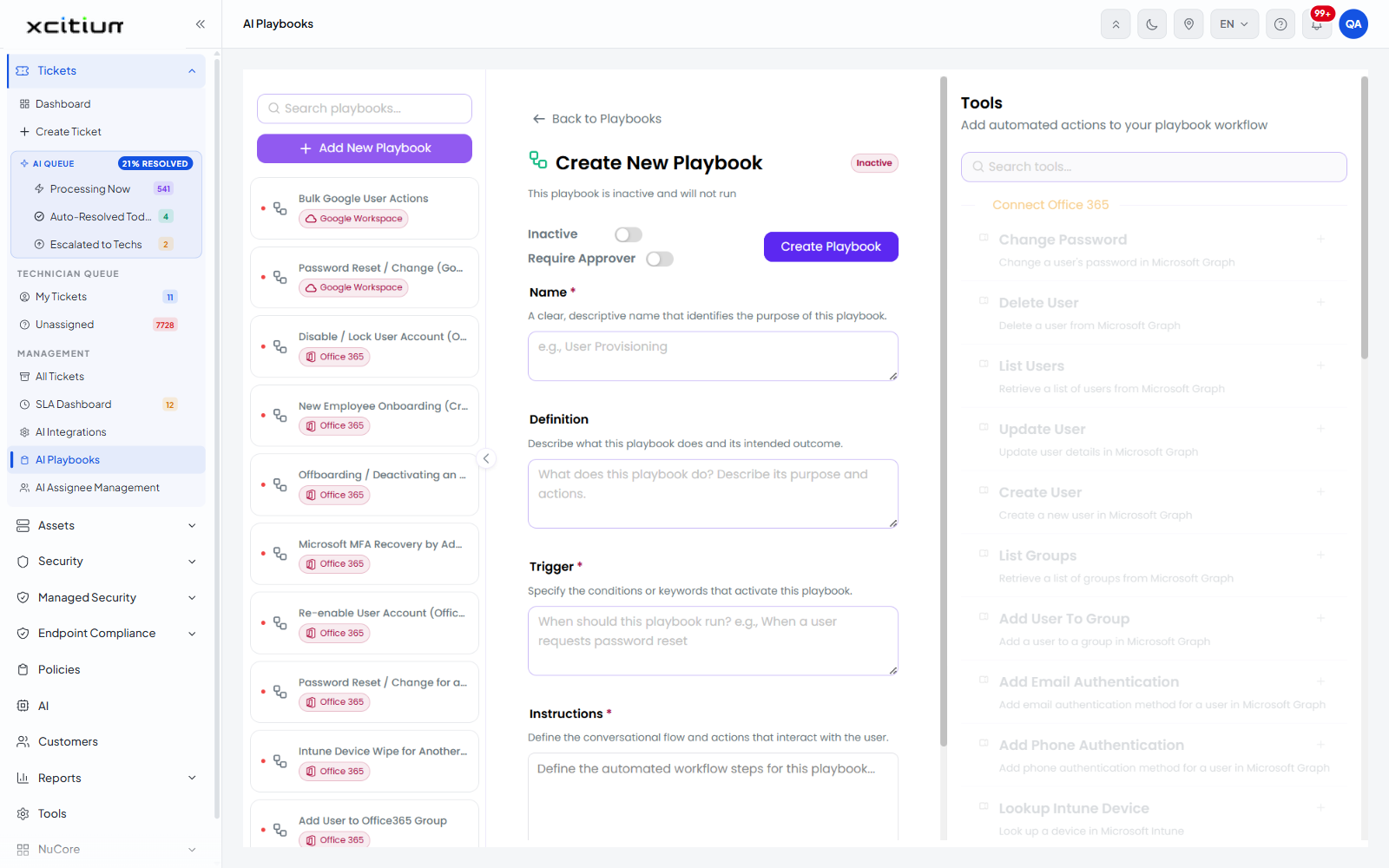
The editor
The middle pane is headed 'Create New Playbook' with a '← Back to Playbooks' link above it. A new playbook starts with the 'Inactive' badge and the line 'This playbook is inactive and will not run'.
| Control | Description |
| ← Back to Playbooks | Leaves the editor and returns to the playbook list. |
| Inactive | A switch that turns the new playbook off and on. |
| Require Approver | A switch that makes the playbook wait for a human decision before it acts. |
| Create Playbook | Creates the playbook. |
The fields
| Field | Helper text | Type | Required |
| Name | A clear, descriptive name that identifies the purpose of this playbook. | Text. Placeholder 'e.g., User Provisioning'. | Yes |
| Definition | Describe what this playbook does and its intended outcome. | Textarea. Placeholder 'What does this playbook do? Describe its purpose and actions.' | No |
| Trigger | Specify the conditions or keywords that activate this playbook. | Textarea. Placeholder 'When should this playbook run? e.g., When a user requests password reset'. | Yes |
| Instructions | Define the conversational flow and actions that interact with the user. | Rich-text editor. Placeholder 'Define the automated workflow steps for this playbook...'. | Yes |
| After Approval | Define what actions to perform after approval is granted. | Rich-text editor. Shown only when 'Require Approver' is on. | Yes (when approval is required) |
| Approver | Choose who will review and approve or reject requests handled by this playbook. | Dropdown. Default 'Select an approver'. Shown only when 'Require Approver' is on. | Yes (when approval is required) |
Create a playbook
- Click 'Tickets' > 'Management' > 'AI Playbooks'.
- Click '+ Add New Playbook'. The editor opens empty.
- Type a 'Name' that says what the playbook is for.
- Fill in 'Definition' to describe the outcome it should produce.
- Fill in 'Trigger' with the conditions or keywords that should set it off.
- Write the 'Instructions' — the steps the AI should follow, including what to do when information is missing.
- Attach the tools the playbook needs from the 'Tools' panel.
- If a person must sign the action off, turn on 'Require Approver', fill in 'After Approval' and choose an 'Approver'.
- Turn off the 'Inactive' switch when you want the playbook to run.
- Click 'Create Playbook'.
When there are no approvers yet
If you turn on 'Require Approver' while no approvers exist, an alert appears reading 'No Approvers Found — You need to add approvers to the system before creating an approval-based playbook.', with an 'Add Approver' button.
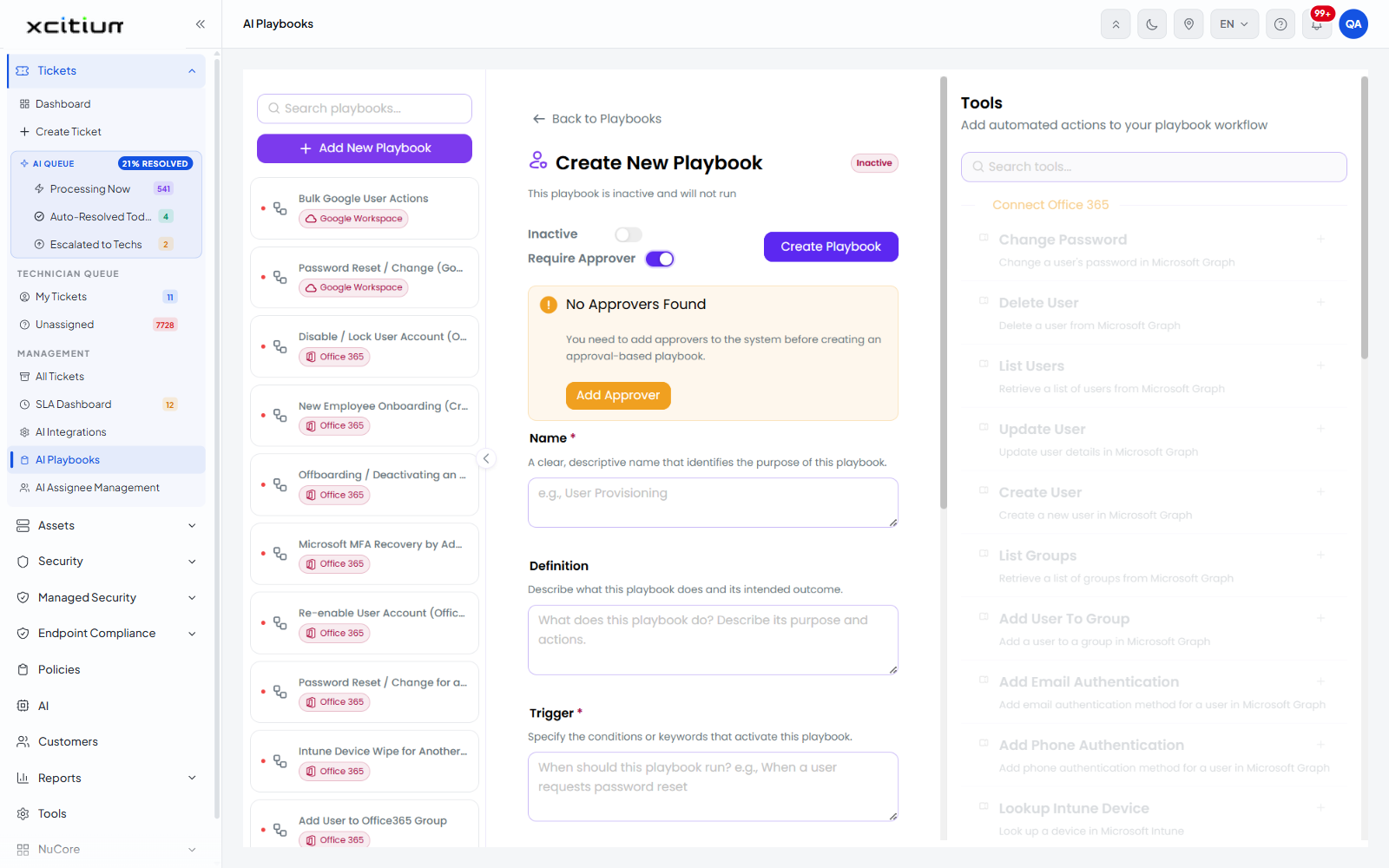
Click 'Add Approver' to add one without leaving the editor. See Playbook Approvers.
Note: a new playbook is created inactive. Turn off the 'Inactive' switch once you are satisfied with the instructions, or it will never run.