


Run a Procedure
- Click 'Assets' > 'Monitoring & Management' > 'Procedures', tick a procedure and click 'Run' on the toolbar — or open the procedure and click 'Run' in its header.
The Run Procedure dialog chooses which devices the procedure runs on, which account it runs under, who receives the resulting log, and what happens to devices that are inside a maintenance window.
You can target everything from a single device to a whole customer, and you can have the logs emailed when the run finishes.
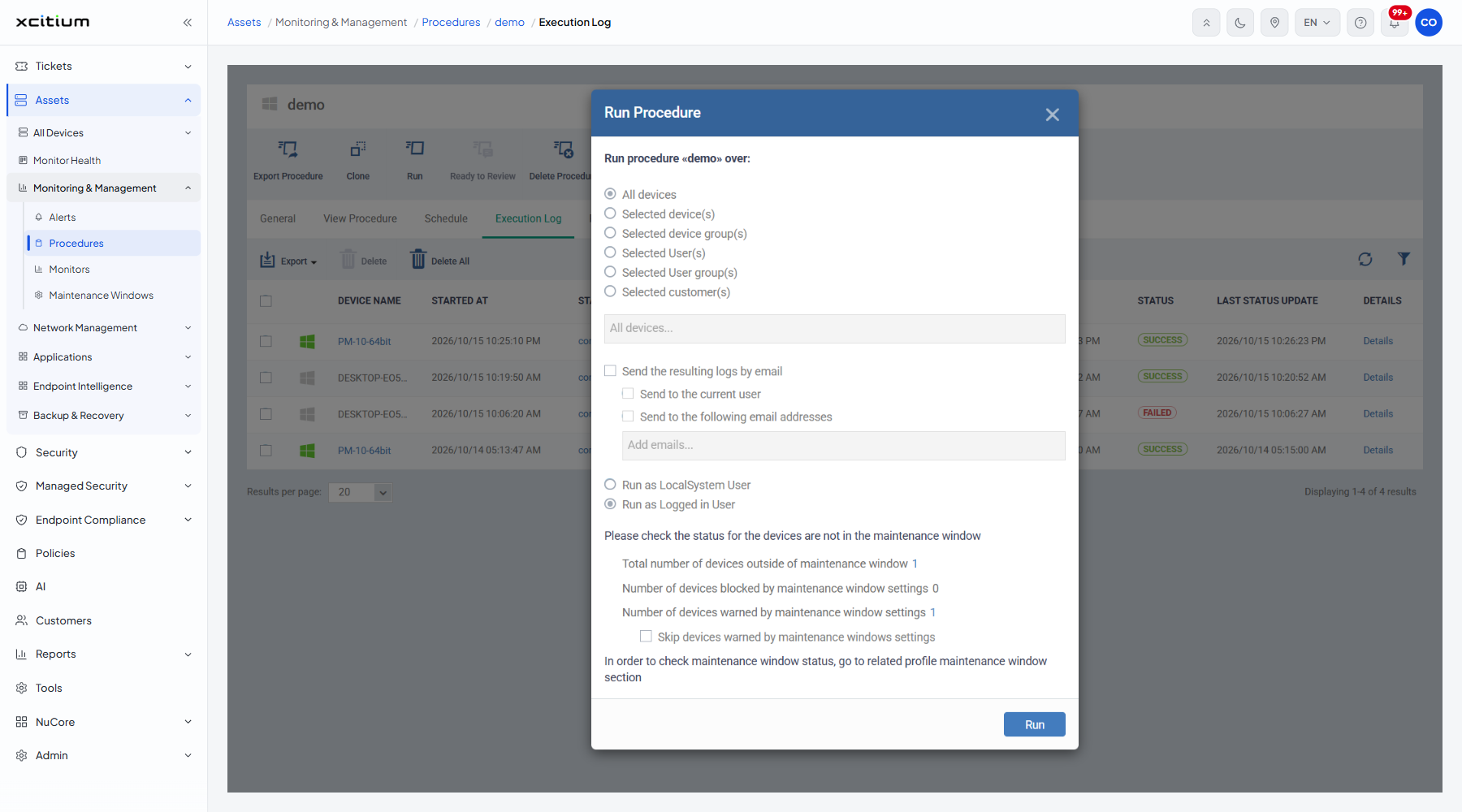
The dialog is headed 'Run procedure «<procedure name>» over:'.
Choose the target
The first control is a radio group. Under it sits a search box whose placeholder follows the option you pick.
| Option | Description |
| All devices | Every device you manage. This is the default. |
| Selected device(s) | Devices you name one by one. |
| Selected device group(s) | Every device in the groups you name. |
| Selected User(s) | Every device owned by the users you name. |
| Selected User group(s) | Every device owned by the users in the groups you name. |
| Selected customer(s) | Every device belonging to the customers you name. |
The remaining fields
| Field | Type | Options / default | Required |
| Send the resulting logs by email | Checkbox | Clear by default. Ticking it enables the two checkboxes below. | No |
| Send to the current user | Checkbox | Clear by default. Emails the log to the account you are signed in as. | No |
| Send to the following email addresses | Checkbox and picker | Clear by default. Ticking it enables an 'Add emails...' box where you type the addresses. | No |
| Run as LocalSystem User | Radio | Runs the procedure under the system account on the endpoint. | No |
| Run as Logged in User | Radio | Runs it under the account signed in at the endpoint. This is the default. | No |
| Skip devices warned by maintenance windows settings | Checkbox | Clear by default. Leaves out the devices the maintenance-window check has flagged with a warning. | No |
The maintenance window check
A block headed 'Please check the status for the devices are not in the maintenance window' counts the devices your target resolves to:
| Column | Description |
| Total number of devices outside of maintenance window | Devices the procedure will reach without restriction. |
| Number of devices blocked by maintenance window settings | Devices whose maintenance window forbids this task outright. The procedure will not run on them. |
| Number of devices warned by maintenance window settings | Devices whose maintenance window warns about this task. Tick the skip checkbox to leave them out. |
The block closes with the line 'In order to check maintenance window status, go to related profile maintenance window section'.
Run a procedure
- Click 'Assets' > 'Monitoring & Management' > 'Procedures'.
- Tick the procedure and click ‘Run’, or open it and click ‘Run’ in the header.
- Choose a target option and, unless you chose ‘All devices’, name the devices, groups, users or customers in the box beneath it.
- Tick ‘Send the resulting logs by email’ and choose the recipients if you want the log emailed.
- Choose ‘Run as LocalSystem User’ or ‘Run as Logged in User’.
- Read the maintenance-window counts and tick ‘Skip devices warned by maintenance windows settings’ if you want to leave those devices out.
- Click 'Run'.
Note: the procedure must be approved before it will run. Check the 'Status' column on the Procedures list first.