


Install and Manage Packages on a Device
- Open a device, then click 'Install or Manage Packages' on its toolbar.
This menu covers the software the platform itself puts on a device: the security and detection clients, plus any custom package you point it at. Each entry opens its own dialog, and all four share the same reboot controls.
You can add the security or detection clients, install a package from a URL, update the clients already on the device, and remove them.
The menu
| Item | Description |
| Install Additional Xcitium Packages | Adds the security client or the extended detection and response client. |
| Install Custom MSI/Packages | Installs a package from a URL you supply. |
| Update Additional Packages | Updates the clients already on the device. |
| Uninstall Additional Packages | Removes the security or detection client. |
The reboot controls
Every one of these dialogs ends with the same block.
| Option | Description |
| Force the reboot in | Reboots after the delay in the dropdown beside it. This is the default. Options: '5 minutes' (the default), '10 minutes', '20 minutes', '30 minutes', '60 minutes', '120 minutes', '240 minutes', '300 minutes'. |
| Suppress the reboot | Does not reboot. Carries an information icon. |
| Warn about the reboot and let users postpone it | Warns the user and lets them delay it. |
| Reboot message | A textarea for the message the device owner sees first. |
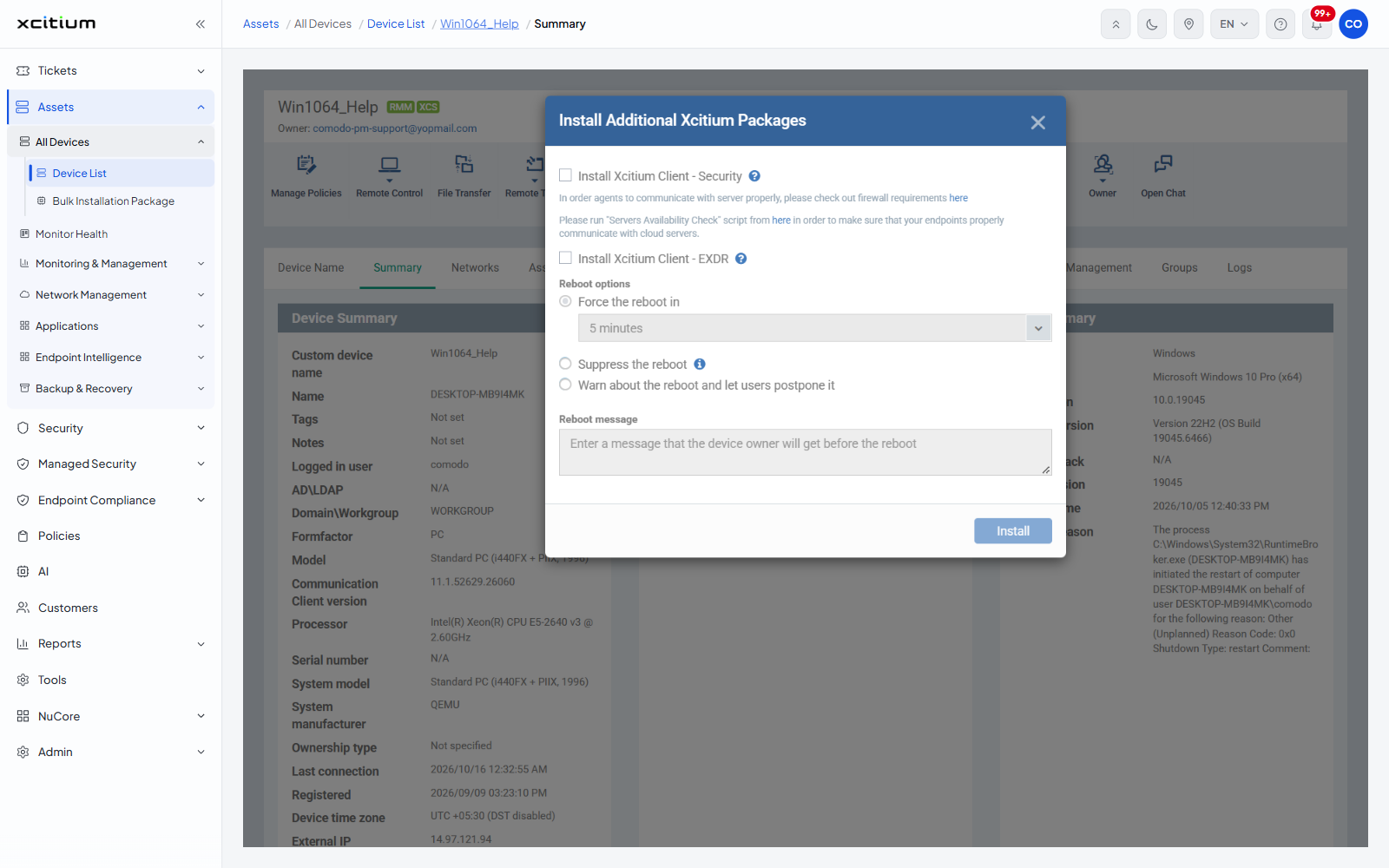
Install Additional Xcitium Packages
| Field | Type | Options / default |
| Install Xcitium Client - Security | Checkbox | Clear by default. Carries a help icon. Two notes beneath link to the firewall requirements and ask you to run the servers availability check script first. |
| Install Xcitium Client - EXDR | Checkbox | Clear by default. Carries a help icon. |
The 'Install' button is greyed until a package is ticked.
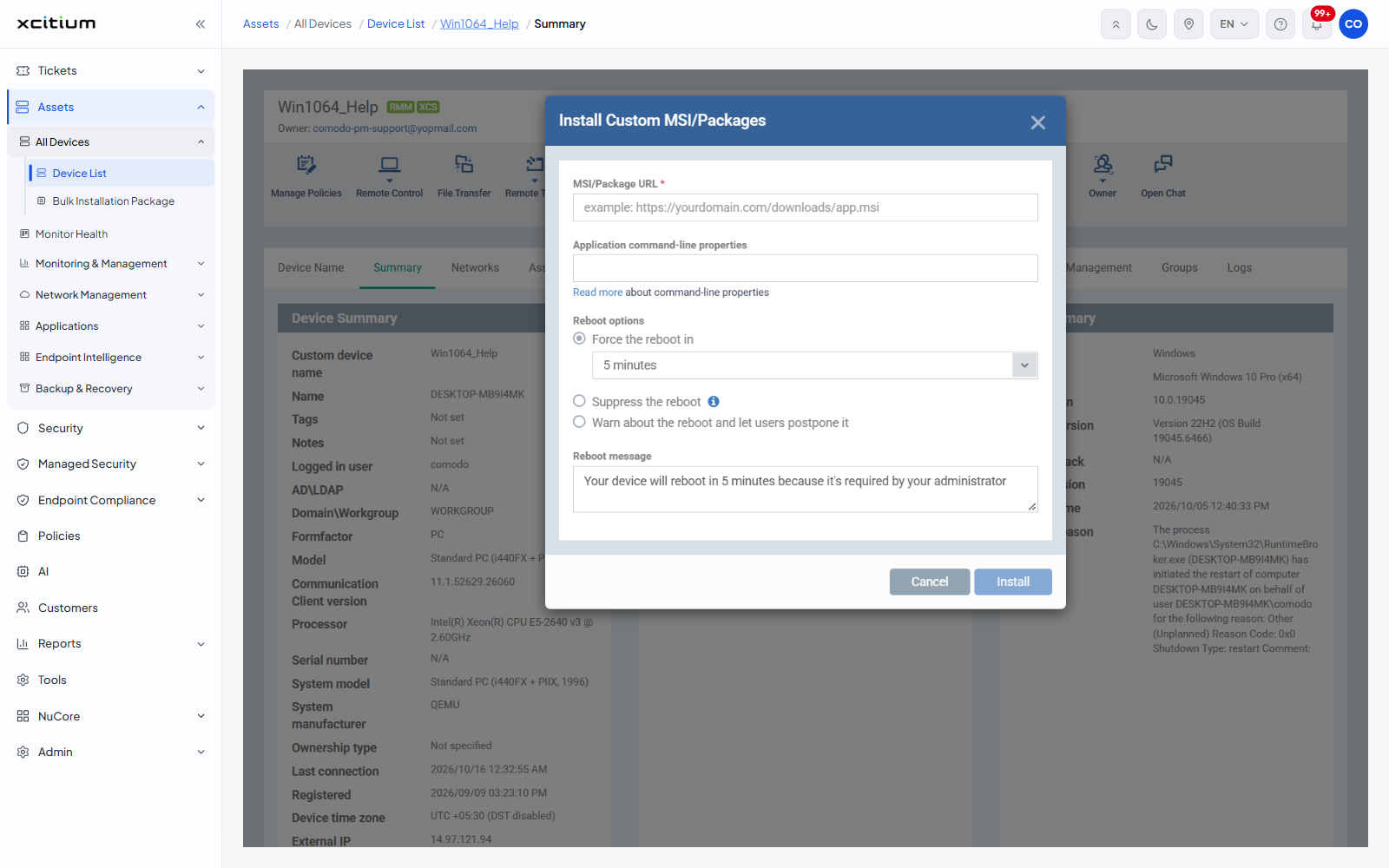
Install Custom MSI/Packages
| Field | Type | Options / default | Required |
| MSI/Package URL | Text | Placeholder shows an example URL. The device downloads the package from here. | Yes |
| Application command-line properties | Text | Switches passed to the installer. A 'Read more about command-line properties' link sits beneath it. | No |
The 'Reboot message' here is pre-filled. Buttons: 'Cancel' and 'Install'.
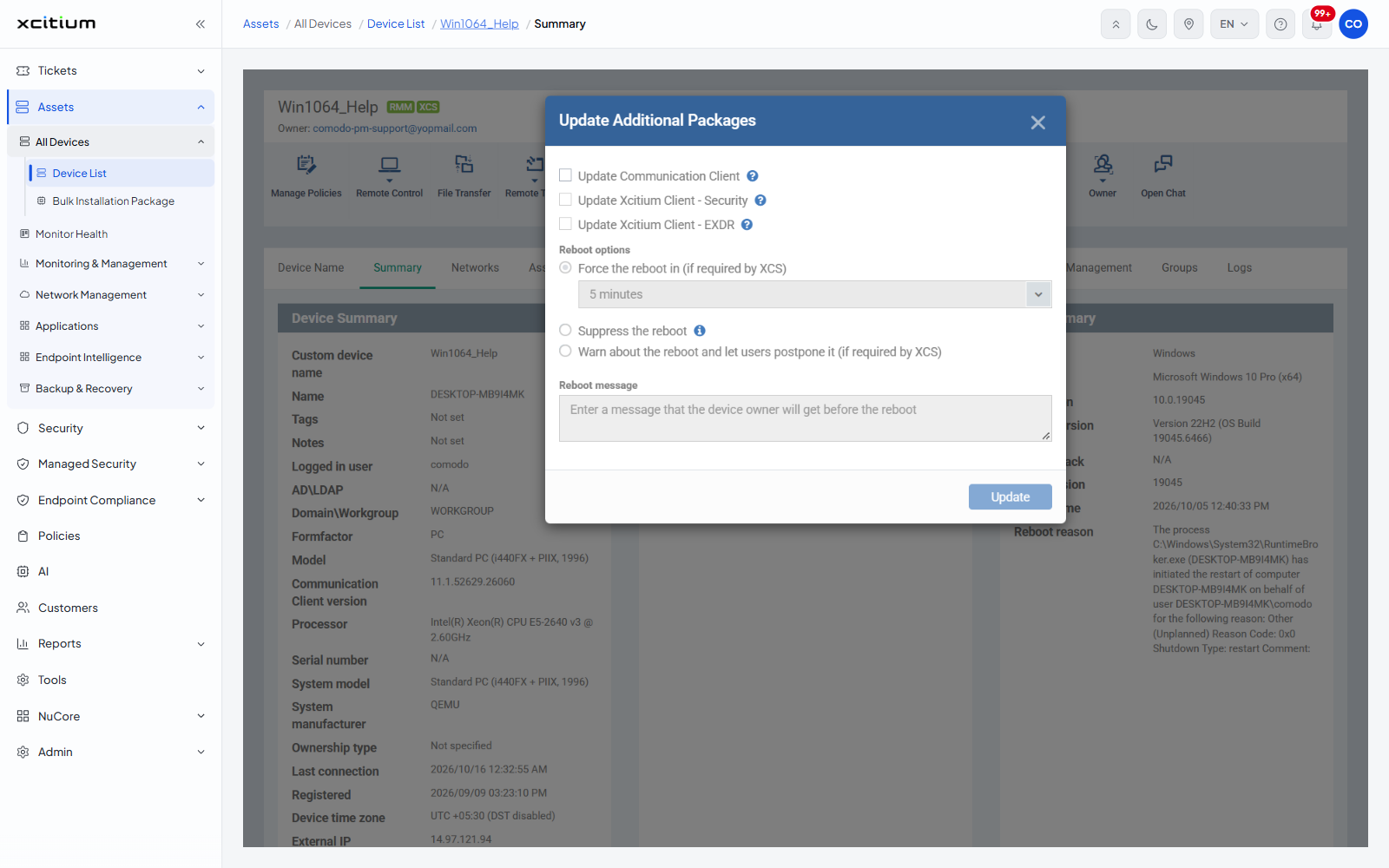
Update Additional Packages
| Field | Type | Options / default |
| Update Communication Client | Checkbox | Clear by default. |
| Update Xcitium Client - Security | Checkbox | Clear by default. |
| Update Xcitium Client - EXDR | Checkbox | Clear by default. |
The reboot options here read 'Force the reboot in (if required by XCS)' and 'Warn about the reboot and let users postpone it (if required by XCS)'. The 'Update' button is greyed until a package is ticked.
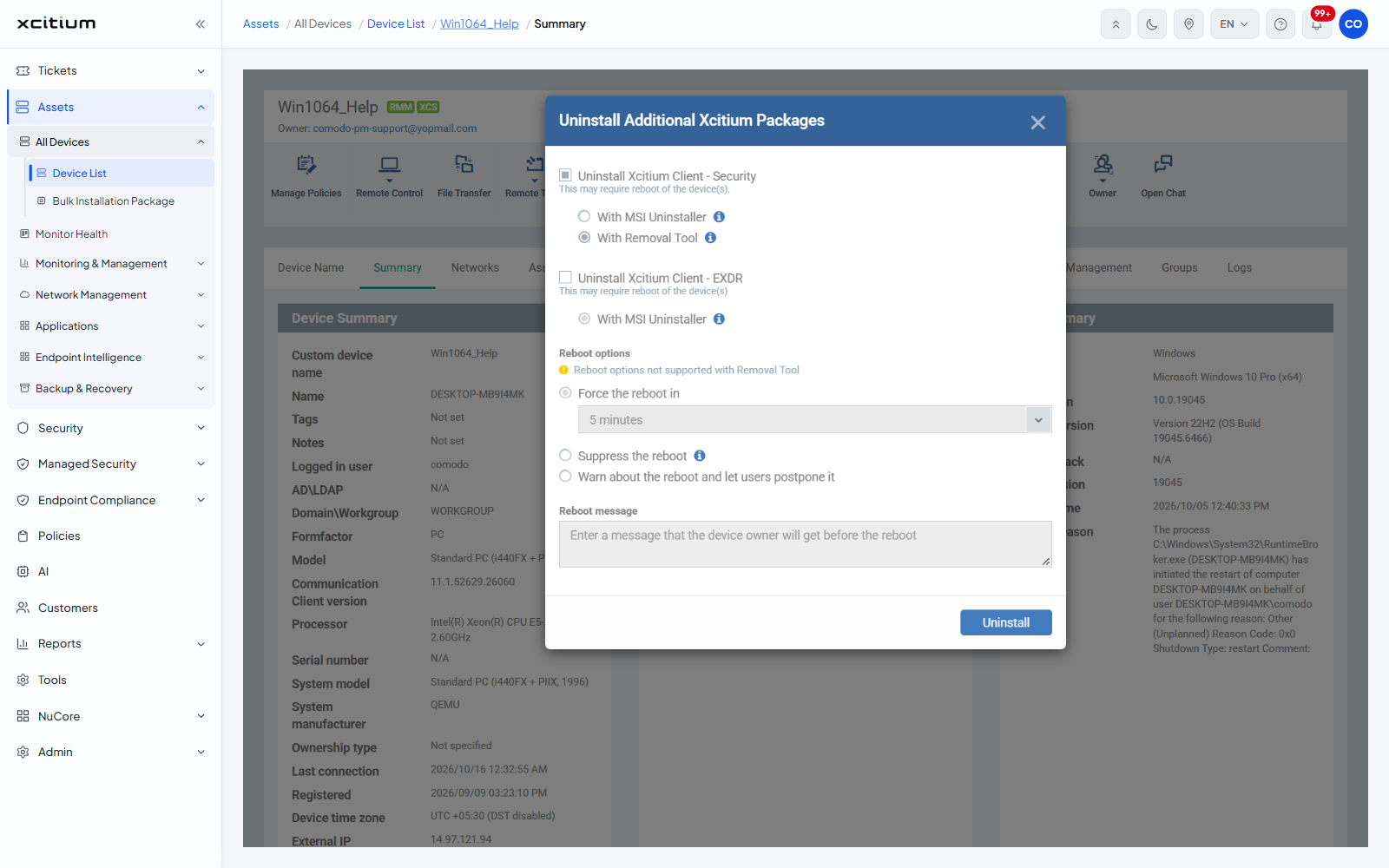
Uninstall Additional Xcitium Packages
| Field | Type | Options / default |
| Uninstall Xcitium Client - Security | Checkbox | Clear by default, with the note 'This may require reboot of the device(s)'. Reveals a radio pair: 'With MSI Uninstaller' and 'With Removal Tool' ('With Removal Tool' is the default), each with an information icon. |
| Uninstall Xcitium Client - EXDR | Checkbox | Clear by default, with the same note and a single 'With MSI Uninstaller' radio. |
The reboot block carries the warning 'Reboot options not supported with Removal Tool'. Button: 'Uninstall'.
Install a client on a device
- Open the device and click 'Install or Manage Packages'.
- Click 'Install Additional Xcitium Packages'.
- Tick the client you want installed.
- Choose a reboot option and type a reboot message.
- Click 'Install'.
- Follow progress on the device's 'MSI Installation State' tab.
Note: these actions run against a live machine and most need a restart. Set the reboot option deliberately, and see Maintenance Windows for controlling when installs are allowed to run.