


Alert Detail for an EDR Alert
- Click 'Security' > 'Endpoint Security' > 'Alerts' > 'Alert Search', set 'Component' to 'EXDR', click 'Apply', then click the arrow at the start of any row.
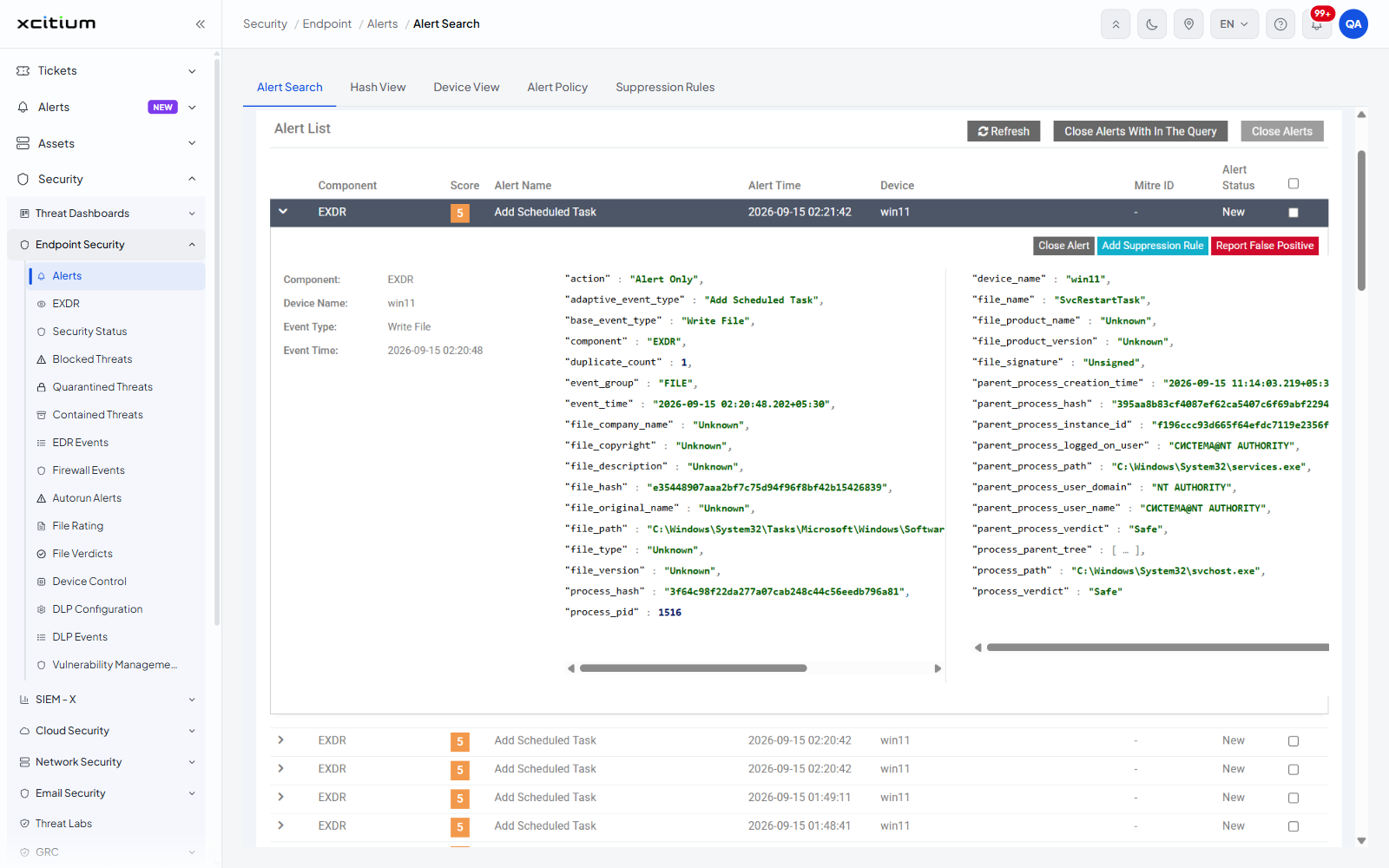
An alert raised by the 'EXDR' component opens a wider detail panel than the other components. It carries two extra buttons, it records the whole process chain that led to the event, and its file and process values pivot into the process timeline as well as into hash and event search.
You can read the event behind the alert, build a suppression rule straight from it, pivot into an investigation, report the alert as a false positive, and close the alert.
The buttons
Three buttons sit at the top right of the panel, left to right.
| Button | Description |
| Close Alert | Closes this one alert. Its status changes to 'Closed' immediately and the button and the row checkbox disappear. Only shown while the alert is not already closed. |
| Add Suppression Rule | Opens the 'Add Alert Suppression Rule' form with this alert's own values loaded into the 'Available Fields' panel, so you can build a rule that stops this kind of alert being raised again. |
| Report False Positive | Opens the 'Report False Alert' box, where you can send this alert back for assessment. See 'Report a false positive' below. |
The summary
The left-hand column of the panel is a short summary of the alert.
| Field | Description |
| Component: | 'EXDR' for these alerts. |
| Device Name: | The managed device the event happened on. |
| Event Type: | The underlying event, for example 'Write File'. This is the base event, not the alert name — the row above may read 'Add Scheduled Task' while the event type reads 'Write File'. |
| Event Time: | The date and time of the event itself, usually a few seconds earlier than the 'Alert Time' in the row. |
The event fields
The rest of the panel lists the fields of the event in two columns, as name and value pairs. Each column has its own horizontal scroll bar, because a long path is wider than the column. The exact set depends on the event; for a file event the fields are:
| Field | Description |
| action | What the policy did, 'Alert Only' or 'Terminate and Alert'. This is the same value as the 'Action Type' filter. |
| adaptive_event_type | The name the alert was given, for example 'Add Scheduled Task'. |
| base_event_type | The underlying event, for example 'Write File'. |
| component | The component that produced the event, 'EXDR'. |
| duplicate_count | How many identical events this one row stands for. |
| event_group | The family the event belongs to, for example 'FILE'. |
| event_time | The time of the event, with milliseconds and the time-zone offset. |
| file_company_name | The company recorded in the file's own version information. 'Unknown' when the file carries none. |
| file_copyright | The copyright string from the file's version information. |
| file_description | The description from the file's version information. |
| file_hash | The hash of the file the event is about. Click to pivot. |
| file_original_name | The original file name from the version information. |
| file_path | The full path of the file on the device. Click to pivot. |
| file_type | The type of the file. |
| file_version | The version string from the version information. |
| process_hash | The hash of the process that performed the action. Click to pivot. |
| process_pid | The process identifier on the device. |
| device_name | The name of the device. |
| file_name | The name of the file. Click to pivot. |
| file_product_name | The product name from the version information. |
| file_product_version | The product version from the version information. |
| file_signature | Whether the file is signed, for example 'Unsigned'. |
| parent_process_creation_time | When the parent process started. |
| parent_process_hash | The hash of the parent process. Click to pivot. |
| parent_process_instance_id | The identifier of that run of the parent process. This is the value the process timeline is keyed on. |
| parent_process_logged_on_user | The user the parent process was running as. |
| parent_process_path | The full path of the parent process. |
| parent_process_user_domain | The domain of that user, for example 'NT AUTHORITY'. |
| parent_process_user_name | The user name of that user. |
| parent_process_verdict | The file verdict held for the parent process, for example 'Safe'. |
| process_parent_tree | The chain of processes above this one. It is shown collapsed as '[ ... ]'; click the mark to expand it. |
| process_path | The full path of the process that performed the action. |
| process_verdict | The file verdict held for that process. |
Pivot from a value
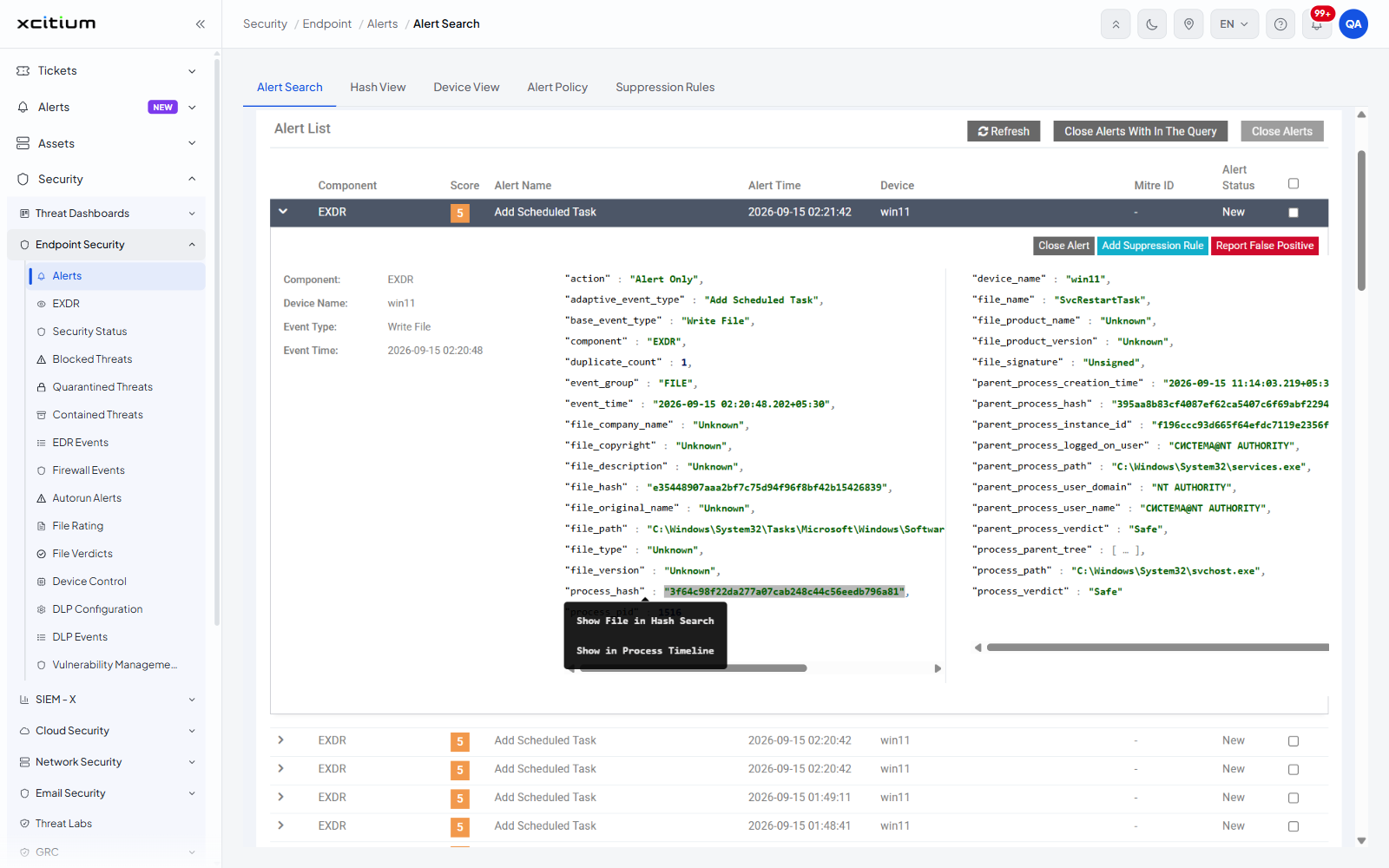
File and process values are clickable. Clicking one opens a short menu directly under it.
| Value | Menu entries |
| file_hash | 'Show File in Hash Search' opens the hash search for that hash. 'Query File Hash' opens an event search for it. |
| file_name | 'Query File Name' opens an event search for that file name. |
| file_path | 'Query File Path' opens an event search for that path. |
| process_hash | 'Show File in Hash Search' and 'Show in Process Timeline', which opens the process timeline for that run of the process at the time of the event. |
| parent_process_hash | 'Show File in Hash Search' and 'Show in Process Timeline'. |
- Click the value you want to pivot on. The menu opens directly under it.
- Click the entry you want. The matching search or timeline opens.
- To close the menu without leaving the page, click the value again.
Build a suppression rule from this alert
- Expand the alert row.
- Click 'Add Suppression Rule' at the top right of the panel. The 'Add Alert Suppression Rule' form opens.
- The 'Available Fields' panel of the form now holds this alert's own values, so you can see exactly what you are matching on. 'Name', 'Description' and the conditions box are still empty.
- Complete the form and save it.
Report a false positive
- Expand the alert row.
- Click 'Report False Positive' at the top right of the panel. A box headed 'Report False Alert' opens.
- Type your feedback in the box. The box is optional and shows 'Please give us feedback on this alert. (Optional)' until you type.
- Click 'Submit' to send the report, or the cross at the top right of the box to close it without sending.