Comodo Help
Find the desired product help
Xcitium MSP

Xcitium MSP

Xcitium MSP Administrator Guide

English

Print Help
AI > Manage An AI Agent > Agent Design > Embed The Agent On Your Website
  • Introduction
    • Key Concepts
    • Best Practices
    • Log In To The Console
      • Reset Your Password
    • The Admin Console
    • The Dashboard
  • Tickets
    • Dashboard
    • Create Ticket
    • AI Queue
      • Processing Now
      • Auto-Resolved Today
      • Escalated To Technicians
    • Technician Queue
      • My Tickets
      • Unassigned Tickets
      • Assign A Ticket From The Unassigned Queue
    • Management
      • All Tickets
        • Ticket Detail
          • Edit A Ticket
          • Reply To A Ticket Or Add An Internal Note
          • View The Activity Log
          • Reassign A Ticket
          • Change Ticket Priority
          • Manage Ticket Attachments
          • Resolve, Close And Reopen A Ticket
          • Merge Tickets
          • AI Insights On A Ticket
          • SLA Status On A Ticket
      • SLA Dashboard
      • AI Integrations
      • AI Playbooks
        • Create A Playbook
        • Playbook Approvers
        • Playbook Tools
      • AI Assignee Management
        • Add An Assignee
        • Add A New User
  • Assets
    • All Devices
      • Device List
        • Filter The Device List
        • Group Management
          • Create A Device Group
        • Enroll A Device
          • Set The Enrollment Options
          • Send The Enrollment Link
          • Enrollment Reference Pages
        • Device Details
          • View And Edit The Device Name
          • View Device Summary Information
          • View Network Information
          • View Policies Associated With A Device
            • Review Profile Suggestions
          • View Applications Installed On A Device
          • View The Command Queue
          • View MSI Installation State
          • View And Manage Patches On A Device
          • View A Device's Groups
          • View Device Logs
          • Manage A Device's Policies
          • Run A Procedure On A Device
          • Install And Manage Packages On A Device
          • Reboot Or Shut Down A Device
          • Collect Performance Logs
          • Change A Device's Owner
          • Delete A Device
      • Bulk Installation Package
        • Customize A Bulk Package
        • Download Remote Control
    • Monitor Health
      • Customize The Monitor Health Cards
    • Monitoring And Management
      • Alerts
        • Create An Alert
        • Configure Alert Settings
        • Set Alert Recipients
      • Procedures
        • Manage Procedure Folders
        • Filter The Procedures List
        • Create A Procedure
        • A Procedure's General Tab
        • View And Edit A Procedure's Script
        • A Procedure's Schedule Tab
        • A Procedure's Execution Log
          • View Execution Details Of A Run
        • A Procedure's Parameters Tab
        • Run A Procedure
        • Clone, Export And Delete Procedures
      • Monitors
        • Filter The Monitors List
        • Create A Monitor
        • A Monitor's General Tab
        • A Monitor's Conditions Tab
          • Add A Performance Condition
          • Add A File Size Condition
          • Add A Folder Size Condition
          • Add A Disk Condition
          • Add A Service Condition
          • Add A Process Condition
          • Add An Event Condition
          • Add A TCP Condition
          • Add A Ping Condition
          • Add A Web Page Condition
          • Add A Device Status Condition
          • Add A Custom Script Condition
          • Add A Security Events Condition
          • Add A Security Client Events Condition
          • Add An OS Patches Event Condition
        • A Monitor's Policies Tab
        • A Monitor's Logs Tab
        • Clone, Import, Export And Delete Monitors
      • Maintenance Windows
        • Add A Maintenance Window
        • Maintenance Window Settings
        • View A Maintenance Window
        • Filter The Maintenance Windows List
    • Network Management
      • Discoveries
        • Filter The Discoveries List
        • Create A Discovery
        • A Discovery's General Tab
        • Discovery Auto Enrollment
        • Discovery Notifications
        • Schedule A Discovery
        • Discovery Logs
        • Clone And Delete Discoveries
      • Network Profiles
        • A Network Profile's Tabs
      • Network Devices
        • Filter The Network Devices List
      • Network Monitors
        • A Network Monitor's Tabs
        • A Network Monitor's Conditions Tab
          • Add A Network Uptime Condition
          • Add A Network Performance Condition
          • Add A Network Disk Condition
          • Add A Network Device Status Condition
          • Add An OID Condition
      • Blueprints
        • A Blueprint's Tabs
          • Add A Blueprint Condition
    • Applications
      • Desktop Application Control
        • Filter The Software Inventory
        • An Application's Pages
        • Create A File Group Variable
        • The Windows Application Store
      • Mobile Application Control
      • Patch Management
        • Filter The Patch List
        • A Patch's Info Pages
        • Create A Windows Patch Procedure
        • Third Party Application Patches
    • Endpoint Intelligence
      • The Endpoint Intelligence Dashboard
      • Device Queries
        • The Schema Reference
      • The Query Library
      • Endpoint Intelligence Monitors
        • Create An Endpoint Intelligence Monitor
  • Security
    • Threat Dashboards
      • Endpoint Threat Dashboard
      • Cloud Threat Dashboard
        • Add A Cloud Account
        • Add A Cluster, Registry Or Code Repository
      • Endpoint Compliance Dashboard
        • Choose The Endpoint Compliance Widgets
      • CTEM Dashboard
      • CTEM Metrics
      • Xcitium Verdict Cloud Dashboard
        • Choose The Xcitium Verdict Cloud Widgets
    • Endpoint Security
      • Alerts
        • Alert Search
          • Alert Search Filters
          • The Alert List
          • Alert Detail
            • Alert Detail For An EDR Alert
            • Alert Detail For A MITRE-Mapped Alert
        • Hash View
          • File Details
        • Device View
          • Device Detail
        • Alert Policy
          • Alert Policy Detail
            • The Condition Editor
          • Create An Alert Policy
        • Suppression Rules
          • Add A Suppression Rule
            • Query Builder Help
      • EXDR
        • Event Search
        • Choose Aggregation Fields And Result Columns
        • Hash Search
        • Device Search
        • Android Threat History
        • Event View
        • File View
        • Device View
      • Security Status
        • Antivirus Scan History
      • Blocked Threats
      • Quarantined Threats
      • Contained Threats
        • Contained File Details
      • EDR Events
      • Firewall Events
      • Autorun Alerts
      • File Rating
        • Detected Scripts
        • Obsolete Files
      • File Verdicts
      • Device Control
      • DLP Configuration
        • Create A Discovery Rule
        • Create A Monitoring Rule
      • DLP Events
        • DLP Logs
        • DLP Quarantined Files
      • Vulnerability Management
        • Vulnerable Devices
    • SIEM - X
      • Event Collection Summary
      • Event Query
      • Long Term Analysis
      • Report Generation
      • Token Management
        • Network Settings
        • User Settings
        • Sensor Settings
    • Cloud Security
      • Issues
        • Findings Summary
        • Rule Engine
        • Registry Scan
      • Cloud Assets
      • Clusters
      • Compliance
        • Compliance Detailed View
      • Runtime Protection
        • Runtime Policies
      • Ticket Summary
      • Cloud Alerts
        • Alert Triggers
      • Cloud Reports
      • API Security
        • API Specification
        • API Scan
    • Network Security
    • Email Security
      • Email Protection
    • Threat Labs
  • Managed Security
    • Service
      • Alerts, Incidents And Website Vulnerabilities
      • Customer Health
      • Add A New Customer
      • Import Customers
    • Customer Summary
    • Service Summary
    • Incidents
    • Log Collection Summary
    • Reporting
    • Tickets
      • Create A New Ticket
  • Endpoint Compliance
    • Work With Endpoint Compliance Lists
    • Agents
      • LightWeight Agents
      • Probe Agents
      • Deprecated Agents
      • Download And Install An Agent
    • All Assets
      • All Assets - Table View
      • View Asset Details
      • Asset Inventory Tabs
      • Asset Problems, Solutions And Compliance
    • Other Assets
    • Deprecated Assets
    • Problems
    • Solutions
    • Pending OS Patches
    • Ports
    • Patch Management
    • Application Baseline Results
    • Certificates
    • Vulnerabilities
    • Application Vulnerabilities
    • Vulnerability By OS
    • OS Vulnerabilities
    • Network Scan Findings
    • Compliance Standards
    • Compliance Assessment
    • Compliance Check Master
    • Discovery Settings And Credentials
    • Manage Mapping
    • Jobs
    • Alerts
  • Policies
    • The Profile List
      • Create A Profile
      • Import A Profile
      • Export, Clone And Delete Profiles
      • Filter The Profile List
    • Policy Configuration
      • Create A Policy
      • Import A Policy
      • Export And Delete Policies
    • Default Policies
    • Predefined Policies
    • The Policy Editor
      • Policy General Settings
      • Policy Associated Devices
      • Add And Remove Policy Sections
      • Policy Antivirus Settings (Linux)
      • Policy Sections By Operating System
    • The Profile Editor
      • Sections Configuration
      • Add And Remove Profile Sections
      • Profile Sections On Other Operating Systems
      • General (Windows Profile)
      • Associated Devices (Windows Profile)
      • Profile Health Check
      • Client Updates
      • EXDR Updates
      • Remote Control
      • Client UI Settings
      • Client Rebranding
      • Client Proxy
      • Client Access Control
      • Remote Tools
      • Monitors
      • Procedures
      • Patch Management
      • Maintenance Window
      • Global Proxy
      • Client Logging Settings
      • Antivirus
      • Firewall
      • EDR
      • File Rating
      • Containment
      • VirusScope
      • Xcitium Verdict Cloud
      • Agent Discovering Settings
      • External Devices Control
      • Miscellaneous
      • Script Analysis
      • Data Loss Prevention
      • XCS Access Control
      • XCS Proxy
      • XCS Updates
      • XCS UI Settings
      • XCS Logging Settings
      • Performance
      • Applications
      • Chat
      • Thumbnails
  • AI
    • Manage Your AI Agents
      • AI Agent Card Actions
    • Switch Between AI Agents
    • Account Settings
    • Add A New AI Agent
      • Add An AI Agent From The Marketplace
    • Request A Managed AI
    • Manage An AI Agent
      • Agent Dashboard
      • Agent Design
        • Embed The Agent On Your Website
      • Agent Integrations
      • Playbooks
      • Ticket Management
        • Assignee Management
      • Approvers
      • Channels
      • Chat History
      • Agent Repository
      • Try Agent
      • Chat Agent Dashboard
      • Question And Answer
      • AI Cache
      • Candidates
      • Interview Questions
      • Keyword Search
    • AI Training
      • Manage A Training Repository
    • Captured Contacts
      • Custom Contact Fields
      • Email Notification Settings
    • Integrations
      • Webhook Request
  • Customers
    • Add A Customer
    • Edit A Customer
    • Delete A Customer
  • Reports
    • Standard Reports
      • On-Demand Reports
      • Scheduled Reports
      • Create A New Report
      • Edit A Scheduled Report
    • Custom Reports
      • The Report Catalogue
      • Configure And Generate A Custom Report
      • Generated Reports
        • View Generated Report Details
      • Advanced Reports
        • The Advanced Reports Screen
        • Quick Start: Your First Advanced Report
        • Pick The Data For A Report
        • Filter Rows
        • Count And Group Results
        • Change The Chart Or Table
        • Build A Multi-Step Report
          • Sort And Limit Rows
          • Add A Custom Column
          • Combine Two Tables (Join)
        • Save, Open And Manage Reports
        • Download Results And View The SQL
        • Toolbar And Bottom Bar Reference
        • Troubleshooting And Limits
      • Reports Beta
        • Reports Beta: Scheduled Reports
        • Reports Beta: Create A Report
    • SLA Reports
    • Audit Logs
      • Filter The Audit Log
  • Tools
    • The Tool Card And Its Controls
    • Download And Use A Tool
    • Xcitium Cleaning Essentials
    • Threat Hunter Assessment Tool
    • Auto Discovery And Deployment Tool
    • Xcitium Remote Control
    • ITarian Remote Access
    • Agent Removal Tool
  • NuCore
  • Admin
    • Staff
      • Add A Staff Member
      • Edit A Staff Member
    • Users
      • User List
        • View A User
        • Create A User
        • Import Users
      • User Groups
      • Role Management
        • Role Permissions And Scope
    • Integrations
      • Office 365
      • AWS
      • SentinelOne
      • Windows Defender
      • Microsoft Entra
      • Google Workspace
      • CrowdStrike
      • Azure Active Directory
    • Licenses
      • License Details
      • Bill Forecast
      • License Allocations
    • Account
      • Your Account
      • Remote Access Support
    • Settings
      • Ticketing Settings
      • System Templates
      • Portal Setup
      • Dashboard Settings
      • CTEM
      • Data Protection Templates
      • Android EMM
      • Apple Business Manager
      • Support

Embed the Agent on Your Website


  • Click 'AI' > 'AI Agent' > 'Manage Your AI Agent' > 'Agent Design' > 'Embed & Deploy' to open this interface.

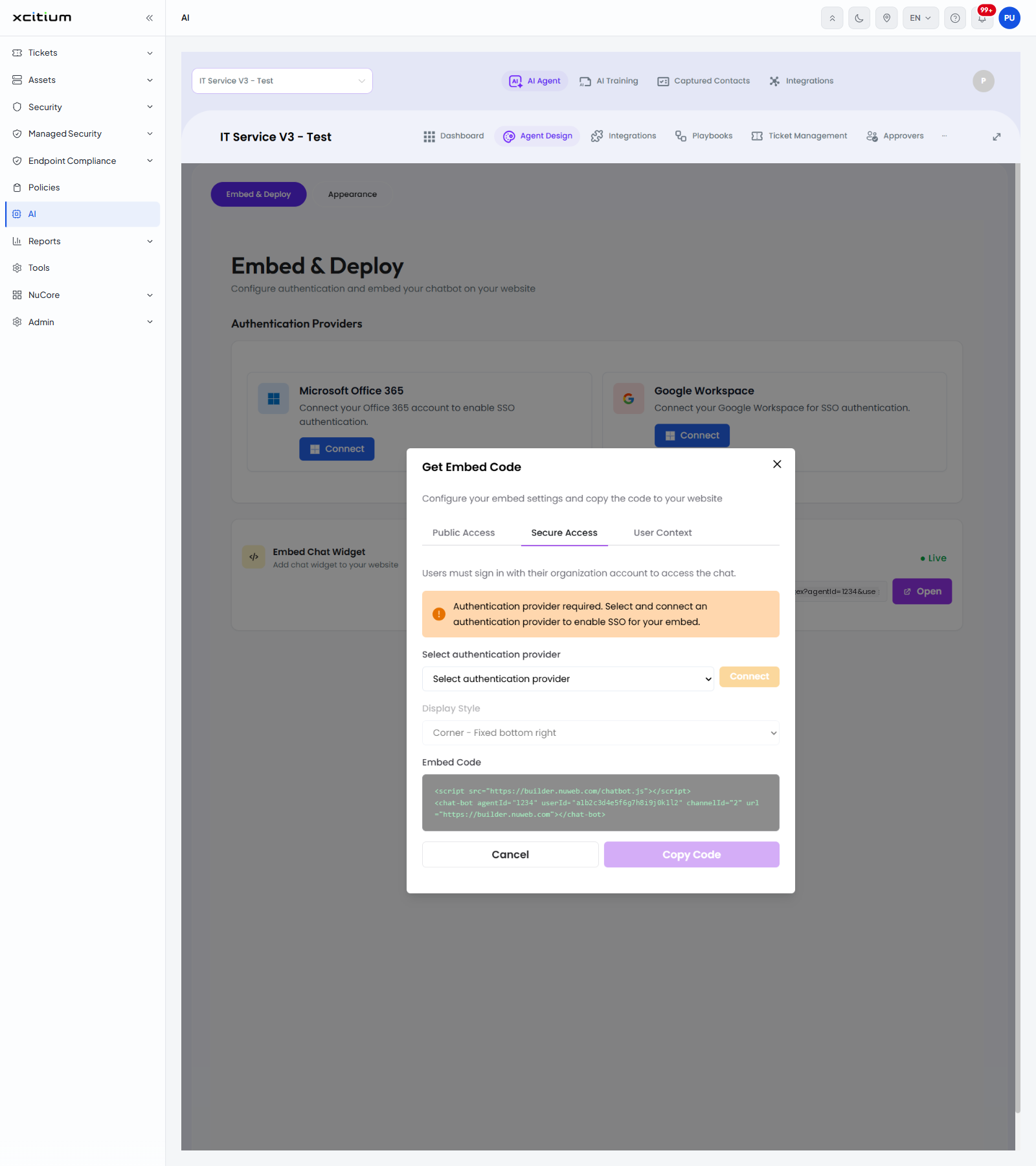
'Embed & Deploy' is where you connect a sign-in provider and copy the code that puts the chat widget on your site. The sub-title reads 'Configure authentication and embed your chatbot on your website'.
Xcitium_MSP_1.png

Authentication Providers

Provider Description Button
Microsoft Office 365 'Connect your Office 365 account to enable SSO authentication.' Connect
Google Workspace 'Connect your Google Workspace for SSO authentication.' Connect

Embed Chat Widget

'Add chat widget to your website'. Click 'Get Code' to open the 'Get Embed Code' dialog.

Preview AI Agent

'Test before deploying'. A status marker shows whether the agent is 'Live'. The panel holds a read-only preview address, a copy button and an 'Open' button that opens the preview in a new tab.

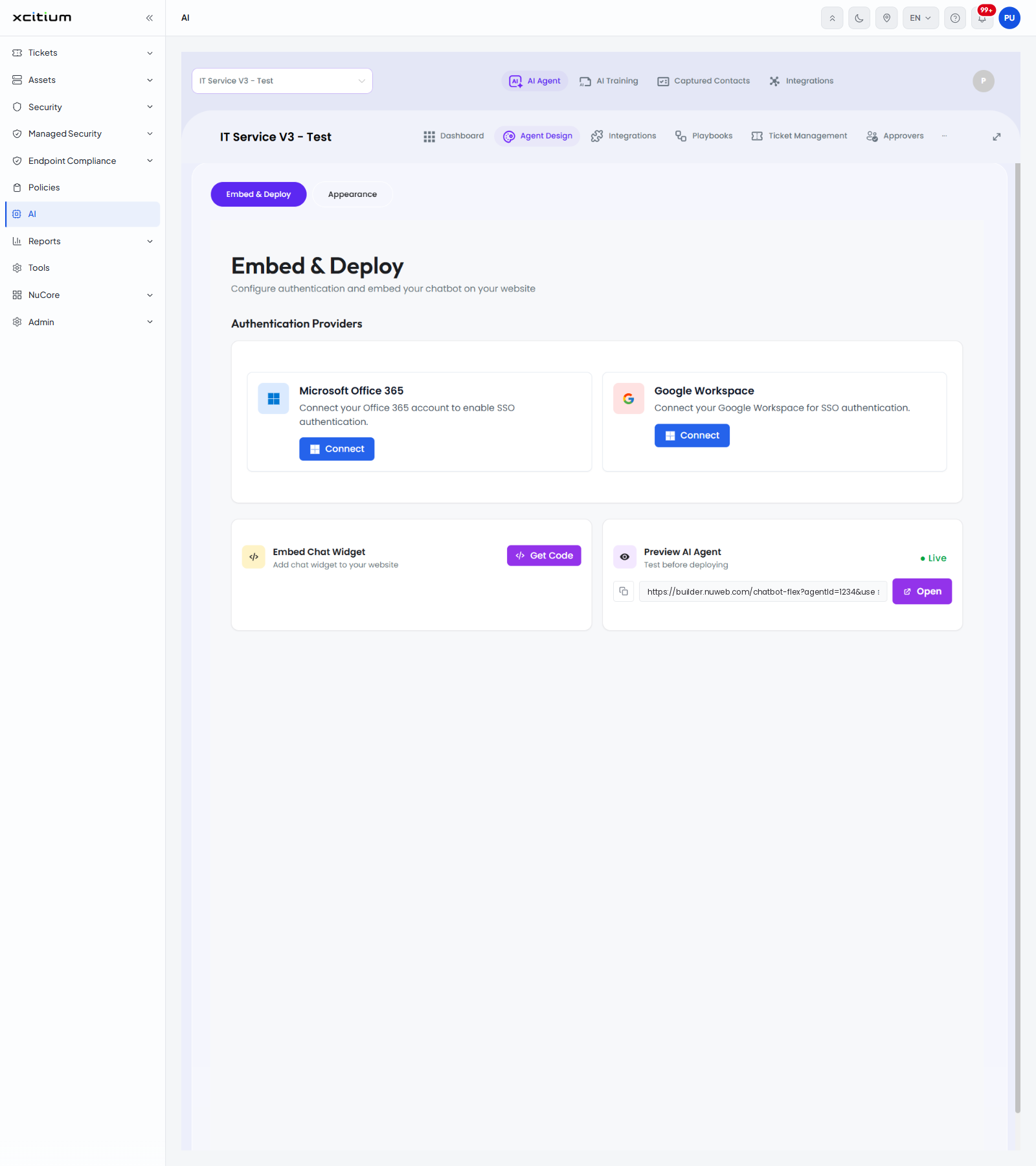
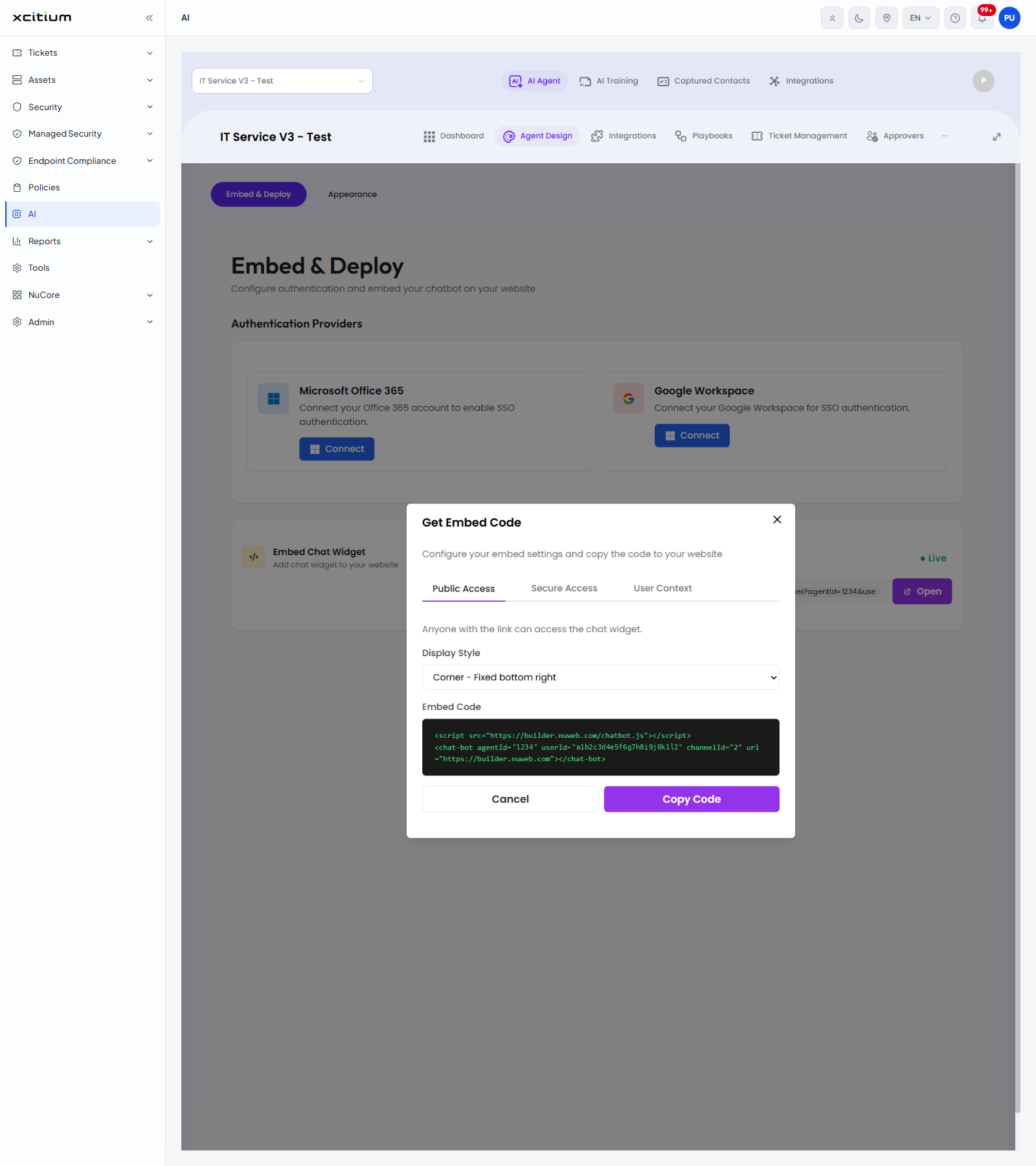
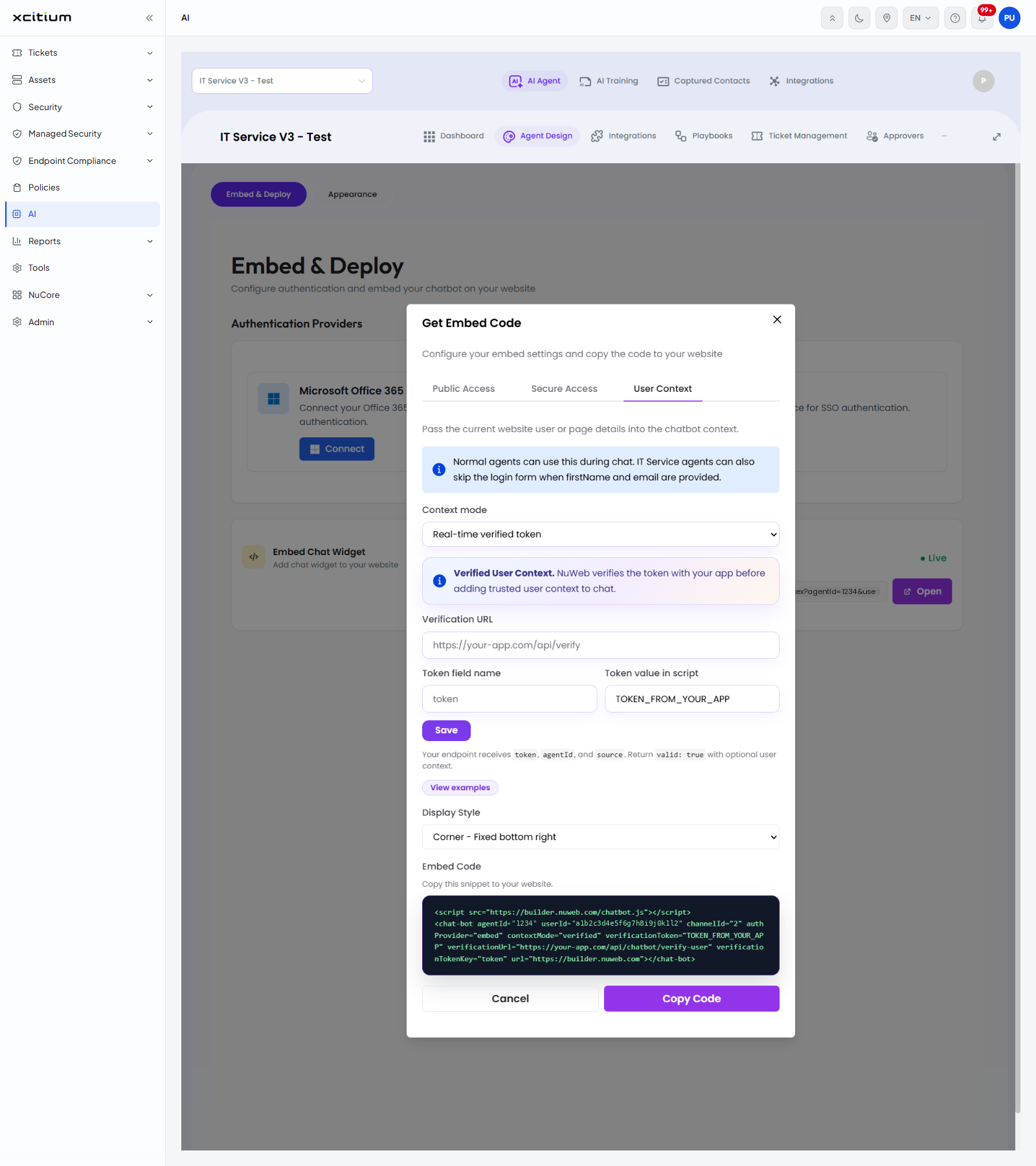
The 'Get Embed Code' dialog

'Configure your embed settings and copy the code to your website.' The dialog has three tabs and closes with 'Cancel'. 'Copy Code' puts the snippet on your clipboard.
Xcitium_MSP_2.png
Tab Description
Public Access 'Anyone with the link can access the chat widget.'
Secure Access 'Users must sign in with their organization account to access the chat.'
User Context 'Pass the current website user or page details into the chatbot context.'

Fields in the dialog

Field Tab Options
Display Style All three 'Corner - Fixed bottom right' (the default), 'Floating - Draggable widget', 'Flex - Inline responsive'.
Select authentication provider Secure Access 'Microsoft Office 365', 'Google Workspace', 'Okta (Coming Soon)', 'Azure AD (Coming Soon)'. A 'Connect' button sits beside it.
Context mode User Context 'Real-time verified token', 'Encrypted JSON (AES-256-GCM)', 'Plain JSON (base64url encoded)'.
Verification URL User Context The address on your own site that checks the token.
Token field name User Context The name of the field that carries the token.
Token value in script User Context The token placeholder written into the snippet.
Embed Code All three The read-only snippet to paste into your site.
Xcitium_MSP_3.png

On 'Secure Access' the dialog warns 'Authentication provider required. Select and connect an authentication provider to enable SSO for your embed.'

On 'User Context' the dialog explains 'Normal agents can use this during chat. IT Service agents can also skip the login form when firstName and email are provided.' and, under the fields, 'Your endpoint receives token, agentId, and source. Return valid: true with optional user context.' A 'View examples' link and a 'Save' button sit in the same panel.
Xcitium_MSP_4.png

Put the widget on your site

  1. Click 'AI' > 'AI Agent' > 'Manage Your AI Agent' > 'Agent Design'.

  2. Click the 'Embed & Deploy' sub-tab.

  3. If visitors must sign in, click 'Connect' on 'Microsoft Office 365' or 'Google Workspace'.

  4. Click 'Get Code' on 'Embed Chat Widget'.

  5. Choose 'Public Access', 'Secure Access' or 'User Context'.

  6. Choose the 'Display Style' and complete any fields the tab asks for.

  7. Click 'Copy Code' and paste the snippet into your website.

  8. Click 'Open' on 'Preview AI Agent' to check the result.

Note: The embed snippet contains an agent id and a user id. Treat it as confidential.


Our Products
  • Free Antivirus
  • Free Internet Security
  • Website Malware Removal
  • Free Anti-Malware
  • Anti-Spam (Free Trial)
  • Windows Antivirus
  • Antivirus for Windows 7
  • Antivirus for Windows 8
  • Antivirus for Windows 10
  • Antivirus for MAC
  • Antivirus for Linux
  • Free Endpoint Security
  • Free ModSecurity
  • Free RMM
  • Free Website Malware Scanner
  • Free Device Manager for Android
  • Free Demo
  • Network Security
  • Endpoint Protection
  • Antivirus for Android
  • Comodo Antivirus
  • Wordpress Security
Cheap CDN
  • Bootstrap CDN
  • Semantic UI CDN
  • Jquery CDN
  • CDN Plans
  • CDN
  • Free CDN
Enterprise
  • Patch Management Software
  • Patch Manager
  • Service Desk
  • Website Down
  • Endpoint Protection Solutions
  • Website Security Check
  • Remote Monitoring and Management
  • Website Security
  • Device Manager
  • ITSM
  • CRM
  • MSP
  • Android Device Manager
  • MDR Services
  • Managed IT Support Services
  • Free EDR
Free SSL Certificate
Support Partners Terms and Conditions Privacy Policy

© Comodo Group, Inc. 2026. All rights reserved.