


Destination Routes
- CASG delivers incoming mail to the destination server you specify. You can also specify alternative routes which CASG will use if there is a problem with the primary route.
- Admins with appropriate permissions can add alternative routes in the add and edit domain interfaces.
Add alternative destination routes
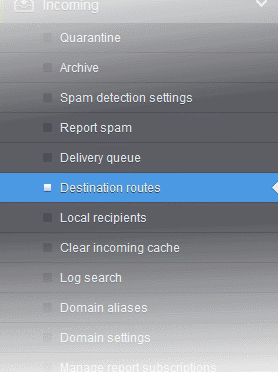
- Click 'Incoming' > 'Destination routes' in the left-hand menu:
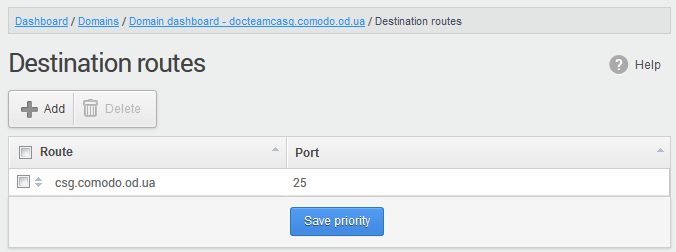
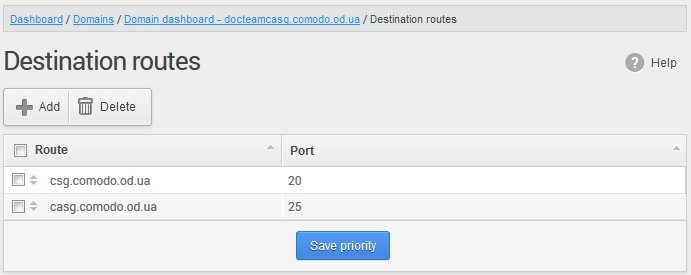
This will open the destination routes screen for the selected domain:
-
Click the 'Add' button
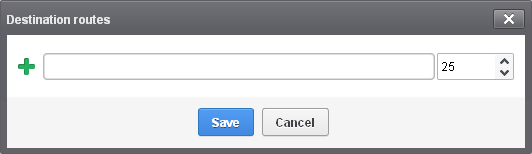
- Enter
the alternative destination route (domain, IP or hostname of the
SMTP server) then the 'Save'
- CASG will test the route you enter to ensure it is valid:
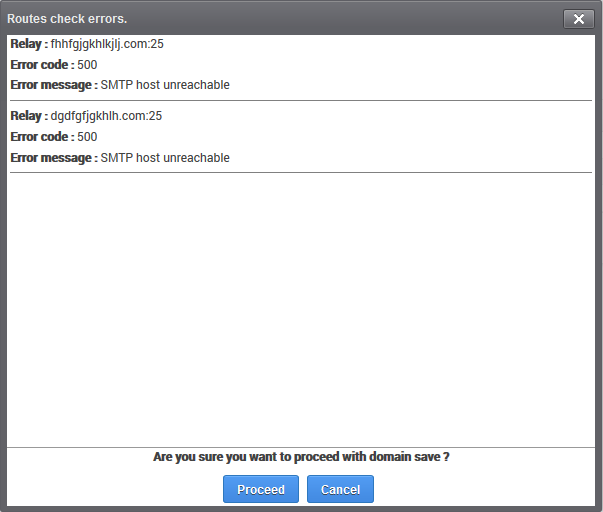
- Click 'Proceed' to save the route.
The new route is added as follows:
- Click
 to add more alternative routes.
- CASG prioritizes the route at the top of the list, then works it way down if that route fails.
- You can re-prioritize routes by dragging and dropping them in the list.
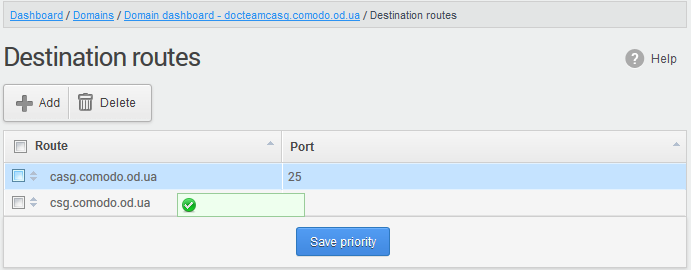
- Click the 'Save priority' button to confirm the changes.