


Recipient Whitelist
Since all filtering for whitelisted recipients is disabled, we recommend you use this option only in special circumstances. For example - [email protected] and [email protected]
The recipient whitelist interface lets you:
-
Reset the list - Delete all whitelisted recipients except the default recipients by clicking the 'Reset to default' button
Configure recipient whitelist
- Click 'Domain Rules' > 'Recipient whitelist' in the left-hand menu.
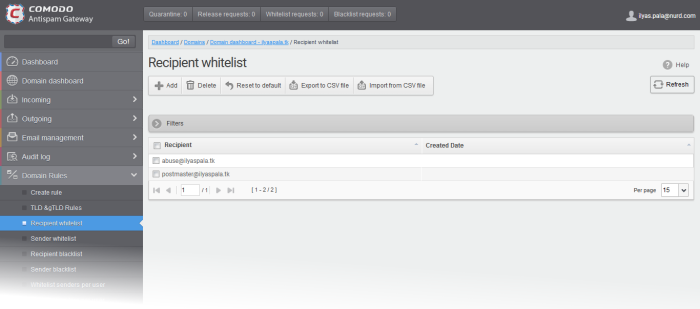
By default, the selected domain will have 'abuse' and 'postmaster' as whitelisted recipients.
- Recipient – Whitelisted recipients’ mail address
- Created date – Date and time the user was added
You can add recipients to the whitelist in the following ways:
- Click 'Domain Rules' > 'Recipient whitelist' in the left-hand menu.
- Click
'Add' to add a new user to the list
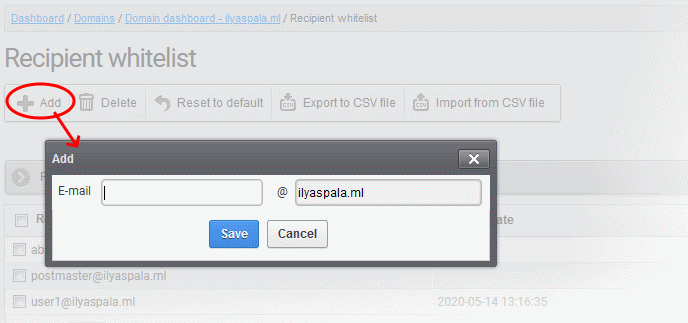
The 'Add' dialog opens:
-
Enter the recipient's name in the 'E-mail' text field and click the 'Save' button.
-
To add a particular set of recipients to the whitelist, prefix or suffix the wildcard * in the E-mail text field. For example, enter *.stores for all the recipients in stores department to be whitelisted.
-
To add a whole domain to whitelist, enter the wildcard * in the E-mail text field and click the 'Save' button. Now all the recipients in that domain will be whitelisted.
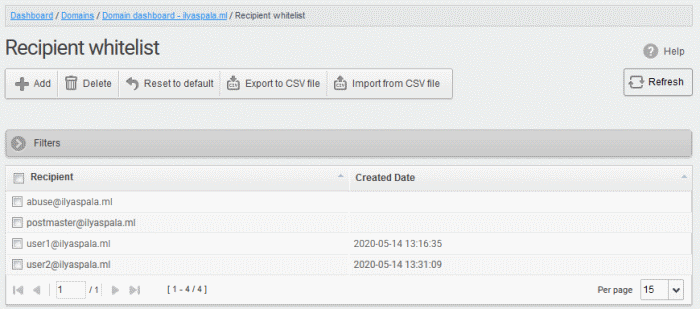
The recipient's name is added to the list.
Import users to whitelist from CSV file
Administrators can import many users to the recipient whitelist from a .csv file. Specify users in separate lines. See example below:
- Click the 'Import from CSV file' button
The 'Upload' dialog opens:
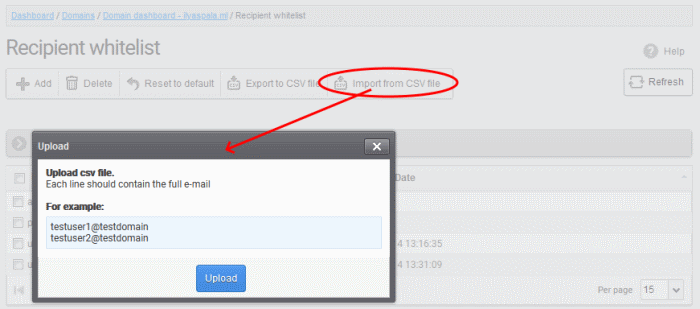
- Click the 'Upload' button and navigate to the location where the file is saved and click the 'Open' button. The maximum size of the file that can be uploaded is 9 MB.
The upload is placed in import tasks queue and the progress is shown.
Remove the upload from the queue
- Click the 'Remove import task' button. If the task is in progress, 'Remove import task' deletes only the remaining part of the task.
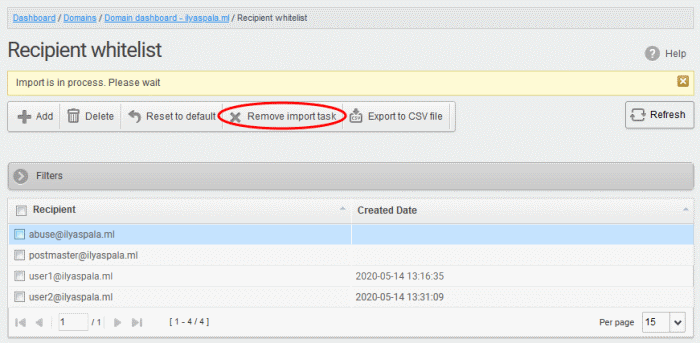
On completion of the upload process, the users are imported and added to the list:
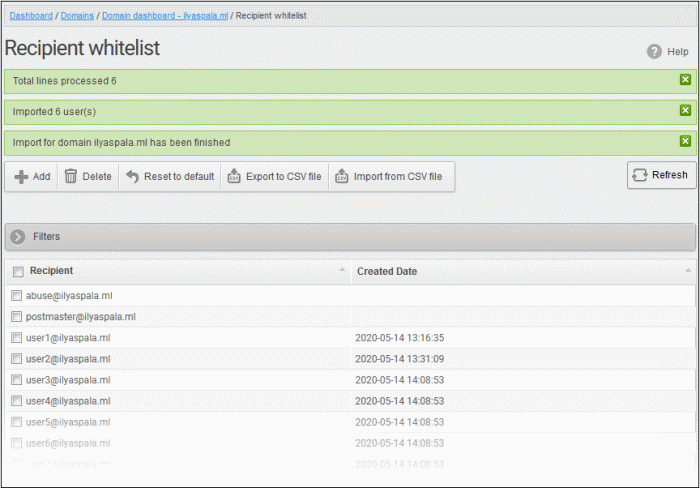
Export the Recipient Whitelist to CSV file
You can save the configured recipient whitelist by exporting it as a CSV file. If required in future, administrators can import users from the csv file (for example, for a new account or after a reset).
Export the list
- Click the 'Export to CSV file' button to save the list of whitelisted recipients as a CSV file
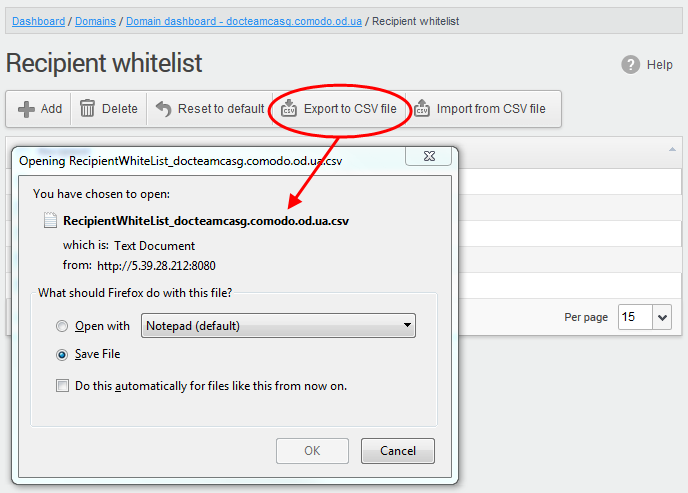
A file download dialog is displayed.
- Click 'OK' to save the file in your system
Delete Users from the Recipient Whitelist
- Select the recipient from the list and click the 'Delete' button
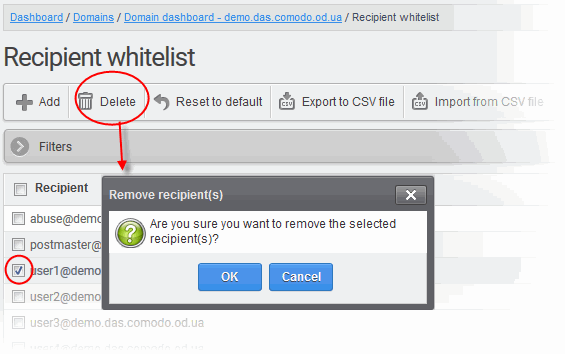
- Click 'OK' to confirm your changes.