Comodo Help
Find the desired product help
Comodo Antispam Gateway

Comodo Antispam Gateway

Admin Guide ver 1.10

English

Print Help Download Help
Introduction To Comodo Antispam Gateway > License Information
  • Introduction To Comodo Antispam Gateway
    • Release Notes
    • Purchasing License
    • Adding More Users, Domains Or Time To Your Account
    • License Information
  • Getting Started
    • Incoming Filtering Configuration
      • Configuring Your Mail Server
      • Configuring MX Records
        • Updating MX Records In Windows 2003/2008 Server
        • Updating MX Records On A Host Using BIND
        • Updating MX Records For Comodo DNS
        • Updating MX Records For GoDaddy
        • Updating MX Records For Enom
        • Updating MX Records For Network Solutions
        • Updating MX Records For Yahoo! Small Business
        • Updating MX Records For 1and1
        • Updating MX Records For 4D Web Hosting
        • Updating MX Records For DNS Park
        • Updating MX Records For DreamHost
        • Updating MX Records For DynDNS
        • Updating MX Records For IX Web Hosting
        • Updating MX Records For No-IP
        • Updating MX Records In CPanel
    • Outgoing Filtering Configuration
      • Per-User Authentication
      • Outgoing Smarthost Setup
        • Configuring QMail To Use A Smarthost
        • Configuring PostFix To Use A Smarthost
        • Configuring Sendmail To Use A Smarthost
        • Configuring Exchange 2000/2003 To Use A Smarthost
        • Configuring Exchange 2007/2010 To Use A Smarthost
        • Configuring Exim To Use A Smarthost
          • Configuring Exim / CPanel To Use A Smarthost
          • Configuring Exim / Directadmin To Use A Smarthost
  • The Administrative Interface
    • Logging-in To The Administrative Interface
    • The Dashboard Area
      • Domain Management
        • Adding Domains
        • Deleting Domains
        • Editing Domains
        • Managing Domain
          • Incoming
            • Quarantine
            • Incoming Spam Detection Settings
            • Report Spam
            • Delivery Queue
            • Destination Routes
            • Local Recipients
            • Clear Incoming Cache
            • Log Search
            • Domain Aliases
            • Domain Settings
            • Manage Report Subscriptions For Selected Domain
          • Outgoing
            • Clear Outgoing Cache
            • Log Search
            • Users
          • Email Management
            • Email Size Restrictions
            • Blocked Extensions
            • Released Requests
            • Blacklisted Requests
            • Whitelisted Requests
          • Whitelist / Blacklist
            • Recipient Whitelist
            • Sender Whitelist
            • Recipient Blacklist
            • Sender Blacklist
          • Account Management
            • User Account Management
            • Viewing User History
            • Importing Users From LDAP
              • LDAP Import Configuration
              • LDAP Import Confirmation List
              • LDAP Import Ignore List
      • Administrator Account Management
        • Administrators
        • Groups & Permissions
        • My Profile
          • Changing Password Of The Administrator
          • Change Settings
        • User History
      • Customer Management
        • Viewing Customer Information
        • Managing Subscriptions For Reports
  • CASG Reports - An Overview
    • Quarantine Report
    • Domain Statistics Report
  • Appendix 1 – CASG Error Codes
  • About Comodo

License Information


After purchasing/licensing has been completed, we advise you to keep track of your usage limits and the number of days remaining on your license(s) to avoid service interruptions. You have the option to upgrade or downgrade your license as per your requirements. You will begin to receive license renewal reminders via email before the expiration of license(s).


You can view your account status in the 'Customer Management' area in the main interface.


  • Click 'Customer Info' from the 'Customer management' drop-down menu from the menu bar or the icon in the 'Customer management' configuration area.


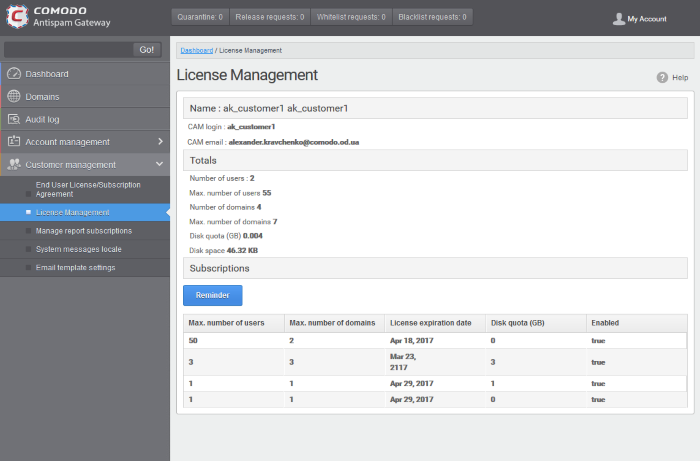
The image below shows an example of Customer Info who has purchased multiple licenses.


In the 'Customer Info' panel you will find the details of subscription(s) for your account. For multiple licenses, the number of users and domains that are allowed for all the licenses purchased will be added and displayed at the bottom most subscription column.

  • Name: Displays the name of the account.

  • CAM Login: Displays the login user name for the account in Comodo Accounts Manager (CAM) at https://accounts.comodo.com/. The administrator can use this login username to log in to CAM for purchasing additional licenses and renewal of existing licenses.

  • CAM email: Displays the email address for the account as registered at CAM.

Account Summary

  • Number of Users: Displays the number of users for all the domains belonging to the account.

  • Max. Number of Users: The maximum number of users that can be added as per all the subscriptions made for the account, that is, number of users cannot exceed the number given in this field for all domains included.

  • Number of Domains: Displays the number of domains belonging to that account.

  • Max. Number of Domains: The maximum number of domains that can be configured as per all the subscriptions made for the account.

Details on Subscriptions

  • Max. Number of Users: The maximum number of users that can be added for the account as per the specific subscription, that is, number of users cannot exceed the number given in this field for all domains included.

  • Max. Number of Domains: The maximum number of domains that can be configured as per the specific subscription.

  • License Expiration Date: Provides details about the expiry date of the license for the specific subscription.

  • Enabled: Displays whether the subscription is active or not.

End-User License and Subscriber Agreement

  • End-User License and Subscriber Agreement: Displaysthe complete End-User License and Subscriber Agreement.

The 'Customer Info' panel alerts the administrator about license(s) expiration date and if Domain/Users limit is exceeded.


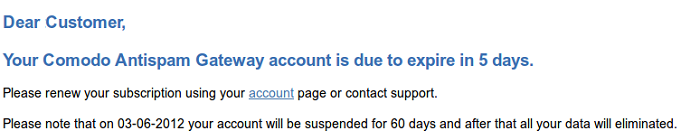
Administrators will start receiving license renewal reminders via email 30 days (default) before your license(s) are due to expire.


Note: The number of days before expiration of license that you start to receive license renewal reminders and the number of reminders per day that you receive depends on the settings configured in CASG.


An example of license renewal reminder is shown below:


If you have multiple licenses and if one of them has expired, then the number of domains and users allowed for that license will be deducted from the total number of allowed domains and users. No error message will be displayed if the usage is still limited within the total domains and users allowed for the remaining license(s).


An alert will be displayed at the top of the interface on the day when all the license(s) have expired. An example of the message is shown below.



Note: The period after which all domains and quarantined emails for your account that will purged depends on the settings configured in CASG.


During the configured period after license expiry, your emails will continue to be delivered to your domain via CASG but without any spam filtering. During this period, you cannot add new domains and new users. Option to enable quarantine is also disabled and quarantine settings screen for every domain in your account will display that Quarantine is disabled. After the configured period, all domains and quarantined mails in CASG for your account will be purged.


Users of the account can use the service normally during this period. After the configured period, if an user tries to login with his/her credentials, 'Your login or password is incorrect' message will be displayed.


Administrators can upgrade or downgrade his/her account using Comodo Accounts Manager (CAM) at https://accounts.comodo.com/account/login. You can use the login details provided at the time of purchasing the service.


Note: Any license upgrade or downgrade for your account will not be effected immediately. However, the changes will be reflected in the interface after a certain period of time depending on the settings configured in CASG.


After downgrading your existing account or after a license has expired, if the number of domains and / or users is more than permitted, an upgrade subscription message will be displayed at the top of the CASG interface. Some examples of alert messages are shown below:

  • When the domain limit is exceeded:


You will not be able to add new domains until some of the current domains are removed. CASG filter will continue to function and you can add new users.

  • When the user limit is exceeded:


You will not be able to add new users until some of the current users are removed. CASG filter will continue to function and you can add new domains.


Terms and Conditions Privacy Policy

© Comodo Group, Inc. 2013. All rights reserved.