Comodo Help
Find the desired product help
Comodo Antispam Gateway

Comodo Antispam Gateway

User Guide ver 1.10

English

Print Help Download Help
How To...Tutorials > How To Perform A Log Search Of Your Incoming Emails
  • Introduction To Comodo Antispam Gateway
  • How To...Tutorials
    • How To Login To CASG
    • How To Get A New Password
    • How To Manage Your Quarantined Mails
    • How To Use Filter Options In The Quarantined Emails Interface
    • How To Check When An Expected Email Is Not Received
    • How To Retrieve An Email Which Had Virus Attachment
    • How To Subscribe For Periodical Quarantine Report Summary
    • How To Perform A Log Search Of Your Incoming Emails
    • How To Add Or Remove A User From Recipient Whitelist
    • How To Report Spam Emails
    • How To Perform A Log Search Of Your Outgoing Emails
  • The User Interface
    • Logging-in To The User Interface
    • The Dashboard Area
      • Incoming
        • Quarantine
        • Report Spam
        • Log Search
      • Outgoing
        • Log Search
    • User Account Management
      • Managing Login Password And Whitelist/Blacklist Settings
      • Managing User Subscription For Periodical Summary Reports
  • CASG Reports - An Overview
  • About Comodo

How to Perform a Log Search of your Incoming Emails


The Log Search option in CASG allows you to search for a specific email message such as mails with virus, unsure mails etc. or all the mails as per your selection in the 'Classification' drop-down.


To perform a log search of your incoming emails

  • Login to the CASG interface.


Note: The administrator of your email account should have enabled this feature for you. If this is enabled, the 'Log search' icon will be available in the Dashboard under 'Incoming' configuration area.

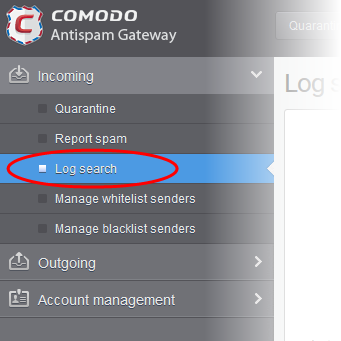
  • Click 'Log search' from the 'Incoming' drop-down menu in the menu bar or the  icon in the 'Incoming' configuration area.

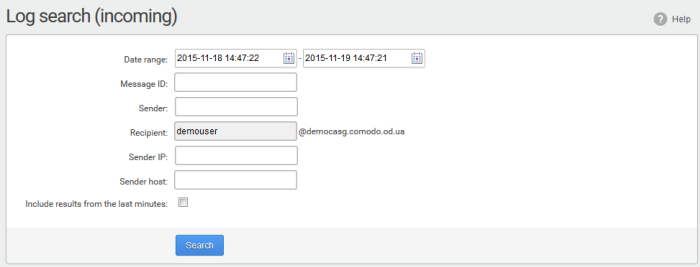
The 'Log search (incoming)' interface of the user will open:


  • Date range: Select the date range for which you want to search the log file.
  • Sender: Enter the sender email address in this field.
  • Recipient: The currently logged in user name will be displayed in this field.
  • Sender IP: Enter the IP address of the sender.
  • Sender Host: Enter the sender host name.
  • Classification: Select the type of email that you want to search from the drop-down options.
  • Include results from the last minutes: If selected, CASG will include messages that are currently being migrated from the filtering server to the logging server in the search results.



Click the 'Search' button.

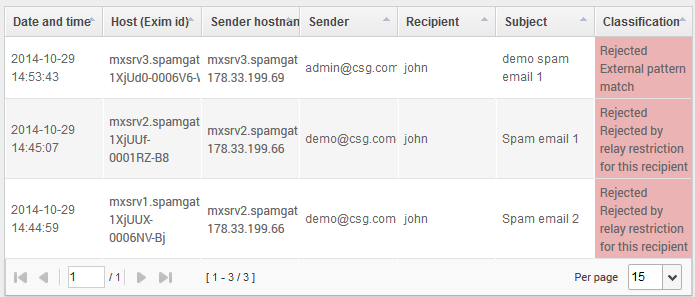
CASG will search for the entered terms and display the results.


Sorting the Entries


Clicking any column heading switches the sorting of the entries based on the ascending/descending order of the entries as per the information displayed in the respective column.


Terms and Conditions Privacy Policy

© Comodo Group, Inc. 2013. All rights reserved.