Comodo Help
Find the desired product help
Comodo Antivirus For Linux

Comodo Antivirus For Linux

Version 1.0

English

Print Help Download Help
Introduction To Comodo Antivirus For Linux > Installation
  • Introduction To Comodo Antivirus For Linux
    • Special Features
    • System Requirements
    • Installation
    • Starting Comodo Antivirus
    • Comodo Antivirus - The Summary Screen
    • Comodo Antivirus - Navigation
    • Understanding Alerts
  • Antivirus Tasks - Introduction
    • Run A Scan
    • Update Virus Database
    • Quarantined Items
    • View Antivirus Events
    • Submit Files To Comodo For Analysis
    • Scheduled Scans
    • Scan Profiles
    • Scanner Settings
      • Real Time Scanning
      • Manual Scanning
      • Scheduled Scanning
      • Exclusions
  • Mail Gateway Tasks - Introduction
    • Host Setting
    • Certificates
    • Antispam
    • SMTP Configuration
      • SMTP Gateway
        • Configuring For Inbound Mail Filtering
        • Configuring For Outbound Mail Filtering
      • Inner SMTP Filter
      • Cmdtcpd
      • Qmail
      • Milter
    • View Mail Events
    • Scanner Settings
  • More Options - Introduction
    • Preferences
      • Language
      • Parental Control Settings
      • Themes
      • Log Settings
      • Connection Settings
      • Update Settings
    • Manage My Configurations
      • Comodo Preset Configuration
      • Importing/Exporting And Managing Personal Configurations
    • Diagnostics
    • Check For Updates
    • Browse Support Forums
    • Help
    • About
  • About Comodo

Installation


To install, download the Comodo Antivirus setup files to your local hard drive.


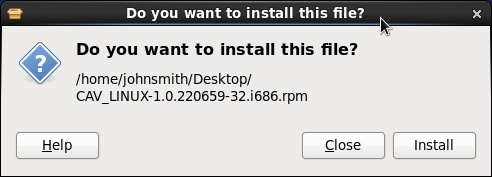
After downloading the CAVL setup files to your local hard drive, double-click on CAV_LINUX-1.0.I686.rpm file   to start the installation wizard.

The installation wizard starts automatically and the confirmation dialog will be displayed.


  • Click 'Install' to start the installation process.
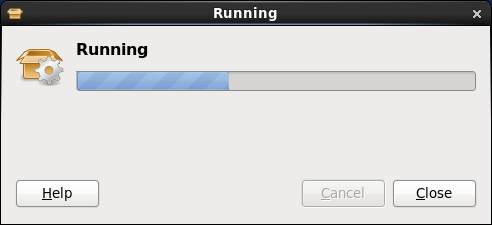
     
The installation process will be displayed.


You will be asked to authenticate the installation.
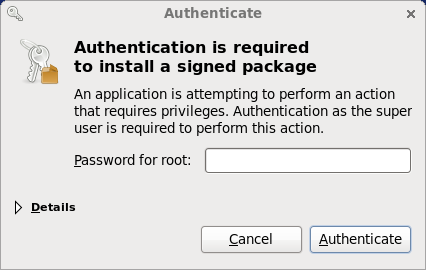

  • Enter the administrator password and click 'Authenticate'.
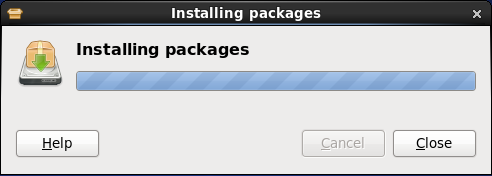
     
After verifying the credentials, the packages will be installed.


On successful completion, shortcut icons of the application will be placed in the desktop and the Notifications area. To open the application, refer the section Starting Comodo Antivirus.
Terms and Conditions Privacy Policy

© Comodo Group, Inc. 2013. All rights reserved.