Comodo Help
Find the desired product help
Comodo Antivirus For Linux

Comodo Antivirus For Linux

Version 1.0

English

Print Help Download Help
Introduction To Comodo Antivirus For Linux > Understanding Alerts
  • Introduction To Comodo Antivirus For Linux
    • Special Features
    • System Requirements
    • Installation
    • Starting Comodo Antivirus
    • Comodo Antivirus - The Summary Screen
    • Comodo Antivirus - Navigation
    • Understanding Alerts
  • Antivirus Tasks - Introduction
    • Run A Scan
    • Update Virus Database
    • Quarantined Items
    • View Antivirus Events
    • Submit Files To Comodo For Analysis
    • Scheduled Scans
    • Scan Profiles
    • Scanner Settings
      • Real Time Scanning
      • Manual Scanning
      • Scheduled Scanning
      • Exclusions
  • Mail Gateway Tasks - Introduction
    • Host Setting
    • Certificates
    • Antispam
    • SMTP Configuration
      • SMTP Gateway
        • Configuring For Inbound Mail Filtering
        • Configuring For Outbound Mail Filtering
      • Inner SMTP Filter
      • Cmdtcpd
      • Qmail
      • Milter
    • View Mail Events
    • Scanner Settings
  • More Options - Introduction
    • Preferences
      • Language
      • Parental Control Settings
      • Themes
      • Log Settings
      • Connection Settings
      • Update Settings
    • Manage My Configurations
      • Comodo Preset Configuration
      • Importing/Exporting And Managing Personal Configurations
    • Diagnostics
    • Check For Updates
    • Browse Support Forums
    • Help
    • About
  • About Comodo

Understanding Alerts


Antivirus alerts immediately warn you if a virus has been detected and provide options and information so you can make an informed decision on how to proceed. Alerts can also be used to instruct Comodo Antivirus on how it should behave in future when it encounters activities of the same type.


Answering an Antivirus Alert

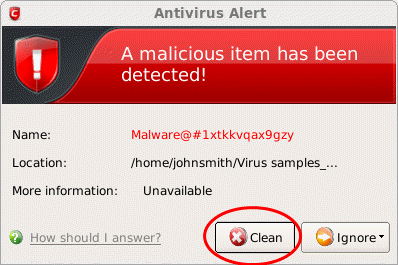
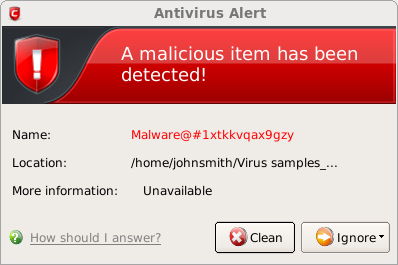
Alerts are generated whenever a virus or malware tries to be copied to or run on your system. The alert contains the name of the virus detected and the location of the virus on your disk and, if available, more information about the virus.

You can take one of the following steps to answer the Antivirus alert.
  • Disinfect the file if there exists a disinfection routine for the detected file or move the file or application to Quarantined Items for later analysis.
  • Ignore the alert only if you trust the application or the source of application by clicking 'Ignore'.
To disinfect the file or application

  • Click the 'Clean' button.


Comodo Antivirus will disinfect and clean the file or application. If the threat detected is new one and the disinfection routine does not exist, then CAVL will move the file/application to Quarantined Items for later analysis. You can submit the file/application to Comodo for analysis from the Quarantine. Refer to Quarantined Items for more details.


To ignore the alert if you trust the file/application

  • Click 'Ignore'. Selecting Ignore provides you with two options.
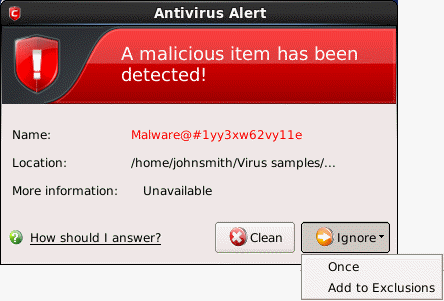


  • Once - If you click 'Once', the file is ignored this time only. If the same file is detected at a later date then another alert will be displayed.
  • Add to Exclusions - If you click 'Add to Exclusions', the virus is moved to Exclusions list. This means CAVL will no longer report this file as malicious or raise an alert the next time the file is detected.
     
     
Terms and Conditions Privacy Policy

© Comodo Group, Inc. 2013. All rights reserved.