Patch Management
Continuous Threat Exposure Management (CTEM) is a proactive cybersecurity approach that continuously identifies, assesses, and prioritizes security exposures across an organization’s environment. It works alongside patch management to ensure vulnerabilities are addressed promptly by applying updates, reducing risk, and strengthening overall system security.
Patch Management works with both Probe and Lightweight agents.
With the Probe agent, the system first downloads patches and then copies them to the remote asset for installation. This method is ideal for patching devices without a Lightweight agent. In contrast, systems with the Lightweight agent manage patching locally, downloading and applying packages directly.
Our patch agent retrieves necessary packages from the official website, so the remote asset must have access to download them. Additionally, the patch agent initiates OS patching by triggering the Windows Update Manager to apply relevant security updates listed in the portal. We can also control whether the system reboots after successful patching for OS updates only. Reboots apply to OS Patches only.
Our Patching Strategy
- Curated Repo: 500+ application patches maintained internally, with the 130 most-used apps tested and optimized continuously.
- Smart Flexibility: Microsoft Win-Get is used as a fallback to cover supported apps from our curated repo, leveraging Microsoft’s continuous updates.
- Balanced Approach: This design combines reliability (our repo) with breadth (Win-Get), ensuring the best coverage without unnecessary risk or overhead.
- Enrichment Over Time: The internal team will analyze the patch logs and add over time based on the data, continuously improve and extend the supported applications
| CTEM may report two versions of the same software when one is located under the CyberCNSAgent installation path and another under a user profile. This can happen when the installer does not remove older versions or when different architecture types (32-bit vs 64-bit) are involved. Detection logic first checks whether the application is 32-bit or 64-bit. If that cannot be determined, it defaults to checking the OS bit version. This may result in both versions being listed if they reside in separate paths. |
Here is a listing of the supported applications for patching: - Application Patching List
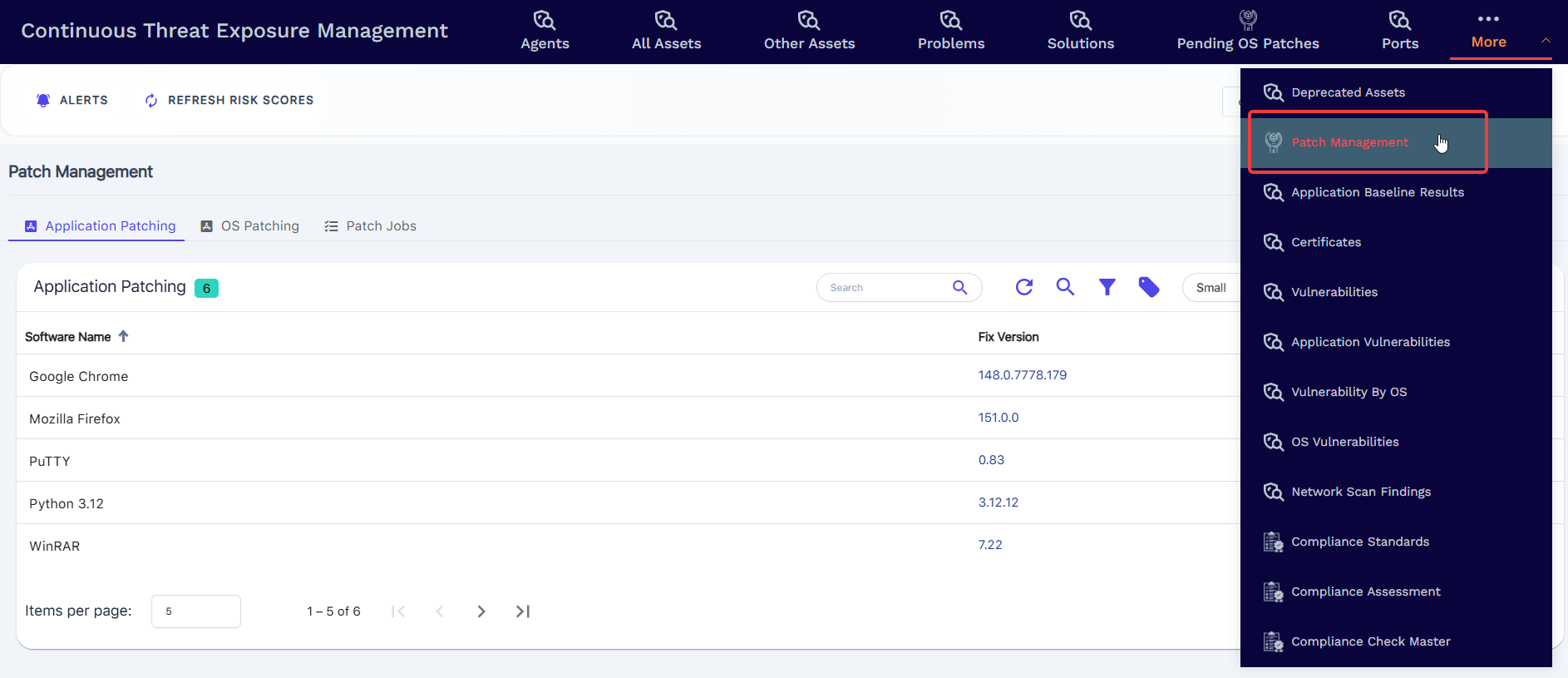
- Click 'Security' < 'Continuous Threat Exposure Management' < 'Patch Management'
The interface has been divided into three sections
Application Patching
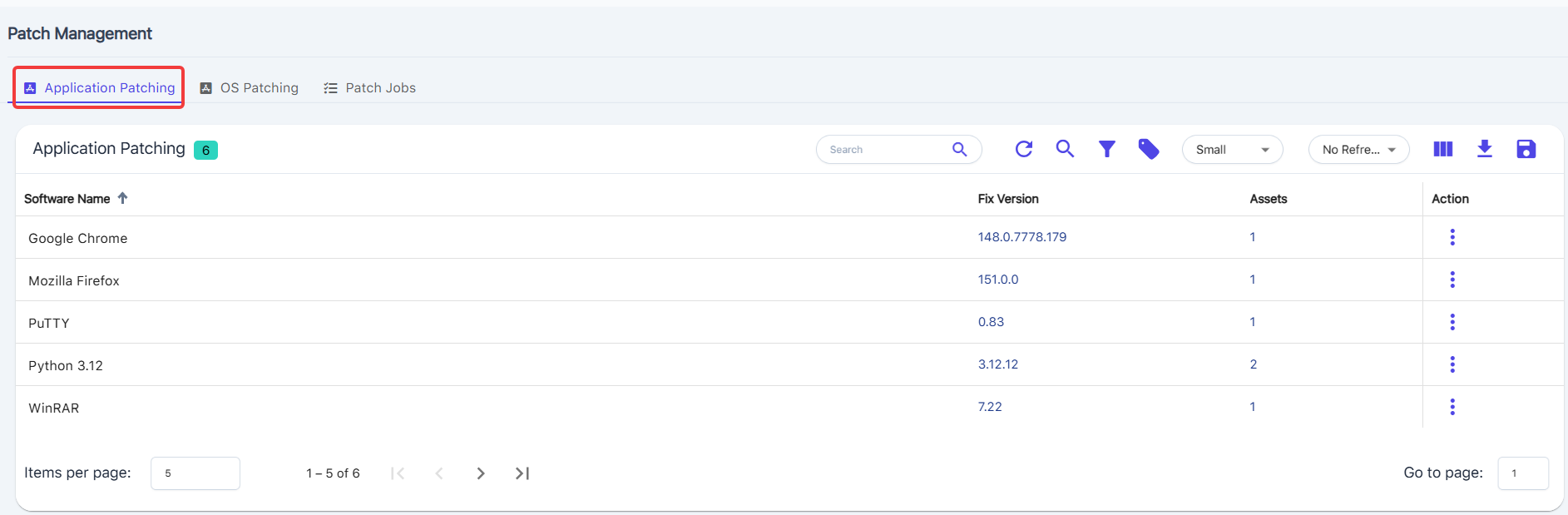
To view the list of Windows application(s) not part of the Operating System, that needs to be patched. The table below will show only those applications for which the CTEM Patch Agent can cover. From here, you can:
- View available application patches
- Track patch versions (Fix Versions)
- See affected devices (Assets)
- Deploy or manage patch actions
| Application Patching - Column Descriptions | |
| Column Heading | Description |
| Software Name | Name of the application |
| Fix Version | Latest available patched version |
| Assets | Number of devices affected |
| Action | Available Patch actions - Patch Now, Patch Later has explained here. |
| Controls | |
| Search Bar | Quickly find a specific application by name |
| Reload Table Data | Reloads the patch list |
| Global Search | Global Search provides a centralized way to locate assets, alerts, and vulnerabilities, improving visibility and response efficiency. |
| Filter Table Data | We can filter the table data using Software name or Fix Version |
| Filter by Tags | Tap the search bar to filter by tags, choose from Include or Exclude options, select the desired tag(s), and click Submit to view the results. |
| Change Font Size | Adjust the font size by selecting from Small, Medium, or Large options. |
| Refresh Interval | Set the refresh interval by choosing No Refresh, 1 minute, 5 minutes, or 30 minutes. |
| View Columns, Reorder Columns | Customize the table by viewing and reordering columns such as Software Name, Fix Version, and Assets. |
| Download as CSV | Download the data as a CSV file for easy access and analysis. |
| Save Settings | Save table settings to preserve your selected columns, order, and preferences for future use. |
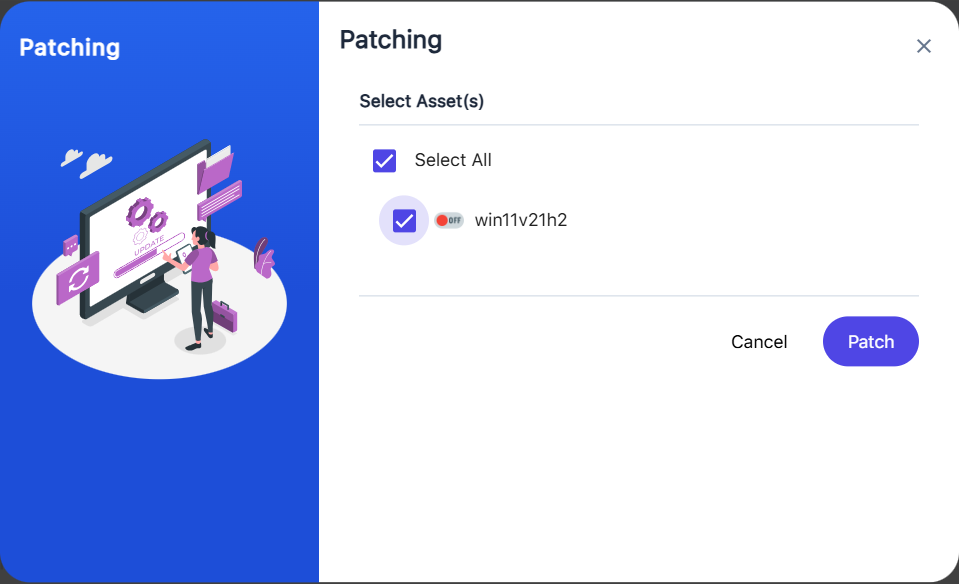
Installs the selected patch immediately on the chosen devices.
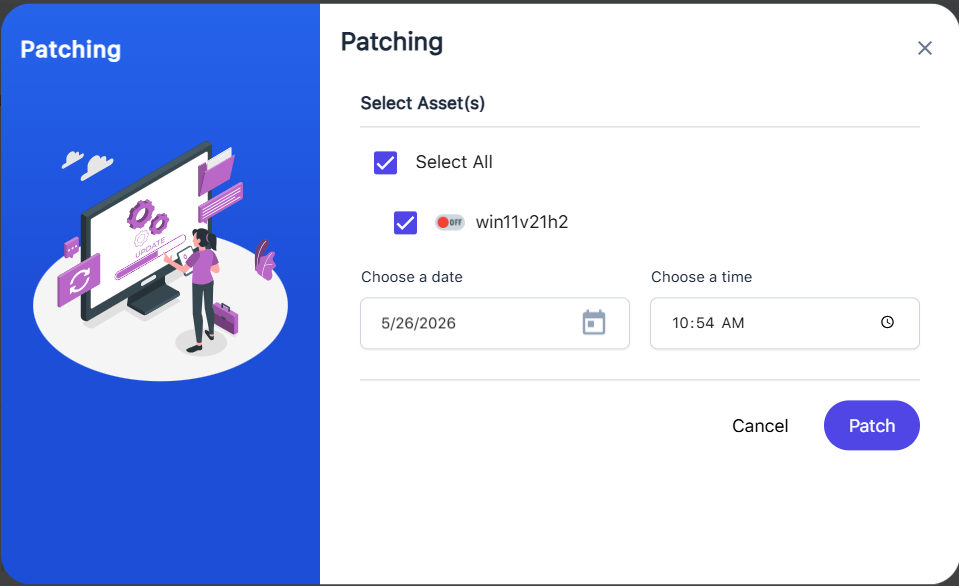
Select the applicable asset(s), then choose the Patch button; otherwise, click Cancel not to patch.
Patch Later options let you schedule the selected patch to be installed at a specified time and date.
OS Patching
Manages operating system updates by identifying, scheduling, and deploying patches to keep systems secure and up to date. To view the list of Windows OS patches that need to be installed, please check the table and review the details provided. From here, you can:
- View available OS updates
- Track update details (KB/Fix)
- See affected devices (Assets)
- Deploy or schedule patch actions
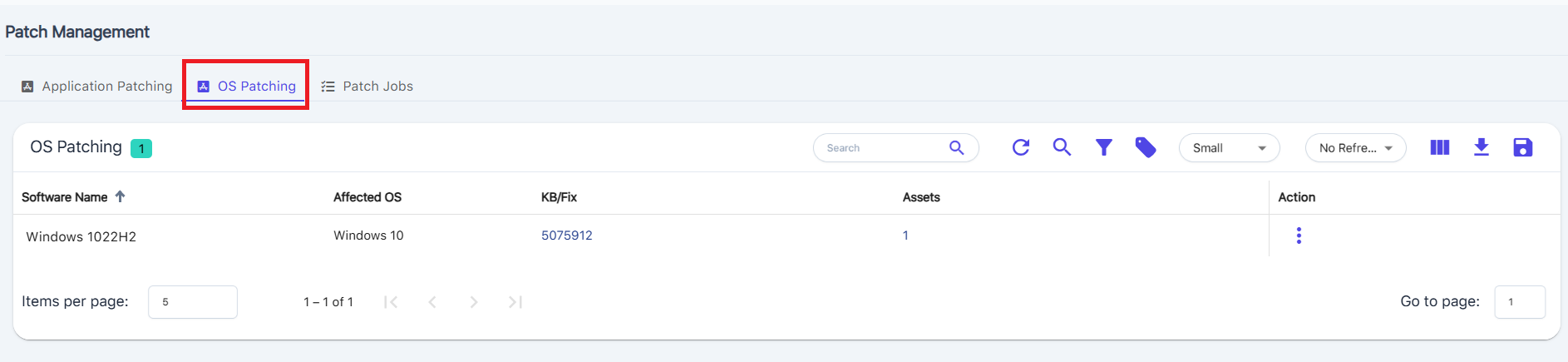
| OS Patching - Column Descriptions | |
| Column Heading | Description |
| Software Name | Displays the OS version requiring updates (e.g., Windows 10, Windows 11) |
| Affected OS | Indicates the operating system impacted |
| KB/Fix | Shows the specific update or knowledge base (KB) number |
| Assets | Number of devices requiring the update |
| Action | Provides the option to deploy patches |
| Controls | |
| Search Bar | Quickly find specific OS updates |
| Reload Table Data | Reload the latest patch data |
| Global Search | Global Search provides a centralized way to locate assets, alerts, and vulnerabilities, improving visibility and response efficiency. |
| Filter Table Data | We can filter the table data using Affected OS, KB/Fix or Software Name |
| Filter by Tags | Tap the search bar to filter by tags, choose from Include or Exclude options, select the desired tag(s), and click Submit to view the results. |
| Change Font Size | Adjust the font size by selecting from Small, Medium, or Large options. |
| Refresh Interval | Set the refresh interval by choosing No Refresh, 1 minute, 5 minutes, or 30 minutes. |
| View Columns, Reorder Columns | Customize the table by viewing and reordering columns such as Software Name, Affected OS, KB/fix, and Assets. |
| Download as CSV | Download the data as a CSV file for easy access and analysis. |
| Save Settings | Save table settings to preserve your selected columns, order, and preferences for future use. |
Manual OS Patching
Clicking 'Patch' in OS Patching opens the prompt to select the patch installation's machine(s) and reboot settings.
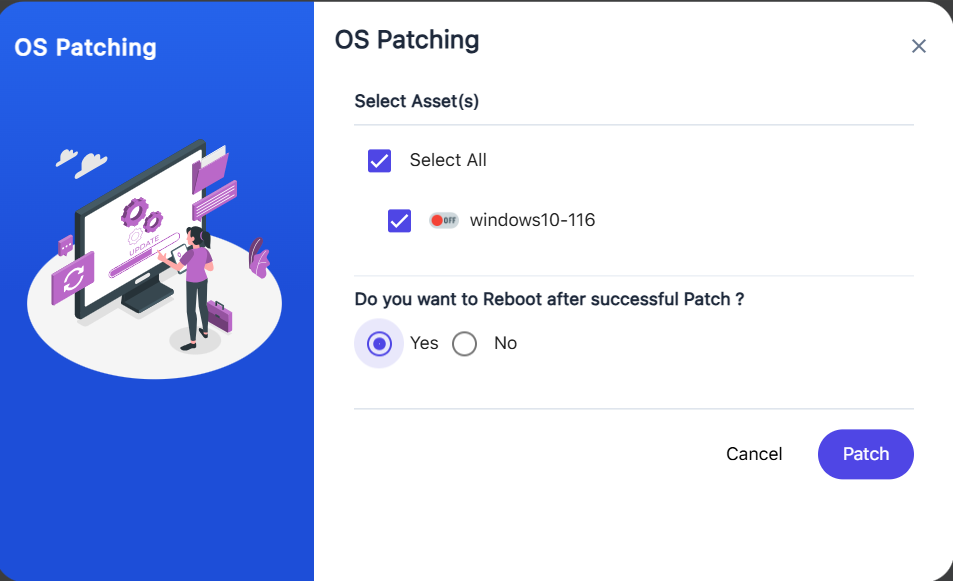
When the option “Do you want to Reboot after successful Patch?” is set to “Yes”, CTEM will automatically perform a silent reboot after successful OS patch installation if the update requires a reboot. The reboot is executed silently from the backend using the Windows update/restart process and does not display an interactive reboot prompt to the end user.
| NOTE: Regarding Cumulative Updates These are standalone packages that already include all fixes from previous releases, which means earlier updates do not need to be installed as prerequisites. We always surface the latest applicable cumulative update so that all known vulnerabilities addressed by Microsoft are fully remediated and properly reflected as resolved. Showing only the most recent update helps prevent partial patch states and ensures the system aligns with Microsoft’s current security baseline. This is why a newer cumulative update appears as applicable even if earlier updates are not present. |
Patch Jobs
The Patch Jobs section allows you to monitor and manage patch deployment tasks across your devices. From here, you can:
- View scheduled and executed patch jobs
- Track patch deployment status (Success, Failed, Pending)
- See details of applied patches (Software/KB)
- Monitor results across affected devices
Tap the Created or Updated date fields to view additional patch job details, including the Asset Name, Status, From Version, and to version values.
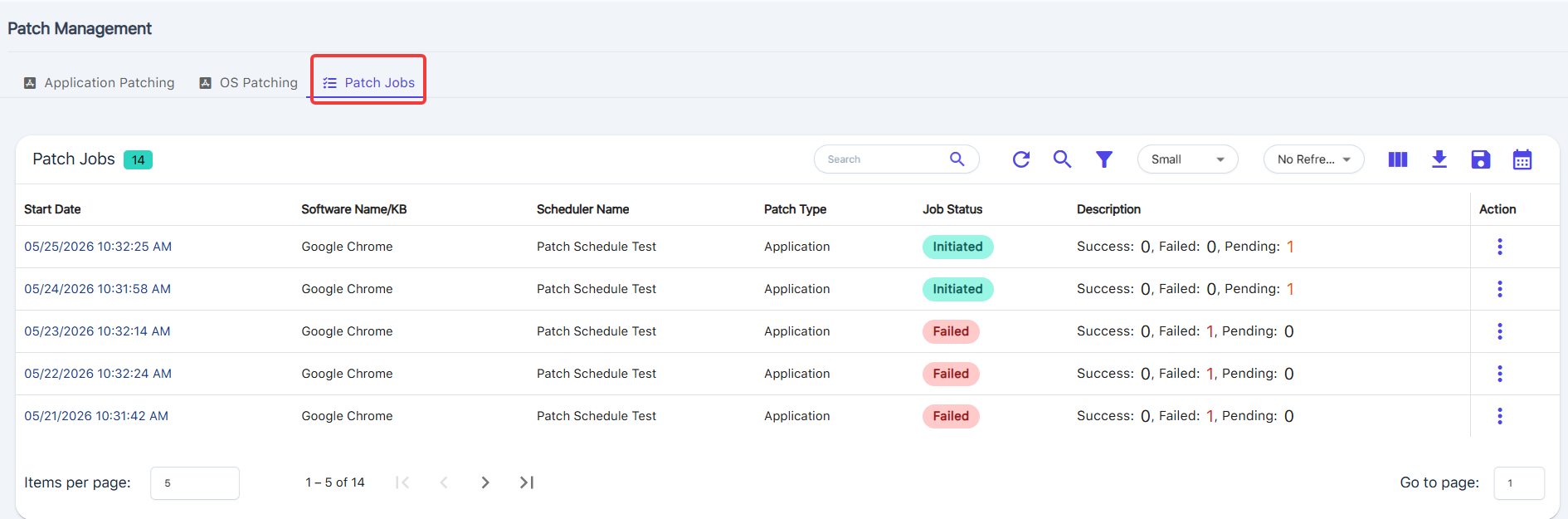
When a Patch Job is in initialized Job Status, selecting the three-dot action menu reveals the option to terminate the job.
Tap to select multiple patch jobs, to terminate in bulk.
Note: If a patch job has already moved to a state such as Pending or Partial, it cannot be terminated using the Terminate function.
Note: If a patch job has already moved to a state such as Pending or Partial, it cannot be terminated using the Terminate function.
| Patch Jobs - Column Descriptions | |
| Column Heading | Description |
| Start Date | Displays the date and time when the patch job was initiated |
| Software Name/KB | Shows the application name or OS update (KB) included in the job |
| Scheduler Name | Indicates the name of the scheduled task or job |
| Patch Type | Specifies whether the patch is for an application or operating system |
| Job Status | Shows the current status of the job (e.g., Success, Failed, Pending) |
| Description | Provides a summary of the job results, including counts of successful, failed, and pending updates |
| Action | Provides the option to terminate the patch job. |
Agent Offline Behaviour
If a patch job is initiated while an agent is offline, the job will remain pending and will automatically execute once the agent reconnects within a 24-hour window.
During this 24-hour period:
- The agent continuously checks for pending patch jobs.
- The agent will attempt to execute the patch job up to three times upon reconnecting.
This behavior applies to both:
- Manually triggered patch jobs
- Scheduled patch jobs
If the agent does not reconnect within 24 hours, the patch job will be marked as Failed.
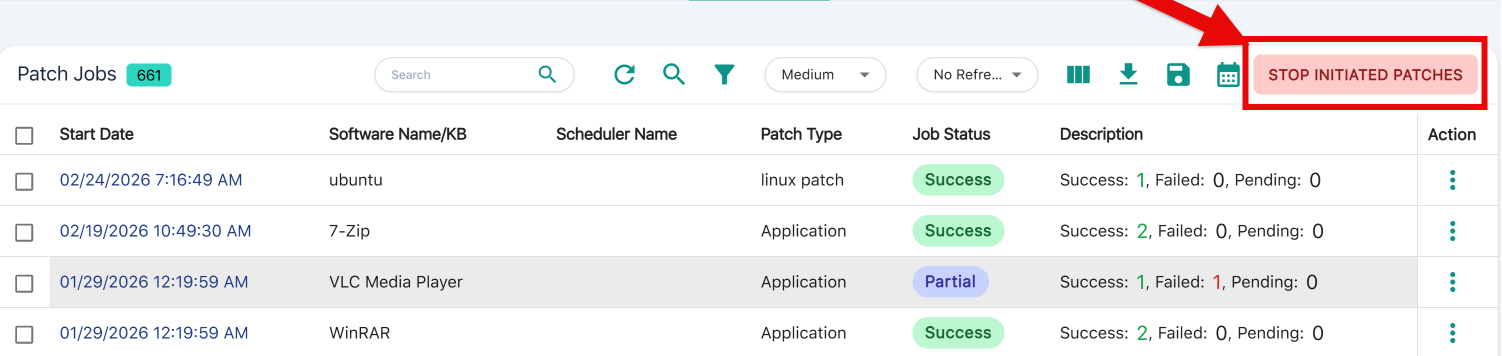
There is also an option to stop ALL patches that are initiate or scheduled. Use the 'STOP INITIATED PATCHES' button on the top of the toolbar.
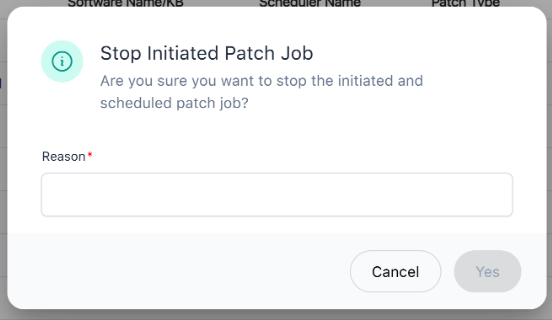
You will need to enter the reason why to continue.
Patch Job Failures
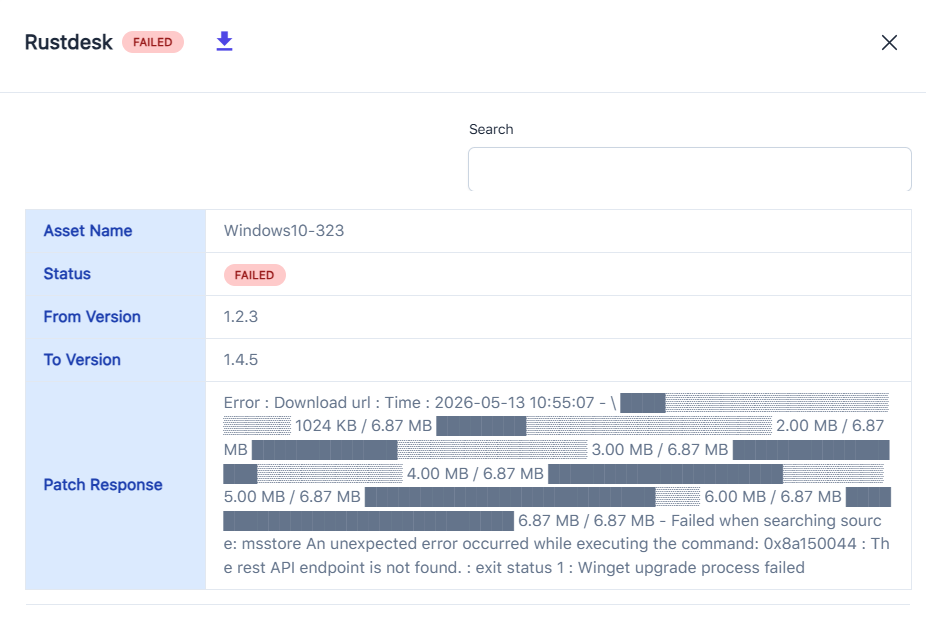
If you see "FAILED" under the Job Status for patching, click on the Created date and time column to view more details that can assist with resolution.