


Log Settings
- Click 'More' in the CAV home screen
- Click 'Preferences' in the 'More' interface
- Click 'Parental Control' in 'Preferences' interface
- By default, Comodo Antivirus maintains a log of all events, which can be accessed by clicking View Antivirus Events' from the 'Antivirus' tasks interface.
- The 'Logging' tab of the 'Preferences' interface allows you to configure how CAV should behave once this log file reaches a certain size and also allows you to disable the logging of specific types of event.
- This 'Logging' interface allows you to specify whether you want to enable logging; the maximum size of the log file and how CAV should react if the maximum file size is exceeded.
- Note: If you wish to actually view, manage logs, then you need to open the 'View Logs' interface under 'More' in the Antivirus Events interfaces.
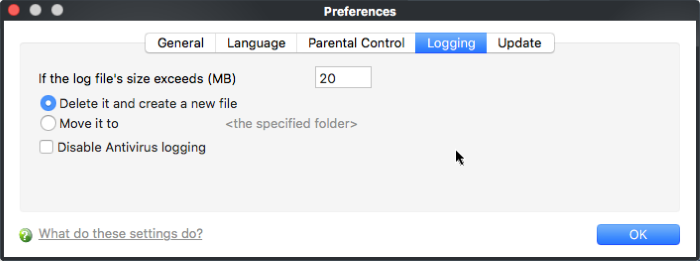
Log File Management
- If the log file's size exceeds (MB):
- Enables you to configure for deleting or moving the log file if it reaches a specified size in MB.
- You can decide on whether to maintain log files of larger sizes or to discard them depending on your future reference needs and the storage capacity of your hard drive.
- Specify the maximum limit for the log file size (in MB) in the text box beside 'If the log file's size exceeds (MB)' (Default = 20MB).
- If you want to discard the log file if it reaches the maximum size, select 'Delete it and create a new file'.
- Once the log file reaches the maximum size, it will be automatically deleted from your system and a new log file will be created with the log of events occurring from that instant (Default = Enabled).
- If you want to save the log file even if it reaches the maximum size, select 'Move it to' and select a destination folder for the log file (Default = Disabled).
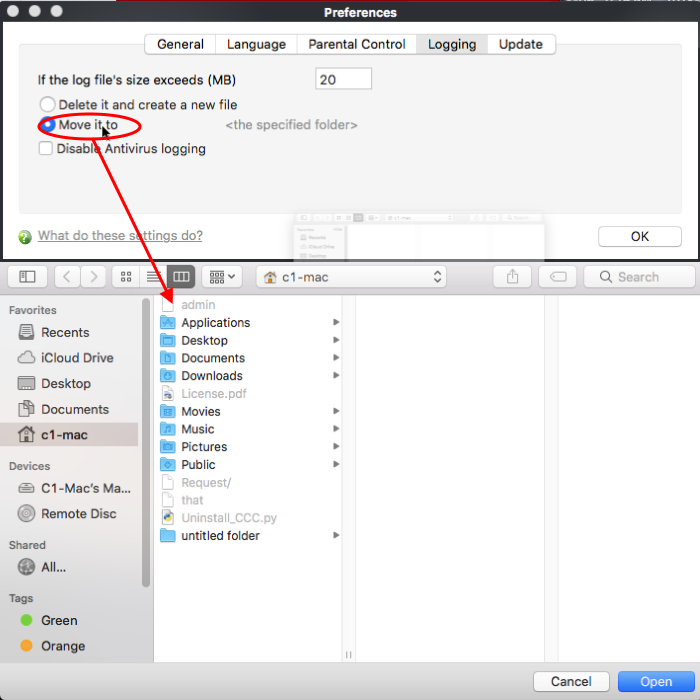
The selected folder path will appear beside 'Move it to'.
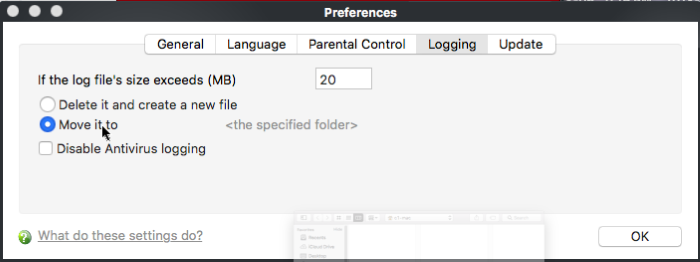
Once the log file reaches the maximum size, it will be automatically moved to the selected folder and a new log file will be created with the log of events occurring from that instant.
Check Boxes:
The check boxes allow you to disable logging of events according to your preferences.
-
Disable Antivirus logging – Instructs Comodo Antivirus to not to log Antivirus events (Default = Disabled).