Comodo Help
Find the desired product help
Comodo Antivirus For MAC

Comodo Antivirus For MAC

Version 1.1

English

Print Help Download Help
Introduction To Comodo Antivirus > How To... Tutorials > How To Create A Scheduled Scan
  • Introduction To Comodo Antivirus
    • System Requirements
    • Installation
    • Starting Comodo Antivirus
    • Comodo Antivirus -The Summary Screen
    • Comodo Antivirus - Navigation
    • Understanding Alerts
    • How To... Tutorials
      • How To Scan Your Computer For Viruses
      • How To Configure Database Updates
      • How To Quickly Set Up Security Levels
      • How To Password Protect Your CAV Settings
      • How To Run An Instant Antivirus Scan On Selected Items
      • How To Create A Scheduled Scan
      • How To Restore Incorrectly Quarantined Item(s)
      • How To Submit Quarantined Items To Comodo For Analysis
      • How To Switch Off Automatic Software And Antivirus Updates
      • How To Temporarily Suppress Alerts While Playing A Game
      • How To View Antivirus Reports
  • Antivirus Tasks-Introduction
    • Run A Scan
    • Update Virus Database
    • Quarantined Items
    • View Antivirus Events
    • Submit Files To Comodo For Analysis
    • Scheduled Scans
    • Scan Profiles
    • Scanner Settings
      • Real Time Scanning
      • Manual Scanning
      • Scheduled Scanning
      • Exclusions
  • More Options-Introduction
    • Preferences
      • General Settings
      • Parental Control Settings
      • Language
      • Log Settings
      • Update Settings
    • Manage My Configurations
      • Comodo Preset Configurations
      • Importing/Exporting And Managing Personal Configurations
    • Diagnostics
    • Check For Updates
    • Browse Support Forums
    • Help
    • About
  • About Comodo

How to Create a Scheduled Scan


Comodo Antivirus allows you to schedule Antivirus scans on your entire system or on specific areas according to your preferences.


To create an antivirus scanning schedule
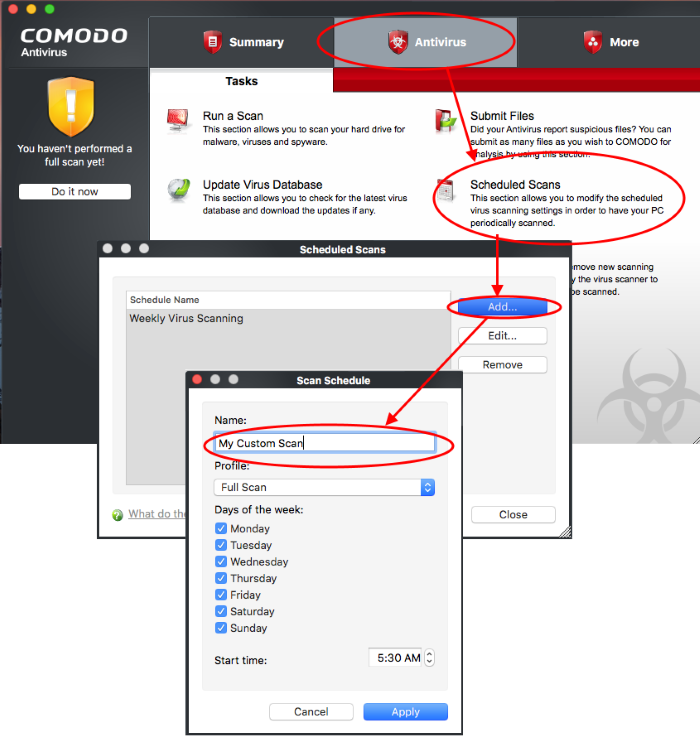
  • Click the 'Antivirus' button along the top navigation
  • Click 'Scheduled Scans' in the Antivirus menu
  • Click the 'Add' button to begin creating your schedule
  • Type a name for your schedule in the text box


  • Select a scanning profile from the Profile drop-down menu. (Selecting a scanning profile will define the areas in your computer to be scanned during this schedule. For more details on Scanning profiles, refer to Antivirus Tasks > Scan Profiles)
  • Select the day(s) (Monday to Sunday) when you want the scan(s) to be run
  • Select the time of the day when the scheduled scan is to be started

    Click 'Apply'.

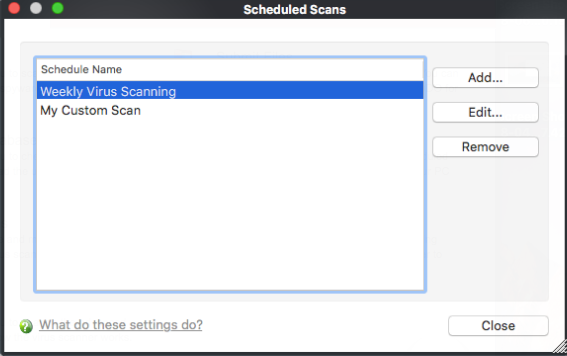
Your new scan schedule will be listed in the 'Scheduled Scans' interface. You can modify or remove it at any time by clicking the 'Edit...' or Remove button.


Repeat the process to add new scan schedules.


For more details on the Scheduled Scans, refer Antivirus Tasks > Scheduled Scans.
Terms and Conditions Privacy Policy

© Comodo Group, Inc. 2013. All rights reserved.