Starting and Using AntiError
The AntiError utility helps maintain the security and operational efficiency of your computer by automatically identifying common problems and helping you to fix them. For example, AntiError will alert you if you have too many startup programs/services (can cause computer slow down); an inefficient registry (can also cause slow down and crashes) or your hard drive contains files that might compromise your privacy. In many cases you will be presented with a simple wizard that will allow you to deal with the issue quickly and easily. If the problem is beyond the scope of AntiError, you will be offered the opportunity to contact a GeekBuddy representative who will help resolve the issues.
There are three ways to start AntiError:
-
Double click the shortcut icon
in the desktop.
-
Click Start > All Programs > Comodo > GeekBuddy > AntiError

At the time of starting your computer, AntiError will detect problems in your system and provide an alert at the bottom right side of the screen.

-
Click the Show issues to open the AntiError interface.
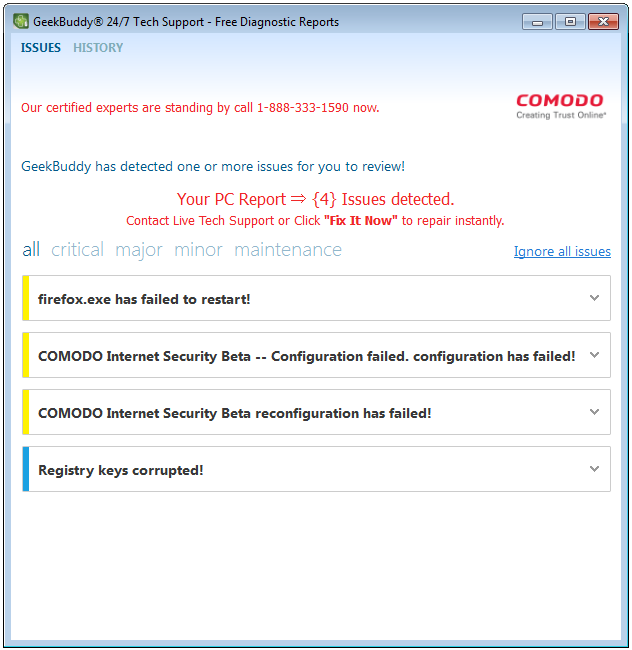
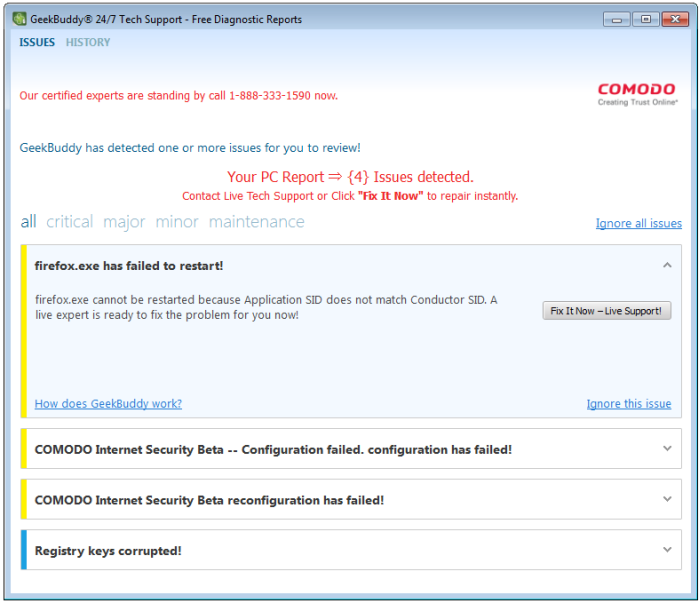
The AntiError interface will list the problems that it has detected.

The problems detected will be categorized as critical, major, minor and maintenance issues. Click on the relevant link to view the problem. Clicking the 'Show all issues' link will display all the problems in your computer and the color code at the left of each issue indicates the category of the issue.
|
S.No |
Issue |
Color Code |
|---|---|---|
|
1 |
Critical |
Red |
|
2 |
Major |
Orange |
|
3 |
Minor |
Yellow |
|
4 |
Maintenance |
Blue |
Some of the common problems that occur in any computer are junk registry entries, slow bootup time and the presence of files that might compromise your privacy.
Each issue discovered will be accompanied with 'solution button'. For example, for the issue of slow bootup time, you will see a button that says ‘Speed Up My Computer’. Clicking this button will display a list of startup programs in your system (programs which are automatically loaded during Windows start-up and will running in the background). You can identify the programs you do not want to run at start-up and disable them. Doing so will save system resources and improve the performance of your computer.
For some of the issues listed, you have to seek the help of an expert technician.

- Click 'Ignore all issues' link to disregard all the issues in your system displayed by AntiError.
- Click 'Ignore this issue' beside a particular entry to disregard that problem.
- Click 'History' link at the top of the interface to view the actions taken for the problems.
- Click the 'Connect to GeekBuddy' button.
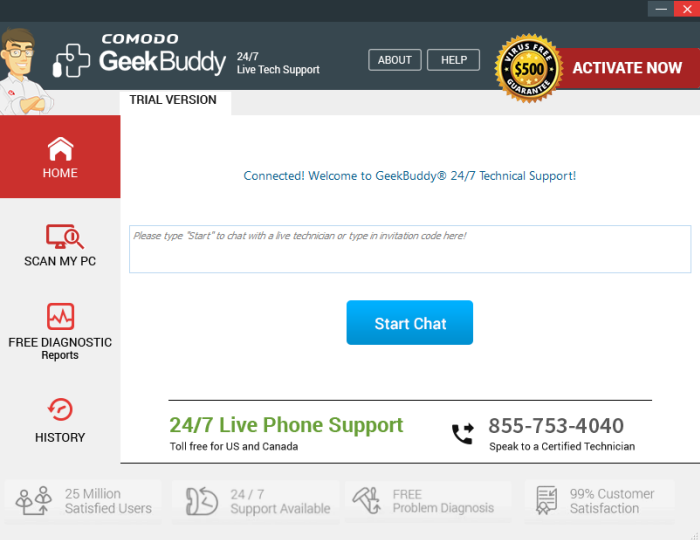
The GeekBuddy chat window will be displayed.

A support technician will chat with you. The technician will assess your problem with you and work with you to fix any problems.
About AntiError
-
Click the 'About' link at the top right side of the interface.
The About AntiError information screen will be displayed.

The 'About' dialog displays the copyright and product version information. The screen also displays information about the licensee and its validity.
Help GeekBuddy
Click on Help link at the top right side of the interface opens this online help guide. Each area has its own dedicated page containing detailed descriptions of the application's functionality. You can also print or download the help guide in the .pdf format from the webpage.