


How to Subscribe for Quarantine Reports
Comodo Antispam Gateway can periodically generate quarantine reports. These reports contain the details of emails addressed to you but moved to quarantine.
- Subscribe for these reports in the 'Manage report subscriptions' interface so these are sent to you periodically
|
Note: The report subscription feature is available for you only if the administrator has enabled this feature. If enabled, the 'Manage report subscriptions' sub tab is available on the left under the 'Account management' tab. |
The quarantine report contains a statistical breakdown of the mails that were identified as spam or containing malicious content and were moved to quarantine automatically by CASG, with the details of sender, receiver, date and attachments. Clicking the subject line in the list will open the respective mail in a new CASG window. See CASG Reports for more details.
You can subscribe to receive the reports daily, weekly or monthly.
Configure report subscription
-
Login to CASG
- Click 'Account management' on the left then select 'Manage report subscriptions'.
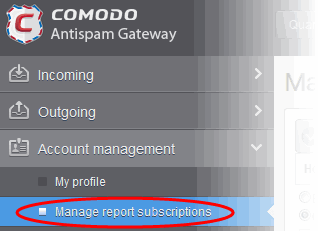
The 'Manage report subscriptions' interface opens:

- If you want to receive the periodical Quarantine summary reports, ensure that the 'Enabled' check box is selected.
-
Leave the 'Send empty' checkbox unchecked if you do not want to receive empty reports.
- Select the frequency of the report to be sent to you from the 'Hour', 'Day of month' or 'Day of week' columns.
- Hour - The reports are generated and sent at the selected hour of the day or date chosen from 'Day of month' or 'Day of week' columns.
- Day of month - The reports are generated and sent every day or on the specific day every month chosen at the hour selected from the 'Hour' column.
- Day of week - The reports are generated and sent every day or on the specific day every week chosen at the hour selected from the 'Hour' column.
- Start date - Shows the begin date of the report generation depending on the options chosen.
- Report length - Shows the period of the report that are generated depending on the options chosen.
- Click 'Save' for your settings to take effect.
- Click 'Reset settings to default' button to configure default report generation period. The report are generated every 24 hours starting from last report generated time or from 00:00 hours.