
Introduction of Managed AI
The Future of IT Management: AI as a Shadow Workforce
- AI is becoming the new workforce. Businesses will adopt AI broadly as a ‘shadow workforce’ of specialized agents supporting sales, support, operations, and IT.
- IT managers and MSPs will manage this AI infrastructure. Just as they manage servers, networks, and endpoints today, they’ll soon be responsible for deploying, integrating, and managing AI agents across their environments.
Managed AI makes this possible — the first platform that lets IT managers and MSPs:
- Deploy Prebuilt AI Agents — Instantly launch AI agents for sales, support, operations, and IT tasks.
- Create Custom AI Agents — Build agents tailored to your clients’ unique workflows and needs.
- Seamless Integration — Connect agents into your clients’ IT environments (Teams, email, WhatsApp, and more).
- Offer AI Management-as-a-Service — Turn AI operations into a new, recurring revenue stream.
With Managed AI, you’re not just managing IT infrastructure anymore — you’re managing the AI infrastructure that will power the businesses of tomorrow.
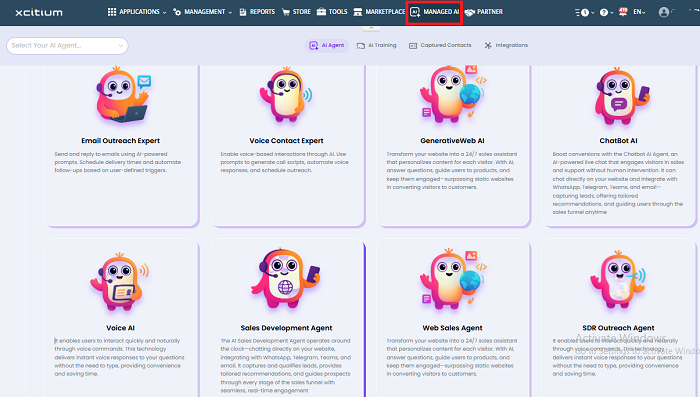
Step 1: Open the Add New AI Agent interface
To begin building an AI agent, you must first access the AI agent management section within Xcitium.
This is your starting point for creating an AI using pre-built templates.

To begin building an AI agent, you must first access the AI agent management section within Xcitium.
- Log into your Xcitium portal
- In the navigation menu, Click Managed AI.
- Go to the AI agent section found in the top menu.
- Select Add New AI Agent to open the template selection page.
This is your starting point for creating an AI using pre-built templates.

Step 2: Choose an AI Category filter
To simplify the process, templates are grouped into functional business categories. Use these filters to quickly find the most relevant agent type.
Available Categories include
Clicking a category button will only show templates related to that business area.
To simplify the process, templates are grouped into functional business categories. Use these filters to quickly find the most relevant agent type.
Available Categories include
- Lead Generation & Outreach
- Sales
- Marketing & Content
- Customer Support
- IT & Security
- Other specialized business categories
Clicking a category button will only show templates related to that business area.

Step 3: Browse Available AI Templates
Each template card provides key insights into what the agent can do. This helps you evaluate functionality before selection.

Each Template card displays:
- AI Agent Icon
- Template Name
- Short functional description
- Use AI Template button to proceed
- Chat with This AI button to preview behavior
Templates are designed to be ready for quick activation with minimal configuration.
Step 4: Select and Configure your AI Agent
Once you find a suitable template, you can begin customizing it for your business.
- Click Use AI Template
- Review the license requirements and proceed with activation/payment if required

- Define the business purpose of the AI agent
- Add a training repository (documents, instructions, website content, workflows, etc.)
- Continue with configuration and Publish the AI when ready
Your agent will now be active and ready to assist users or customers.
Step 5: Chat with AI (Preview mode)
Not sure if the template is the right fit? You can test how the AI responds before selecting it.

What You Can Do in Preview Mode:
- Conduct sample conversations
- Observe response quality and behavior
- Verify if the agent aligns with your business workflow
This helps ensure you choose the right AI before committing.
If available templates don’t match your unique requirements, you can request a fully customized AI solution.

Request Features Include:
- Submit detailed workflow or operational requirements
- Add proprietary knowledge and functional expectations
- Work with Xcitium’s AI engineering team for development
Best suited for organizations with niche or advanced automation needs.
Step 7: Exit Template Selection Anytime
If you want to exit the template-selection screen:

