Comodo Help
Find the desired product help
Managed Detection And Response

Managed Detection And Response

cWatch MDR Admin GuideEnglish

English

Print Help
Integrate Your Microsoft Entra Account With MDR
  • Introduction To Xcitium CWatch MDR
    • Purchase A License
    • Log-in To The Admin Console
  • The Home Screen
  • Service Summary
  • Incidents Overview
    • Incidents
    • Threat Summary
  • Log Collection Summary
  • Threat Communication Graph
  • Tickets
  • Reports
  • Notification Settings
  • Integrate Your Office 365 Account With MDR
  • Integrate Your Google Workspace Account With MDR
  • Integrate Your Microsoft Entra Account With MDR
  • Integrate Your CrowdStrike Account With MDR
  • Integrate Your Windows Defender Account With MDR
  • Integrate Your SentinelOne Account With MDR
  • About Xcitium Security Solutions

Integrate your Microsoft Entra Account with MDR 


You can integrate your Microsoft Entra account with MDR so any threats and behavioral anomalies are detected. Once integrated, our SOC team analyzes data logs from your Microsoft Entra account for malware activity and other anomalies. 

You have to first register an application in Microsoft Entra ID and then configure MDR to collect data. 


Configuration Steps 

  • Step 1 - Register an Application in Microsoft Entra 
  • Step 2 - Retrieve Required Identifiers 
  • Step 3 - Generate a Client Secret 
  • Step 4 - Assign API Permissions 
  • Step 5 - Configure MDR with Microsoft Entra credentials (Tenant ID, Client ID, Secret Key) 

Step 1 - Register an Application in Microsoft Entra 

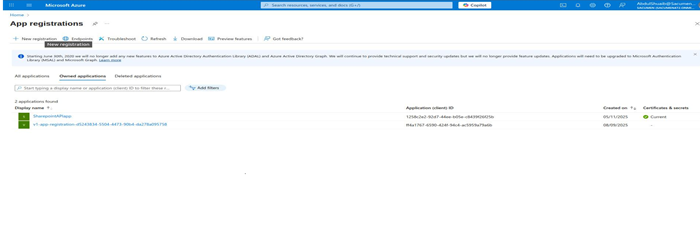
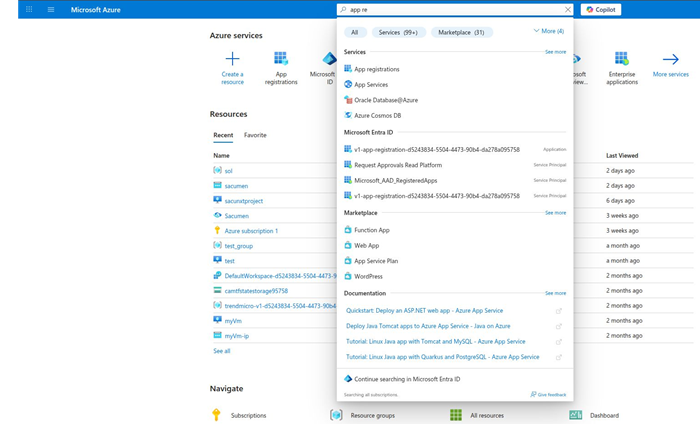
  • Sign in to the Azure Portal. 
  • Navigate to Microsoft Entra ID.
  • In the left pane, select App Registrations. 
  • Click New Registration. 
  • Provide a Name, choose the account type, and click Register.


Step 2 - Retrieve Required Identifiers 

After registration: 

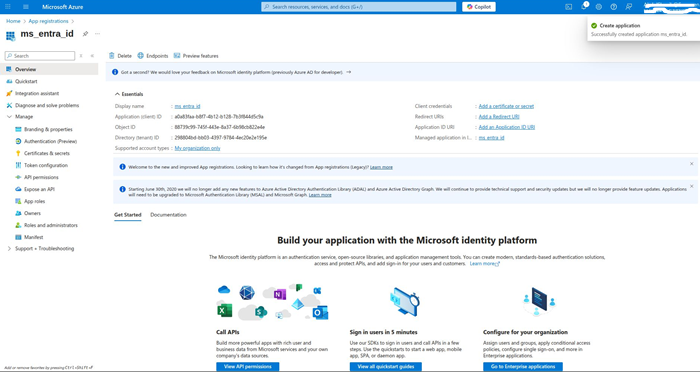
  • Go to the newly created App. 
  • Under Overview, copy the following: <
    • Application (Client) ID 
    • Directory (Tenant) ID 


Step 3 - Generate a Client Secret 

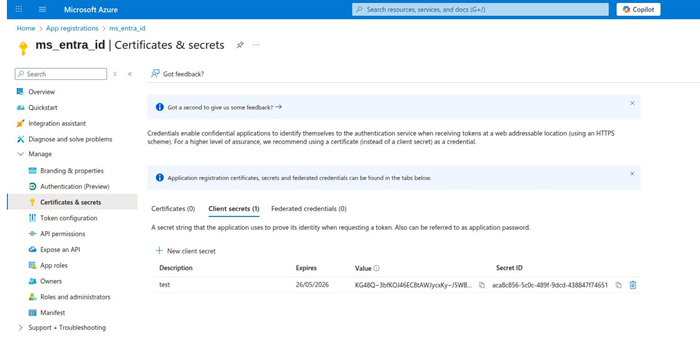
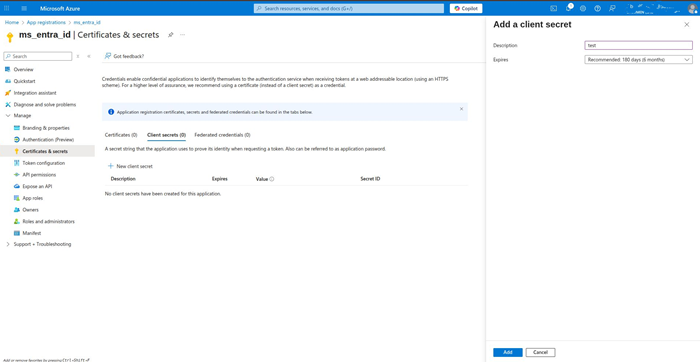
  • Inside the App Registration, open Certificates & Secrets. 
  • Under Client Secrets, click New Client Secret. 
  • Add a description and set an expiry period. 
  • Click Add<> and copy the Secret Value<> (visible only once). 


 Step 4 - Assign API Permissions 

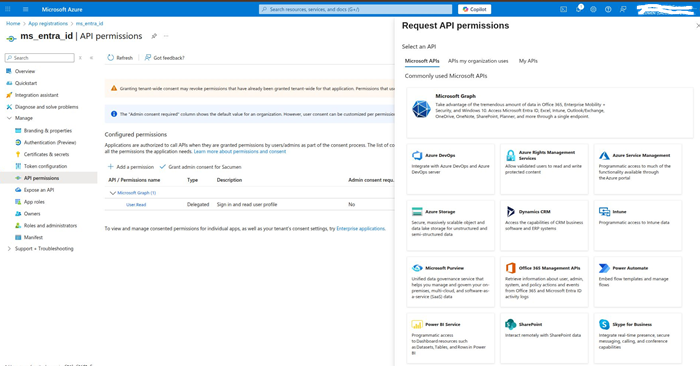
  • In the App Registration, go to API Permissions. 
  • Click Add a permission. 
  • Select the required Microsoft Graph/API permissions. 
  • If the API requires elevated access, click Grant admin consent. 

Step 5 - Configure MDR with Microsoft Entra Credentials 

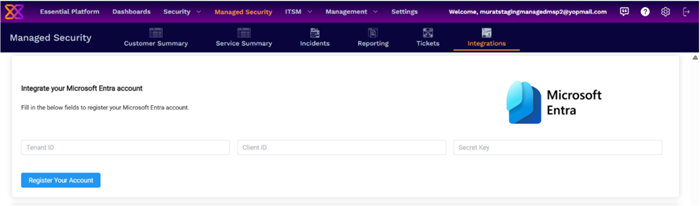
  • Log into your Xcitium account and open MDR. 
  • Click 'Managed Security' in the top navigation, then select the 'Integrations' tab. 
  • Scroll down to 'Integrate your Microsoft Entra account' and fill in the following fields: 
    • Tenant ID 
    • Client ID 
    • Secret Key 
  • Click 'Register Your Account'. 


That's it, your Microsoft Entra account is integrated with MDR. Contact your Xcitium account manager for support if you have any trouble integrating your cloud account with MDR. 

Our Products
  • Free Antivirus
  • Free Internet Security
  • Website Malware Removal
  • Free Anti-Malware
  • Anti-Spam (Free Trial)
  • Windows Antivirus
  • Antivirus for Windows 7
  • Antivirus for Windows 8
  • Antivirus for Windows 10
  • Antivirus for MAC
  • Antivirus for Linux
  • Free Endpoint Security
  • Free ModSecurity
  • Free RMM
  • Free Website Malware Scanner
  • Free Device Manager for Android
  • Free Demo
  • Network Security
  • Endpoint Protection
  • Antivirus for Android
  • Comodo Antivirus
  • Wordpress Security
Cheap CDN
  • Bootstrap CDN
  • Semantic UI CDN
  • Jquery CDN
  • CDN Plans
  • CDN
  • Free CDN
Enterprise
  • Patch Management Software
  • Patch Manager
  • Service Desk
  • Website Down
  • Endpoint Protection Solutions
  • Website Security Check
  • Remote Monitoring and Management
  • Website Security
  • Device Manager
  • ITSM
  • CRM
  • MSP
  • Android Device Manager
  • MDR Services
  • Managed IT Support Services
  • Free EDR
Free SSL Certificate
Support Partners Terms and Conditions Privacy Policy

© Comodo Group, Inc. 2026. All rights reserved.