
Comodo Help
Find the desired product help
Xcitium Secure Internet Gateway

Xcitium Secure Internet Gateway

Admin Guide Version 2.14.17

English

Print Help
Secure Internet Gateway > Configure > Policy Settings > Manage Block Pages > Create A Block Page - Single Page For All Blocked Domains
  • Secure Internet Gateway
    • Setup Wizard
      • Start The Setup Wizard
      • Step 1 - Add Your Network
      • Step 2 - Confirm Rules For Your Policy
    • Setup Guide
      • Set Up Your Network To Secure Internet Gateway
        • Step 1 - Add Network
        • Step 2 - Set DNS
        • Step 3 - Create Policy
        • Step 4 - Analyze
      • Set Up Your Roaming Endpoints
        • Step 1 - Download And Install The Agent
        • Step 2 - Anti-Tampering Password
        • Step 3 - Configure Policy
        • Step 4 - Analyze Logs
      • Protect Your Mobile Devices
    • Overview
      • View The Web Overview Dashboard
      • View The Security Overview Dashboard
      • Page Through Widgets And Change The Reporting Period
    • Reporting
      • View Web Activity Reports
      • Drill Into The 'Other' Slice On Top URL Categories
      • View Security Reports
      • View Mobile Activity Reports
      • View Local Resolver Activity Reports
      • View CCB Activity Reports
      • View And Manage Exports
    • Configure
      • Manage Policies
        • Create A Policy - Select Objects
        • Create A Policy - Settings
        • Update A Policy
        • Validate A Policy With Check Policy
        • Manage Domain Classification Requests
          • How Domain Classification Requests Work
          • Request A Category Change
          • Website Category Reference
      • Policy Settings
        • Manage Security Rules
          • Create A Security Rule - Name
          • Create A Security Rule - Settings
        • Manage Category Rules
          • Create A Category Rule - Name
          • Create A Category Rule - Settings
        • Manage Domain B/W Lists
          • Create A B/W List - Name
          • Create A B/W List - Settings
          • Block By Country Top-Level Domain
        • Manage Block Pages
          • Create A Block Page - Name
          • Create A Block Page - Single Page For All Blocked Domains
          • Create A Block Page - Different Pages Per Block Reason
          • Redirect Blocked Users To A URL
      • Objects
        • Manage Networks
          • Add A Network
          • Add A Network - Additional Settings
          • Add A Network With A Dynamic IP Address
        • Manage Roaming Devices
          • Set An Anti-Tampering Password
          • Download The Roaming Agent
          • Deploy The Roaming Agent Through Endpoint Manager
        • Manage Mobile Devices
          • Add A Mobile Device
    • Shadow AI
      • Shadow AI Summary
      • Discovered AI Tool Catalog
      • Top AI Devices, Mobile Agents And Networks
      • Recent AI Blocks
      • Export Shadow AI Data
      • Block AI Tools
      • How Shadow AI Counts Requests
    • View Account Information And Licences

Create a Block Page - Single Page for All Blocked Domains


  • Click 'Configure' > 'Policy Settings' > 'Block Pages' > 'Add a New Block Page' > 'Next' to open this interface.


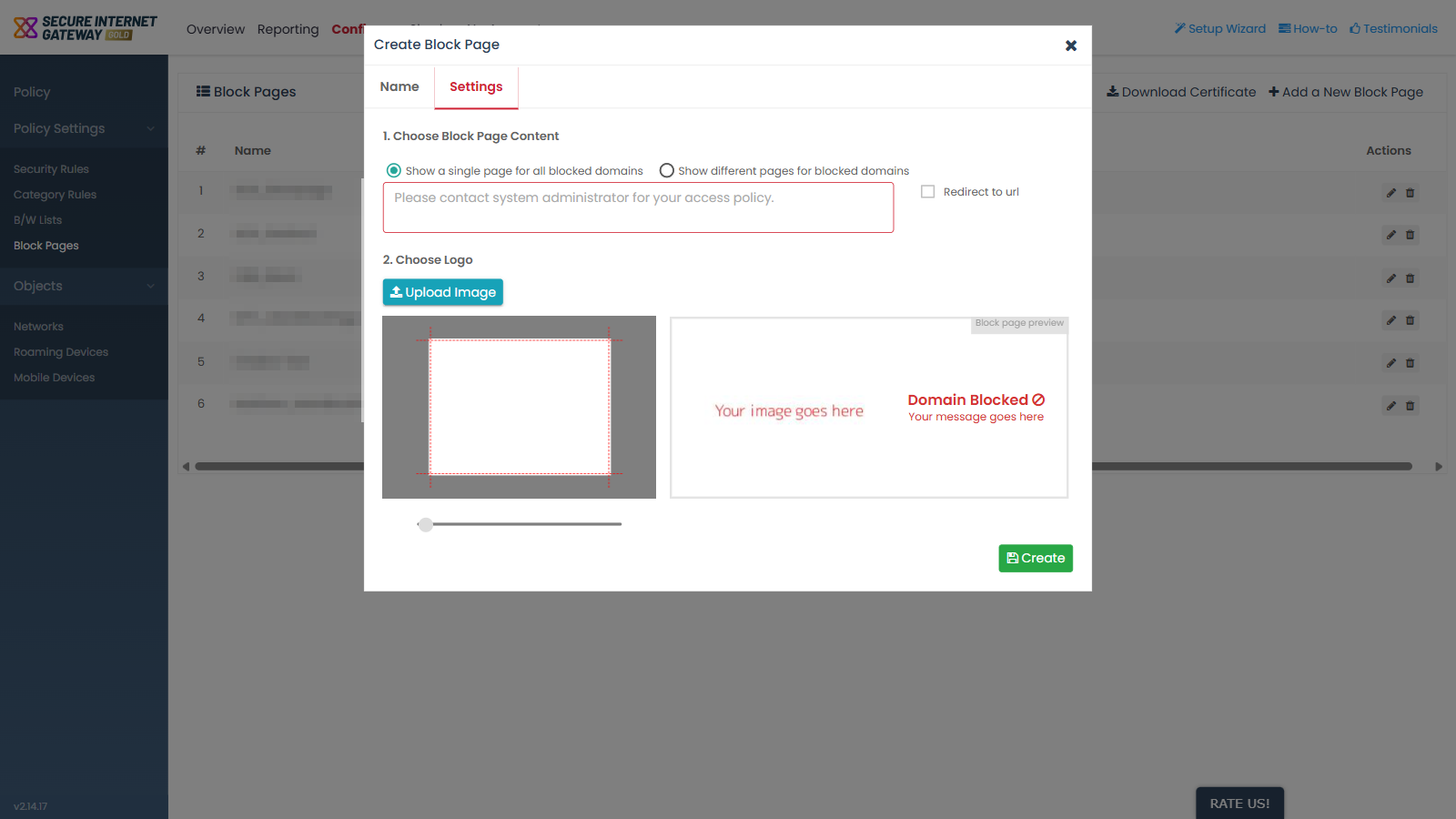
The 'Settings' tab has two numbered sections and a live preview. '1. Choose Block Page Content' decides whether every blocked domain shows the same page or a different page per block reason. This topic covers the single-page option, which is selected by default.

You can write the message users see, add a logo, and check the result in the preview from this tab.
Xcitium_Secure_Internet_Gateway_1.png

1. Choose Block Page Content

A pair of options:

  • 'Show a single page for all blocked domains' - selected by default. Every blocked domain shows the same message.

  • 'Show different pages for blocked domains' - shows a separate message per block reason. See 'Create a Block Page - Different Pages per Block Reason'.

Field descriptions

Field Description Options and default
Message box The text shown to the user on the block page. Its placeholder reads 'Please contact system administrator for your access policy.' Empty by default.
Redirect to url Checkbox. Ticking it replaces the message box with a URL field, so the user is sent to an address instead of seeing a message. Cleared by default.

2. Choose Logo

  • 'Upload Image' - supplies the logo shown on the block page.

  • A slider beside the logo resizes it in the preview.

Block page preview

The preview is a live rendering of the page as the user will see it. It is headed 'Domain Blocked', and its body reads 'Your message goes here' until you type a message.

Create a single block page for all blocked domains

  1. Complete the 'Name' tab and click 'Next'.

  2. Leave 'Show a single page for all blocked domains' selected.

  3. Type the message users should see into the message box.

  4. Click 'Upload Image' to add a logo, then use the slider to size it.

  5. Check the result in the 'Block page preview'.

  6. Click 'Create'.


Our Products
  • Free Antivirus
  • Free Internet Security
  • Website Malware Removal
  • Free Anti-Malware
  • Anti-Spam (Free Trial)
  • Windows Antivirus
  • Antivirus for Windows 7
  • Antivirus for Windows 8
  • Antivirus for Windows 10
  • Antivirus for MAC
  • Antivirus for Linux
  • Free Endpoint Security
  • Free ModSecurity
  • Free RMM
  • Free Website Malware Scanner
  • Free Device Manager for Android
  • Free Demo
  • Network Security
  • Endpoint Protection
  • Antivirus for Android
  • Comodo Antivirus
  • Wordpress Security
Cheap CDN
  • Bootstrap CDN
  • Semantic UI CDN
  • Jquery CDN
  • CDN Plans
  • CDN
  • Free CDN
Enterprise
  • Patch Management Software
  • Patch Manager
  • Service Desk
  • Website Down
  • Endpoint Protection Solutions
  • Website Security Check
  • Remote Monitoring and Management
  • Website Security
  • Device Manager
  • ITSM
  • CRM
  • MSP
  • Android Device Manager
  • MDR Services
  • Managed IT Support Services
  • Free EDR
Free SSL Certificate
Support Partners Terms and Conditions Privacy Policy

© Comodo Group, Inc. 2026. All rights reserved.