


Download and Install Comodo Dragon Web Browser
You can download Comodo Dragon from: http://www.comodo.com/home/browsers-toolbars/browser.php
Open setup.exe  to start the installation wizard.
| Note: Dragon can be also installed in silent mode using the command line interface with the /S switch. For example, C:/>Download Directory>DragonSetup.exe /S. See ‘Installing in silent mode’ for more details. |
Step1 - End User License Agreement
First, read and accept the end-user license agreement (EULA):
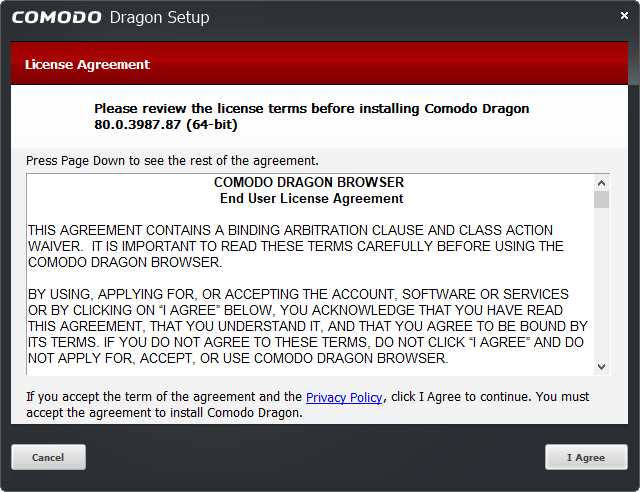
- Click 'I Agree' button to continue the installation. Click 'Cancel' to abort the installation.
Step 2 - Select Installation Folder
The next screen lets you choose the Dragon installation folder. The default path is C:/Program Files/Comodo/Dragon.
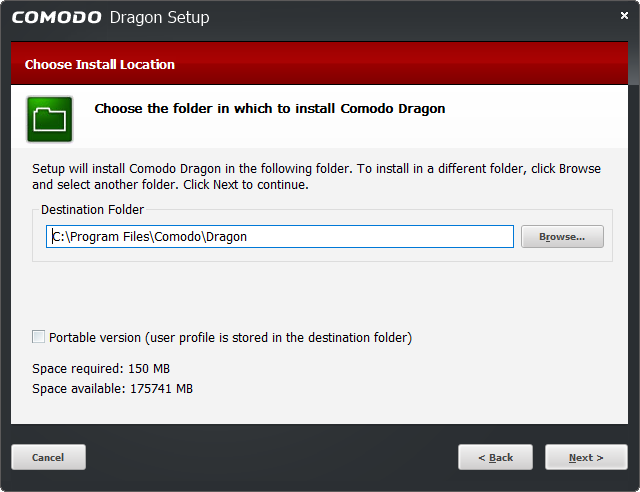
- Click 'Browse...' if you want to install the application in a different location
- Click 'Next' to continue.
See Portable version if you want more details about this version of the browser.
Step 3 - Import Settings
The next screen lets you choose which items to import from your current browser into Comodo Dragon:
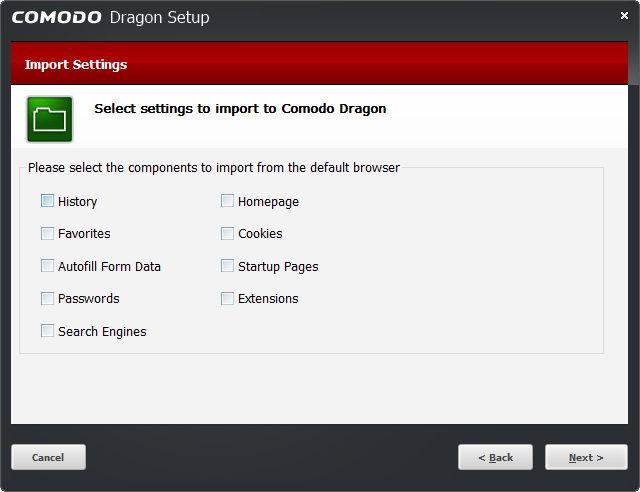
Select the items you want to import then click 'Next'. Tip: You can always import items later if you want.
- Click 'Next' to continue.
Step 4 - Configure your DNS Settings
- Comodo SecureDNS can accelerate website connection times and improve your online security.
- The domain name system (DNS) is the backbone of the internet. It is the technology that actually connects you to the website when you click on a link.
- In most cases, your DNS server is provided by your ISP. You share this server with all other customers of the ISP, which can lead to slow-downs during busy periods. By switching to Comodo DNS, your website requests are instead routed though our high-performance DNS servers.
- Comodo
DNS also helps protect you online. Our real-time web-filter
instantly blocks malicious websites, phishing sites, and parked
domains that contain excessive advertising.
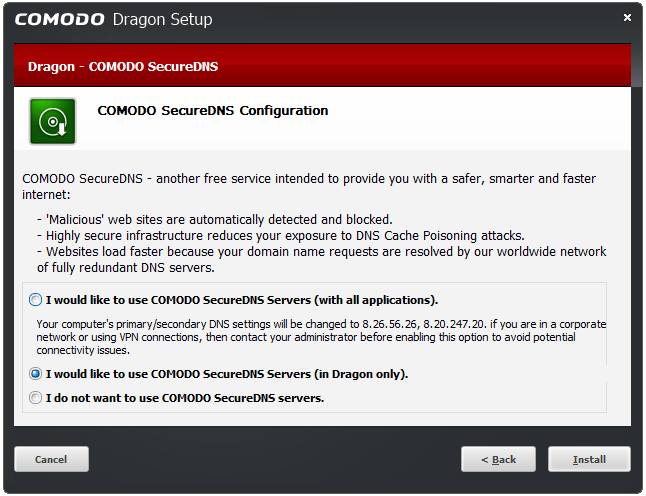
- Use Comodo DNS for all applications that access the internet.
- Use Comodo DNS for Comodo Dragon only. All other applications will connect through your current DNS server.
- Make no changes - keep your current DNS provider.
In addition, Comodo's Secure DNS ensures safety against malware attacks by preventing any program running in your system from accessing malicious websites.
By default, 'I would like to use Comodo SecureDNS Servers (in Dragon only)' is selected. Select the option you want to use and click 'Install'.
|
Note: The option to use Comodo Secure DNS Servers can be selected at a later stage also in the Privacy section under the 'Show advanced settings' link. Select the 'Enable malware domain filtering (Comodo Secure DNS)' checkbox. |
Select the records that you wish to import from your default browser at this time.
|
Tip: You can also import the records at later time if you have not selected any records at this time. |
- Click 'Install' to continue.
Step 5 - Setup Progress
A setup status dialog box is displayed.
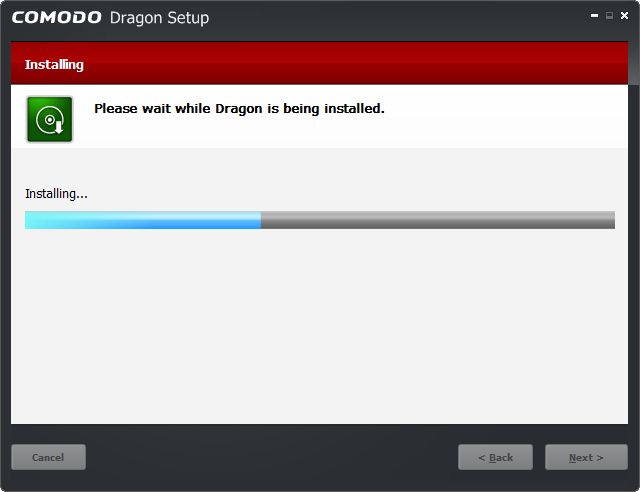
- Click 'Next' after the installation process is completed.
The 'Installation Complete' dialog indicates installation is finished:
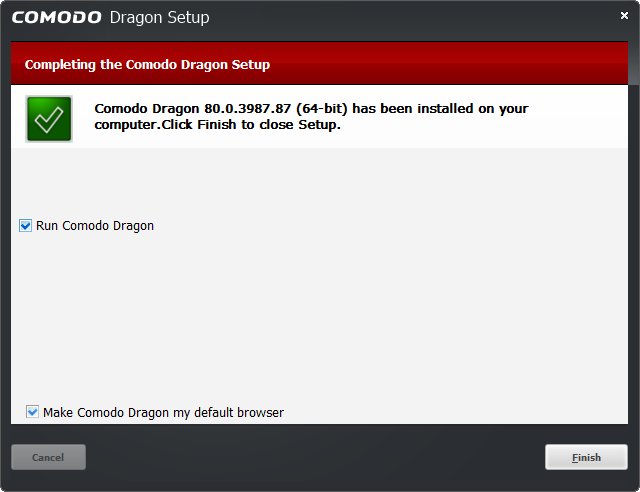
- Leave 'Run Comodo Dragon' selected to launch the browser immediately after you click 'Finish'.
- Leave 'Make Comodo Dragon my default browser' if you want to use Comodo Dragon as the default choice for opening web-pages.
- Click
'Finish'.
You will be
offered the opportunity to set your search engine provider to Yahoo:
- Making Yahoo your default search engine means:
- When you enter a search item into the address bar of a supported browser, the search will be carried out by Yahoo
- A ‘Search with Yahoo’ menu entry will be added to the right-click menu of supported browsers
- Yahoo will be set as the default search engine in the ‘Search’ box of supported browsers
- The instant ‘search suggestions’ that you see when you start typing a search item will be provided by Yahoo
- Click 'Decline' to continue using your current search engine and home page
Installation in silent mode
Dragon can be also installed in silent mode using the command line interface with the /S switch. For example, C:/>Download Directory>/DragonSetup.exe /S

Steps done by the silent installer:
- Uninstall the previous version (if exists).
- Copy installation files in to default installation folder.
- Create shortcuts on desktop and in programs menu.
Steps not done:
- Making Dragon the default browser.
- Importing from default browser.
- Installing system-wide Comodo Secure DNS.
If Dragon is already installed then it will update the installed version.
If the installer fails, the process is closed with error code not equal to 0.
Run the silent installer in waiting mode and check return code

The silent installer will fail if Dragon or another instance of the installer is already running.
If you do not have flash player installed, Comodo Dragon now requests for Adobe Flash Player plug in to be installed under main menu to display some missing web elements.

After installation you will be asked if you want to set Yahoo as your default search engine and home page:
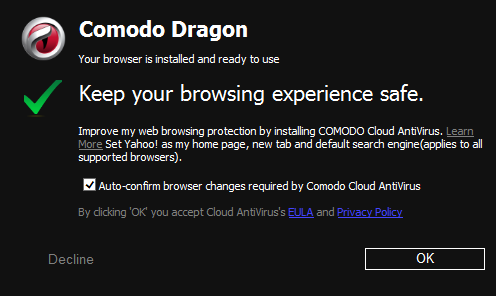
- Click 'OK' to agree for improving by using web services.
- Click 'Decline' to
continue using your current search engine and home page. See Configure Advanced Settings for more details.