Force Secure Connections
- This feature lets you specify that all future connections to a particular website are made over a HTTPS connection.
- The feature is designed for sites that have an SSL/TLS certificate installed, but have chosen to default to HTTP on some or all of their pages.
- You also have the option to force HTTPS connectivity to the site's sub-domains.
When you visit a site using a HTTPS connection, Comodo Dragon shows a padlock on the left of the address bar:

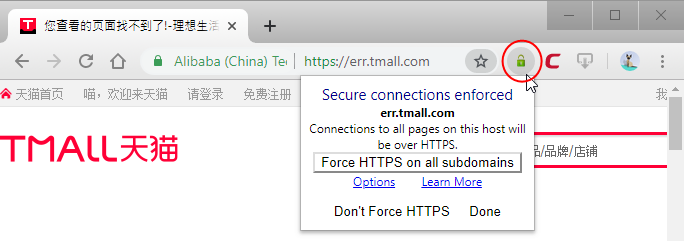
- The 'Enforce Secure Connections' padlock on the other side – on the right of the address bar.
- By default it is gray, meaning secure connections are not yet enforced. No additional actions will be performed if the page is loaded again.
- Click the padlock to enforce secure connections:
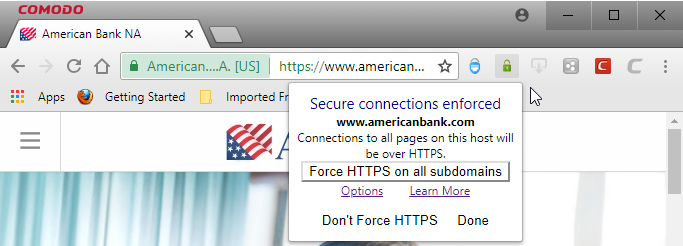
- The padlock will turn green, meaning secure connections are enforced on all pages in the domain for this session and all future visits
- All information exchanged between you and this website will be encrypted using the strongest available algorithms
- Check 'Force HTTPS on all sub-domains' if you want secure connections throughout the domain
- If you wish to disable forced secure connections, click 'Don't force HTTPS'
- Click the 'Options' link to create a list of sites that you want to enforce or ignore secure connections
This open the
feature configuration screen:
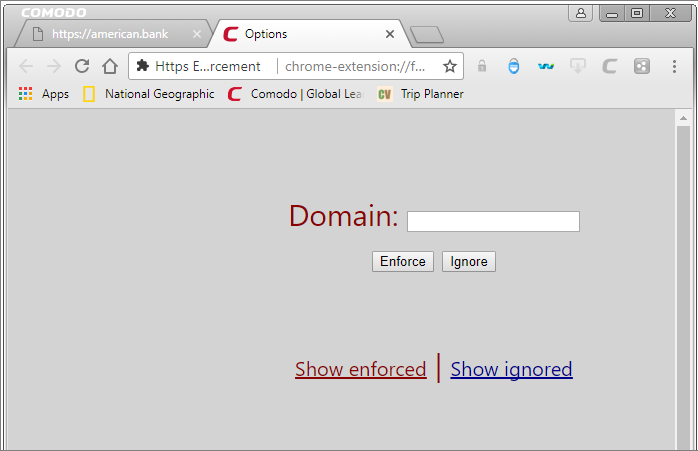
- Enter the URL in the 'Domain' text field and click 'Enforce' or 'Ignore'
- Enforce - Implements HTTPS connections to pages that ordinarily use HTTP
- Ignore - HTTPS connections are not enforced
- Click 'Show enforced' / 'Show ignored' to view the list.
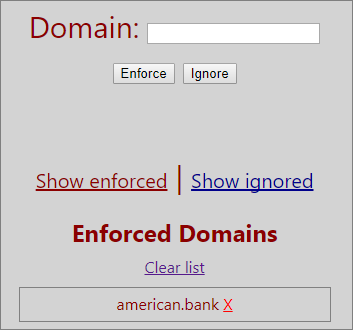
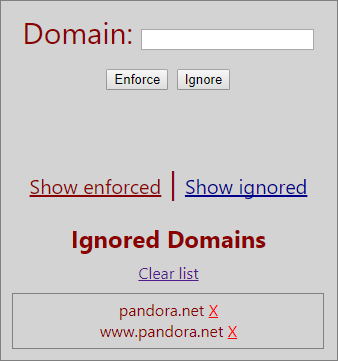
- Click the 'X' mark beside a URL to remove from the list.
Example usage
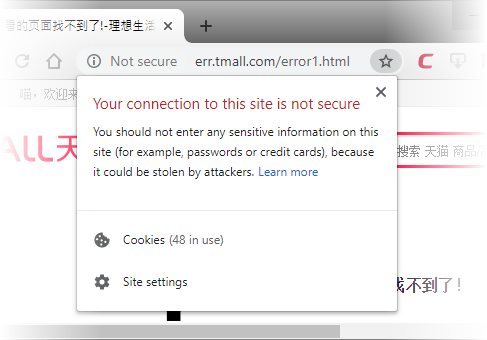
This feature is particularly useful for websites that do not, by default, use secure connections on their login pages. For example, the tmall sign-in page does not ordinarily have HTTPS connections on its log-in page. Note: the address is plain HTTP instead of HTTPS - the 'S' stands for secure:

It's possible your credentials may still be posted to HTTPS once you click the 'Sign in' button, but the absence of a certificate on this page means you cannot verify the authenticity of the website. Furthermore, loading the sign-in page over HTTP also means you cannot verify the page's integrity - it may have been modified by a 3rd party before it loaded in your browser.
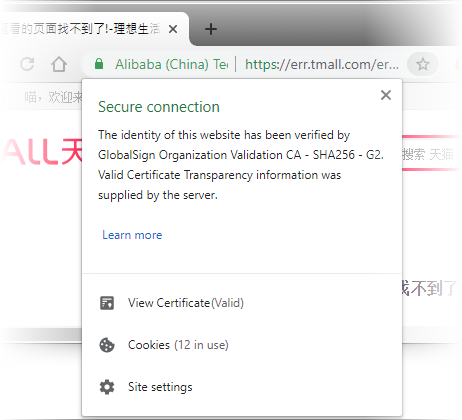
With a HTTPS connection, you can click the lock on the left of the address bar to view the website's SSL certificate. Apart from encrypting the information you submit and ensuring page integrity, the certificate also contains critical website identity information which allows you to verify that you are connected to the genuine tmall website.
Force secure connections on the tmall log-in page:
- You first have to physically change www.detail.tmall.com to https://www.detail.tmall.com
- Do this by placing your mouse cursor in the Dragon address bar and typing 'https://' before www.detail.tmall.com so the full URL says https://www.detail.tmall.com
- Press enter. The page will re-load with a secure connection and thus make available the 'Force Secure Connections' padlock on the right:

- Click the padlock to enforce secure connections. All future visits to the tmall log-in page will be automatically conducted over a secure, encrypted connection: