


Form Autofill
Comodo Dragon's autofill feature lets you complete web forms with a single click, saving you the time and drudgery of entering the same details repeatedly.
Manage your autofill entries
- Click the menu
 at top-right
- Select 'Autofill'
- Click the 'Address and more' section
OR
- Click the profile at top-right
- Click 'Password', 'Payment methods' or 'Addresses and more' to configure automatic form completion
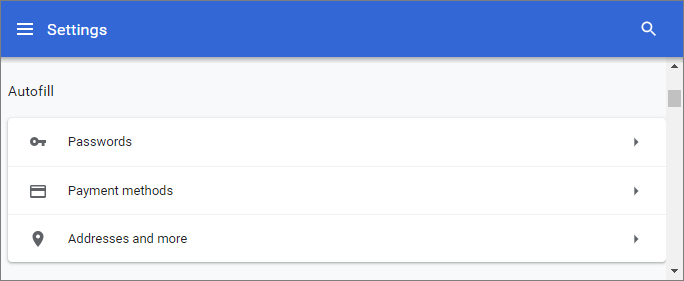
Manage Autofill settings
- Select 'Addresses and more'
- Enable 'Save and fill addresses' to save addresses and contact details that you enter on forms:
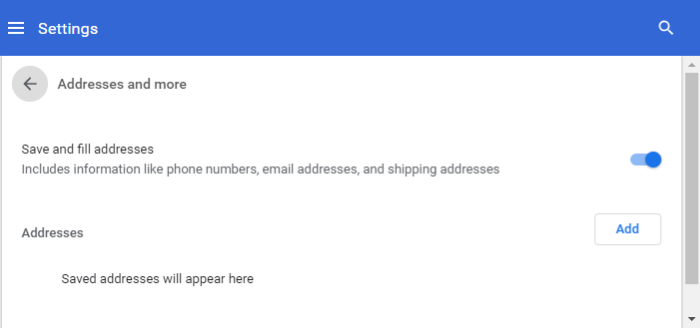
- Click the 'Add' next to addresses to add a new street address and more
- Complete the form as required with your name and address
- You can create multiple profiles according to your requirements
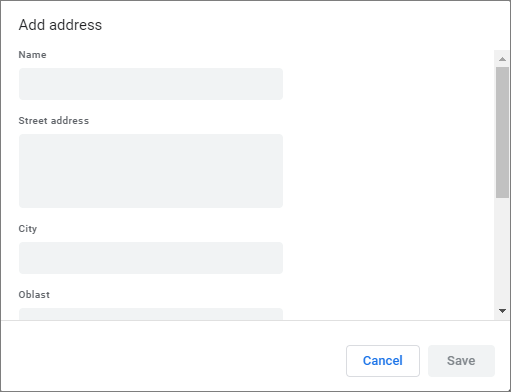
- Click 'Save'.
- Click 'Payment methods'
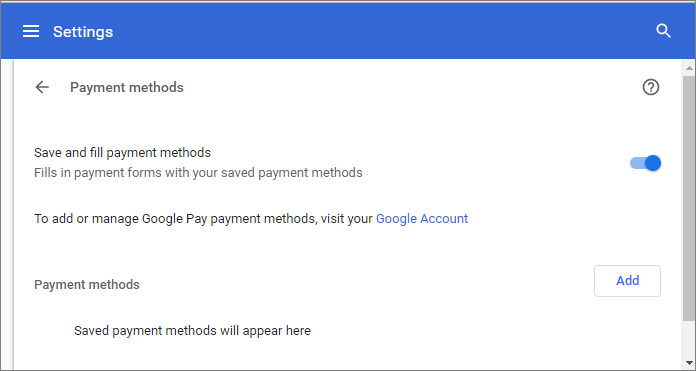
- Enable 'Save and fill payment methods' to save card details that you enter on forms.
- Click 'Google Account' to enable the 'Google pay' feature. You must be signed in to your Google account
- Click 'Add' next to 'Payment methods' to add payment cards to your auto-complete profile.
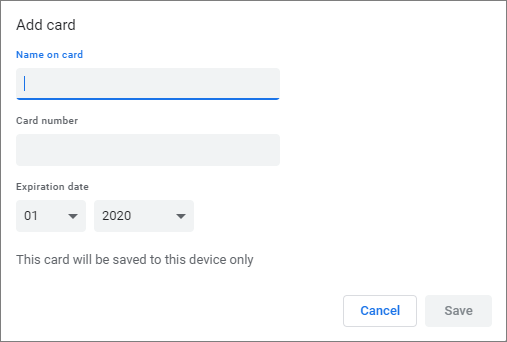
- Complete the form with your card details.
- You can create multiple profiles according to your requirements.
- Click 'Save' to save the card.
- Click 'Passwords' to save a password info. Click Manage Website Passwords to configure password settings
Edit or remove an existing entry
- Click the three dots beside an entry and select 'Edit' or 'Remove'
- Edit the address or credit card details in the 'Edit address' / 'Edit card' dialog
- Click 'Save'
Delete an existing entry
- Click the ellipsis beside an entry and select
- Select an entry from the list then click 'Remove'
Delete all your form data
-
Click the menu button
at the top-right
- Click 'More Tools' > 'Clear browsing data'
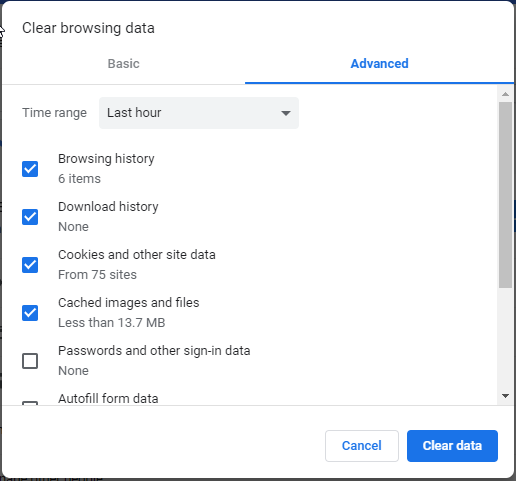
- In the 'Clear Browsing Data' dialog, select the 'Advanced' tab
- Enable 'Autofill form data'
- Click the 'Clear data' button
All your form data will be deleted. Autofill option is enabled by default in Comodo Dragon.