Comodo Help
Find the desired product help
Comodo Dragon

Comodo Dragon

Version 26.0

English

Print Help Download Help
Privacy And Security > SSL/HTTPS Security Settings
  • Comodo Dragon - Introduction
  • System Requirements
  • Downloading And Installing Comodo Dragon
  • The Basics
    • Starting Comodo Dragon
    • Setting Up Your Homepage In Comodo Dragon
    • Searching The Internet Using Comodo Dragon
    • Setting Default Search Engine
    • Comodo Dragon Instant
    • Comodo Dragon Logging Policies
    • Prediction Service
    • Re-opening Recently And Most Visited Websites In Comodo Dragon
    • Adding Home Button To The Appearance
    • Opening Preset Pages On Startup
    • Viewing Browsing History
    • Configuring Pop-ups
    • Setting Fonts, Languages And Encoding
    • Search For Important Browser Settings
    • Configuring Dragon Updates
    • Managing Your Website Passwords
    • Import From Another Browser
  • Tabbed Browsing
    • Opening A New Tab Page
    • Customizing Your New Tab Page
    • Rearranging Tabs
    • Closing Tabs, Windows And Comodo Dragon
    • Displaying/Hiding Application Buttons On The Toolbar
    • Creating Desktop Shortcuts For Your Web Applications
  • Bookmarks
    • Creating Bookmarks
    • Finding And Editing Bookmarks
    • Managing Bookmarks
    • Importing And Exporting Bookmarks
  • Privacy And Security
    • Deleting Browsing History
    • Managing Cookies
    • Configuring Settings For Location Sharing
    • Configuring Settings For Images, Java Scripts And Other Web Contents
    • Configuring Advanced Settings
    • Using Comodo Dragon In Incognito Mode
    • Using Comodo Dragon In Virtual Mode
    • SSL Certificates And Secure Connections
    • SSL/HTTPS Security Settings
    • Blocking Insecure Content
    • Force Secure Connections
    • CertSentry
  • Downloads
    • Downloading A File
    • Changing Download Location
    • Viewing Download History
    • Clearing Download History
  • Tools And Other Features
    • Managing Extensions And Plug-ins
    • Viewing Task Manager From Comodo Dragon
    • Zooming The Web-page To Full Size
    • Form Autofill
    • Enabling/Disabling Sync Settings
    • Protecting Your Synced Passwords
    • Applying Themes
    • Searching Within Page Content
    • Customizing Your Spell Checker
    • Enabling/Disabling The Translate Bar
    • Creating Application Shortcuts
    • Managing Your Search Engines
    • Viewing And Stopping Background Pages And Applications
    • Viewing, Saving And Printing A PDF
    • Keyboard And Mouse Shortcuts For Comodo Dragon
    • Website Security Indicators
    • The Share Page Button
    • Сonfiguring Access Pages Through A Web Proxy
    • Using Speech-to-Text Option
    • Scan Websites For Malware Using Web Inspector
    • Instant Pages
    • Handling The Protocols
    • Configuring Mouse Cursor And Fullscreen
    • Using The Address Bar (Omnibox)
    • Connecting Web Apps With Web Intents
    • Configuring Settings For Media
    • Configuring Settings For Unsanboxed Plug-in Access
  • Troubleshooting
    • Errors And Crashes In Comodo Dragon
    • Display Problems In Comodo Dragon
    • Report A Bug
  • Portable Version
  • Uninstalling Comodo Dragon

SSL/HTTPS Security Settings


The 'SSL/HTTPS' security setting allows you to view and modify settings relating to SSL certificates and security protocols.


To view and customize these settings:
  • Click the Comodo Dragon icon located at the top-left corner of the browser
  • Select 'Settings' > 'Show advanced settings'
  • Scroll down to the HTTPS/SSL section


Check for server certificate revocation
- Turns on real-time verification of the revocation status of a website’s SSL certificate. A certificate can be revoked by its third-party issuer if it detects that the certificate has been compromised or stolen.

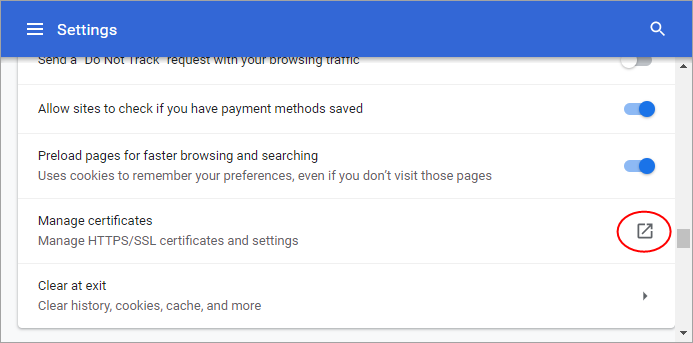
Manage Certificates – Opens the Windows SSL certificate store. This allows you to view, import, export or remove personal certificates and other peoples certificates as well as manage the built in list of trusted root certificate authorities.

To manage certificates
  • Click the Comodo Dragon icon at the top-left corner .
  • Select 'Settings' from the menu > 'Show advanced settings' > HTTPS/SSL section.
  • Click 'Manage certificates'
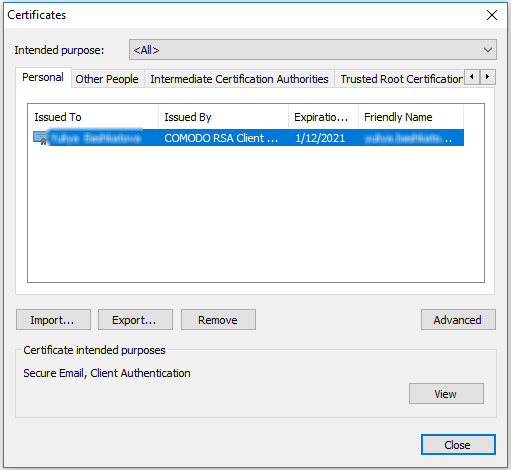
  • The Certificates dialog will be displayed:


The Certificates manager has the following tabs:

  • Personal - displays your own client/secure-email certificates
  • Other People - displays a list of client certificates belonging to other people (usually your contacts)
  • Intermediate Certificate Authorities – displays a list of intermediate certificates. This type of certificate forms a link in the chain of trust between a certificate on a website and a trusted root certificate.
  • Trusted Root Certification Authorities – displays a list of trusted root certificates
  • Trusted Publishers – A publisher is a developer who has created a macro, ActiveX control, add-in, or other application extension for use by you and other people. Trusted publishers are reputable developers.
  • Untrusted Publishers - a list of untrusted publishers
The dialog enables you to: Import, Export, Remove your certificates


To import certificates

  • On the 'Personal' tab, select the certificate you wish to back up and click 'Import'.
  • Follow the Export wizard.
  • Select the file you want to import and click 'Next'.
  • Choose a password which you can remember later. Click 'Next', then check 'Mark this key as exportable. This will allow you to back up or transport your keys at a later time' and 'Include all extended properties'.
  • Select Personal Certificate Store you want to save the certificate to.
  • You will see a confirmation screen listing the settings you have chosen. Click 'Back' if you wish to amend any details. Click 'Finish' to import the certificate.
  • Once finished, the certificate and associated private key is saved as a .pfx file. You can export this into other browsers and mail clients as required.


To export certificates

  • On the 'Personal' tab, select the certificate you wish to back up and click ‘Export’.
  • Follow the Export wizard.
  • When requested, select 'Yes, export the private key'
  • Leave the 'Type' as 'Personal Information Exchange (*.pfx)' and select 'Include all certificates in the certification path, if possible'. Click 'Next'
  • Choose a password which you can remember later. Click 'Next'
  • First create a file-name for the exported .pfx then click the 'Browse' button to choose where you want to save the file to.
  • You will see a confirmation screen listing the settings you have chosen. Click 'Back' if you wish to amend any details. Click 'Finish' to export the certificate.
  • Once finished, the certificate and associated private key is saved as a .pfx file. You can import this into other browsers and mail clients as required.


To remove expired or revoked certificates


Select the certificate to be deleted and click 'Remove'.
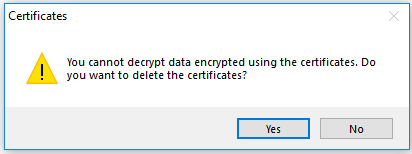


Click Yes in the confirmation dialog.


Note: If you delete your currently active certificate, you will not be able to use it for identifying yourself to the websites that require it.


The advanced options dialog displays a list of certificate purposes under 'Advanced Purposes'.


Viewing certificate details


First, select the certificate and click 'View'. The General, Details information and Certification Path will be displayed under the respective tabs in the 'Certificate' dialog.


Terms and Conditions Privacy Policy

© Comodo Group, Inc. 2013. All rights reserved.