


The Share Page Button
- Social
networking websites play an important role in our lives, allowing you
to easily share information, news and the latest updates with our
network of friends.
- Comodo Dragon lets you share the web page
you are viewing with your friends and family by just clicking the
social media button
 at the top right of the toolbar.
- Apart from
the added convenience, this button is also a far more secure way of
accessing your account.
The Dragon social media button will always open the genuine Facebook/Twitter/LinkedIn website and allow you to safely login and share the page. It is good practice to use this button instead of the 'Share' buttons on the websites themselves.
- Click the 'Share Page' button to share a web-page
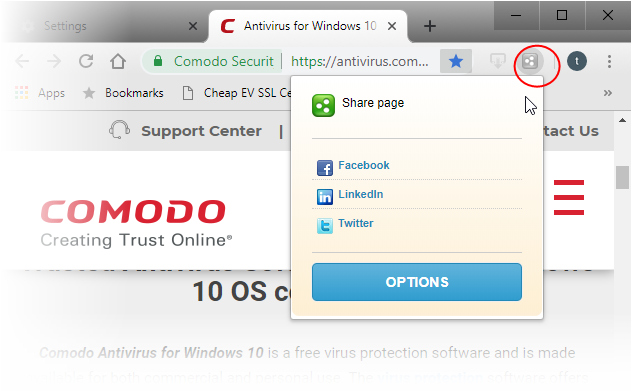
A 'Share Page' dialog contains shortcut links to share the web page through your Facebook, LinkedIn and Twitter accounts by default. You can add or remove social networking sites to this dialog by clicking 'Options'.
- Click the respective shortcut to share the webpage through your desired social networking site
You will be taken to the respective login page, enabling you to login to your account and share the page.
|
Note: If you are already logged-in to your account through another tab or another Comodo Dragon window, click the shortcut to directly share the page. |
- Click the 'Options' button from the 'Share page' dialog to add or remove social networking sites
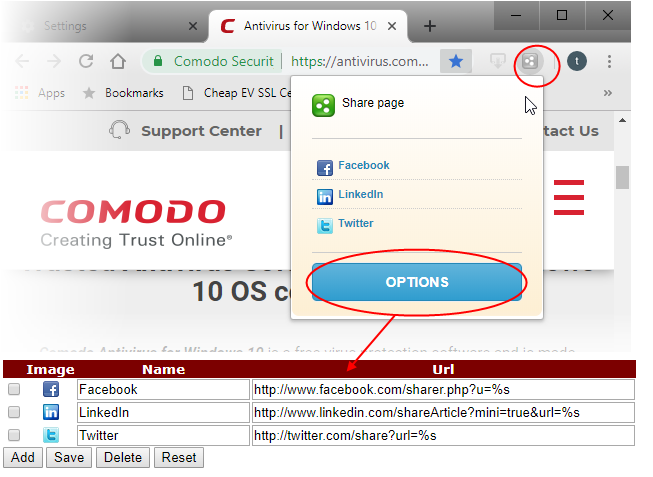
- To modify the name and URL of existing social networks, directly edit the respective fields
- To add a new network, click the 'Add' button and enter the name and URL of the service 'share' page
- Click 'Save' to confirm your choice. Your new network will be available when you click the 'Share Page' button
- To remove a network, select the check-box next to the service in question and click 'Delete'
-
Click
the 'Reset' button to remove all user defined networks and return to
the default selection of networks (currently Facebook, LinkedIn and
Twitter).