Comodo Help
Find the desired product help
Comodo Dragon

Comodo Dragon

Version 26.0

English

Print Help Download Help
Bookmarks > Importing And Exporting Bookmarks
  • Comodo Dragon - Introduction
  • System Requirements
  • Downloading And Installing Comodo Dragon
  • The Basics
    • Starting Comodo Dragon
    • Setting Up Your Homepage In Comodo Dragon
    • Searching The Internet Using Comodo Dragon
    • Setting Default Search Engine
    • Comodo Dragon Instant
    • Comodo Dragon Logging Policies
    • Prediction Service
    • Re-opening Recently And Most Visited Websites In Comodo Dragon
    • Adding Home Button To The Appearance
    • Opening Preset Pages On Startup
    • Viewing Browsing History
    • Configuring Pop-ups
    • Setting Fonts, Languages And Encoding
    • Search For Important Browser Settings
    • Configuring Dragon Updates
    • Managing Your Website Passwords
    • Import From Another Browser
  • Tabbed Browsing
    • Opening A New Tab Page
    • Customizing Your New Tab Page
    • Rearranging Tabs
    • Closing Tabs, Windows And Comodo Dragon
    • Displaying/Hiding Application Buttons On The Toolbar
    • Creating Desktop Shortcuts For Your Web Applications
  • Bookmarks
    • Creating Bookmarks
    • Finding And Editing Bookmarks
    • Managing Bookmarks
    • Importing And Exporting Bookmarks
  • Privacy And Security
    • Deleting Browsing History
    • Managing Cookies
    • Configuring Settings For Location Sharing
    • Configuring Settings For Images, Java Scripts And Other Web Contents
    • Configuring Advanced Settings
    • Using Comodo Dragon In Incognito Mode
    • Using Comodo Dragon In Virtual Mode
    • SSL Certificates And Secure Connections
    • SSL/HTTPS Security Settings
    • Blocking Insecure Content
    • Force Secure Connections
    • CertSentry
  • Downloads
    • Downloading A File
    • Changing Download Location
    • Viewing Download History
    • Clearing Download History
  • Tools And Other Features
    • Managing Extensions And Plug-ins
    • Viewing Task Manager From Comodo Dragon
    • Zooming The Web-page To Full Size
    • Form Autofill
    • Enabling/Disabling Sync Settings
    • Protecting Your Synced Passwords
    • Applying Themes
    • Searching Within Page Content
    • Customizing Your Spell Checker
    • Enabling/Disabling The Translate Bar
    • Creating Application Shortcuts
    • Managing Your Search Engines
    • Viewing And Stopping Background Pages And Applications
    • Viewing, Saving And Printing A PDF
    • Keyboard And Mouse Shortcuts For Comodo Dragon
    • Website Security Indicators
    • The Share Page Button
    • Сonfiguring Access Pages Through A Web Proxy
    • Using Speech-to-Text Option
    • Scan Websites For Malware Using Web Inspector
    • Instant Pages
    • Handling The Protocols
    • Configuring Mouse Cursor And Fullscreen
    • Using The Address Bar (Omnibox)
    • Connecting Web Apps With Web Intents
    • Configuring Settings For Media
    • Configuring Settings For Unsanboxed Plug-in Access
  • Troubleshooting
    • Errors And Crashes In Comodo Dragon
    • Display Problems In Comodo Dragon
    • Report A Bug
  • Portable Version
  • Uninstalling Comodo Dragon

Importing And Exporting Bookmarks


Comodo Dragon allows you to import bookmarks from Internet Explorer, Firefox and Chrome.

To import bookmarks from Internet Explorer, Firefox, Opera, Chrome and Google Toolbar

  • Click the Comodo Dragon icon located at the top-left corner.

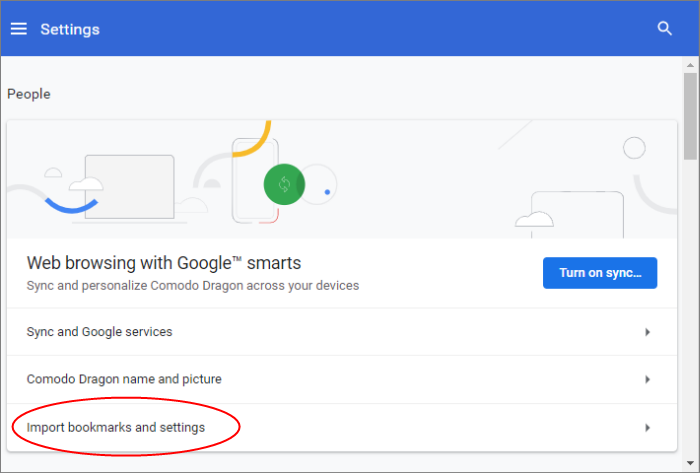
  • Select 'Bookmarks' from the menu > Import bookmarks and settings.

or
  • Type    dragon://settings/importData
or
  • Select 'Settings' from the menu, then click "Import bookmarks and settings" in the 'User' section.


The 'Import bookmarks and settings' dialog will be displayed.


  • Select the browser from which you want to import the items in the drop-down box.
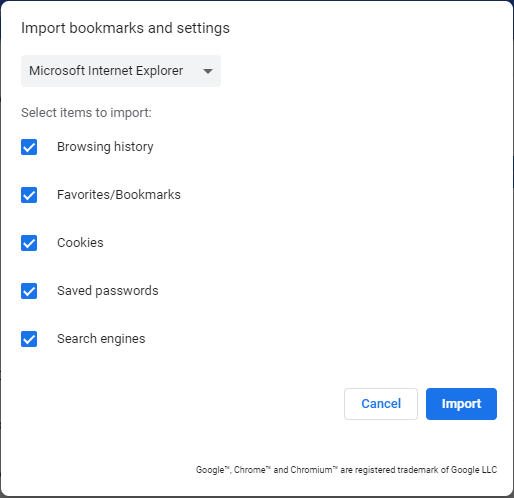
  • Select the items that you want to import from the browser.

  • Click the 'Import' button.

The bookmarks from the other browser will now be available in Comodo Dragon as a sub folder under 'Other Bookmarks' at the top right side of the bookmark bar. You can also view the imported bookmark folder in the 'Bookmark manager' interface.


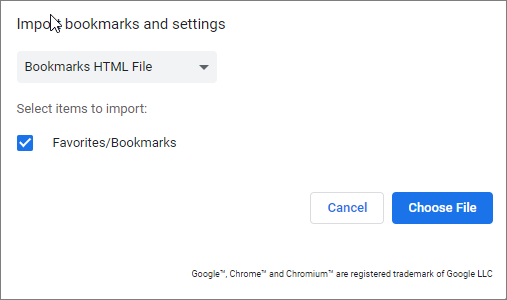
To import bookmarks from any browser as a HTML file

  • Export the bookmarks as a HTML file in any browser and save it to your computer.

  • Click the Comodo Dragon icon located at the top-left corner.

  • Select 'Bookmark manager' from the menu.

  • Click 'Organize' and select 'Import bookmarks' from the menu.

  • Navigate to the HTML file saved in your computer and click 'Open'.

The bookmarks from the other browser will now be available in Comodo Dragon as a sub folder under 'Other Bookmarks' at the top right side of the bookmark bar. You can also view the imported bookmark folder in the 'Bookmark manager' interface.


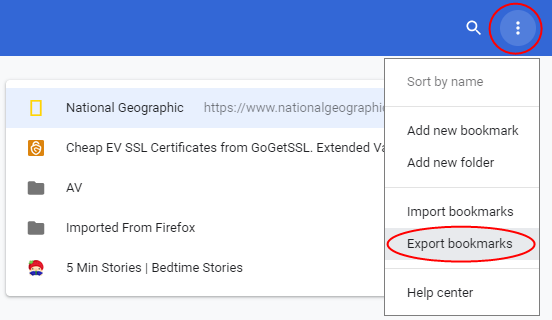
To export bookmarks from Comodo Dragon

  • Click the Comodo Dragon icon  located at the top-left corner.

  • Select 'Bookmark manager' from the menu.

  • Click 'Organize' and select 'Export bookmarks' from the menu.

  • Choose a location where you want the bookmarks to be saved and click the 'Save' button.


The bookmarks will be saved as a HTML file.

Terms and Conditions Privacy Policy

© Comodo Group, Inc. 2013. All rights reserved.