


Configure Site Settings in Comodo Dragon
The site settings area lets you control whether sites can access your personal data, your computer hardware, or send you notifications.
- Click the menu button
 at the top-right corner
- Select 'Settings' > scroll down and click 'Advanced'
- Click 'Site settings' in the 'Privacy and security' section to open the dialog:
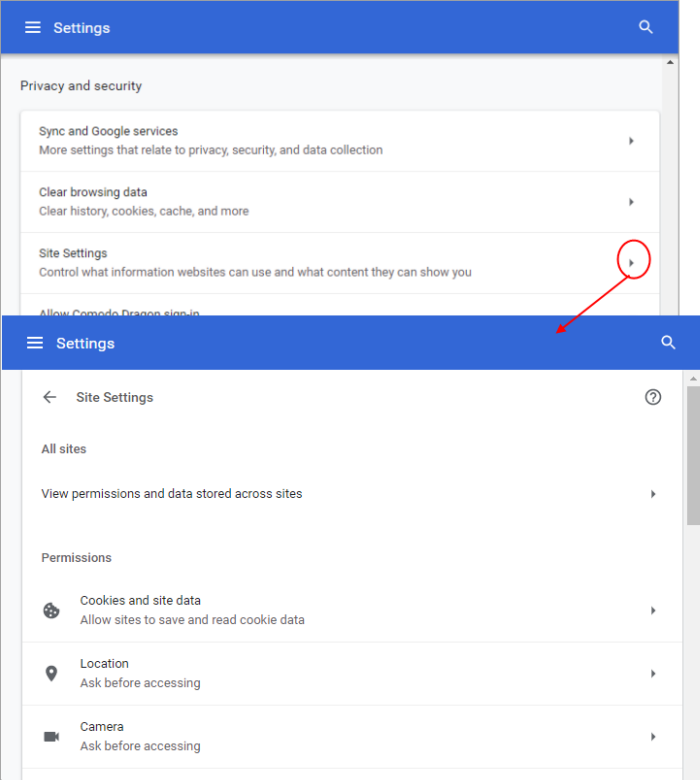
You can configure the following content types:
Cookies are small pieces of information sent by websites that you've visited which are stored by your web browser. Cookies are used by these websites to store your preferences about that website (for example, if you ask a website to 'Keep me logged in' or similar, it is the cookie that keeps a record of this preference). However, a potential privacy
concern with cookies is that they can allow websites to track your
navigation when you are browsing those websites. See Manage
Cookies for more details.
Location feature allows your physical location to be tracked by websites. For example, if you visit a shopping website, the page may request your permission for locating you so that it will display all the shopping malls near you. Comodo Dragon always alerts you whenever a permission is requested for locating you.
- Open the webpage you want to set your permissions
- Click the security information icon on the address bar
- Click the behavior next to 'Location'
- Select whether allow or block on this site to track your location from the drop-down.
Access to Microphone and Camera
Sites with media functionality can request access to your camera and microphone. Learn more about this in the section 'Configure Media Settings'.
This settings lets you control whether sites can access your device’s motion sensors, gyroscopes and ambient light sensors. Data from these sensors can tell the site whether you are moving or still, whether you are in a vehicle, and how often you move.
Manage settings for all sites
- Click ‘Settings’ > ‘Advanced’ > ‘Privacy and Security’
- Click ‘Site Settings’ in the privacy section
- Click ‘Motion Sensors’ in the permissions list
- This opens the motion sensor settings screen:
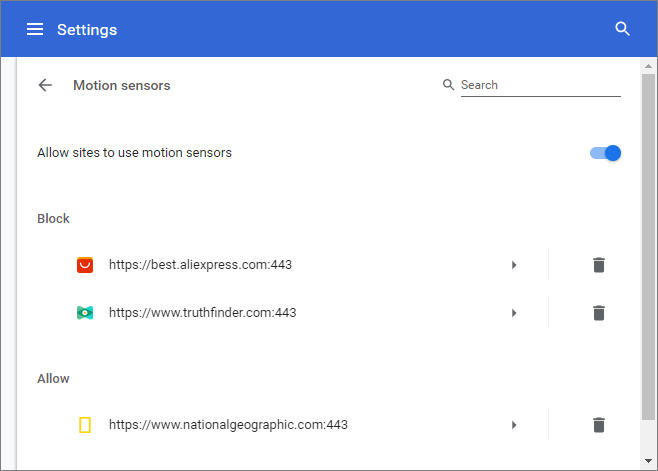
Allow
sites to use motion sensors- Disable
if you want to switch off the feature for every site you
visit
Block -
Ban individual sites from using the motion sensors
Allow - Permit specific sites to use the motion sensors
Manage
settings for the site you are currently visiting
- Open the website for which you want to set permissions
- Click the lock icon on the left of the address bar
- Click 'Site settings'
- Click ‘Motion Sensors’ in the permissions list
- Choose ‘Allow’ or ‘Block’
Information about motion sensor in the current page
Motion
sensors icon is shown at the right of the address bar on pages you
have blocked.
- If
you have selected to allow motion sensors
by default, but made exception to block motion
sensors for a certain page, the icon
 appears in the
address bar of that page.
appears in the
address bar of that page.
- If
you have selected to block all motion sensors
by default, but made exception to allow motion
sensors for a certain page, the icon
 appears in the
address bar of that page.
appears in the
address bar of that page.
You can view the motion sensors that have been blocked or set by clicking the icon.
- Click the motion sensors icon in the address bar.
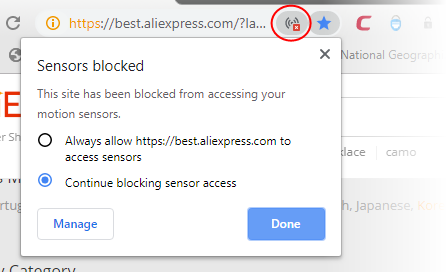
- Click the 'Manage' button to configure exceptions.
Certain websites are capable of showing notifications on your desktop. Comodo Dragon is configured to alert you by default whenever a site wants your permission to show notifications automatically. You can configure whether the notifications are to be allowed or blocked from the websites and can add exceptions on per-website basis.
Configure notifications
- Click
the menu button at the top-right
- Select 'Settings' > scroll down and click 'Advanced'
- Click 'Site settings' in the 'Privacy and security' section
- Click 'Notifications'
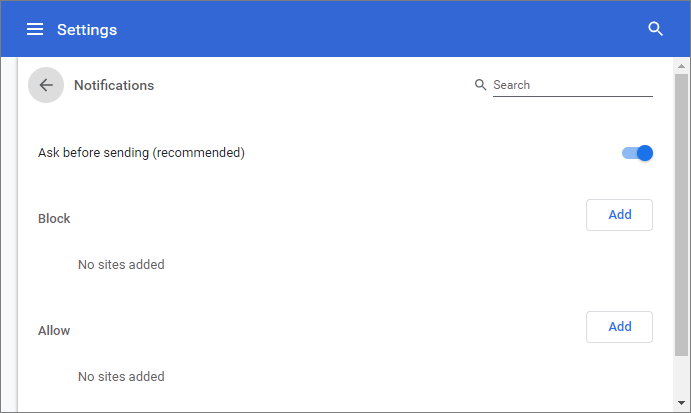
- Configure the global notification settings:
- Ask before sending (recommended) - Alerts you when a website tries to show a notification. Gives you the option to allow or block the request.
- Blocked - Blocks notifications from all web sites.
- To add /remove exceptions on a per-website basis, enter the domain name in the "Add a site" field.
- Use the drop-down menu next to a domain to choose whether or not to edit, remove, allow or block notifications from the website
- Repeat the process to add more websites.
To make websites more interactive developers use Java scripts. You can configure whether or not you want Comodo Dragon to load and execute Java scripts and can configure exceptions on per-website basis. Some websites do not work properly if JavaScript is not enabled.
- Open the webpage you want to set your permissions
- Click the site settings link on the address bar
- Click the behavior next to 'JavaScript'
- Select whether allow or block on this site to track your location from the drop-down
The 'Flash' plugin allows you to simplify streaming and viewing multimedia, audio, watching videos and etc. on your computer or mobile devices. You can configure whether or not the browser should allow run Flash and add exceptions for it.
Configure Flash
- Click
the menu button at the top-right
- Select 'Settings' > scroll down and click 'Advanced'
- Click 'Site settings' in the 'Privacy and security' section
- Click 'Flash'
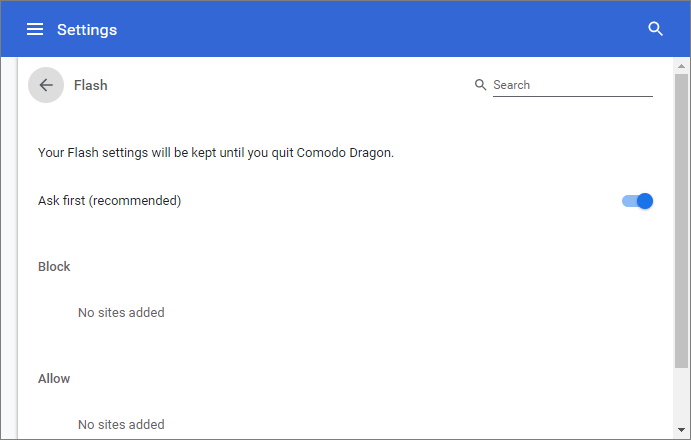
- Configure flash settings:
- Ask first (recommended) - Flash is only run if it is essential for the page to render.
- Block sites from running Flash - Completely blocks Flash when you're trying to see audio and video content on your computer/ device and runs only when a user submits.
- Block – Add sites which are permanently blocked from running Flash.
- Allow – Add sites which are permitted to run Flash.
- Repeat the process to add more sites.
Set-up Flash for specific sites
- Click
the menu at the top-left
- Click 'Settings' > Scroll down to 'Privacy and security' section
- Click the 'Site settings' and scroll down to 'Flash'
- Add a restriction for a website
- Click 'Add' button
- Enter the domain name in the "Add a site field. You can also enter an IP address, an IPv6 address, or a non-http URL
- Click 'Add'
|
Tip: To create exceptions for all sub-domains of a website, add '*' before the domain name. For example, entering *.comodo.com, will create restrictions for all sub-domains like help.comodo.com, enterprise.comodo.com and so on. |
- Repeat the process to add more websites.
- Use the drop-down menu next to 'Allow' / Block to choose whether or not to allow site you would like to block from accessing Flash. The options available are 'Allow', 'Block', 'Edit' and 'Remove'.
Comodo Dragon allows you to configure how the images contained in the webpages you visit should be handled. You can also add exceptions for the global settings you make for the images.
- Open the webpage you want to set your permissions
- Click the site settings link on the address bar
- Click the behavior next to 'Images'
- Select whether allow or block on this site to
track your location from the drop-down
- Comodo Dragon blocks all pop-ups by default. You can configure whether or not the browser should allow pop-ups and add exceptions for it. See Configure Pop-ups and redirects for more details.
To control whether or not to see annoyance ads when you visit a webpage. Blocked=by default.
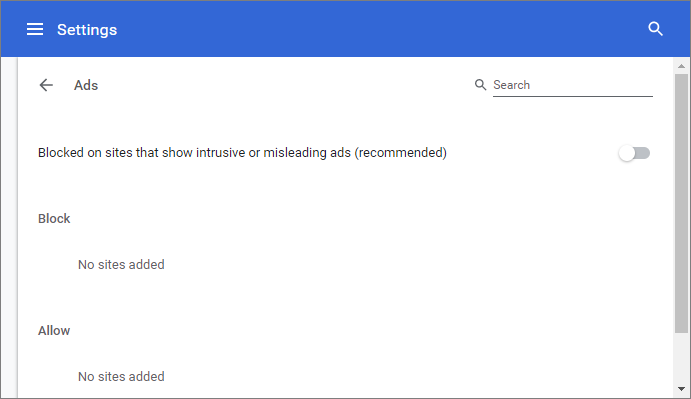
- Configure the global ads settings:
- Allowed - Allows ads on a website.
- Blocked on sites that show intrusive or misleading ads (recommended) - Blocks ads from all web sites.
- Open the webpage you want to set your permissions
- Click the 'Site settings' link on the address bar
- Click the behavior next to 'Ads'
- Select whether allow or block on this site to show ads
- Click 'Reload' to apply your setting to the page
Background sync
This option continue on sync websites to finish sending or receiving data when your computer / device goes offline or you close the tab. For example, this is useful when a browser yet to complete sending the information you submitted in the form on the webpage but you closed the tab.
- Click
the menu button at the top-right corner
- Select 'Settings' > scroll down and click 'Advanced'
- Click 'Site settings' in the 'Privacy and Security' > Click 'Background sync'
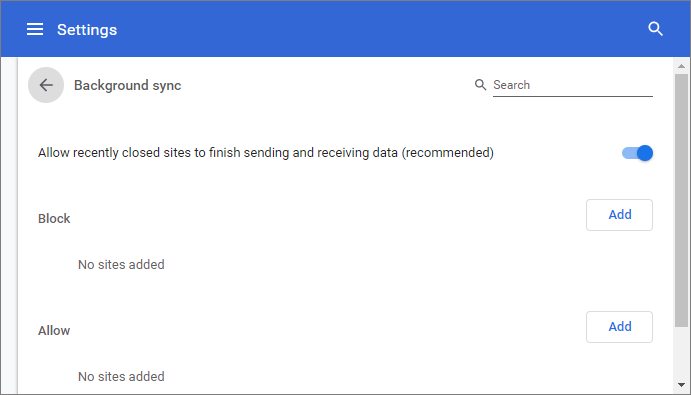
- Configure the global settings:
- Allow recently closed sites to finish sending and receiving data (recommended) - Allows websites to complete transferring data when website is closed.
- Do not allow recently closed sites to finish sending and receiving data - Blocks sending or receiving information from all web sites.
- To add /remove exceptions on a per-website basis, enter the domain name in the "Add a site" field.
- Use the drop-down menu next to a domain to choose whether or not to edit, remove, allow or block background sync from the website.
- Repeat the process to add more websites.
Comodo Dragon allows you to set a global control over sound effect on any site you are visiting.
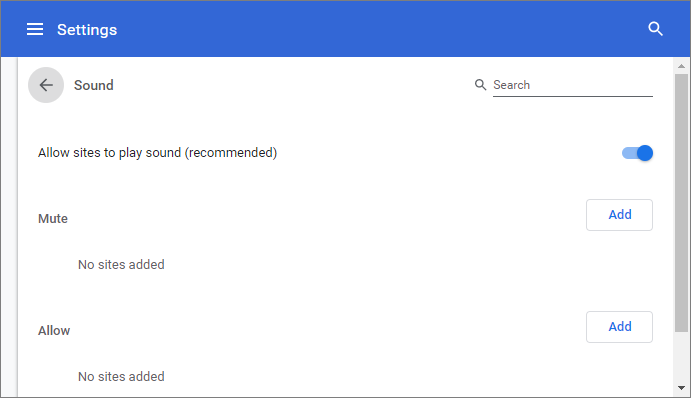
- Configure the global sounds settings:
- Allow sites to play sound (recommended) - Give websites permission to play sounds.
- Mute sites to that play sound - Prevent a website from playing sounds, especially, unnerving ads sound autoplay.
- To add /remove exceptions on a per-website basis, enter the domain name in the "Add a site" field.
- Use the drop-down menu next to a domain to choose whether or not to edit, remove, allow or block background sync from the website.
- Repeat the process to add more websites.
Automatic Downloads
The automatic downloads feature provides you with ability to download the bunch of files. e.g., when you purchase items from the store and you can them download automatically to your computer or device. For more details, see Set Automatic Downloads on Dragon section.
Unsandboxed plugin access
The sandbox feature configures the security level and is helpful to test the behavior of new executables that you have downloaded or for applications that you are not sure that you trust. Unsandboxed plug-in access restrains access on your computer by blocking unsandboxed plug-ins from automatically accessing files on your computer. Learn more about this in 'Configure Settings for Unsanboxed Plug-in Access' section.
Protocol Handlers and Web Applications
Learn more about this in Manage Protocol Handlers.
MIDI Devices Control
Certain websites access your MIDI (Musical Instrument Digital Interface) devices for transfer of data by exchanging System Exclusive (SysEx) messages, for example, for playing music. Comodo Dragon is 'MIDI enabled' by default. You can configure Dragon to globally accept or deny requests from the websites to access the MIDI devices and exception websites, for which the access is to be allowed or denied on a per-website basis.
For
more details, see Configure
Access to MIDI Devices section.
Zoom Levels
Zoom Levels feature allows you
to manage all custom zoom levels for all content to fit you web page
in the browser from the 'Privacy and security' > 'Site settings'. Learn more
about this in Zoom
The Web-page To Full Size section.
This feature lets a website to get access to usb device to control and record information stored on it. This will allow the site to view and manage all information on the device. This uses to future iterations of web browsers' developers. Note: Grant access only to trustworthy sites.
- To remove access to a usb devise, click 'X' that appears on the right end of the domain name on selecting it
This feature lets you define whether extensions or application can read form and write to a device to a serial port.
- Click
the menu button
 at the top-right corner
- Select 'Settings' > scroll down and click 'Advanced'
- Click 'Site Settings' in the 'Privacy and security' > 'Serial ports'
- Ask when a site wants to access serial ports (recommended) – If enabled, lets sites to read and write to serial ports
- Do not allow any sites to access serial ports – Denies app communication to read and write to serial ports.
File editing
File editing feature lets you set permissions to a web page to block sites from editing files or folders on your device.
- Click
the menu button at the top-right corner
- Select 'Settings' > scroll down and click 'Advanced'
- Click 'Site Settings' in the 'Privacy and security' > 'File editing'
- When a site wants to edit files or folders on your device chrome - If enabled, lets Dragon edits and gathers information about your files or folders as long as the browser tab is open
- Do not allow any sites to edit files or folders on your device - Denies Dragon edits and gathers information about your files or folders
PDF Documents
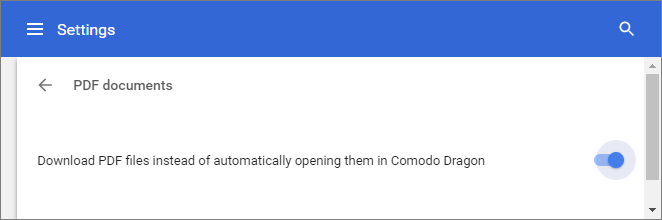
PDF documents feature allows you to set Dragon to open the pdf file automatically when you are click it.
Open a pdf automatically
- Click
the menu button located at the top-right corner
- Select 'Settings' > scroll down and click 'Advanced'
- Click 'Site settings' in the 'Privacy and security' > 'PDF Documents'
- 'Download PDF files instead of automatically opening them in Comodo Dragon' – If you click on a pdf link, Dragon will download a copy of the pdf rather than open it in-browser.
Certain websites require your device identification in order to grant access to you to download or stream from web sites video and music protected by copyright. See Protected Content for more details.
Dragon lets you grant a site permission to access to the clipboard to view text and copied images.
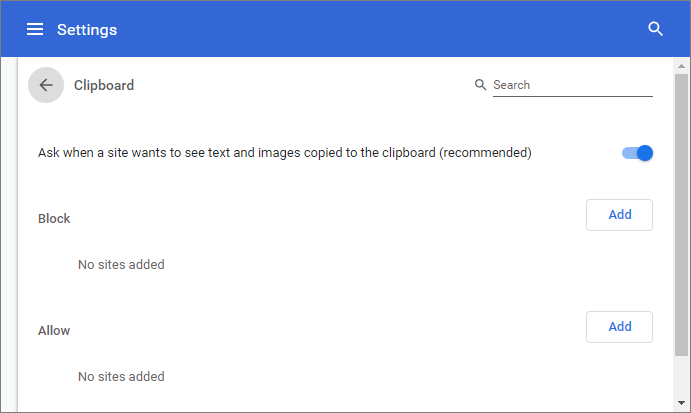
- Configure the global clipboard settings:
- Ask when a site wants to see text and images copied to the clipboard (recommended) - Grants a webpage access to view copied text, images.
- Do not allow site to see text and images copied to the clipboard (recommended) - Blocks viewing images and text from all web sites.
- To add /remove exceptions on a per-website basis, enter the domain name in the "Add a site" field.
- Use the drop-down menu next to a domain to choose whether or not to edit, remove, allow or block background sync from the website.
- Repeat the process to add more websites.
This is a
payment method that provide a simple way for online payments in a
browser to handle requests for payments on behalf of users.
Adds payment
credentials on origin web pages, mobile apps, or apps built into the
browser. This authenticates a user, select user account to pay.
This uses when you visit the bank page you will be asked to register a payment handler from that origin to set the permissions to use payment credentials to execute the payment.
Site does not show payment handlers or show it partially :
- Site uses HTTP
- Site identified as insecure: show red or grey SSL indicator
- Site is not included into the the safe browsing server list
- Runs the payment handler in a sandboxed environment
- Blocks content included via HTTP
- Blocks cross-origin scripts
Comodo Dragon allows you to configure the handlers payment:
- Click
the menu button at the top-right
- Select 'Settings' > scroll down and click 'Advanced'
- Click 'Site Settings' > scroll down to 'Payment Handlers'
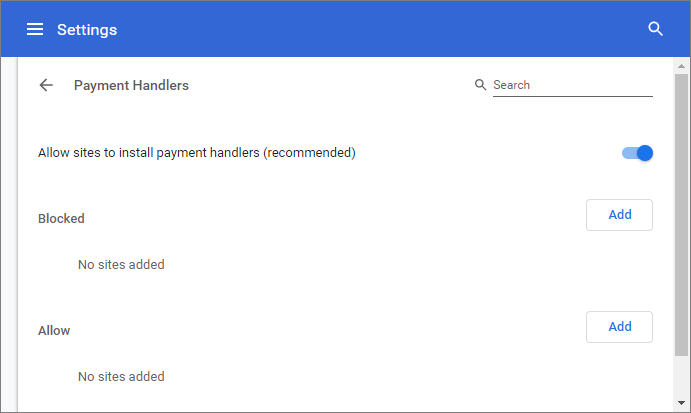
- Allow sites to to install payment handlers (recommended) - Dragon displays prompt for protocol handler payment requests.
- Do not allow any site to install payment handle - Disables prompts for payment handler requests.
Insecure content is content loaded via HTTPS but contains videos, scripts, images that loaded via insecure HTTP.
'Insecure content' feature lets you identify mixed insecure content on the webpages. You will see the 'Not secure' label in the omnibox when the rule is met
- Click
the menu button at the top-right
- Select 'Settings' > scroll down and click 'Advanced'
- Click 'Site Settings' > scroll down to 'Insecure content'
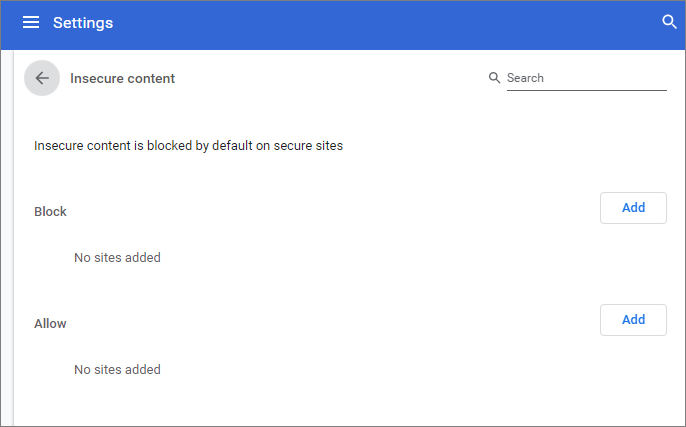
- Configure the global content settings:
- Insecure content is blocked by default on secure sites – Dragon blocks of loading potentially unsafe content over HTTPS: content, images, audio, video
- To add /remove exceptions on a per-website basis, enter the domain name in the "Add a site" field.
- Use the drop-down menu next to a domain to choose whether or not to edit, allow or block insecure content from the website.
- Repeat the process to add more websites.
Further reading related to the topic of this page: