


Configure Advanced Settings
-
Advanced settings let you configure numerous options in Dragon. You can modify settings in a range of areas, including security, accessibility, languages and printing.
- The privacy and security section lets you control website permissions, the amount of data you share, and enable or disable protection features.
Configure advanced security settings
- Click the menu button
 at top-right
- Select 'Settings' > scroll down and click 'Advanced'
- Configure your advanced security options in the 'Privacy and security' section
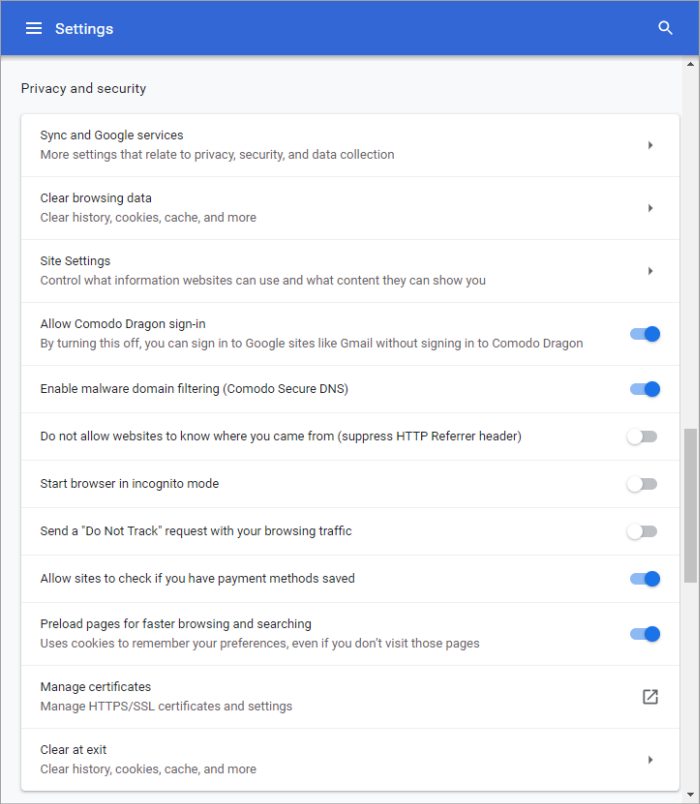
- Sync
and Google services -
Enhance
your browsing experience, provide real-time feedback, and get your
Dragon on all your devices.
- Turn on sync - Take your custom Dragon on the road. Synchronizing Dragon means your browser configuration data is uploaded to the cloud. This includes, for example, your bookmarks, extensions and other preferences. When using Dragon on a different computer, sign into your account to download your custom settings to the new computer.
- Autocomplete searches and URLs - If enabled, Comodo Dragon will perform a look-up on all links on the current webpage to fetch their IP addresses. This will cause the page to load faster should you click on one of the links as the IP address is already resolved. By default, this option is disabled. See Prediction Service for details on this option.
- Show suggestions for similar pages when a page can't be found-If you mistype a website address, or cannot connect to page, Dragon uses Google to provide page recommendations. The recommendations are essentially a ‘good guess’ at what you meant to type.
- Make searches and browsing better - Dragon sends anonymized data about the sites you visit.
- Google Drive search suggestions - Google Drive is a cloud storage service where you can save documents, images, videos and other projects. Enabling this option means Dragon will include relevant suggestions from files in your Google Drive when you search for a term. See 'Perform Drive Search' if you need help with this
Note: The feature is available when Google is your default search engine and you are signed-in to your Google account.
- Allow Comodo Dragon sign-in - Automatically sign-in you into your Dragon account if you sign into Google. Disable to sign in Google without signing in to Dragon.
- Enable malware domain filtering (Comodo Secure DNS) - If enabled, Comodo Dragon will use Comodo Secure DNS servers instead of the default DNS provided by your ISP.
- Do not allow websites to know where you came from (suppress HTTP referrer header) - If selected, Dragon does not allow website owners knowing from which webpage you arrived at their website, for example by clicking the link in the webpage. This option is disabled by default.
- Start browser in incognito mode - The browser does not store your browsing history, search history or other traces such as cookies. For more information, see Use Comodo Dragon in Incognito Mode.
- Send a 'Do not track' request with your browsing traffic - If enabled, this setting informs websites of your preference that they should not track your actions. Please note that, while this setting does afford an additional degree of privacy, websites and advertising networks are not legally compelled to honor these requests.
-
Allow sites to check if you have payment methods saved - If enabled, websites will check whether you have saved your payment credentials in Dragon. These can be used to auto-complete a payment form.
- Preload
pages for faster browsing and searching -
If enabled, Comodo Dragon will perform a look-up on all links on the
current webpage to fetch their IP addresses. This will cause the
page to load faster should you click on one of the links as the IP
address is already resolved. By default, this option is enabled.