SSL Certificates and Secure Connections
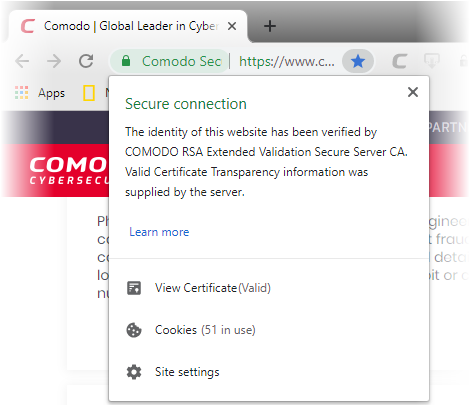
Whenever you successfully make a secure connection to a website, the beginning of the URL will change from HTTP to HTTPS (with the ‘S’ standing for secure) and a padlock will be displayed to the left of the address. This indicates that the page is using an SSL certificate to encrypt all communications between you and the website. However, not every type of certificate should be trusted to the same degree. Uniquely amongst browsers, Comodo Dragon distinguishes between all three types of SSL certificate and clearly indicates which type is being used by the website.
There are three main types of certificate:
- Domain Validated (DV)
- Organization Validated (OV)
- Extended Validation (EV).
Domain Validated (DV)
- These certificates are the lowest cost means of securing a website but do not provide authentication or validation of the business behind the website.
- Unlike EV and OV certificates, DV certs are validated automatically using a system of 'challenge-response' emails.
- If the site you are on is using a DV certificate then Dragon will change the letters HTTPS to yellow.
- This is to inform you that the organization behind the website has not been authenticated so you may want to proceed with caution:

Organization Validation (OV)
- These certificates include full business and company validation from a certificate authority using currently established and accepted manual vetting processes.
- Because of this requirement, these certificates provide significantly higher levels of trust and security than DV SSL certificates but are not validated to the stringent standards set by the CA/B forum and do not possess the ability to turn the address bar green in the latest browsers.
- If the site you on is using an OV certificate then Dragon will display the padlock and HTTPS in a green color.
- This is to inform you that the business behind the website has been validated and it is safe to proceed with any transaction:

Extended Validation (EV)
- EV certificates are validated to the rigorous guidelines set by the CA/B Forum – an independent standards body that requires in-depth verification of the legality and probity of a company before it is issued with a certificate.
- Because of this, EV certificates provide the highest levels of security and trust to end-users.
- To indicate this higher level of trust, Comodo Dragon turns the entire address bar green if you are on a site which is using an Extended Validation certificate:

Users can enable or disable this feature in the HTTPS/SSL section of 'Settings' > 'Show advanced settings' link > HTTPS/SSL. See SSL/HTTPS Security Settings for more information.
Background Information
An SSL Certificate can only signify that it is safe to trade with a company when two vital steps are completed prior to its issuance:
1. Verification that the certificate applicant is in control of the domain name.
2. Verification that the certificate applicant is a legitimate and legally accountable business.
DV certs only establish 1) whereas OV and EV certs establish both 1) and 2)
Trust between the person using the browser the website they are connected to is only possible when BOTH these stages of validation are completed. Step 2) is carried out by a Certificate Authority (CA) such as Comodo or Verisign. A CA employs human operatives to carry out strict vetting of the applicant’s business and legal standing. Only once this layer of company validation has been completed can a website be truly ‘trusted’.
High Assurance certificates show the full company name and address. Indicates that background checks were run prior to the certificate
being issued to the organization.