


Download a File
Dragon shows
the progress of your downloads at the bottom of the interface:
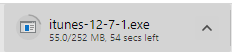
- The file
will be available after the download is complete. Click the filename
to open the file:

- The default
download location is C:/Users
/[username]/Downloads. You can change this as required.
Comodo Dragon
will alert you if a file is not safe to download.
Pause or cancel a download
You can pause or cancel a download in progress.
-
Click the arrow adjacent to file that is downloaded in the download bar.
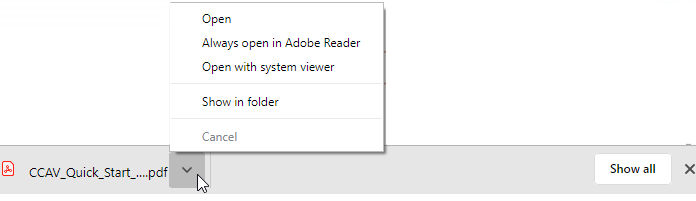
- Select 'Pause' or 'Cancel' in the pop-up menu.
- Click 'Show in folder' to view the file in the folder in which it is located on your computer.
- Click 'Always open files of this type' to automatically open the file once the download is complete. Please note that this option is not available for executable file types, for eg., .dll, .exe etc.
- Click 'Show all' to open the 'downloads' interface containing a list of downloads.
- You can also pause or cancel a download in the 'Downloads' page:
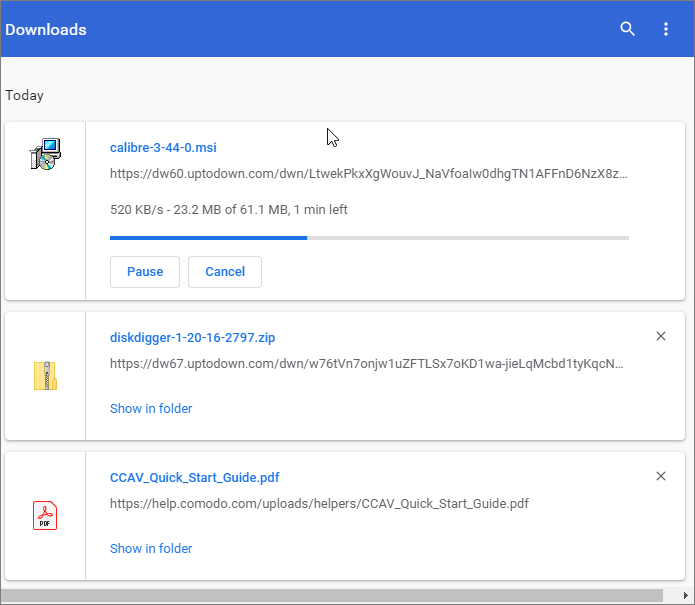
- Click the more actions button at top-right of the download bar > click 'Clear all'
- Click the ‘Show in folder' link to see the file on your local drive
Further
reading related to the topic of this page: