Comodo Help
Find the desired product help
Comodo Dragon

Comodo Dragon

Version 26.0

English

Print Help Download Help
Tools And Other Features > Viewing Task Manager From Comodo Dragon
  • Comodo Dragon - Introduction
  • System Requirements
  • Downloading And Installing Comodo Dragon
  • The Basics
    • Starting Comodo Dragon
    • Setting Up Your Homepage In Comodo Dragon
    • Searching The Internet Using Comodo Dragon
    • Setting Default Search Engine
    • Comodo Dragon Instant
    • Comodo Dragon Logging Policies
    • Prediction Service
    • Re-opening Recently And Most Visited Websites In Comodo Dragon
    • Adding Home Button To The Appearance
    • Opening Preset Pages On Startup
    • Viewing Browsing History
    • Configuring Pop-ups
    • Setting Fonts, Languages And Encoding
    • Search For Important Browser Settings
    • Configuring Dragon Updates
    • Managing Your Website Passwords
    • Import From Another Browser
  • Tabbed Browsing
    • Opening A New Tab Page
    • Customizing Your New Tab Page
    • Rearranging Tabs
    • Closing Tabs, Windows And Comodo Dragon
    • Displaying/Hiding Application Buttons On The Toolbar
    • Creating Desktop Shortcuts For Your Web Applications
  • Bookmarks
    • Creating Bookmarks
    • Finding And Editing Bookmarks
    • Managing Bookmarks
    • Importing And Exporting Bookmarks
  • Privacy And Security
    • Deleting Browsing History
    • Managing Cookies
    • Configuring Settings For Location Sharing
    • Configuring Settings For Images, Java Scripts And Other Web Contents
    • Configuring Advanced Settings
    • Using Comodo Dragon In Incognito Mode
    • Using Comodo Dragon In Virtual Mode
    • SSL Certificates And Secure Connections
    • SSL/HTTPS Security Settings
    • Blocking Insecure Content
    • Force Secure Connections
    • CertSentry
  • Downloads
    • Downloading A File
    • Changing Download Location
    • Viewing Download History
    • Clearing Download History
  • Tools And Other Features
    • Managing Extensions And Plug-ins
    • Viewing Task Manager From Comodo Dragon
    • Zooming The Web-page To Full Size
    • Form Autofill
    • Enabling/Disabling Sync Settings
    • Protecting Your Synced Passwords
    • Applying Themes
    • Searching Within Page Content
    • Customizing Your Spell Checker
    • Enabling/Disabling The Translate Bar
    • Creating Application Shortcuts
    • Managing Your Search Engines
    • Viewing And Stopping Background Pages And Applications
    • Viewing, Saving And Printing A PDF
    • Keyboard And Mouse Shortcuts For Comodo Dragon
    • Website Security Indicators
    • The Share Page Button
    • Сonfiguring Access Pages Through A Web Proxy
    • Using Speech-to-Text Option
    • Scan Websites For Malware Using Web Inspector
    • Instant Pages
    • Handling The Protocols
    • Configuring Mouse Cursor And Fullscreen
    • Using The Address Bar (Omnibox)
    • Connecting Web Apps With Web Intents
    • Configuring Settings For Media
    • Configuring Settings For Unsanboxed Plug-in Access
  • Troubleshooting
    • Errors And Crashes In Comodo Dragon
    • Display Problems In Comodo Dragon
    • Report A Bug
  • Portable Version
  • Uninstalling Comodo Dragon

Viewing Task Manager from Comodo Dragon


The Task Manager allows you to view and control all processes that Dragon is currently running.

  • Click the Comodo Dragon   icon.
  • Select Tools -> Task manager.
OR
  • Press Shift + Esc (whilst Dragon is your active application).

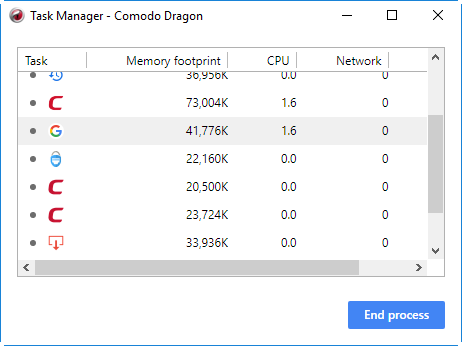
The main interface will show you the amount of Memory, CPU and Network traffic that are consumed by these processes.


Default Columns
  • Page - Name of the Comodo Dragon process
  • Memory - RAM consumed by the process
  • CPU - How much CPU processing power is used by the Dragon process
  • Network - How much network traffic is being used by that process

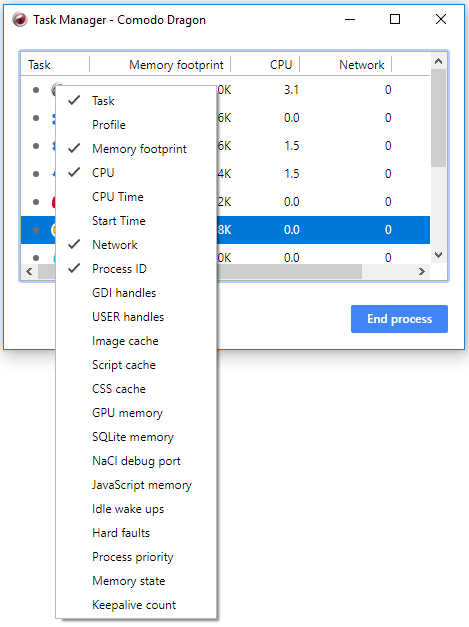
Advanced users can add or remove columns to the Task Manager display by right clicking anywhere in the interface:


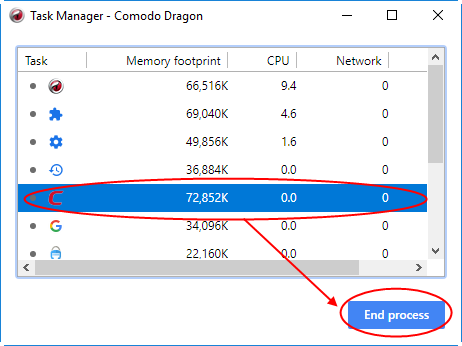
  • To close any open process, simply highlight the process in question and click 'End Process'.


  • If you wish to view more granular data about memory usage by Comodo Dragon, click ‘Stats for nerds’.


  • The Memory tab will open.


Terms and Conditions Privacy Policy

© Comodo Group, Inc. 2013. All rights reserved.