


Display Problems in Comodo Dragon
Comodo Dragon may throw up web-page display errors or face web-page display related issues. Click the following links to know more:
Web-Pages load slowly or fail to load
There could be many reasons why the web-pages are not loading quickly in Comodo Dragon. First ascertain that the problem persists only for Comodo Dragon only. Open the pages that are loading slowly in Comodo Dragon or don't load at all in other browsers.
If the web-pages are loading slowly only in Dragon, try the following:
Open the web-pages in an incognito window
If the web-pages are loading normally in an incognito window, then the problem may be with your browsing data or with extensions. These are disabled when you are using an incognito window. To resolve the problem:
-
Disable all your extensions and enable them one by one until the web-pages load normally in Dragon standard window. Clear here to know how to disable extensions.
-
Delete your cookies, cache and browsing history.
-
Restart Comodo Dragon after closing all the browser windows.
-
Check whether the settings in antivirus and firewall applications in your system are configured to allow Comodo Dragon.
Disable Predict network actions feature
- Click the menu
 at top-right
- Select 'Settings' > 'People' > 'Sync and Google services'
- Deselect the 'Autocomplete searches and URLs' checkbox
'Oops! This link appears broken'
Comodo Dragon displays this message if it is not able to the find the web-page. One of the reasons could be that the web-page could be down temporarily. Check in other browsers if the web-page is opening. If it does, then Dragon may not be connecting to the Internet properly.
-
Use the latest version of Comodo Internet Security to scan your system for any malware and to remove it. Download Comodo Internet Security from http://personalfirewall.comodo.com/.
-
Delete your cookies, cache and browsing history.
'Resolving proxy'
If this message appears on the lower left side of Dragon browser, it may be set to open pages via a web proxy resulting in slower loading of websites or searches. Change your proxy settings.
- Click the menu at top-right
- Select 'Settings' > 'Advanced'
- In the 'System' section, click the 'Open your computer's proxy settings' button
- Click 'Proxy' > 'Automatic proxy setup'
- Deselect the 'Automatically detect settings' checkbox
'This web-page is not available'
Comodo Dragon displays this error message if it fails to find and open the requested web-page. Check again if you have entered the correct URL in the address bar. Try opening the web-page in other browsers such as Opera, Chrome, Firefox or IE. If the web-page is not opening in any of the browsers, check the internet connection or the website may be down temporarily.
If the web-page is opening in other browsers but not in Dragon, click the 'More information on this error' link on the page.
-
Error 2 (net::ERR_FAILED): Unknown error
-
Error 102 (net::ERR_CONNECTION_REFUSED): Unknown error
-
Error 105 (net::ERR_NAME_NOT_RESOLVED)
-
Error 104 (net::ERR_CONNECTION_FAILED)
If the page displays any of the above errors, try the solutions given below.
Malware
Malware may be the reason for the Comodo Dragon not being able to connect to a web server. Use the latest version of Comodo Internet Security to scan your system for any malware and to remove it. Download Comodo Internet Security from http://personalfirewall.comodo.com/.
Cookies
Cookies are small pieces of information sent by websites that you've visited which are stored by your web browser. Cookies are used by these websites to store your preferences about that website (for example, if you ask a website to 'Keep me logged in' or similar, it is the cookie that keeps a record of this preference). If a cookie is corrupted, the browser may display any of the above error messages. Clear all the cookies.
Delete the cookies
- Click the menu button at top-right
- Select 'Settings' from the menu then click 'Advanced'
- In the 'Privacy and security' section
- Click
the 'Site settings' button > scroll down to 'Cookies
and site data' from the list of features.
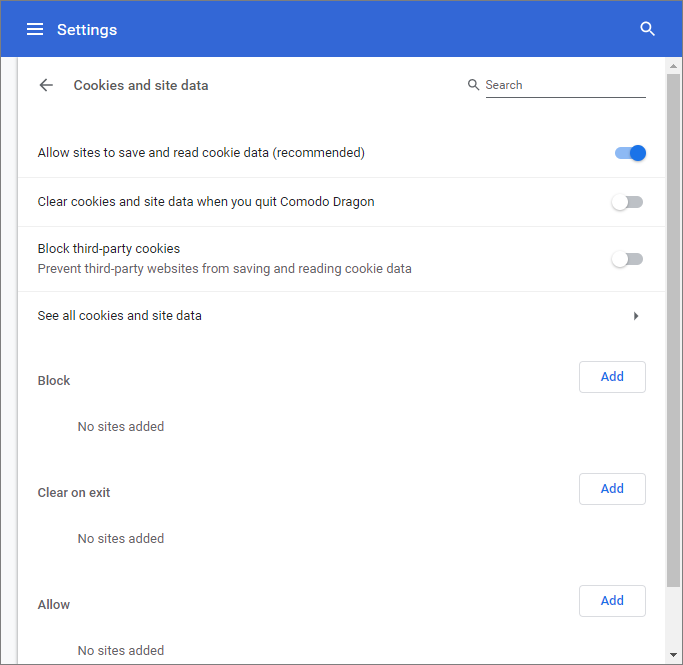
- Click the 'See all cookies and site data' button. The 'All cookies and site data' dialog will open:
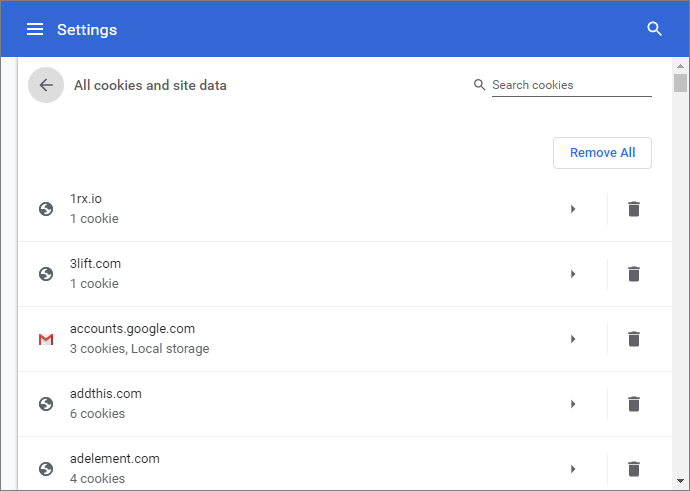
- Click 'Remove All' to delete all cookies.
Antivirus and Firewall Settings
- Check whether the settings in antivirus and firewall applications in your system are configured to allow Comodo Dragon.
Proxy Settings
Adjust your proxy settings. Click here to know how to configure proxy settings.
If you are still having problem, post your comments in http://forums.comodo.com/news-announcements-feedback-cd-b203.0/ to get assistance from Comodo forums.
Video is no longer available
If you try to play YouTube in Comodo Dragon and it displays 'Video is no longer available' error, the most likely reason could be the antivirus application in your system is not allowing the browser to play videos.
Disable the antivirus application in your system temporarily and try to play videos. If it works, check whether any upgrades are available for the antivirus application and install them.
Kaspersky and Shield Defense antivirus applications are the most cited softwares, as per reports received by us, that prevents the browser from playing videos. Adjust the settings in these applications to resolve the issue.
Error 124 (net__ERR_WINSOCK_UNEXPECTED_WRITTEN_BYTES)
When there is a problem with a Layered Service Provider in your computer, Dragon will be unable to open requested web-page and displays the above error message. To resolve the issue, check for any malware in your computer. Use the latest version of Comodo Internet Security to scan your system for any malware and to remove it. Download Comodo Internet Security from http://personalfirewall.comodo.com/.
If the issue still persists even after removal of of malware from your system, disable LSPs in your computer using third-party tools.
If you are still having problem, post your comments in http://forums.comodo.com/news-announcements-feedback-cd-b203.0/ to get assistance from Comodo forums.
Error 128 (net__ERR_SSL_UNSAFE_NEGOTIATION)
Some of the antivirus and home security applications are not compatible with Comodo Dragon and the browser may display Error 128 when browsing Google and Gmail websites. Kaspersky, NetNanny and ESET Smart Security applications are the most mentioned applications, as per reports received by us, that cause this error. Adjust the settings in these applications to resolve the issue.
If you are still having problem, post your comments in http://forums.comodo.com/news-announcements-feedback-cd-b203.0/ to get assistance from Comodo forums.
Error 129 (net_ERR_SSL_WEAK_SERVER_EPHEMERAL_DH_KEY)
Comodo Dragon may display this error when you are visiting a secure website (HTTPS) and the server that is hosting the site may not be configured correctly and the secure connection cannot be made. To protect you privacy and prevent intruders, Comodo Dragon always uses secure connections. Though the website may work in other browsers, the fact is that the server is vulnerable and the security hole has to be fixed.
Note to website administrators: This error is displayed when the SSL/TLS handshake tries to use a public key that is smaller than 512 bits for ephemeral Diffie-Hellman key agreement. To resolve this issue, disable all DHE SSL cipher suites or use 1024 bits or larger Diffie-Hellman key for the DHE_RSA SSL cipher suites.
If you are still having problem, post your comments in http://forums.comodo.com/news-announcements-feedback-cd-b203.0/ to get assistance from Comodo forums.
Text not displaying properly
If you see squares instead of text in the web-page that you have opened, the most likely reason could be encoding or missing fonts.
Install new fonts
- Click 'Start' in computer's taskbar
- Click settings icon > 'Personalization' > 'Fonts'
OR
- Click 'Windows system' > 'Control Panel' > 'Appearance and Personalization'> 'Fonts'
- Add fonts by drag and drop
You can also follow other instructions to install new fonts in your system:
Click here to know more about managing fonts, languages and encoding.
If you are still having problem, post your comments in http://forums.comodo.com/news-announcements-feedback-cd-b203.0/ to get assistance from Comodo forums.
Plug-ins for Windows Media Player and Java
Comodo Dragon will detect missing plug-ins for websites that you are viewing and will prompt you install them. However, you may not see such a prompt for a web-page that is linked to Windows media files or Java.
Windows Media Player
-
Download the plug-in from http://port25.technet.com/pages/windows-media-player-firefox-plugin-download.aspxand save in your computer.
-
Navigate to the downloaded file and open the set-up file.
-
Click 'Run' and follow the instructions in the setup wizard.
-
Restart Comodo Dragon for the installation to take effect.
Java
-
Download Java version 6 update 11 or higher from http://java.com/en/download/chrome.jsp.
-
Follow the instructions and save the file in your computer.
-
Navigate to the downloaded file and open the set-up file.
-
Follow the instructions to install Java in your computer.
Click here to check whether the plug-in is installed successfully.
Click here to know more about downloading files.
If you are still having problem, post your comments in http://forums.comodo.com/news-announcements-feedback-cd-b203.0/ to get assistance from Comodo forums.
EV-SSL indicator not displayed
When you visit a website that uses an EV SSL (Extended Validation) certificate, the name of the organization is displayed in the address bar next to the lock icon  . Please ensure that you configure Comodo Dragon to check for server certification revocation, if you do not see the name of the organization in the address bar.
If you are still having problem, post your comments in http://forums.comodo.com/news-announcements-feedback-cd-b203.0/ to get assistance from Comodo forums.
A script running on this page is taking a loooong time to do its job
When websites that use more of JavaScript are opened in Comodo Dragon, this error message may be displayed. To safeguard against errors in websites, Comodo Dragon automatically sets a time period for JavaScript actions to be complete. You can choose to stop the script immediately or allow it to run if you think it needs more time to finish its action.
If you are still having problem, post your comments in http://forums.comodo.com/news-announcements-feedback-cd-b203.0/ to get assistance from Comodo forums.
Graphics not displaying properly
Not updating graphics card drivers regularly in your system might lead to slow loading or running of web graphics and videos. To resolve the issue, Comodo suggests you to use the latest version of operating systems and regularly implement system updates.
If you are still having problem, post your comments in http://forums.comodo.com/news-announcements-feedback-cd-b203.0/ to get assistance from Comodo forums.