
Comodo Help
Find the desired product help
Comodo Antivirus For Linux

Comodo Antivirus For Linux

Version 1.0

English

Print Help Download Help
More Options - Introduction > Preferences > Update Settings
  • Introduction To Comodo Antivirus For Linux
    • Special Features
    • System Requirements
    • Installation
    • Starting Comodo Antivirus
    • Comodo Antivirus - The Summary Screen
    • Comodo Antivirus - Navigation
    • Understanding Alerts
  • Antivirus Tasks - Introduction
    • Run A Scan
    • Update Virus Database
    • Quarantined Items
    • View Antivirus Events
    • Submit Files To Comodo For Analysis
    • Scheduled Scans
    • Scan Profiles
    • Scanner Settings
      • Real Time Scanning
      • Manual Scanning
      • Scheduled Scanning
      • Exclusions
  • Mail Gateway Tasks - Introduction
    • Host Setting
    • Certificates
    • Antispam
    • SMTP Configuration
      • SMTP Gateway
        • Configuring For Inbound Mail Filtering
        • Configuring For Outbound Mail Filtering
      • Inner SMTP Filter
      • Cmdtcpd
      • Qmail
      • Milter
    • View Mail Events
    • Scanner Settings
  • More Options - Introduction
    • Preferences
      • Language
      • Parental Control Settings
      • Themes
      • Log Settings
      • Connection Settings
      • Update Settings
    • Manage My Configurations
      • Comodo Preset Configuration
      • Importing/Exporting And Managing Personal Configurations
    • Diagnostics
    • Check For Updates
    • Browse Support Forums
    • Help
    • About
  • About Comodo

Update Settings


The Update tab allows you enable/disable the CAVL program updates and to select the host from which the updates are to be downloaded. By default, the URL of the Comodo Server is entered as an available host.
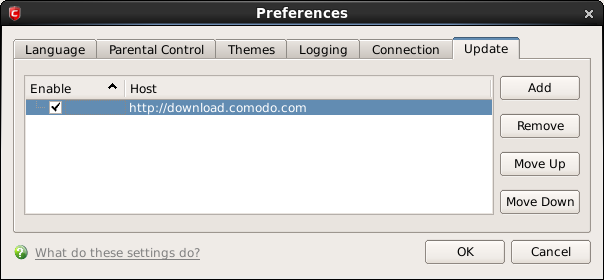


  • If you want to download the updates always from the Comodo servers, you can leave the setting as it is (Default = Enabled).
  • If you are connected to a local network and the CAVL program updates are available at an HTTP Server or at any of the other computers in your network running Comodo Offline Updater, you can add the computers as hosts in this area.
  • To add a host click 'Add' and enter the URL or IP address of the host in the next row that appears.
  • Repeat the process for adding multiple hosts.
  • Select the host by using the Move Up and Move Down buttons.
  • CAVMGL will automatically check the host specified here and download the updates from the host even when you are offline.
  • Click 'OK' for your settings to take effect.

Note: CAVL program updates can also be checked manually. Click More Options > Check For Updates if you wish to update manually. Click here to view the help page on manual updates.


Terms and Conditions Privacy Policy

© Comodo Group, Inc. 2013. All rights reserved.