


Block AI Tools
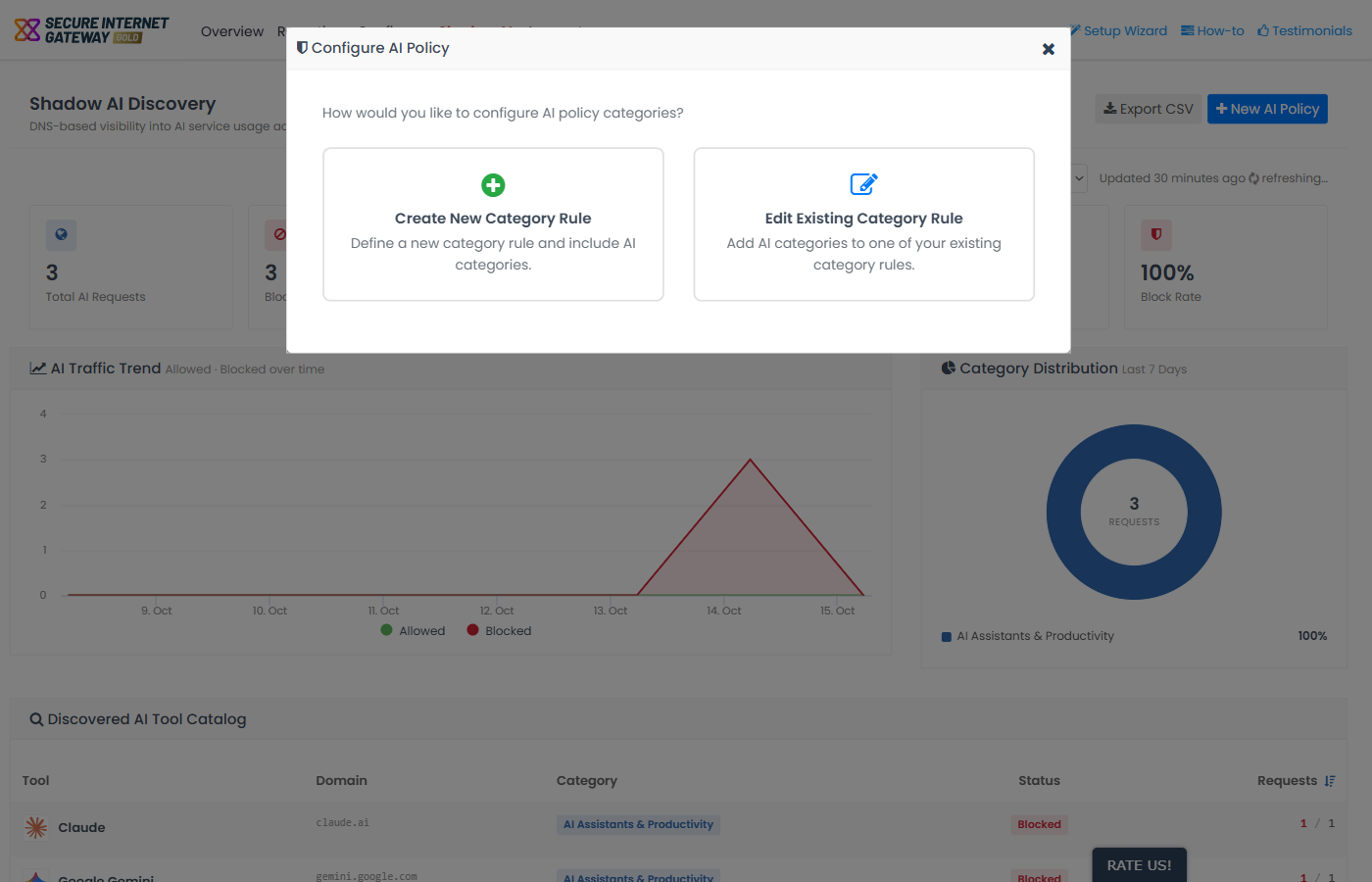
Click 'New AI Policy' at the top right of the 'Shadow AI Discovery' page to start the 'Configure AI Policy' wizard. The wizard creates a category rule, or edits an existing one, to include AI categories. A category rule is one component of a policy. To use it, you add the rule to a policy and apply the policy to your networks and devices.
The process has two parts:
- Create or edit a category rule with AI categories (the wizard).
- Add the category rule to a policy and apply the policy to networks and devices ('Configure' > 'Policy').
Create a new category rule
- Click 'New AI Policy' at the top right of the page.
- The wizard asks 'How would you like to configure AI policy categories?' Click 'Create New Category Rule'. (Click 'Edit Existing Category Rule' to add AI categories to a rule you already have. See 'Add AI categories to an existing rule'.)
- The 'Create Category Rule' window opens on the 'Name' tab. Enter a 'Name' for the rule. The name is required, and the 'Next' button stays disabled until you enter it.
- Enter a 'Remark' (optional).
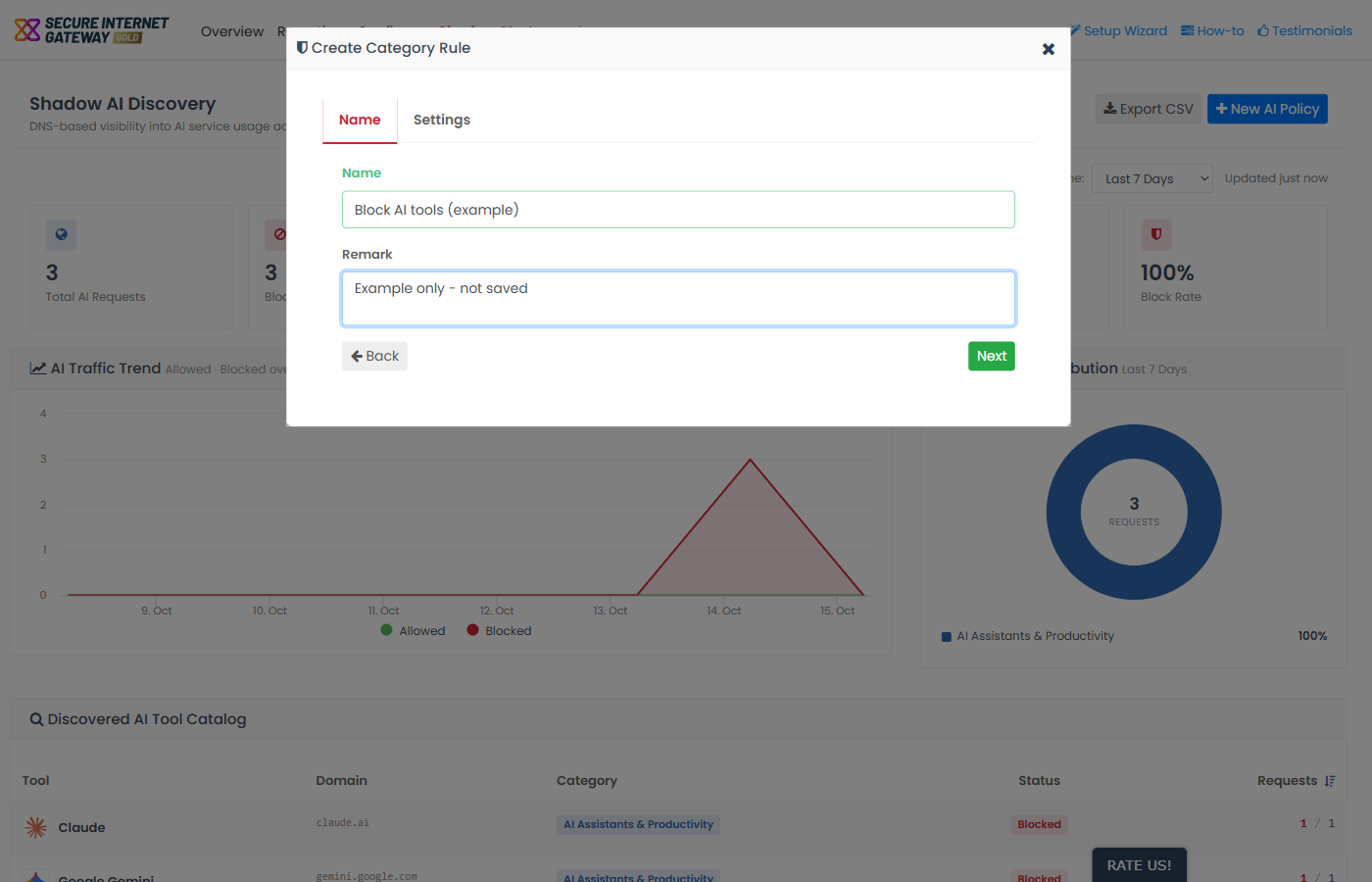
- Click 'Next'. Click 'Back' to return to the previous screen.
- On the 'Settings' tab, use the 'Select Category' drop-down, which shows 'None' by default, to select the categories. You must select at least one category. The message 'Please select at least one category' is shown until you do.
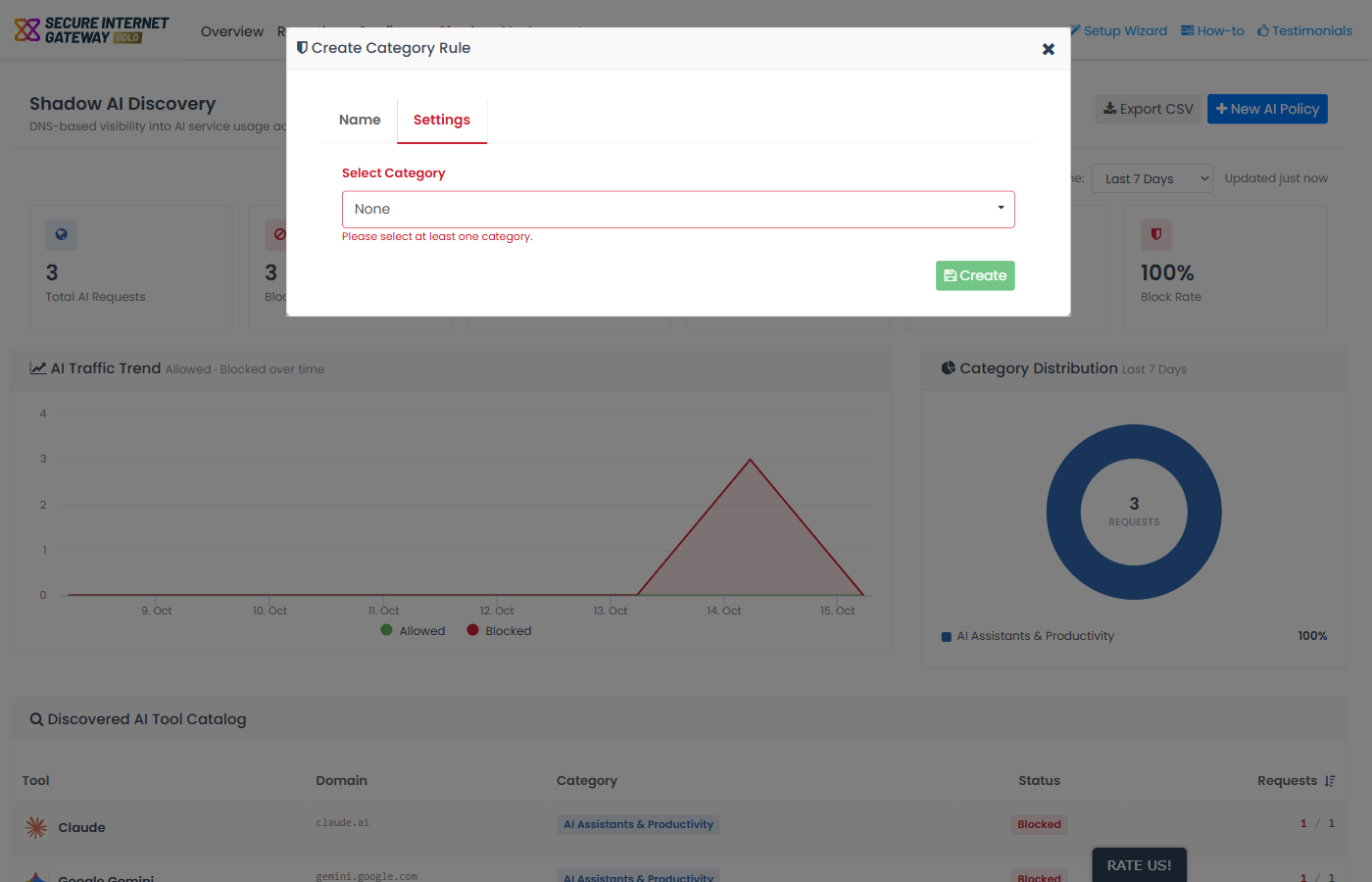
- Click 'Create'.
Add AI categories to an existing rule
- Click 'New AI Policy', then 'Edit Existing Category Rule'.
- On 'Select Category Rule', click the rule you want to edit. Each row shows the name of the rule and, where one exists, its description.
- The 'Edit Category Rule' window opens on the 'Name' tab with the name and remark of the rule. Change them if needed, then click 'Next'.
- On the 'Settings' tab, the 'Select Category' drop-down shows the categories already in the rule. The number of selected categories is shown at the end of the list, for example '(13)'.
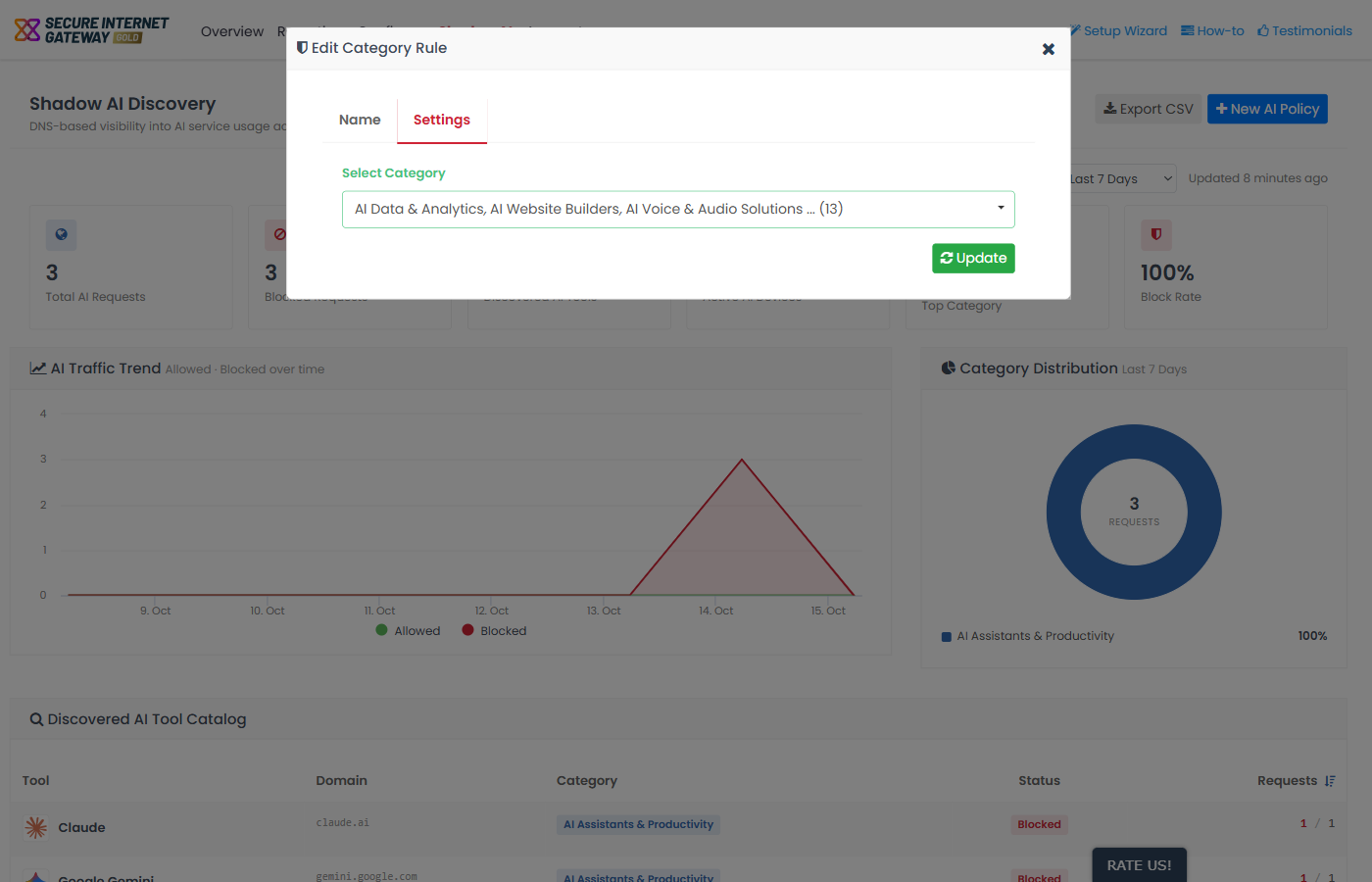
- Click 'Update'.
Add the rule to a policy
- Click 'Configure' > 'Policy'.
- Click 'Add New Policy'. To change an existing policy, click the edit button in its row instead.
- Enter a 'Policy Name'.
- In 'Objects', select the networks, agents (roaming Windows and Mac devices), mobile agents (Android and iOS devices), sites or internal networks to which the policy should apply. The menu only shows objects that do not yet have a policy.
- Enter a 'Remark' (optional) and click 'Next' or 'Settings'.
- In 'Category Rule', select the category rule.
- Choose a 'Block Page Appearance' (optional). This is the page users see when they visit a blocked site. It is not shown on mobile devices.
- Click 'Add'. The policy is applied to the chosen networks and devices.
Test the policy
- From a device covered by the policy, log in to Secure Internet Gateway.
- Click 'Configure' > 'Policy'.
- Click 'Check Policy' at the top right, then 'Check Category Rule'.
- A message shows whether the rule is active. If it is not, check that the policy is configured correctly and applied to the device.
Repeat the test on each device you want to check.
How XSIG applies the rules in a policy
- XSIG checks the whitelist first, then the blacklist, then the security and category rules.
- If the domain is whitelisted, access is allowed and XSIG checks no further.
- If it is not whitelisted, XSIG checks the blacklist. If the domain is found, it is blocked.
- If it is not blacklisted, XSIG checks the security and category rules. If the site belongs to a banned category, it is blocked. Otherwise, it is allowed.
Related information
- 'Manage Category Rules' explains how to create, edit and delete category rules.
- 'Apply Policies to Networks and Roaming/Mobile Devices' explains policies in full.
- 'Domain Classification Requests' lets you check the category of a domain or propose one for an unclassified site.